Accessibility
webRoid follows the accessibility settings you have already chosen on your device. There is nothing to switch on inside the app: change a setting in Android’s Settings and webRoid responds.
TalkBack
Buttons that show only an icon are read by what they do, such as “Previous command” or “Search history”. Buttons on a row say which item they belong to, such as “Options for analysis.R” or “Close analysis.R tab”. File, variable and package rows are read in one pass. Each switch in Settings is read as one control: its name, that it is a switch, and whether it is on. Editor tabs say which one is selected and add “modified” when a file has unsaved changes.
Screen titles and section headers are headings, so TalkBack’s heading navigation moves between sections.
webRoid is in English only, and TalkBack reads it in English whatever language your device is set to.
Output announces its severity
In the console and the Editor’s output panel, errors are red, warnings amber and messages grey. TalkBack reads each line’s kind first, such as “Error: could not find function ‘summry’”. On screen, warning and error lines also start with an icon, so you can tell them apart without color.
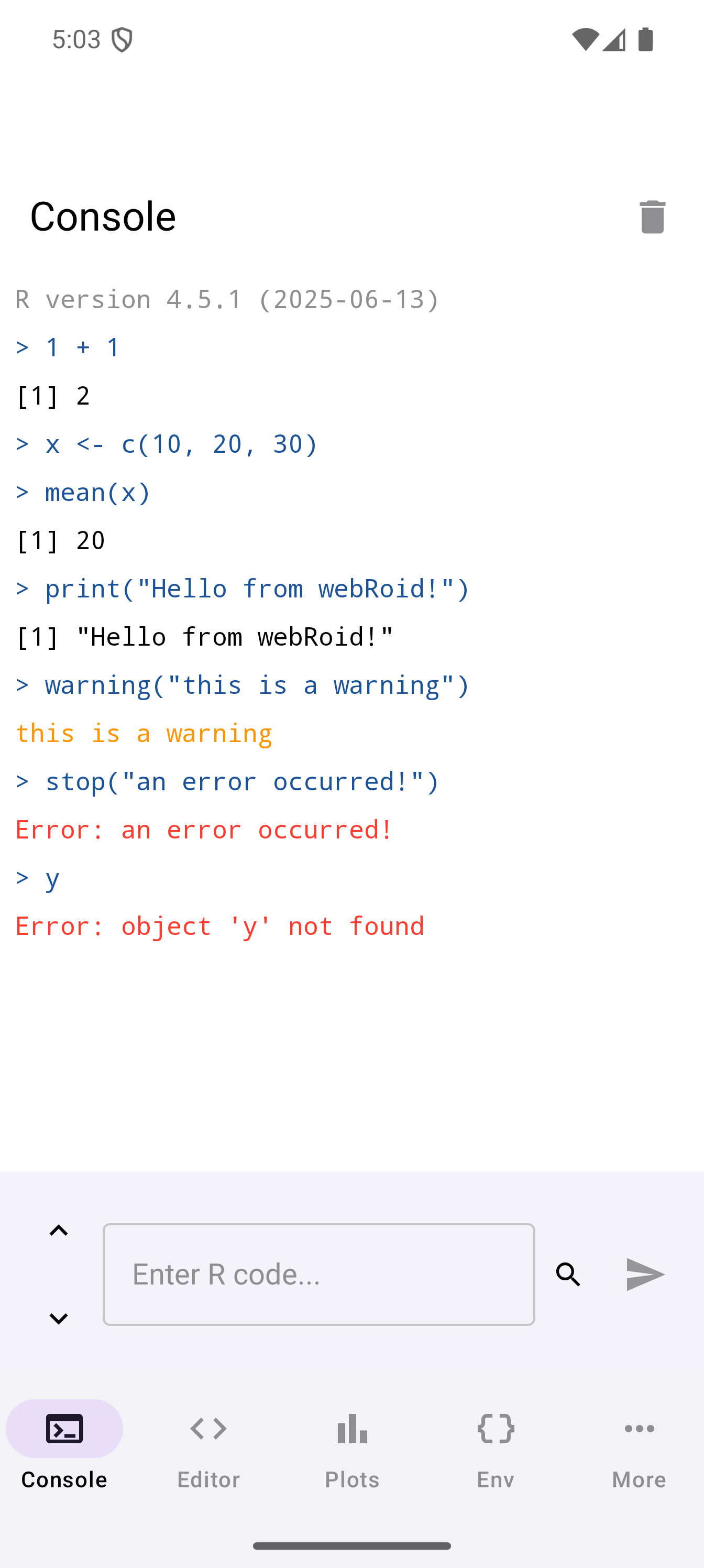
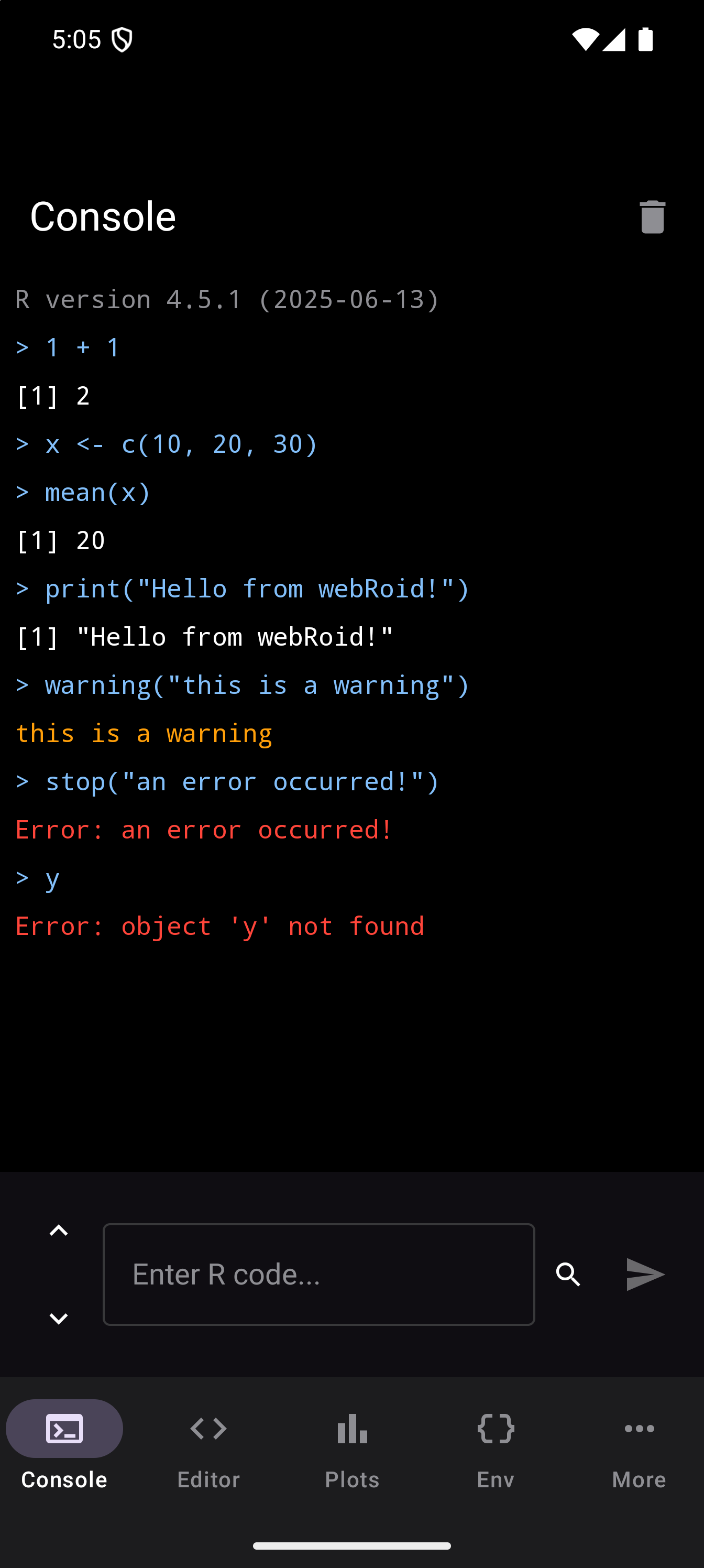
New output is read as it arrives, without moving you away from what you are doing. A few lines are read in full; a longer burst is read as a count of lines, the first error if there is one, and the last line. If R stops responding, the banner offering Restart R is read straight away.
Zooming plots without a pinch
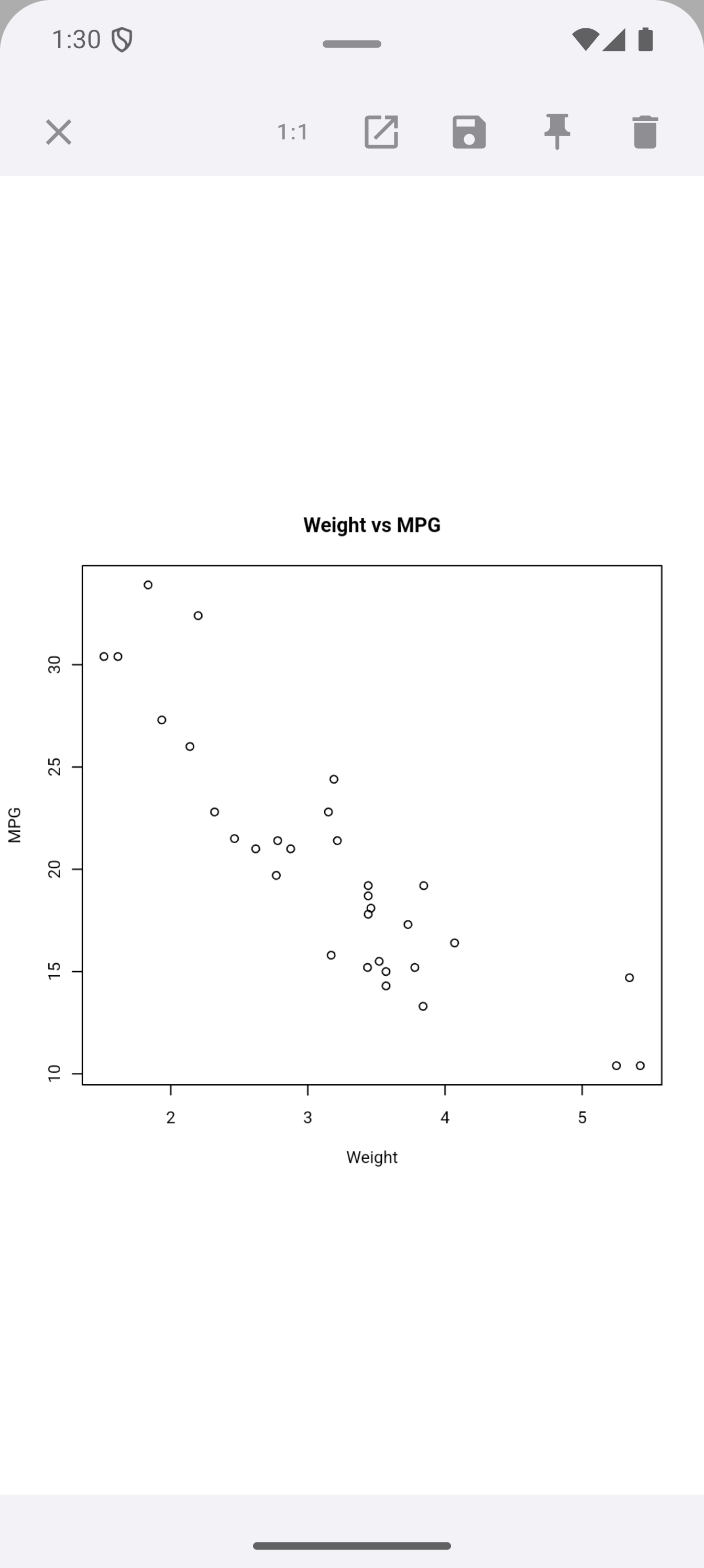
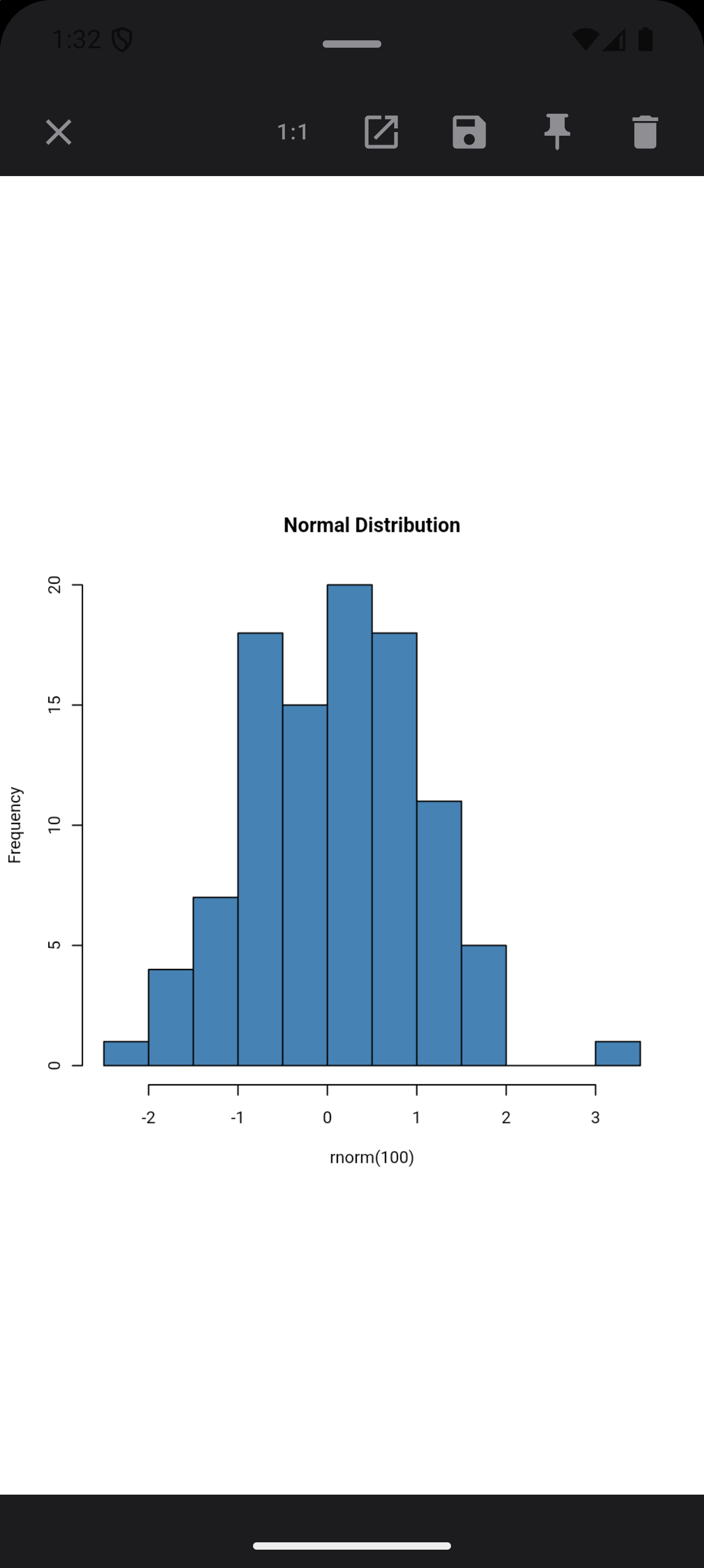
TalkBack cannot pinch or double-tap. The full-size plot views, including a detached plot window, offer Zoom in, Zoom out and Reset zoom in the actions menu, and show the same three as buttons on the plot for anyone who can see it but cannot pinch. With a mouse or trackpad, you can also hold Ctrl and scroll; see Viewing and Zooming.
Resizing panes without dragging
The dividers between Workspace panes, and the Editor’s split divider, are thin strips that are hard to drag. Each one is a labeled control, and its actions menu moves it a step at a time: Grow the first pane and Shrink the first pane in the Workspace, Widen the left pane and Narrow the left pane in the Editor. With a keyboard, a focused divider moves with the arrow keys.
Switch Access
The actions above, for zooming a plot, moving a divider and deleting a History entry, are offered to Switch Access too, so none of them needs a pinch, a drag or a swipe.
Text size
Android’s Font size and Display size settings apply across the app, the console and the editor included. The first-launch pages and the loading screen scroll when their content no longer fits, so nothing on them is pushed off the screen at the largest sizes.
The console and the editor also have their own Font Size sliders in Settings, which change the size of code without a pinch. Android’s font size applies on top of them, so the two add up. If code wraps awkwardly, turn the slider down rather than the system setting.
The main screens are checked at the largest font size Android offers, but not every sheet and dialog has been. If a label is cut off or two controls overlap, please tell us which screen and which size.
Colour and contrast
Default Light and Default Dark meet the WCAG AA contrast standard (4.5:1) as they ship, for every text and syntax color on every surface. Errors and warnings also have an icon, so nothing depends on color alone.
The other built-in themes (Dracula, Solarized Light, Solarized Dark, Monokai, One Dark, GitHub Light and Nord) are faithful copies of palettes from other editors, and some have low-contrast comments by design.
Android 14 and later have a contrast level of Standard, Medium or High, and webRoid follows it in every theme, your own custom and imported ones included. At Medium, any text color below 4.5:1 is adjusted until it reaches it; at High, until it reaches 7:1, as far as the background allows. Only the colors that fall short change. See Contrast in the Themes guide.
Remove animations
With Settings > Accessibility > Remove animations turned on in Android, the navigation rail, the theme pickers, the find bar, the package installation banner and the floating plot overlay appear and disappear in place instead of sliding or bouncing. The loading bar still fills as R starts, because it shows real progress.
Time to take action
The floating plot overlay for a new plot closes itself after five seconds. If you have set Time to take action in Android’s accessibility settings, it waits that long instead, and it stays while you touch, drag or focus it.
Hardware keyboards
webRoid works with a Bluetooth keyboard or a keyboard case. With one attached, the console prompt has focus as soon as R has loaded (or the Editor, when it is on screen without the console), so you can type straight away. Move Focus to Editor (Ctrl+1) and Move Focus to Console (Ctrl+2) move between the two from anywhere.
In the console, Up and Down walk through your command history, Enter runs the line, Ctrl+K clears the console and Ctrl+F searches the history. When the completion list is open, Up and Down move through the suggestions, Enter or Tab inserts the highlighted one, and Escape closes it.
Press Meta+/ to see the shortcuts in Android’s keyboard shortcuts list. The full list, and how to change the Editor’s shortcuts, is in Keyboard Shortcuts.
Haptics
Short vibrations mark actions such as running code, saving a file or installing a package. To turn them off, switch off Haptic Feedback in Settings > Appearance.
Anything missing?
If something does not work as described here, or a control is not reachable the way you need, please get in touch. Accessibility problems are treated as bugs, not feature requests. To include the app’s logs with your message, see Sending a Diagnostic Report.