Console
The Console is your direct line to R. You type a command, tap Run, and the result appears immediately. It is the fastest way to try out ideas, inspect variables, and explore data without writing a full script.
Overview
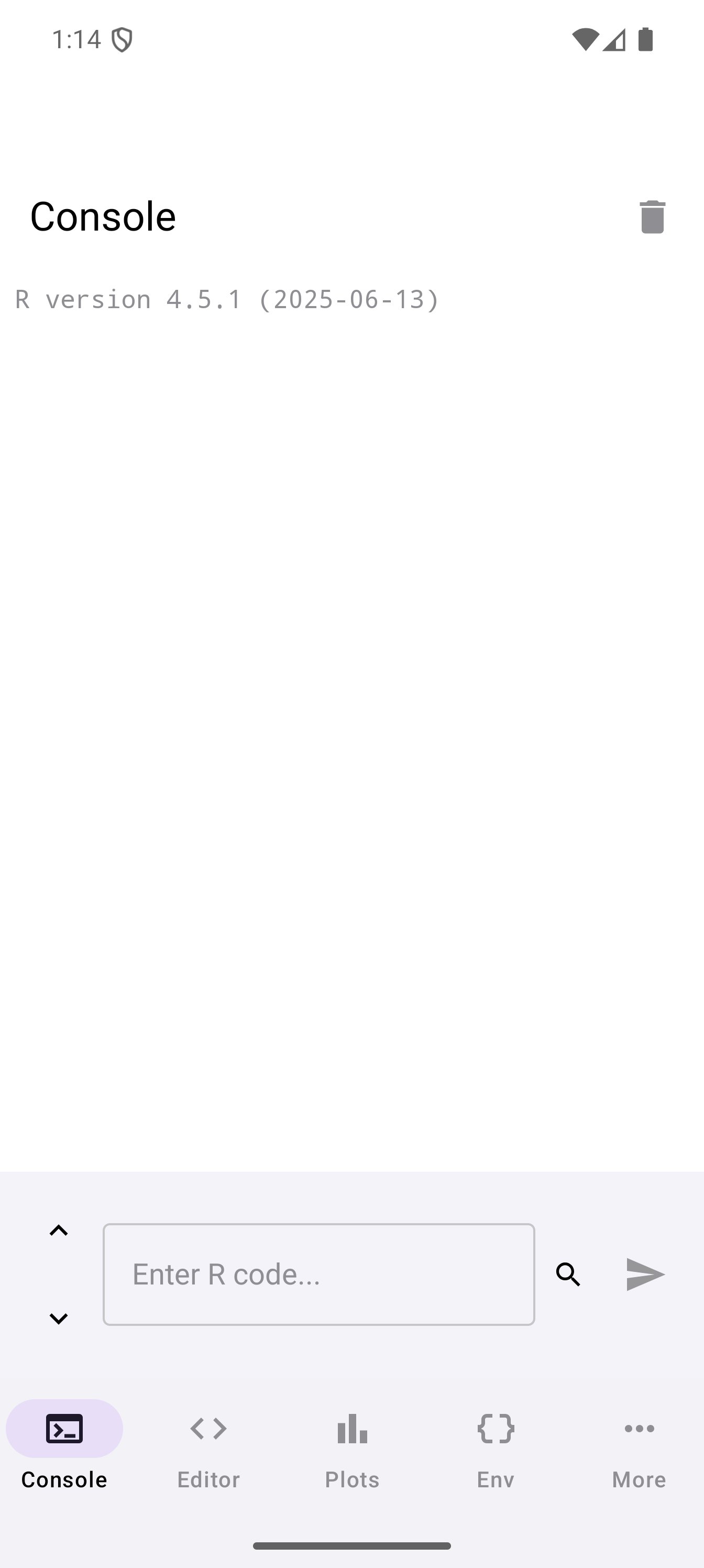
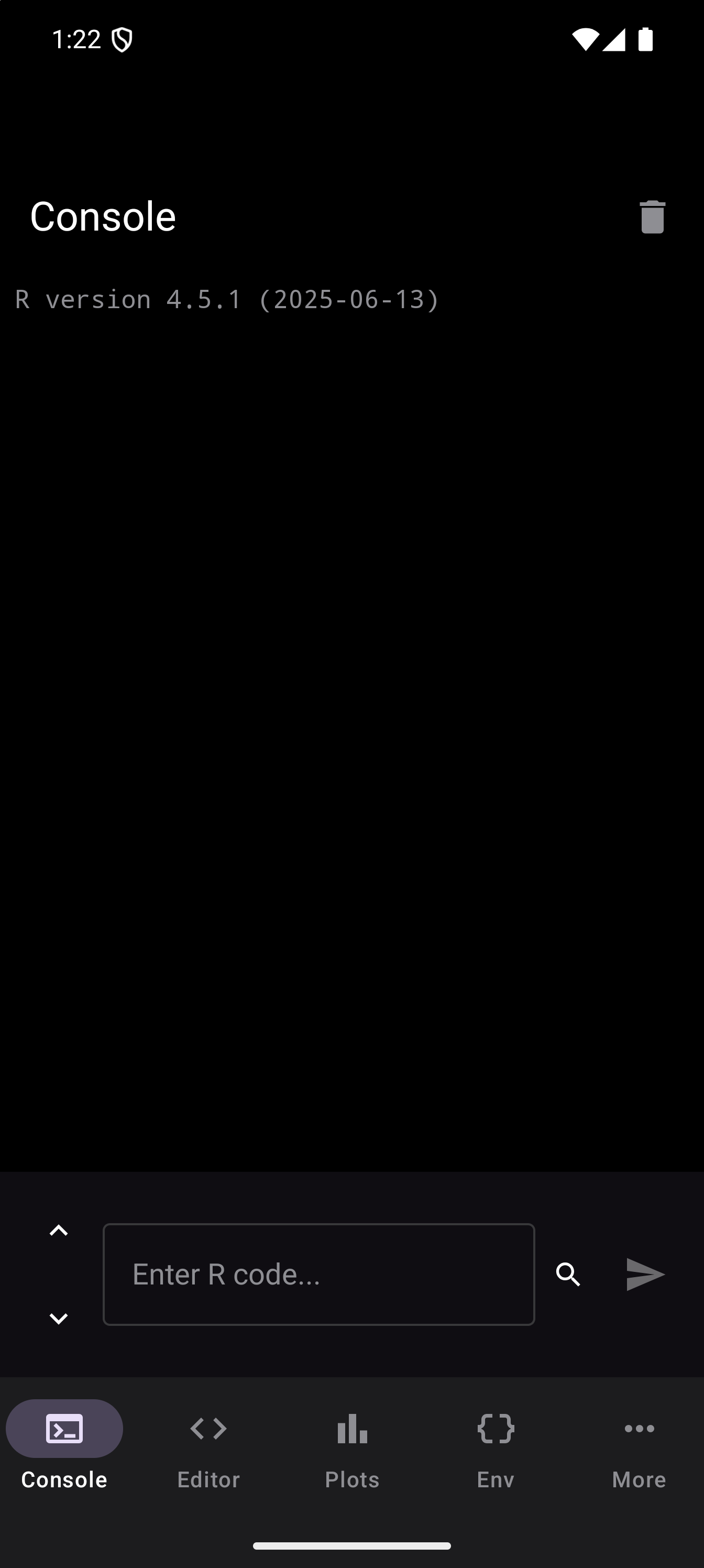
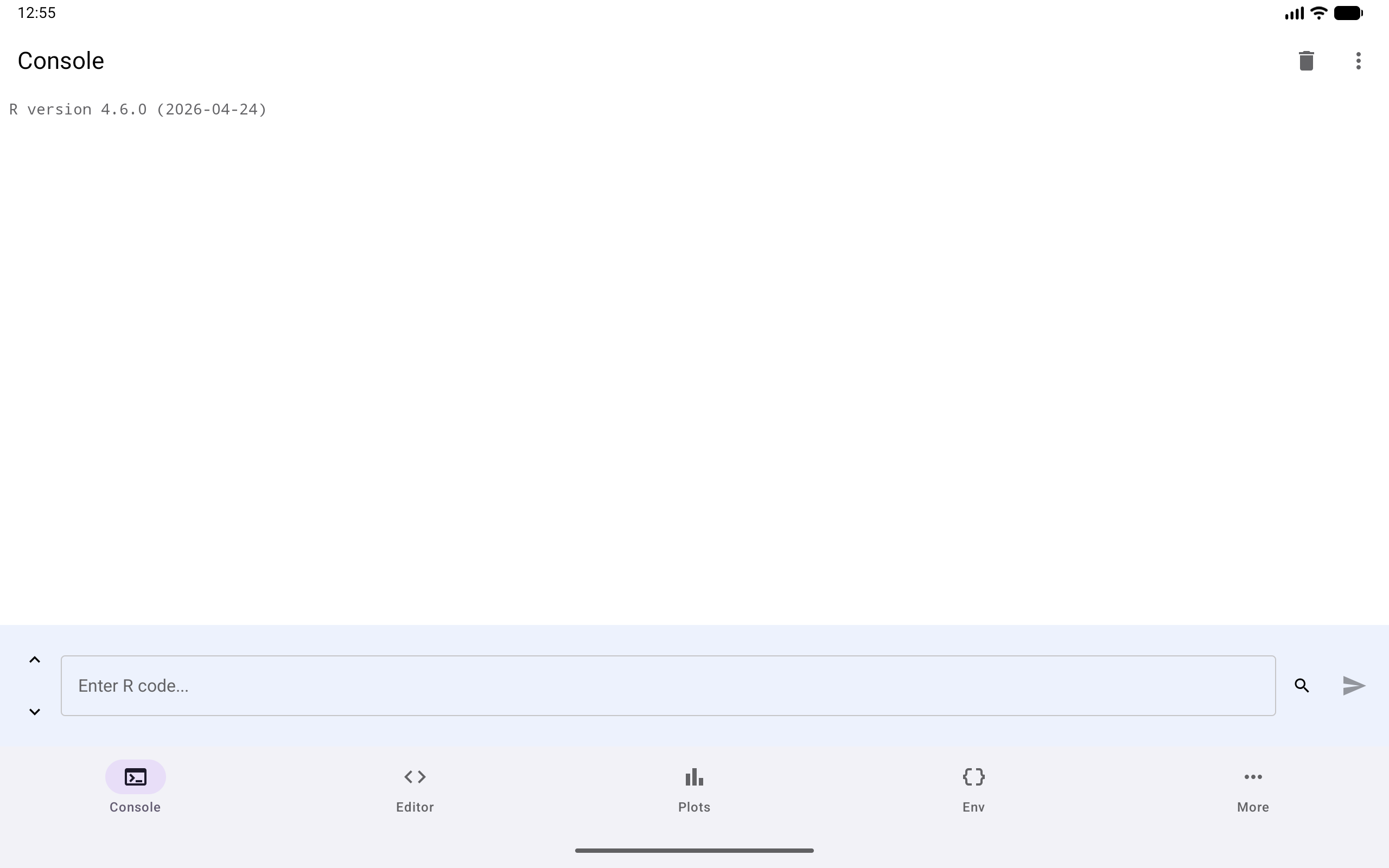
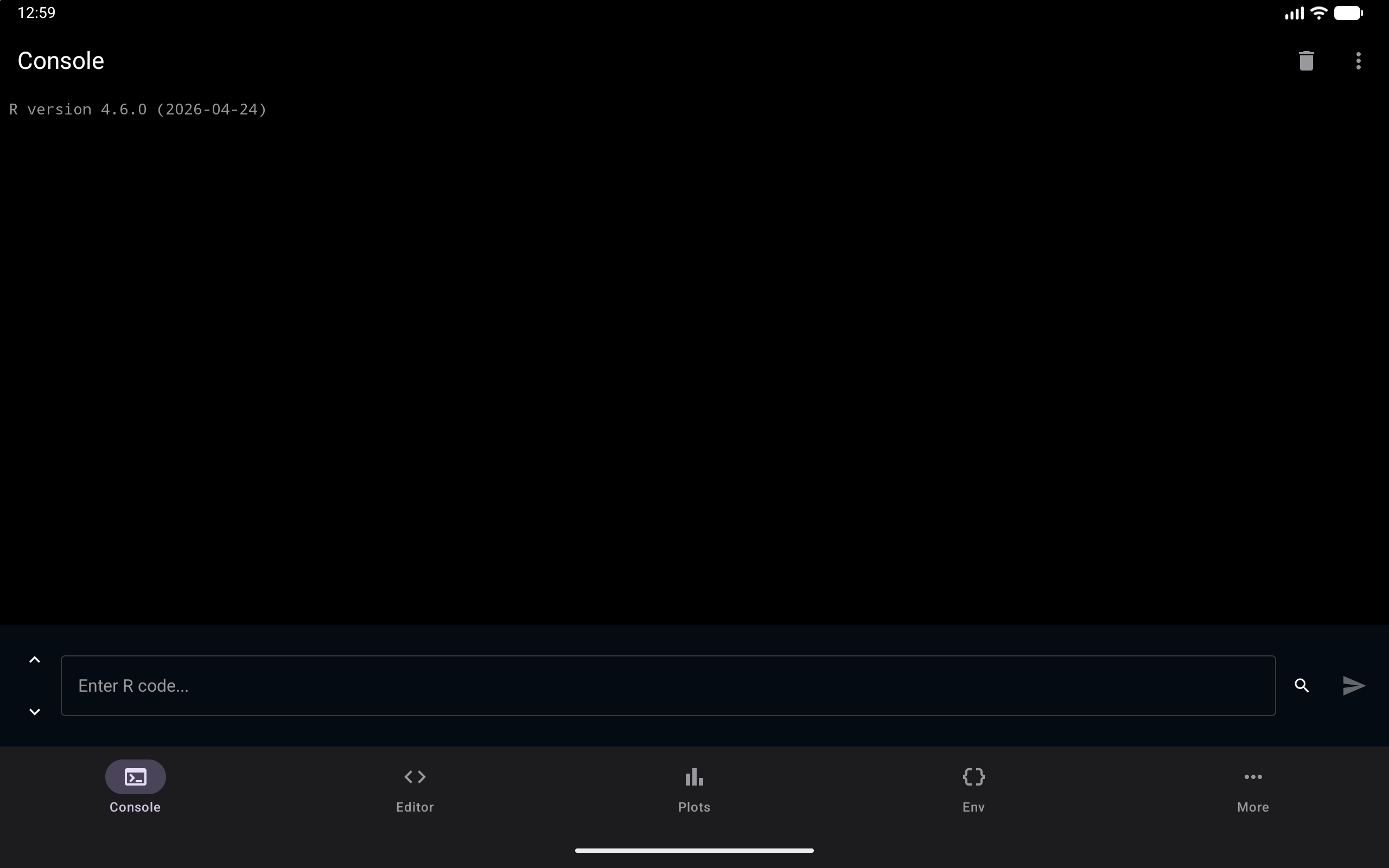
The Console screen has three main areas:
- Title bar at the top, showing “Console” with a trash icon to clear the output and a three-dot menu
- Output area in the middle, a scrollable view of everything you and R have exchanged
- Input field at the bottom, a rounded text field with an “Enter R code…” placeholder, a history search magnifier and the Run button (a send arrow) on the right, and history navigation arrows on the left
Running Code
To execute R code:
- Tap the input field at the bottom of the screen. The on-screen keyboard opens, with the R keyboard toolbar just above it.
- Type your R expression (for example,
mean(1:10)). - Tap the Run button, the send arrow at the right of the input field, to execute. It stays greyed out while the field is empty.
The command you typed appears in the output area after a > prompt, syntax-colored by the current theme the same way the Editor colors code. The result appears directly below it. You can keep entering commands one after another. The output scrolls to show the latest result.
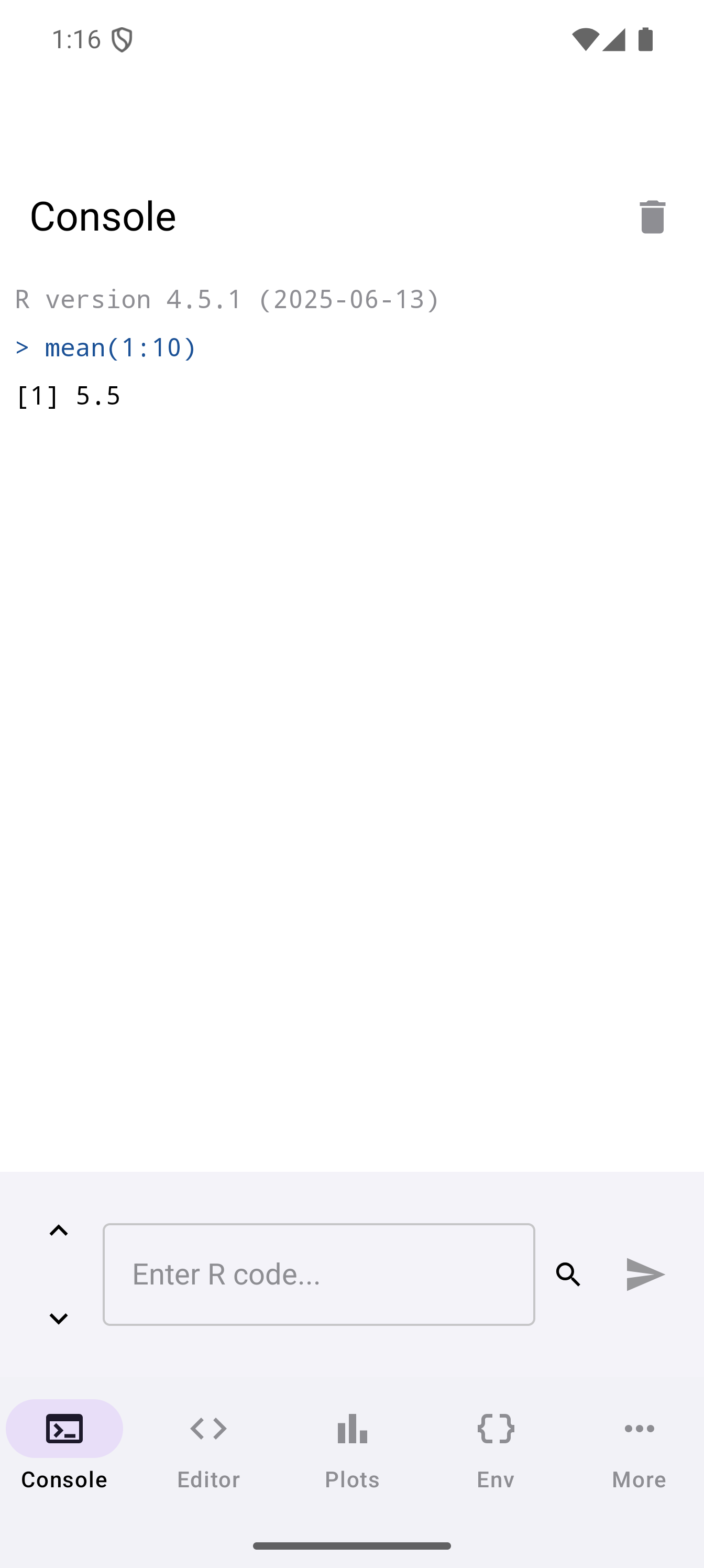
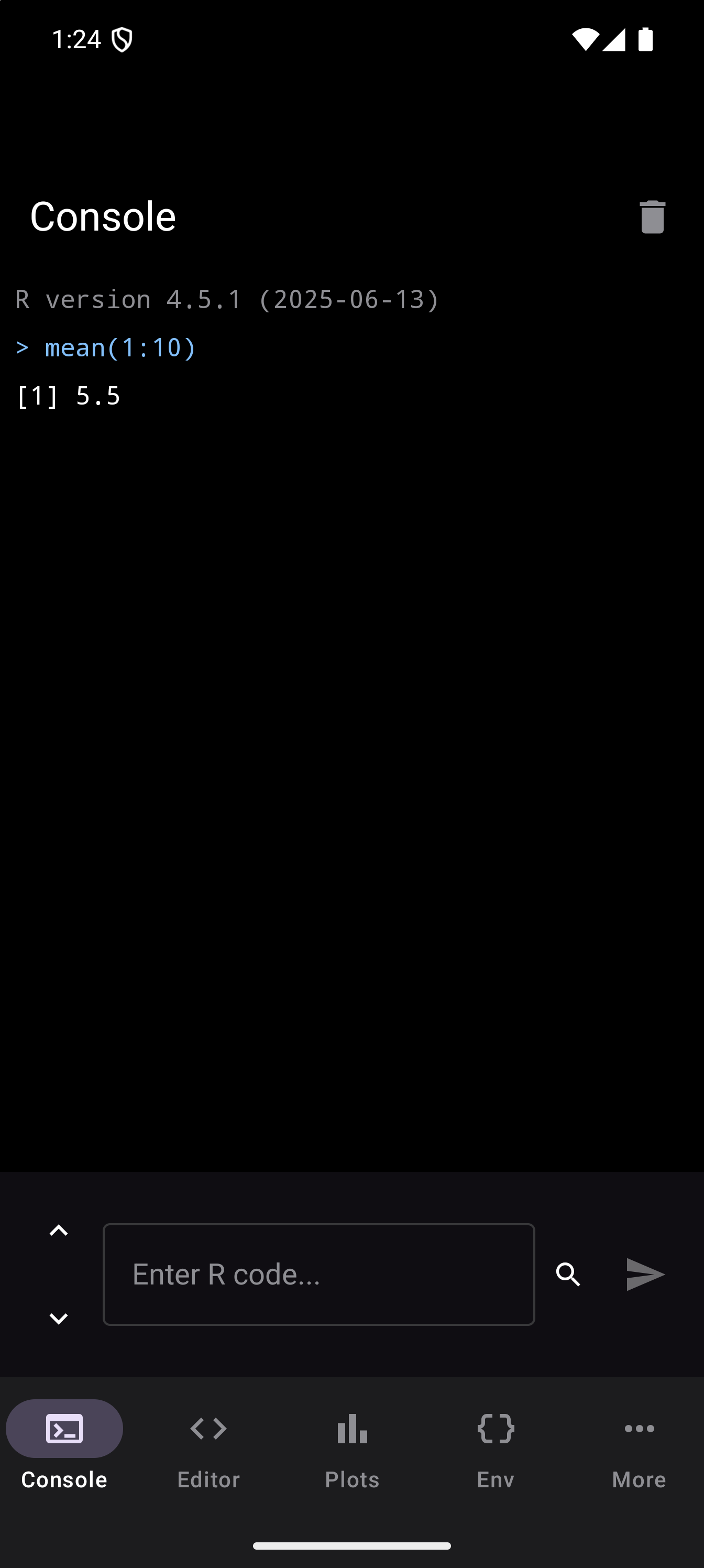
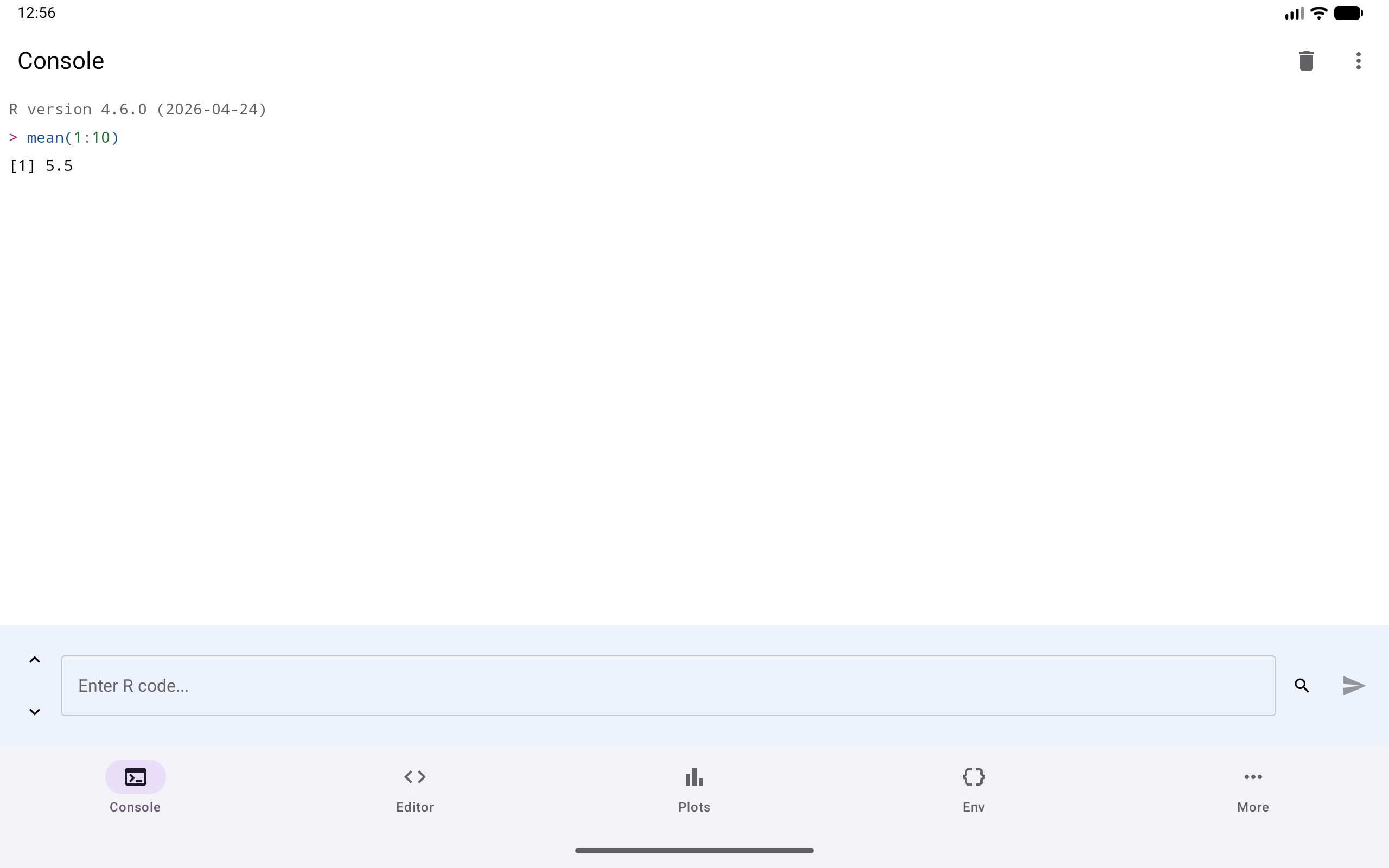
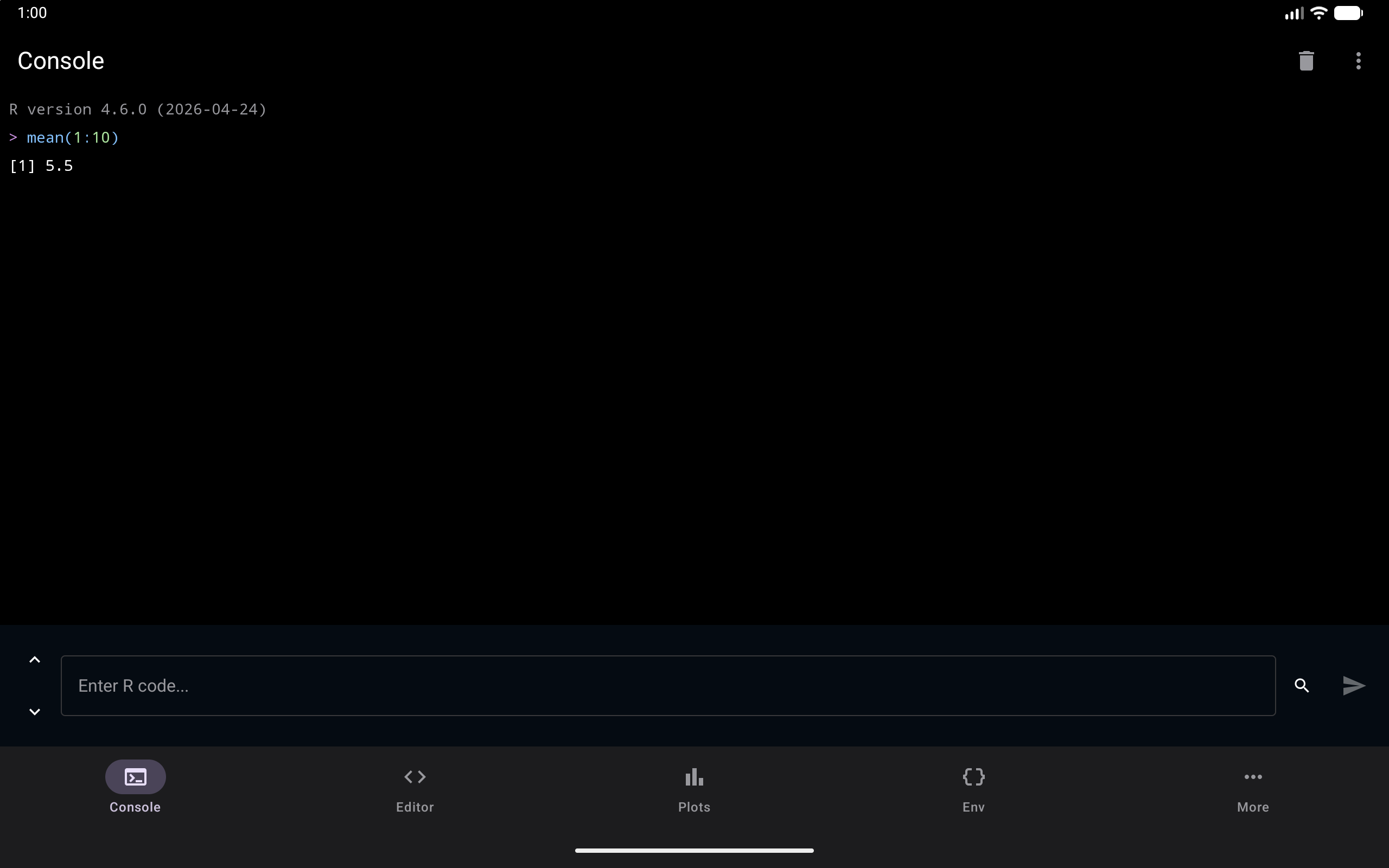
Code with several commands in it, such as a few lines pasted from a script, is shown command by command, each with its result right under it. A line that carries on the command above it starts with a + instead of >.
While code is running, an “Executing… 0s” indicator with a small spinner appears between the output and the input bar, and the Run button turns into a spinner until R finishes. The timer counts up so you know how long your code has been running.
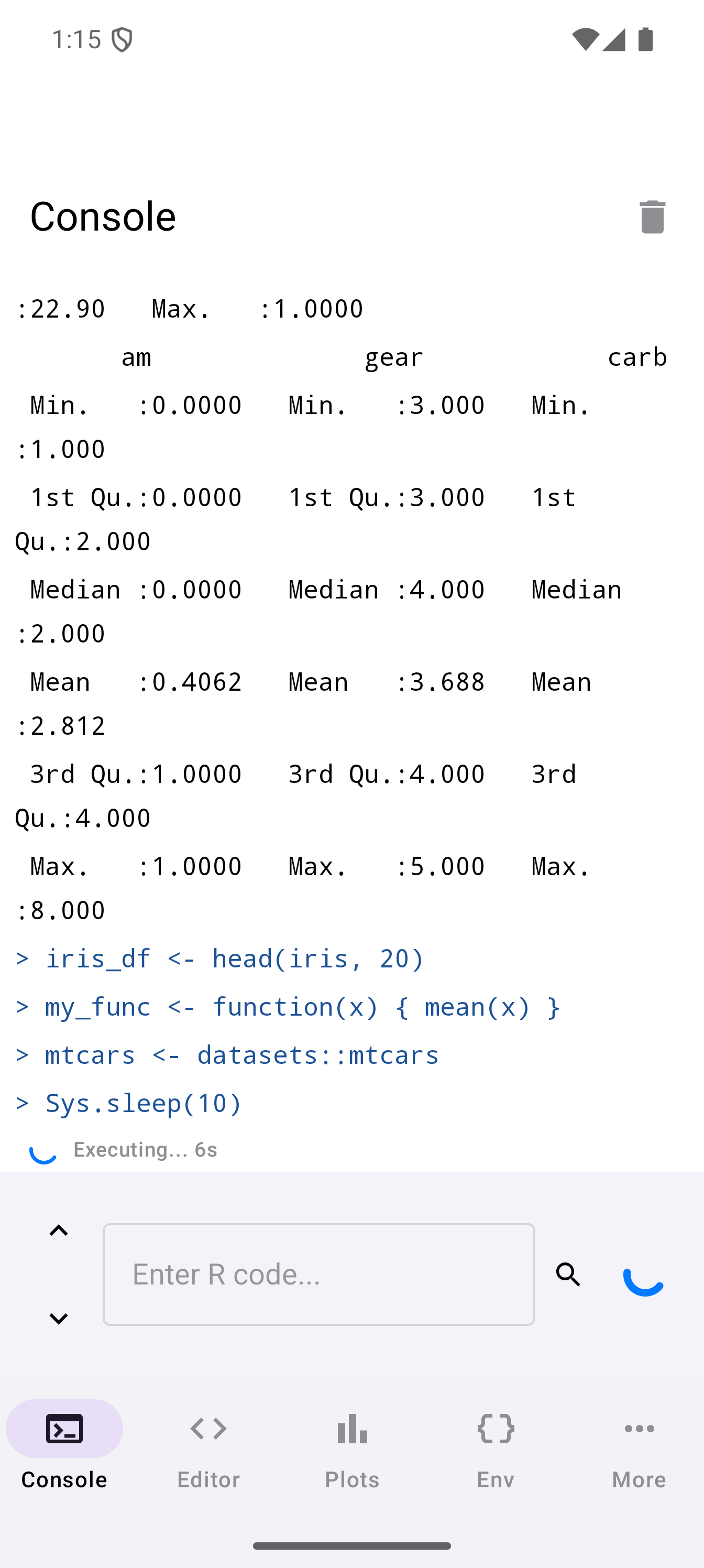
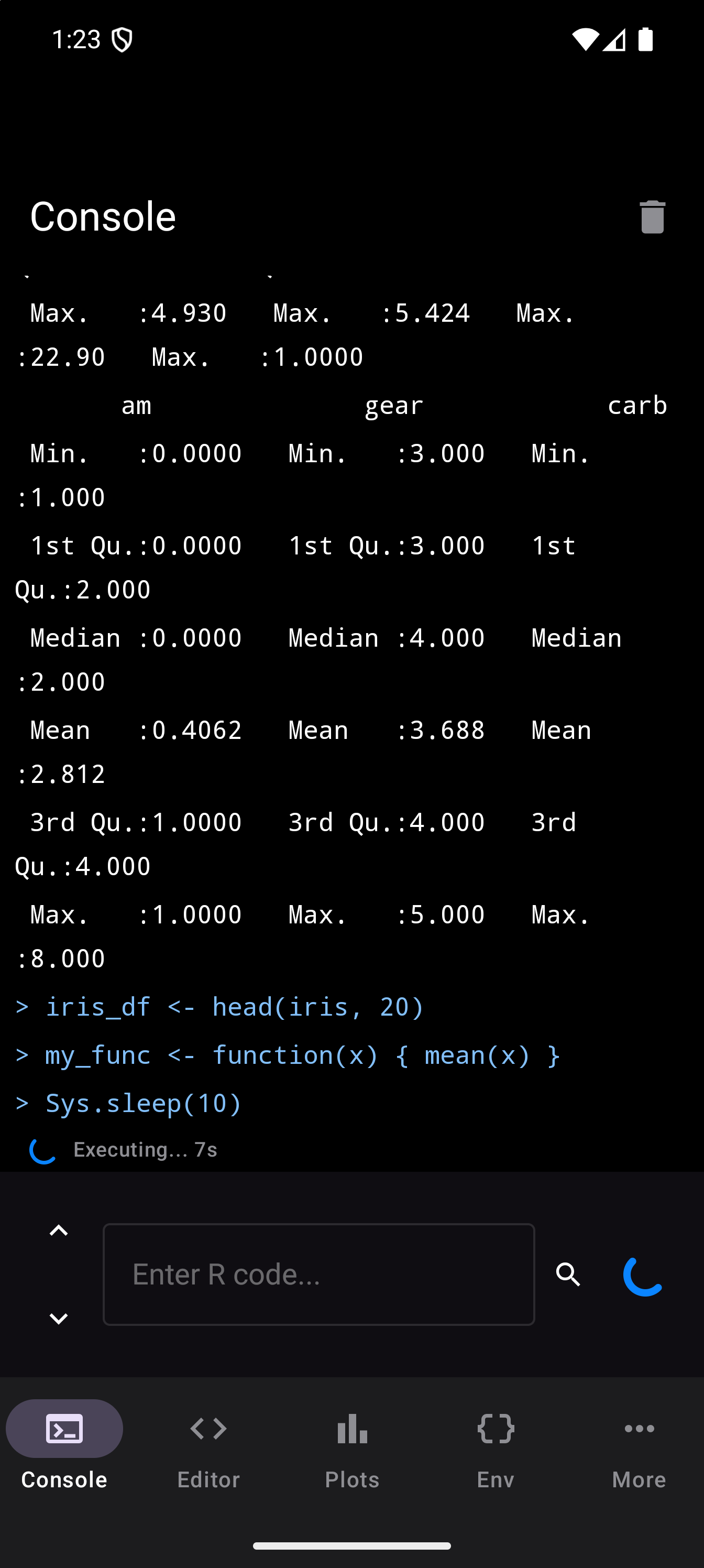
If you have an external keyboard connected, press Return to execute instead of tapping Run. With a keyboard attached, the input field has focus as soon as the Console appears, so you can start typing straight away, and Move Focus to Console (Ctrl+2) brings you back to it from any screen. See Keyboard Shortcuts.
Output Width
R fits what it prints to the width of the Console. When a table has more columns than fit across, R prints it in blocks: the first few columns, then the next few underneath, and so on until every column has been shown. Each line fits across the screen, so you can read a table from top to bottom without scrolling sideways. Examples in books and tutorials are usually printed at R’s default width of 80 characters, so the same command may break into blocks at different places here.
On a phone held upright, the Console is about 50 characters wide. Try summary(mtcars), which summarizes all 11 columns of the mtcars data set that comes with R. It prints three columns at a time, in four blocks. Turn the phone on its side and the Console is more than twice as wide, so more columns fit in each block. On a tablet held sideways, most of the columns fit in the first block.
In the Workspace layout, R uses the width of the Console pane. That pane is about half the screen wide, so each block holds fewer columns. Drag the divider beside the Console pane to make it wider or narrower, and R’s width follows. In the Sidebar layout, collapsing the sidebar gives the Console more room in the same way.
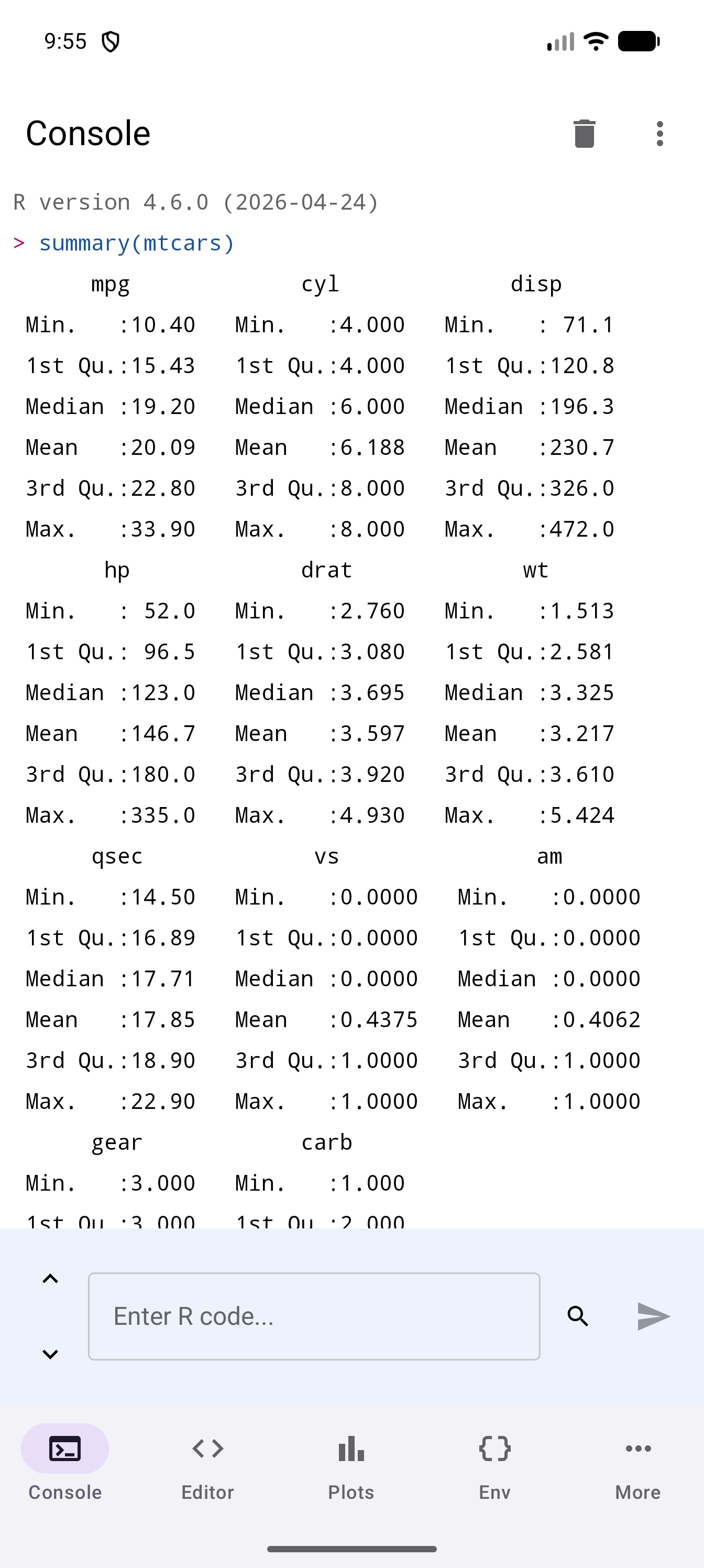
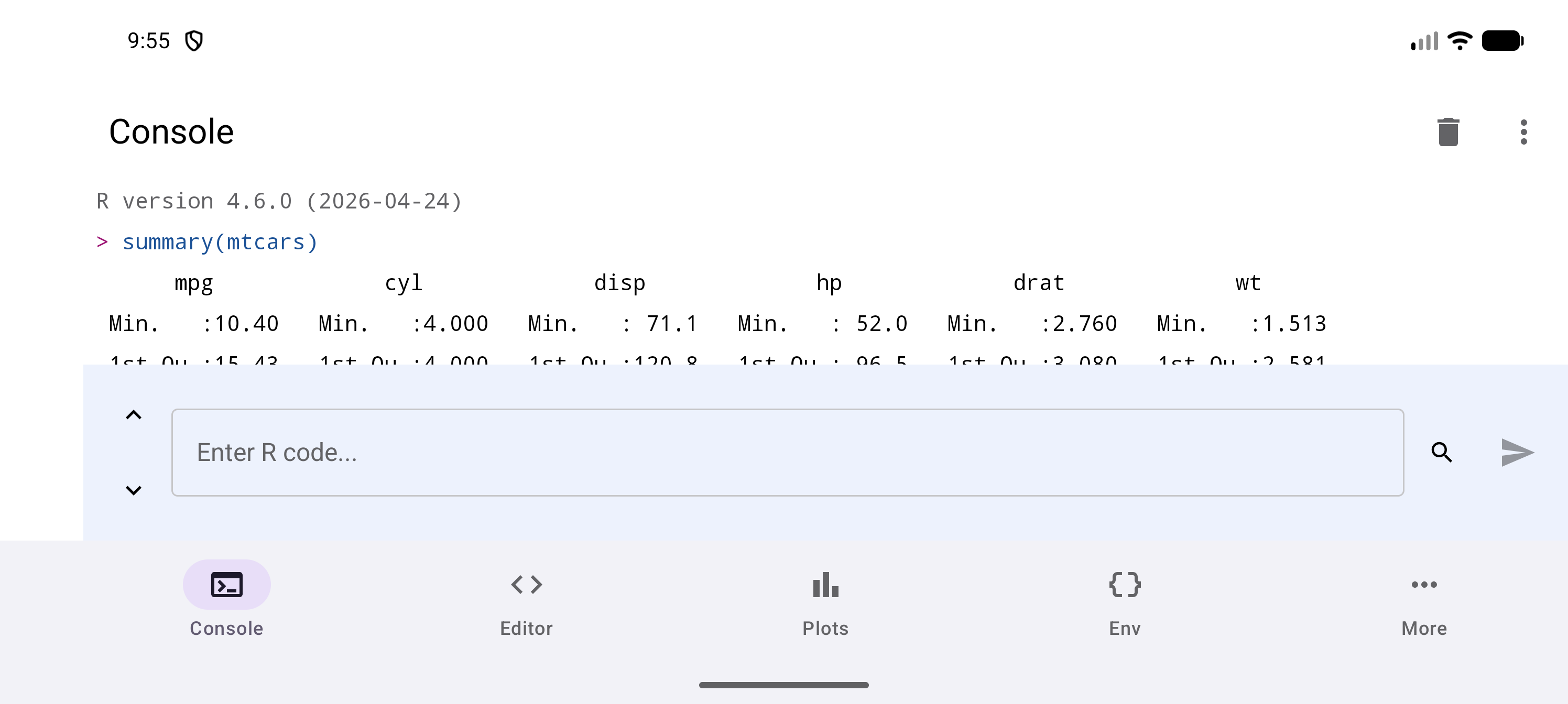
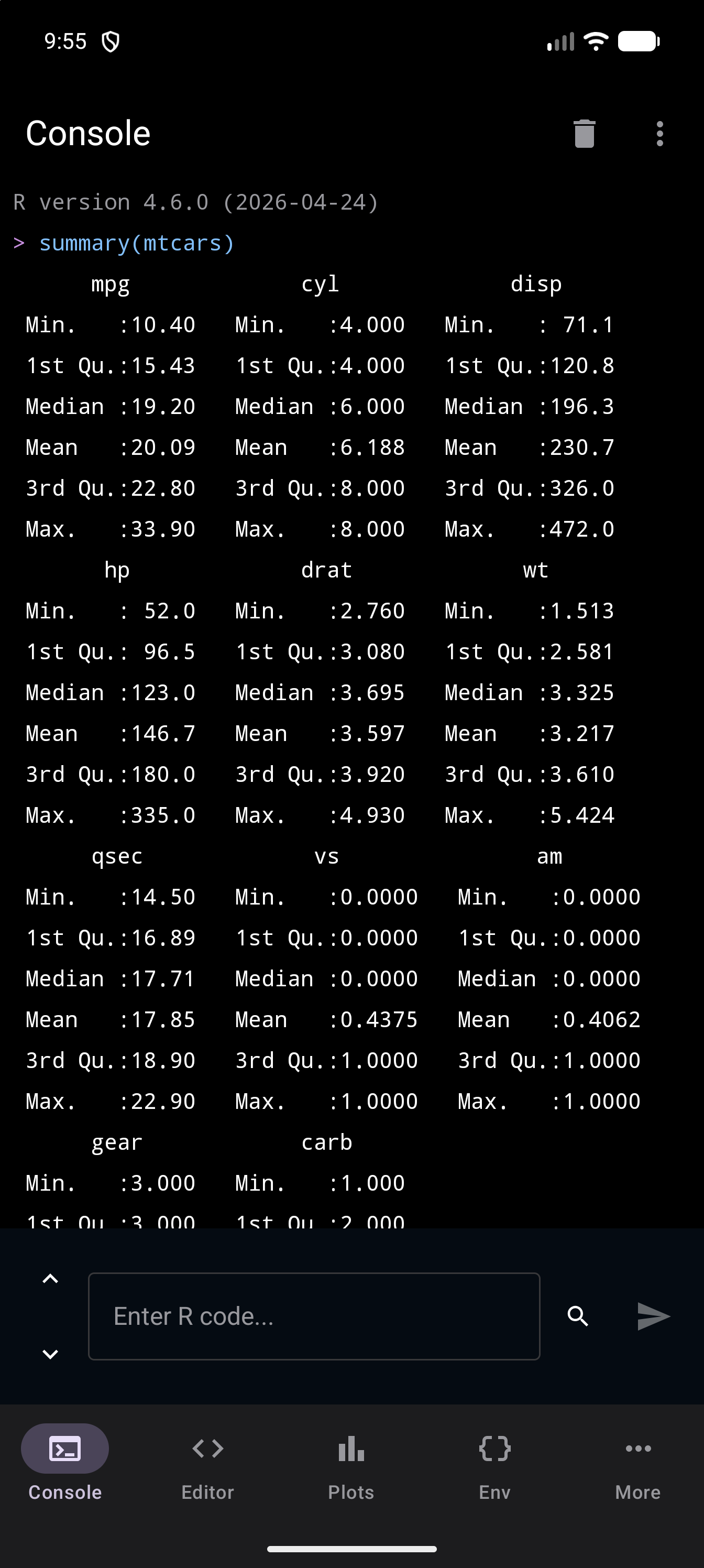
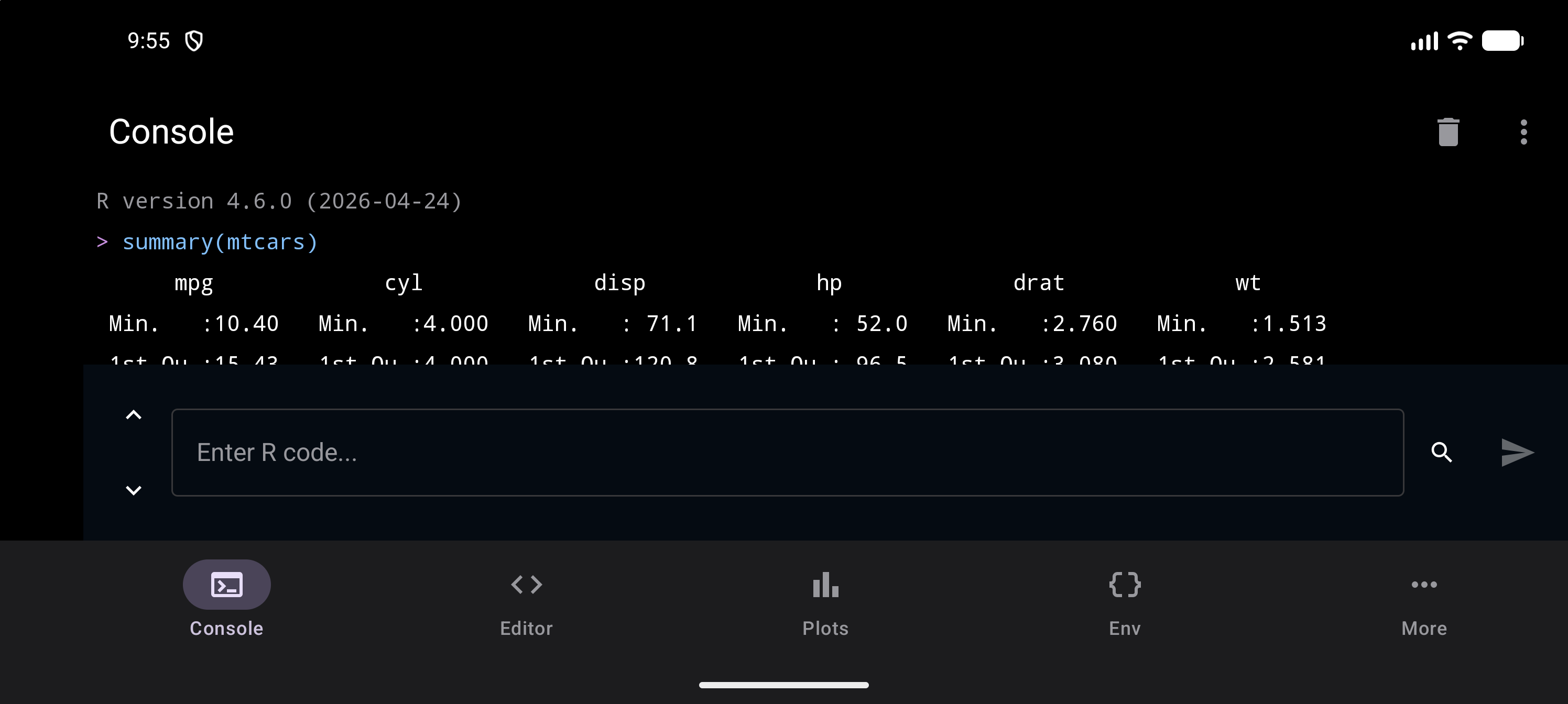
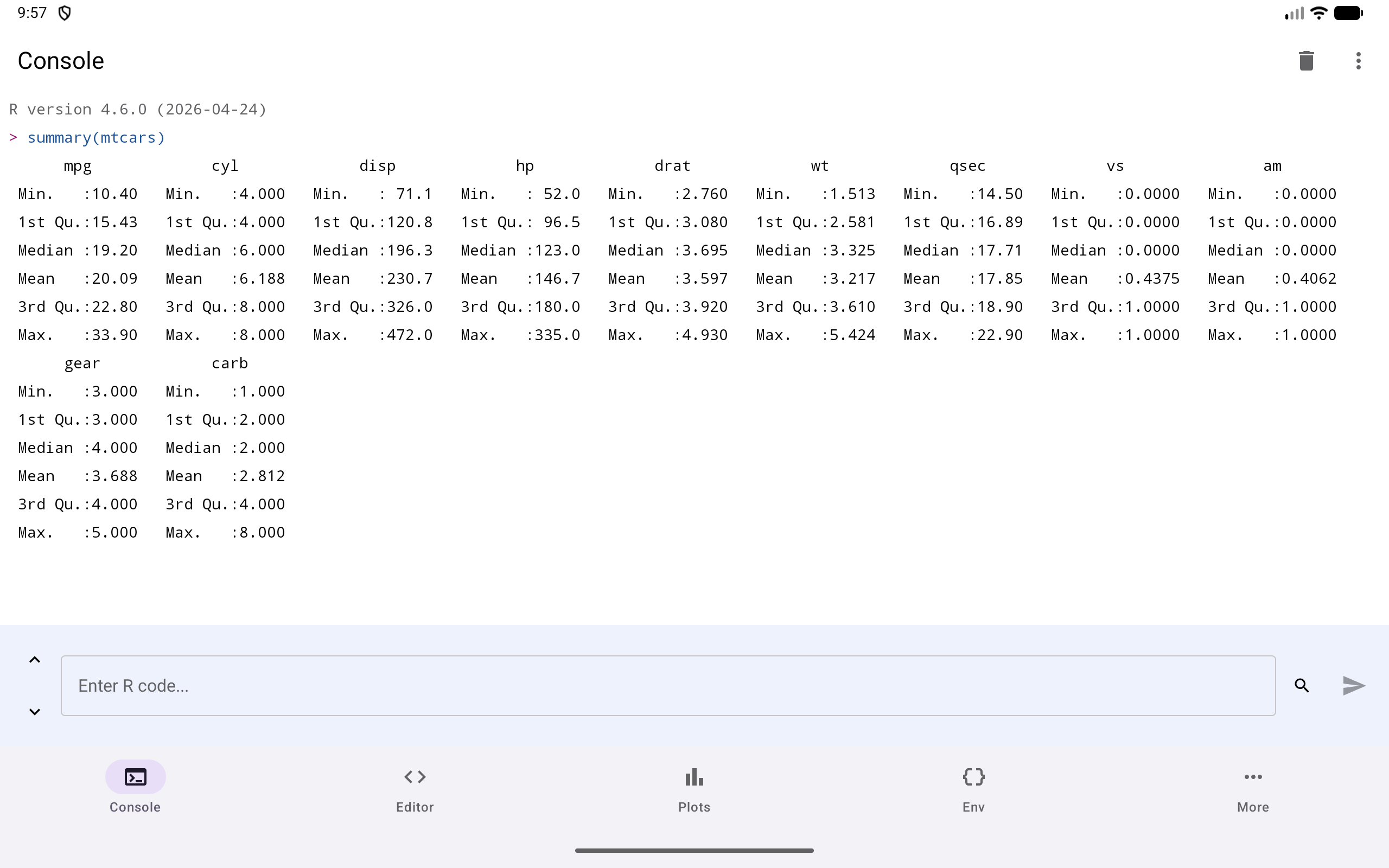
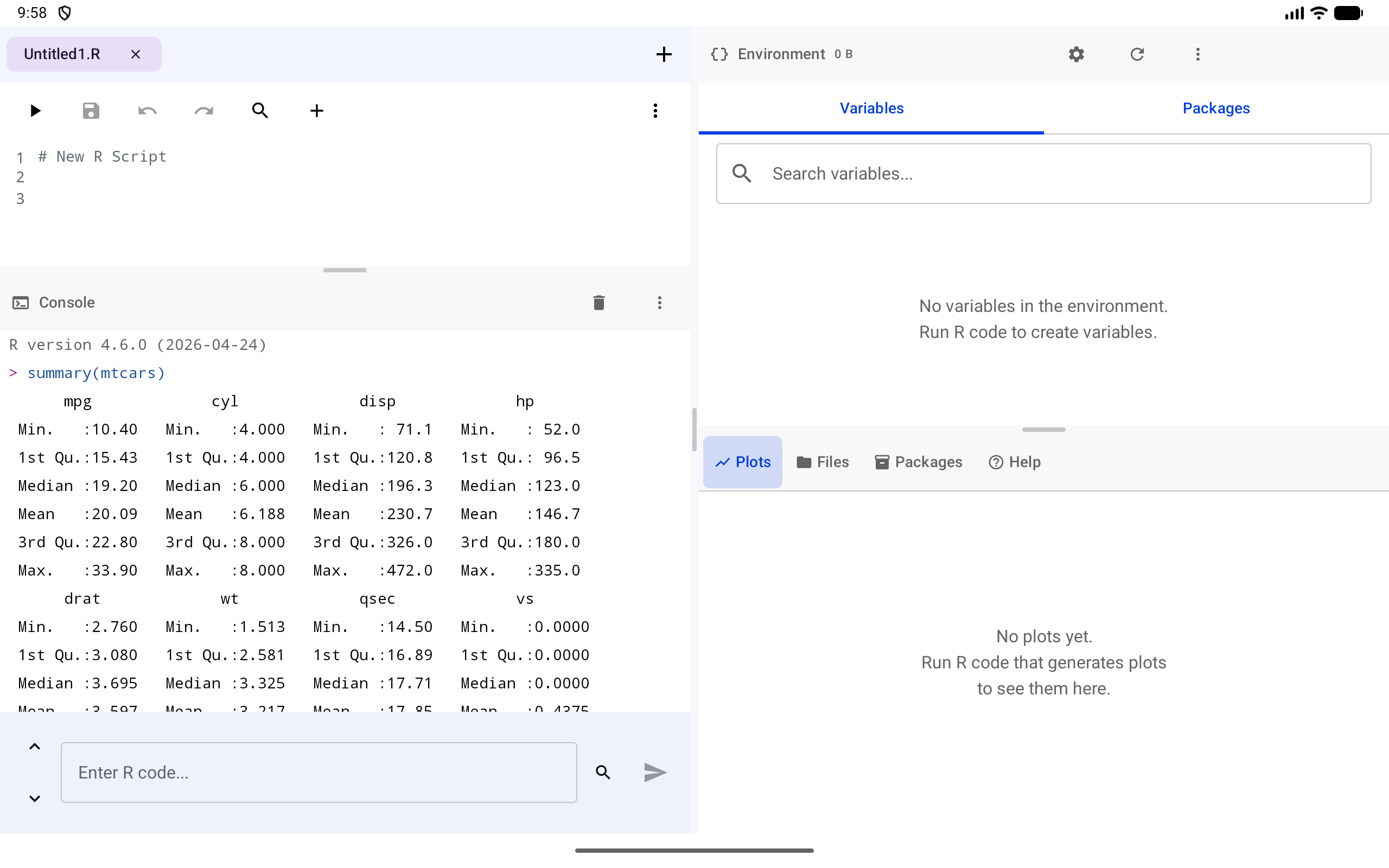
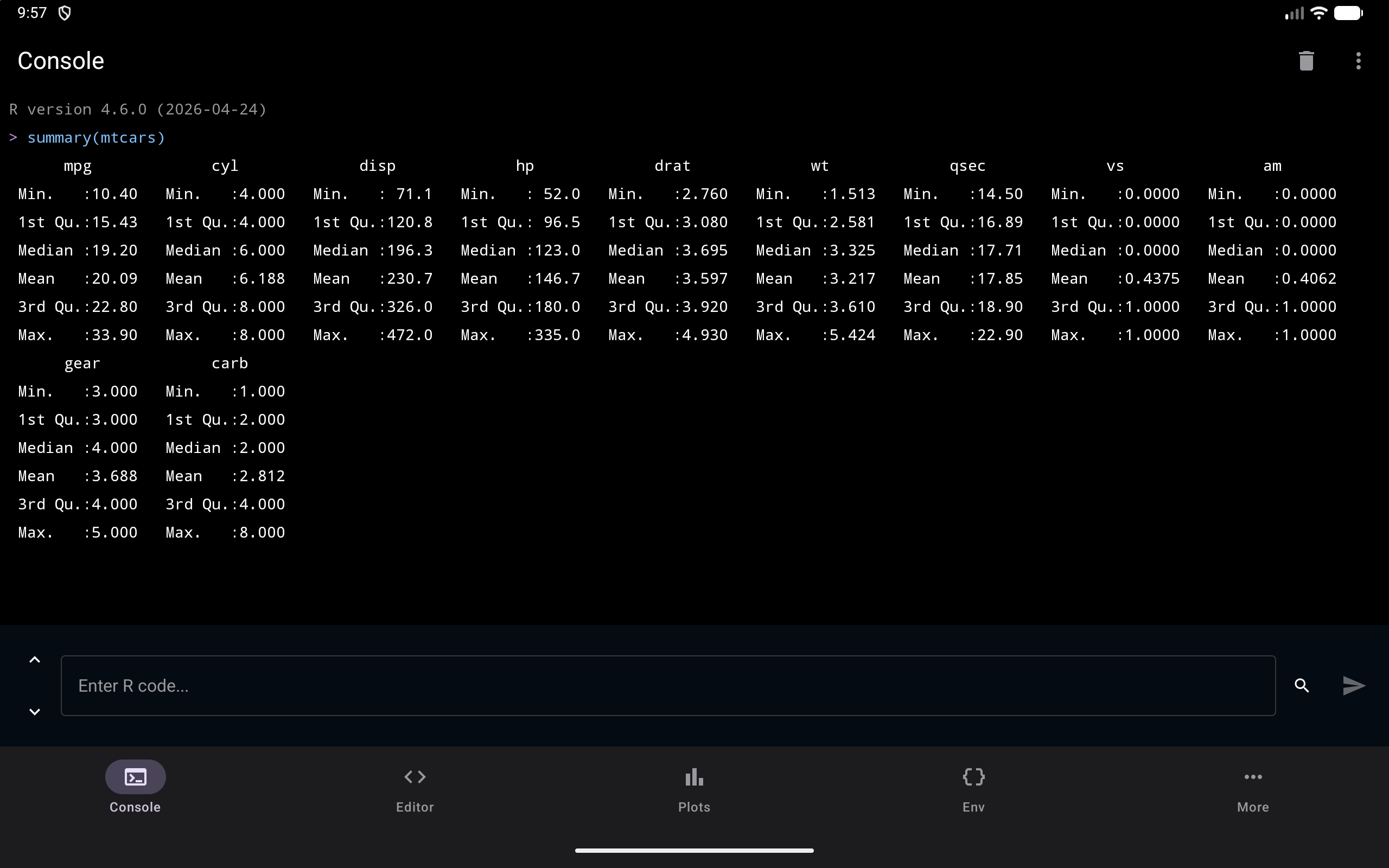
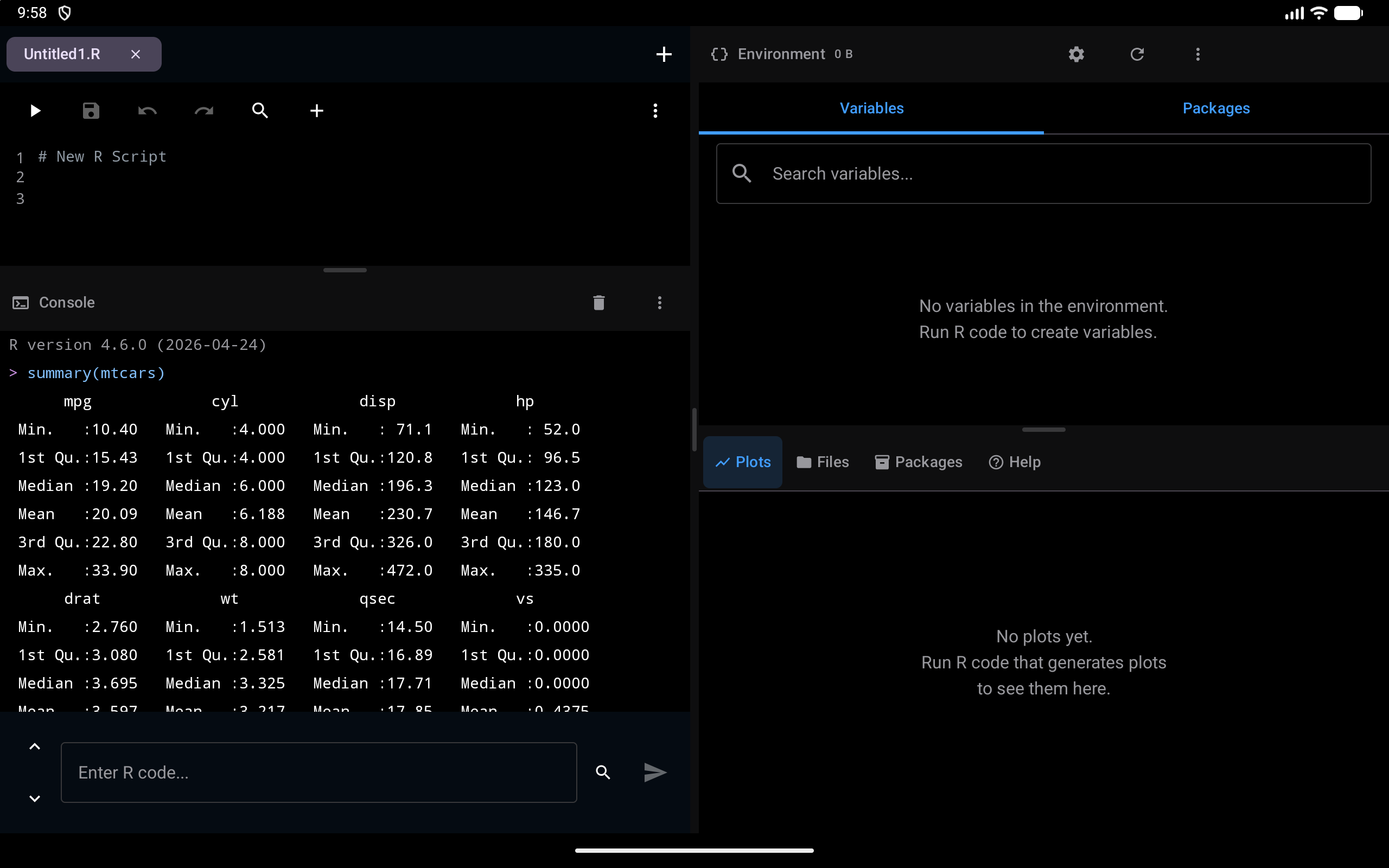
The width also follows the Console’s font size and Android’s own font size, so larger text means fewer characters on a line. Output already on screen keeps the layout it was printed with. Run the command again to see it at the new width. Code you run from the Editor is laid out to fit the Editor’s output panel instead, except in the Workspace, where it runs in the Console pane and fits that pane’s width.
Output Colors
The console uses color to help you scan results at a glance. Each color represents a different type of output:
| Color | Meaning | Example |
|---|---|---|
| Syntax colors | Your input commands, after a > prompt (or + on a line that carries on a command), colored as code by the theme |
> mean(1:10) |
| Black (light mode) / White (dark mode) | Normal R output, including the values expressions return | [1] 5.5 |
| Orange | Warnings: R completed the operation but something may be off | Warning: NAs introduced by coercion |
| Red | Errors: R could not complete the operation | Error in eval(expr): object 'y' not found |
| Gray | Informational messages from R or packages | Loading required package: stats |
Color is not the only signal. A warning line starts with a warning triangle, and an error, or anything R wrote to standard error, starts with an alert icon, so the two stand out even if you cannot tell the colors apart. TalkBack reads each of them with its kind first; see Accessibility.
Try running these commands one at a time to see each color in action:
x <- 42
x
print("hello")
message("this is a message")
warning("something looks off")
stop("this is an error")
y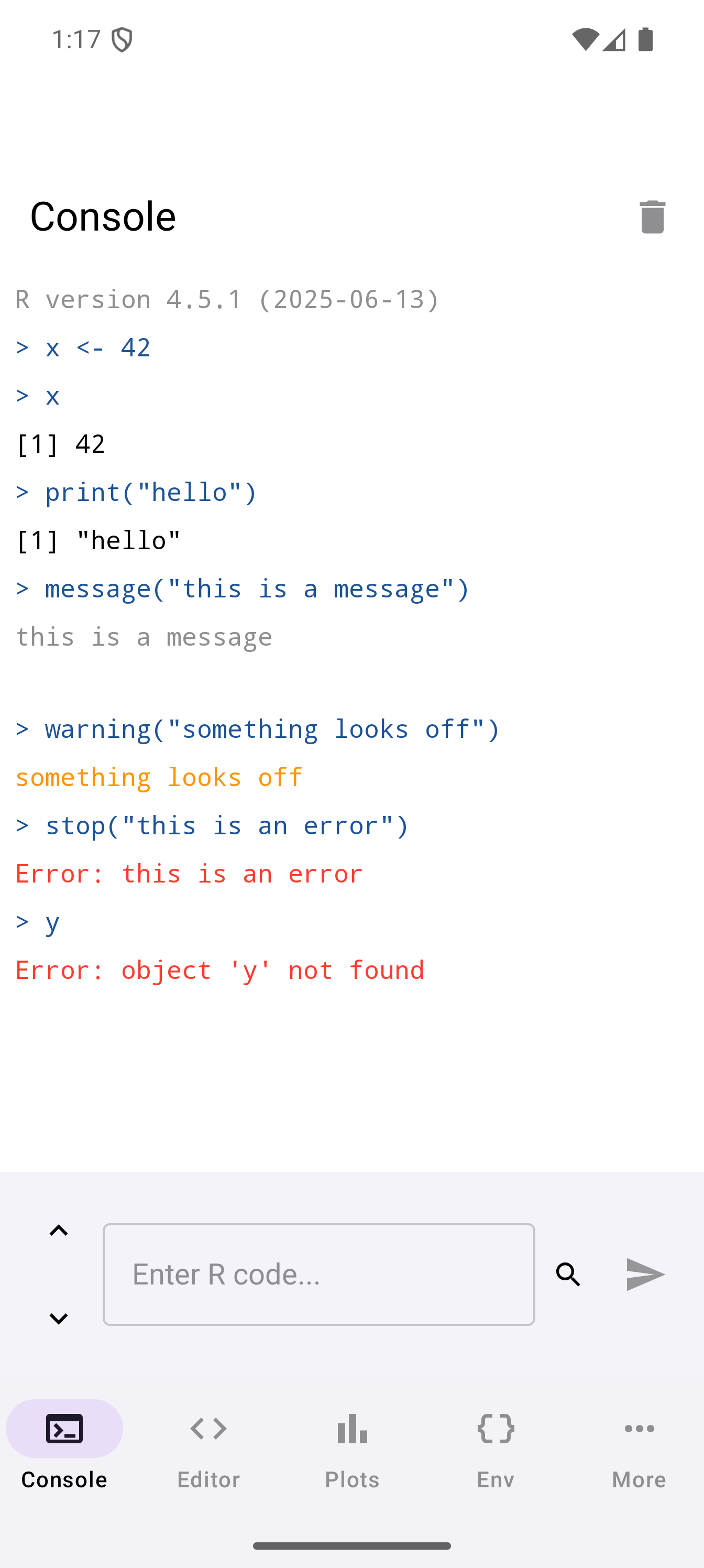
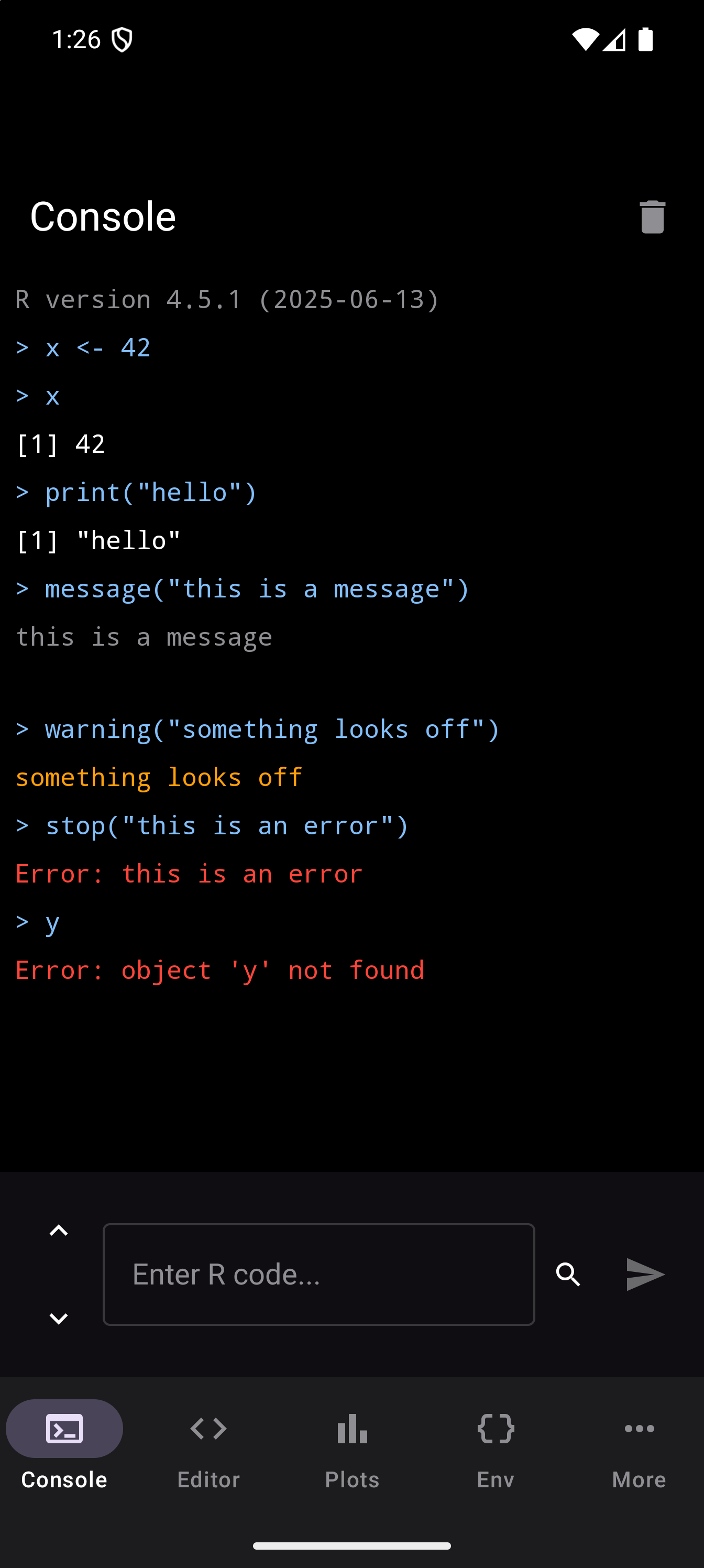
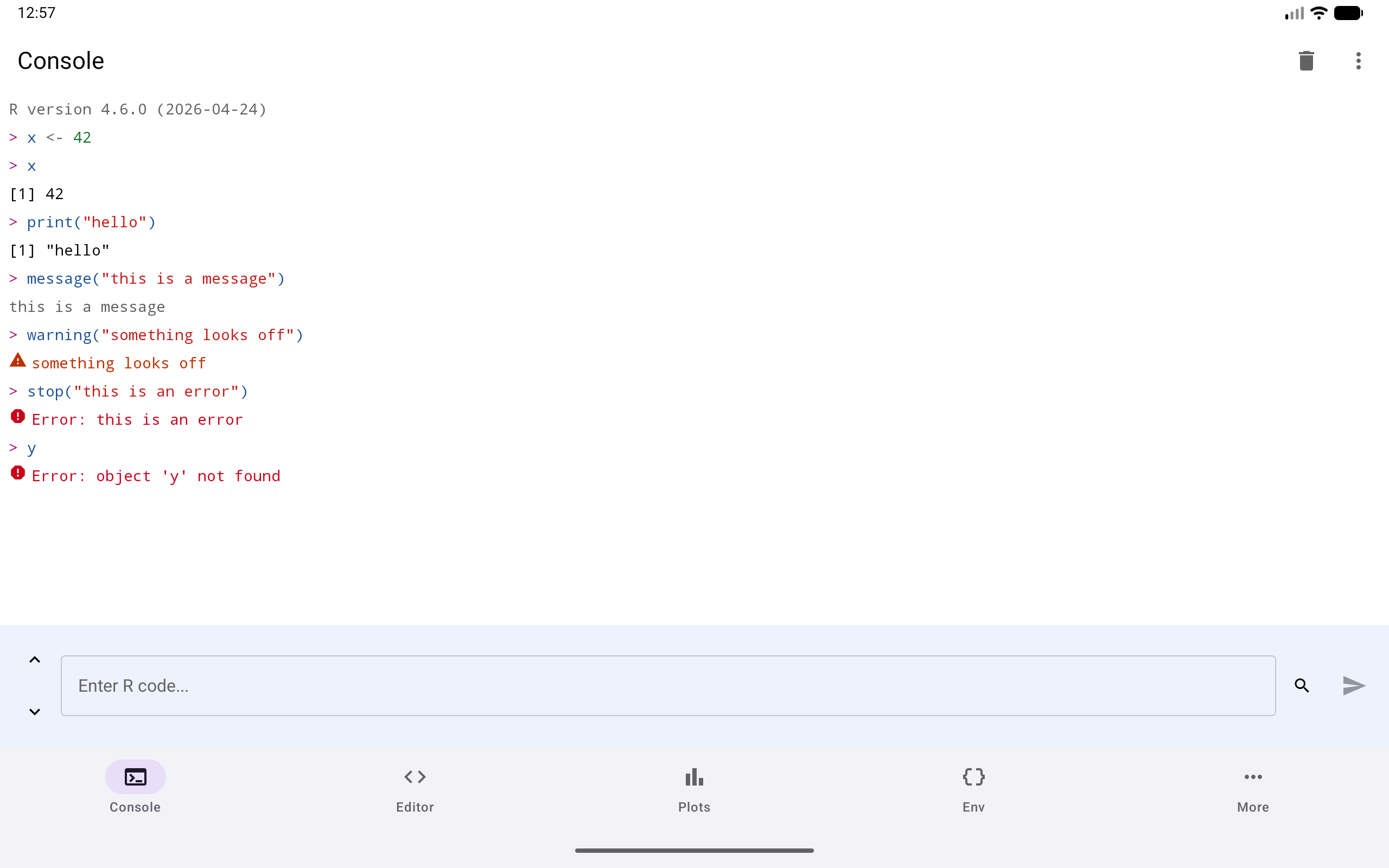
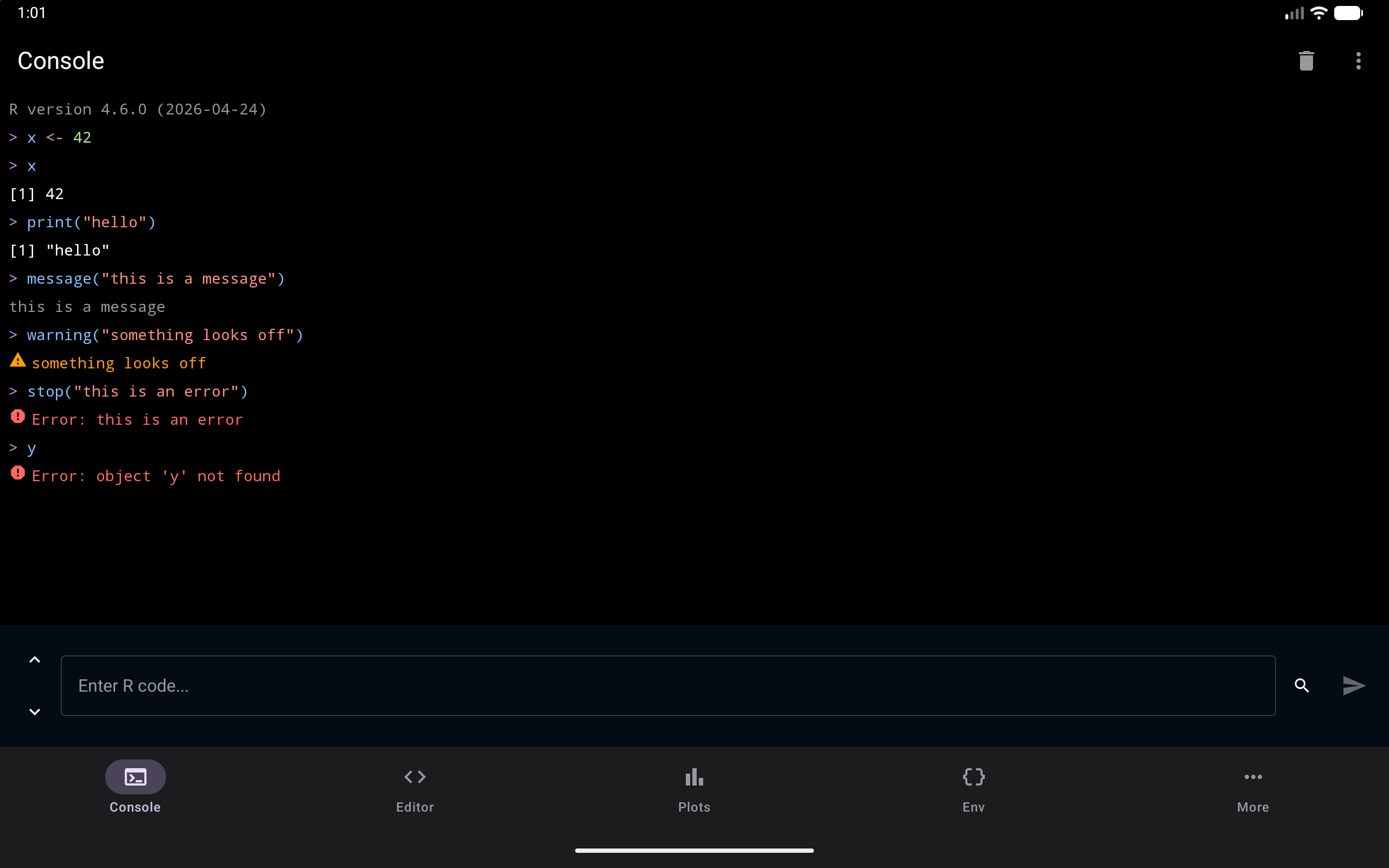
Read error messages carefully. R usually tells you exactly what went wrong. For example, Error in eval(expr): object 'y' not found means you used a variable named y that has not been assigned a value.
Copying output
Output is text you can select. Long-press a line to select the word under your finger, drag the handles to take in more or less of the line, and choose Copy or Select all from the menu that appears. The same menu has Copy line, which copies the whole line however much of it is selected and confirms with “Copied to clipboard”. A selection stays within one line.
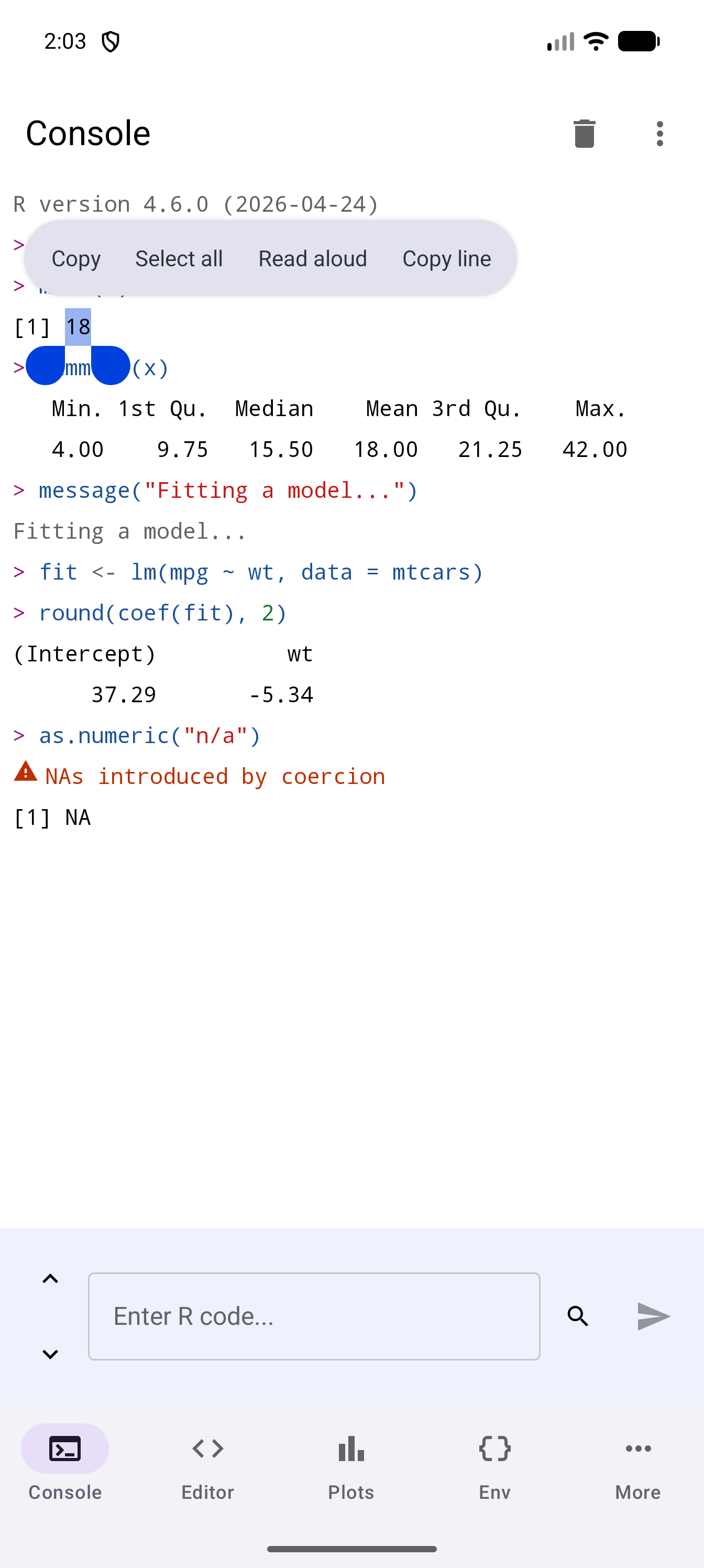
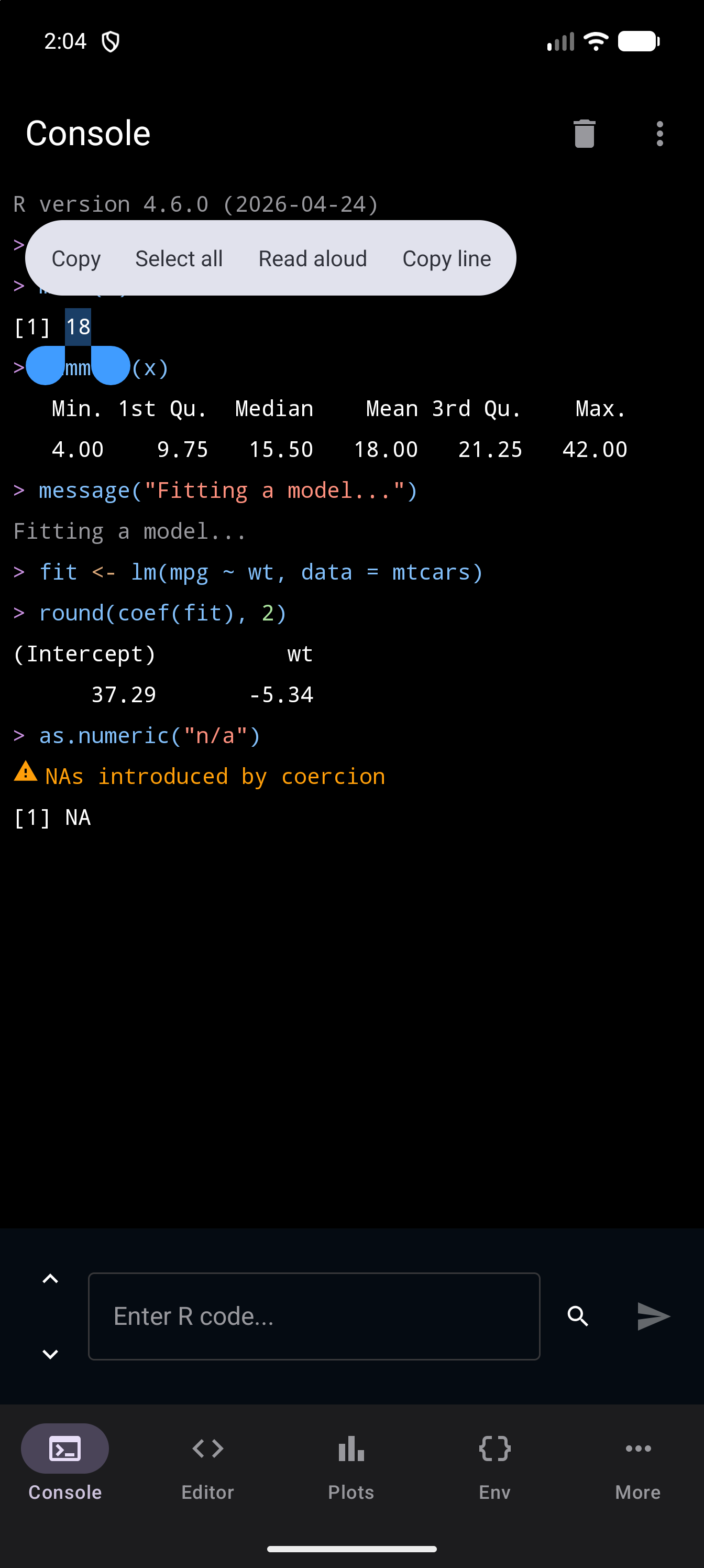
With a mouse or trackpad, double-click or drag to select, right-click for the same menu, and press Ctrl+C to copy what is selected. To copy everything at once, use Copy All Output in the Console menu. TalkBack users will find Copy to clipboard, which copies the whole line, in each line’s actions menu; see Accessibility.
History Navigation
You do not have to retype commands you have already run. The console keeps a persistent history of everything you have entered, and it carries over between sessions.
Arrow buttons. Use the up and down chevron buttons on the left side of the input field to step backward and forward through your command history. Tap the up arrow to load the previous command; tap down to move forward again.
Arrow keys. With a hardware keyboard, the up and down arrow keys do the same thing while the input field has focus. While the list of completions is open, they move through that list instead.
The line you were typing. Going back through the history does not lose what you had typed. The first press of up puts that line aside, and pressing down past the newest command brings it back, with the cursor at its end. Down on the line you are typing does nothing. If you run a recalled command instead, the line you put aside comes back to the input as soon as you run it.
Search. For longer sessions, tap the magnifier at the right of the input row, or press Ctrl+F in the input field. The input is replaced by a search bar: type a keyword and it shows the match count, such as “1/12” for the first of 12 matches, with the current match underneath. The up and down buttons step through the matches, the X closes the search, and the keyboard’s search key (Enter on a hardware keyboard) puts the current match back in the input field, ready to run or edit. What you had typed is put aside, as it is when you press up, so down brings it back. Send to Console on the History screen keeps it the same way.
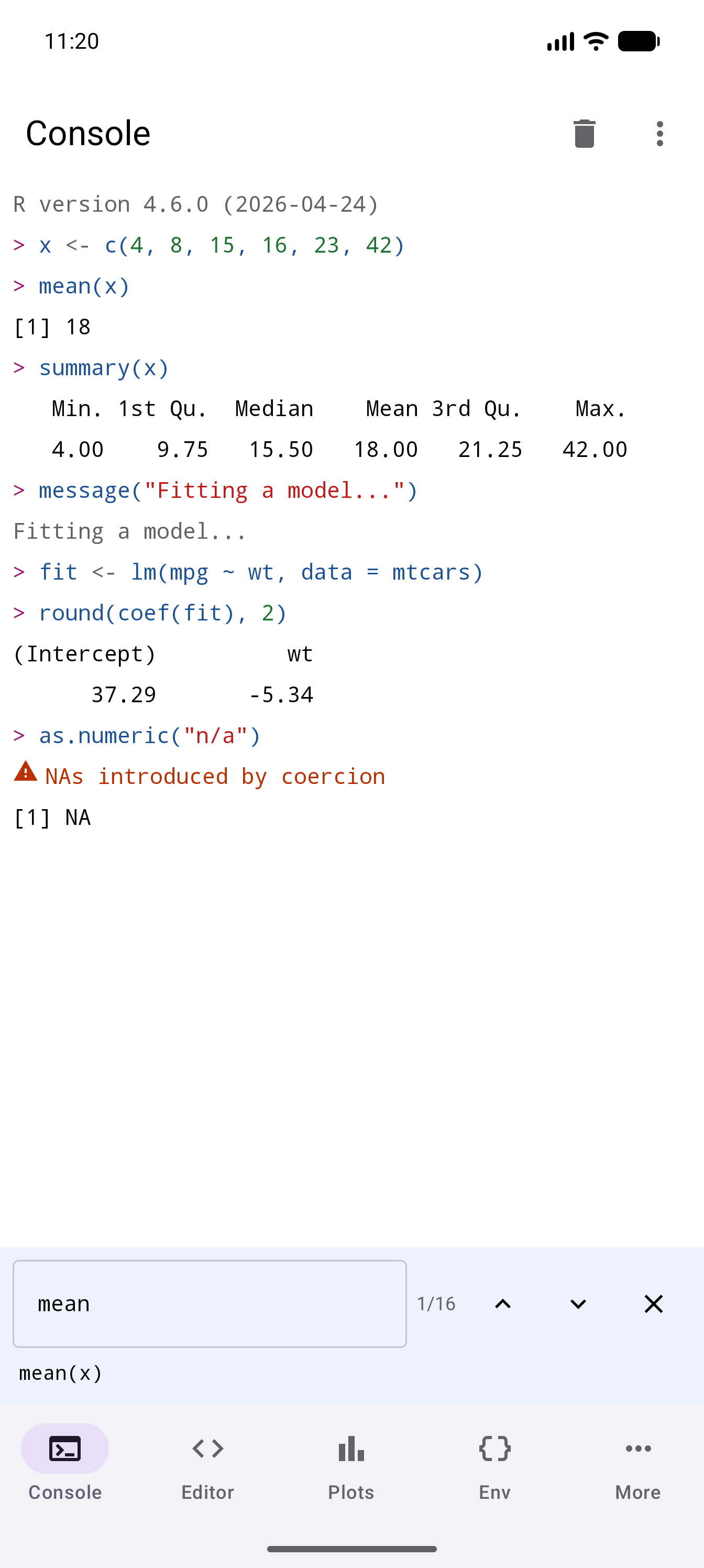
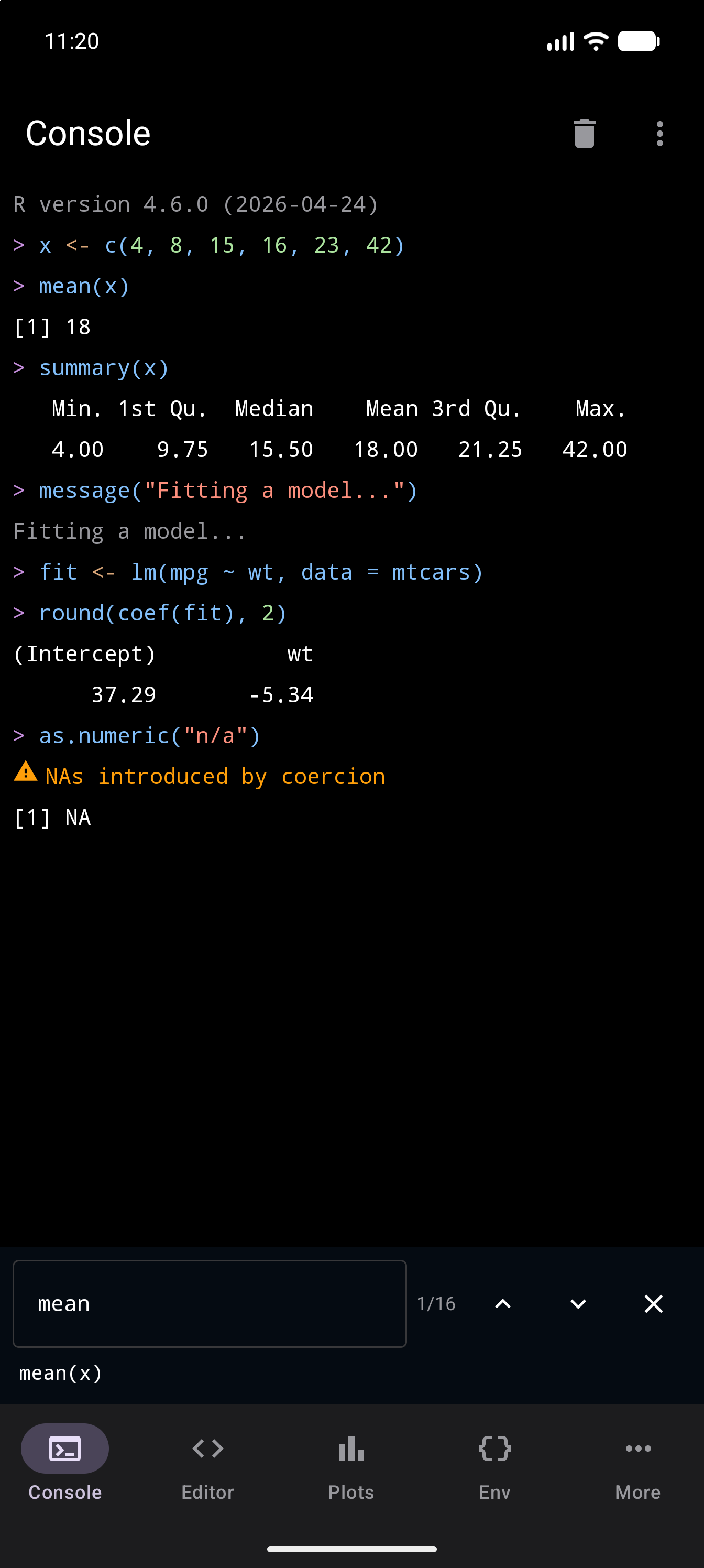
Command history is saved to persistent storage and survives across sessions. For a full history view with search, filtering by source (Console vs Editor), and execution statistics, navigate to More > History.
R Keyboard Toolbar
While you type in the input field with the on-screen keyboard, a scrollable toolbar sits just above the input with buttons for common R symbols and operators. It goes away when the keyboard closes, and stays hidden when you type on a hardware keyboard. This saves you from hunting through the Android symbol keyboard for characters you use constantly in R.
The toolbar includes:
| Button | Purpose |
|---|---|
<- |
Assignment operator |
|> |
Native pipe operator |
() |
Matched parentheses (inserts both) |
[] |
Matched square brackets |
{} |
Matched curly braces |
"" |
Matched double quotes |
~ |
Formula operator |
c() |
Quick vector wrapper |
:: |
Namespace access (e.g., dplyr::filter) |
$ |
List/data frame column access |
@ |
S4 slot access |
%in% |
Value matching operator |
! |
Logical NOT |
& |
Logical AND |
| |
Logical OR |
# |
Comment prefix |
| Tab | Inserts indentation |
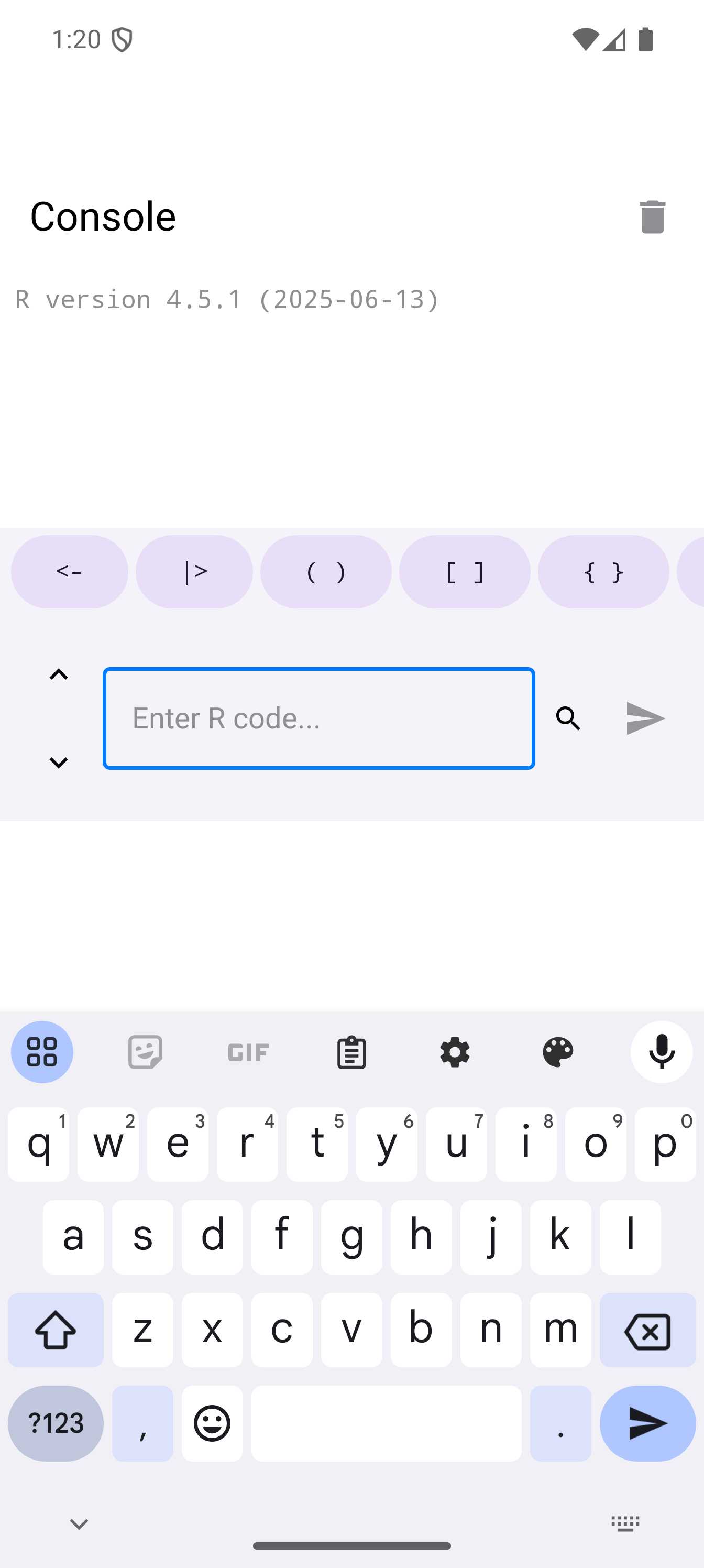
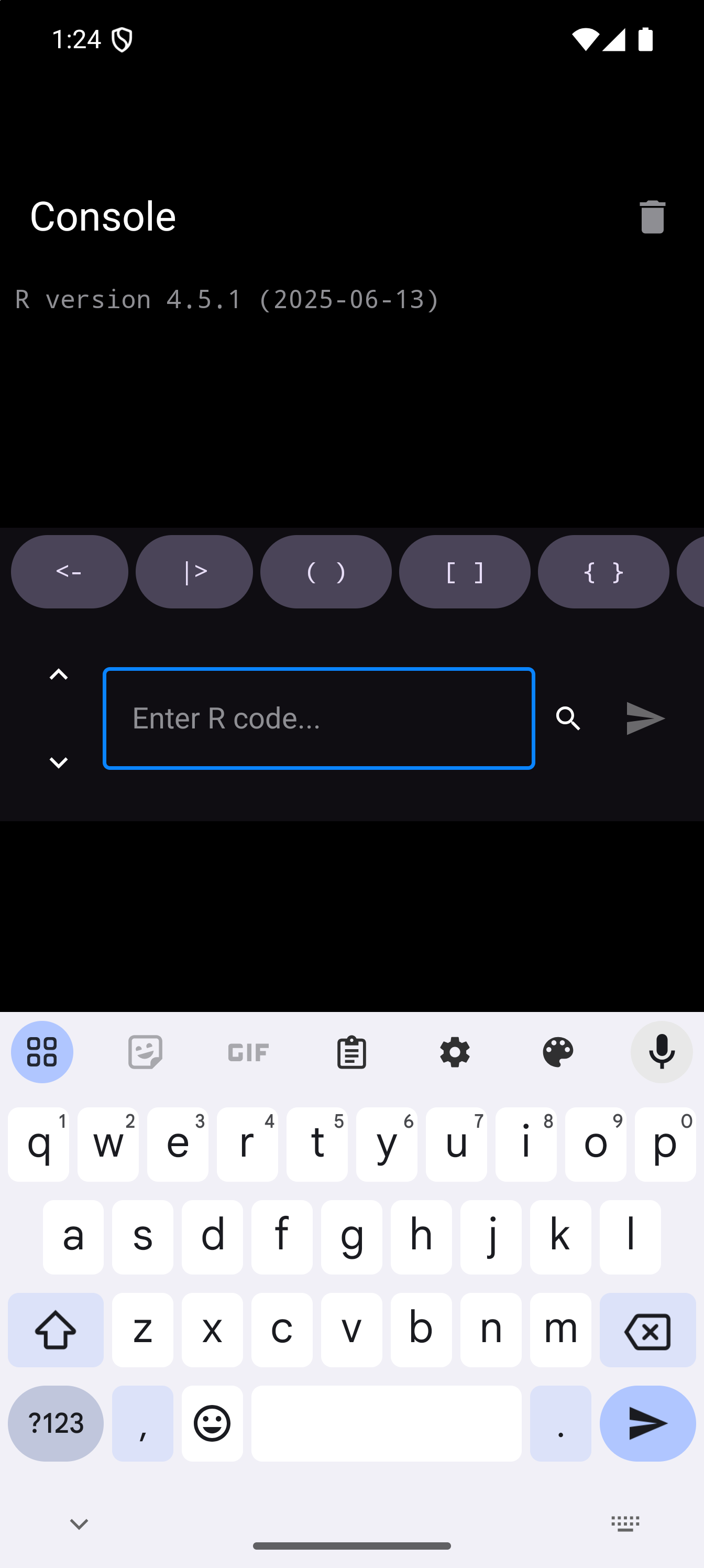
This is the same toolbar you will see in the Editor. The paired characters ((), [], {}, "") insert both the opening and closing character at once, placing your cursor between them.
The toolbar buttons can be customized. See Customizing the R Toolbar in the Settings guide.
Code Completion
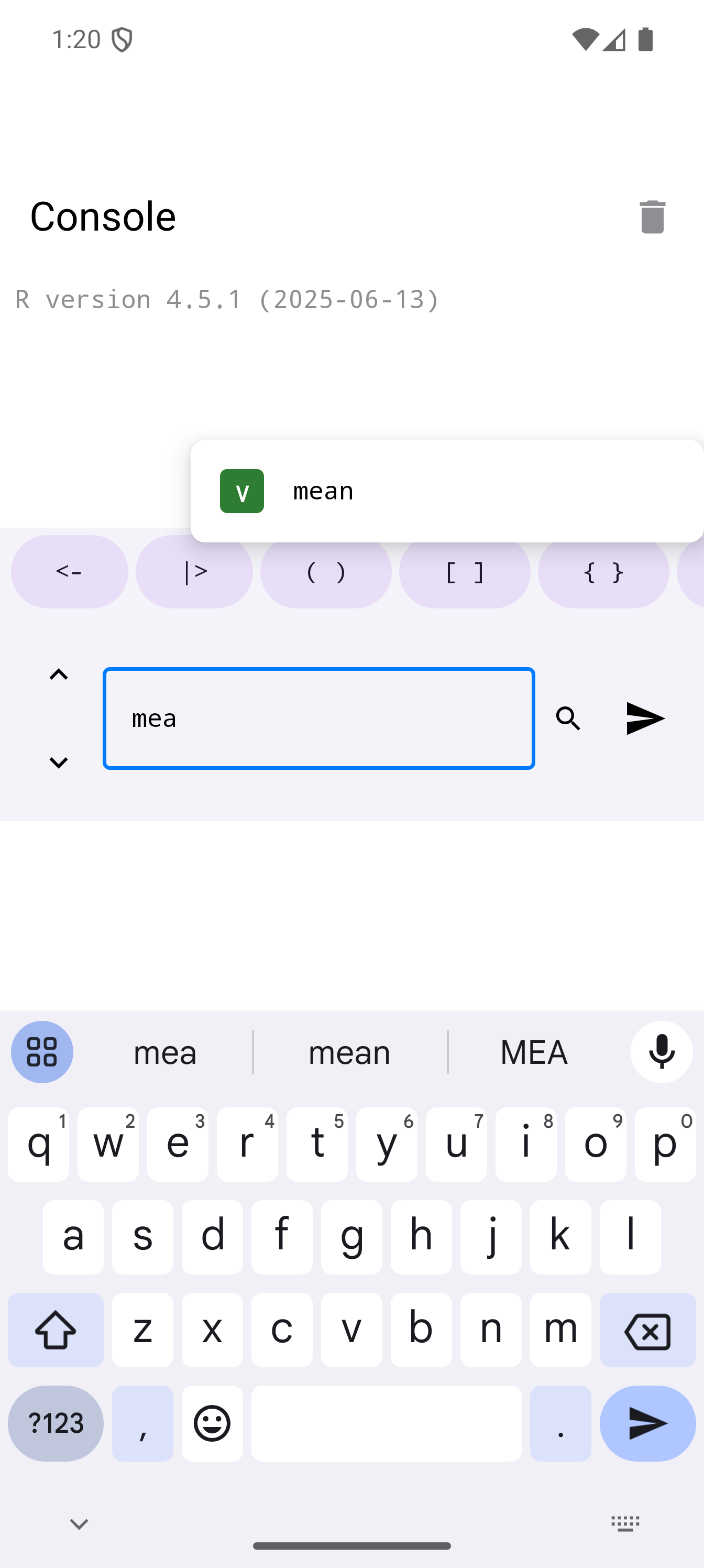
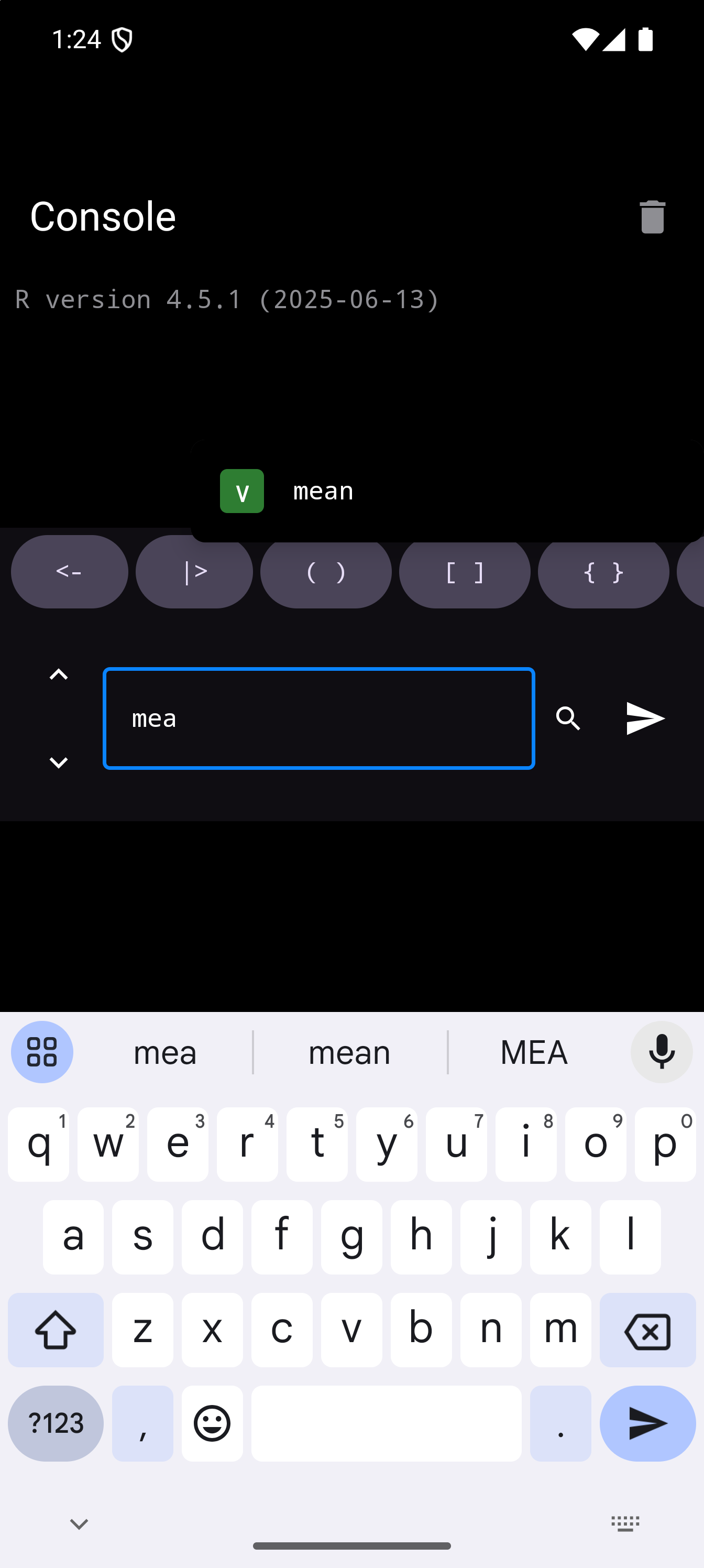
As you type in the input field, a list of suggestions opens just above the input, and above the R toolbar when the on-screen keyboard is open. It lines up with the start of the input field, so it stays close to what you are typing. While it is open it covers the last lines of output, but never the toolbar or the Run button, so you can still tap those.
The list shows every match R finds: function names, variable names, names from packages, and argument names. Each has a letter badge for its kind: F for a function, V for a variable, A for an argument name such as na.rm=, and N for a package. Tap a suggestion to insert it, which saves you typing out long names like as.data.frame or your own variable names. With a hardware keyboard, Up and Down move through the list while it is open, Enter or Tab inserts the highlighted suggestion, and Escape closes the list. Until you move to a suggestion, Enter runs the line as usual.
A function comes with its opening bracket, mean( rather than mean, and the cursor lands after it, ready for the arguments. If the bracket is already there, as when you complete mea in mea(x), the suggestion uses it rather than adding a second one. After $ or ::, a suggestion replaces the whole name you started: choosing iris$Sepal.Length for iris$Se gives iris$Sepal.Length, not the name twice.
The list updates as you type, getting shorter as more of the name is filled in. It works for:
- Base R functions and constants
- Functions from loaded packages
- Variables you have created in the current session
- Column names when typing after
$ - Argument names inside a function call, such as
na.rm=aftermean(x, na
The Console’s list belongs to its input field. It closes when you leave the field or move the cursor, since it was for the word you were typing. In the Workspace layout the Editor pane has a list of its own, so a list opened in one never shows up in the other.
Console Menu
The Console title bar has a trash icon on the right side that clears all displayed text from the output area, after asking first. Your variables, data, and loaded packages remain in memory; this only tidies the screen. With a hardware keyboard, Ctrl+K in the input field clears it without asking.
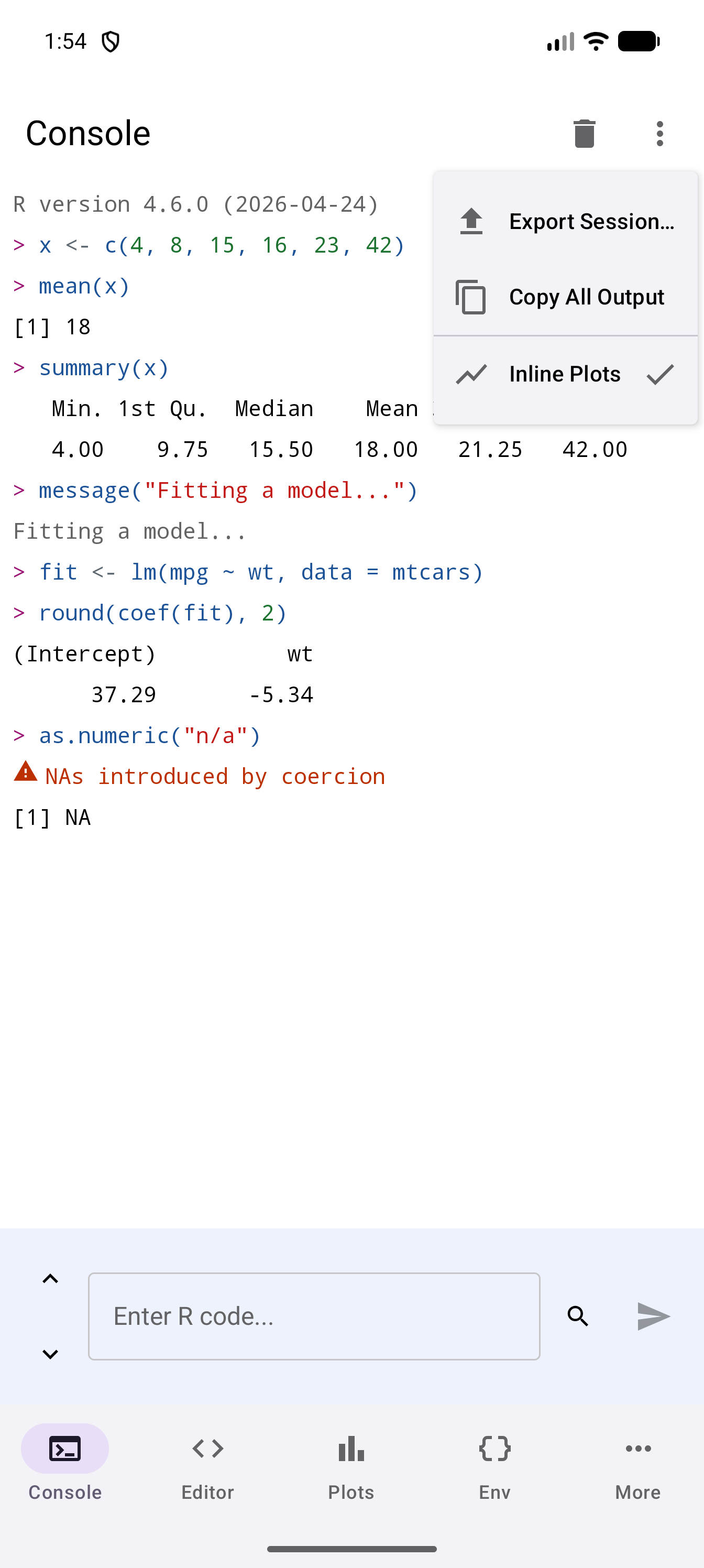
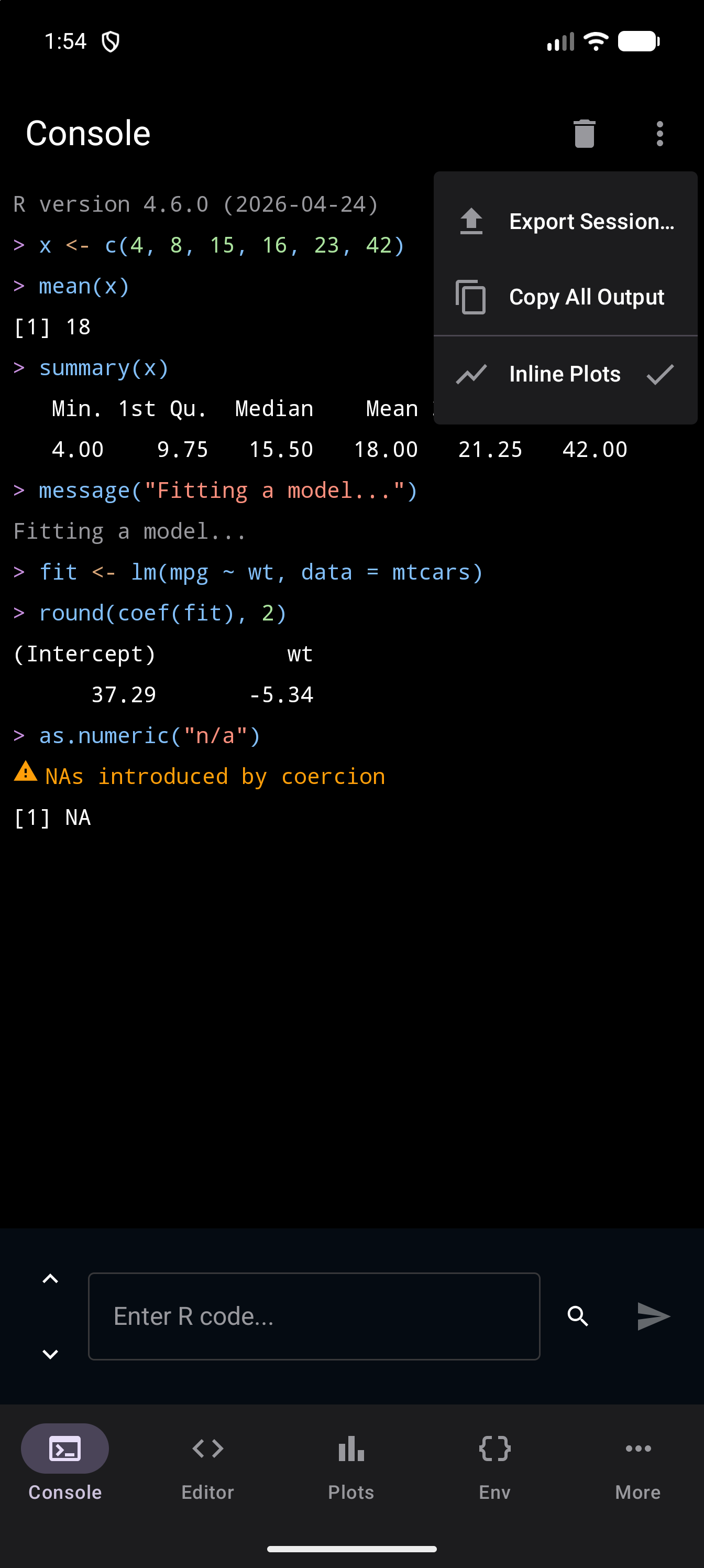
Beside it, the three-dot menu holds:
- Export Session… saves the whole transcript as a text file wherever you choose, through Android’s file picker. Warnings, errors, messages and standard error are marked
[WARNING],[ERROR],[MSG]and[STDERR], since a text file has no colors, and a plot is written as[Plot]. - Copy All Output puts the output on the clipboard as it reads on screen, without the markers.
- Inline Plots, with a check mark when it is on, shows new plots in the console output. It is a shortcut for the New Plot Display setting: turning it on chooses Inline, and turning it off chooses Tab Only. See Display Modes.
Export Session and Copy All Output are greyed out until there is output. In the Workspace layout, the trash icon and the menu sit in the Console pane’s header.
Full command history is available from the More menu by navigating to History. The History screen lets you search, browse, and re-run past commands across all sessions.
When R Stops Responding
R cannot be interrupted, so a command that never finishes, such as an infinite loop, holds the session until R is replaced. If a command has not finished after 60 seconds, the Console stops waiting for it and shows an error: “R did not finish within 60 seconds, and is still running. The Console will say when it finishes. Restart R stops it, but ends the session.” An R Session Unresponsive banner appears above the output, saying that R is still running a command that went past the time limit, with two buttons:
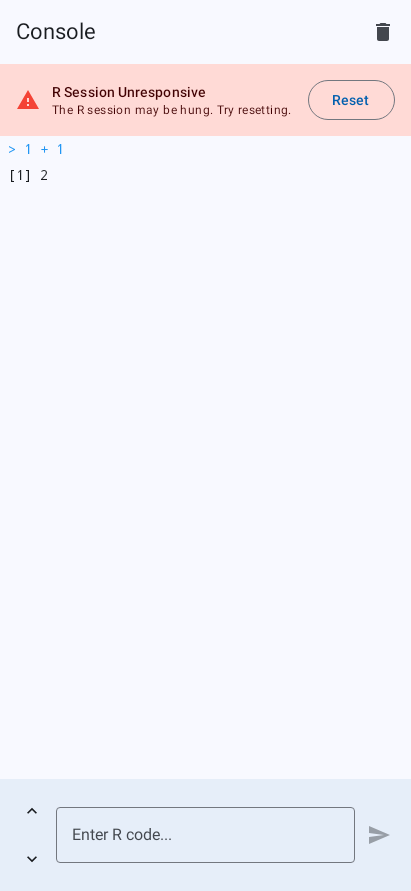
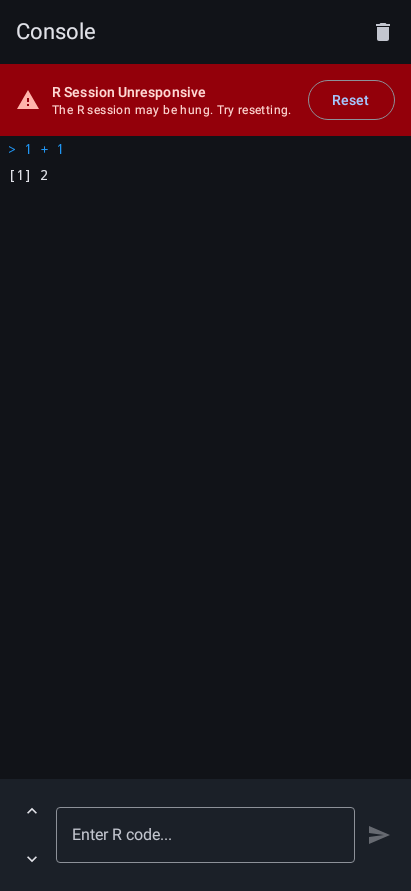
- Check Again asks R whether it has come back, waiting up to 10 seconds for an answer. The banner stays up until R does answer.
- Restart R stops R and starts a fresh session. Your variables are lost, packages must be attached again with
library(), and files R wrote that you have not copied back are gone; your project files and editor tabs are kept. Settings > R Session has the same button. See Restart R.
A command that is only slow, such as a large model fit, needs neither button. R carries on with it, and when it finishes, its output appears in the Console as usual, followed by “The command that ran past the time limit has finished, and R is responding again.” The banner then clears by itself. Until then R cannot take anything else: a command you try is turned away with “R is already running something else. Wait for it to finish, or use Restart R.”, and the banner stays up.