Packages
R packages extend the language with additional functions, data sets, and documentation. The Packages screen in webRoid has two tabs: Installed, where you manage the packages on your device with load, unload, and remove actions, and Browse, where you search everything the webR repository offers and install from the list.
Overview
webRoid runs R through WebAssembly (via the webR project), which means packages must be specially compiled for the WebAssembly platform before they can be used. The app downloads packages from repo.r-wasm.org, a repository maintained by the webR project that hosts pre-compiled versions of many popular CRAN packages.
This is different from desktop R, where install.packages() downloads source or binary packages directly from CRAN. In webRoid, only packages that have been compiled for WebAssembly are available. Most pure-R packages and many packages with C/C++/Fortran code are supported, but some that depend on external system libraries (database drivers, specialized numerical libraries, etc.) are not available.
Package installation requires an internet connection, and so does the Browse tab’s package list. Once a package is installed, it works offline.
Packages are prepared for one particular version of webR, and a new webR can’t load packages prepared for the old one. When an app update brings a new webR, the old package cache is discarded, and a notice names the packages that were removed and offers to reinstall them. See After an Update to webR and the Release Notes.
Installed Packages
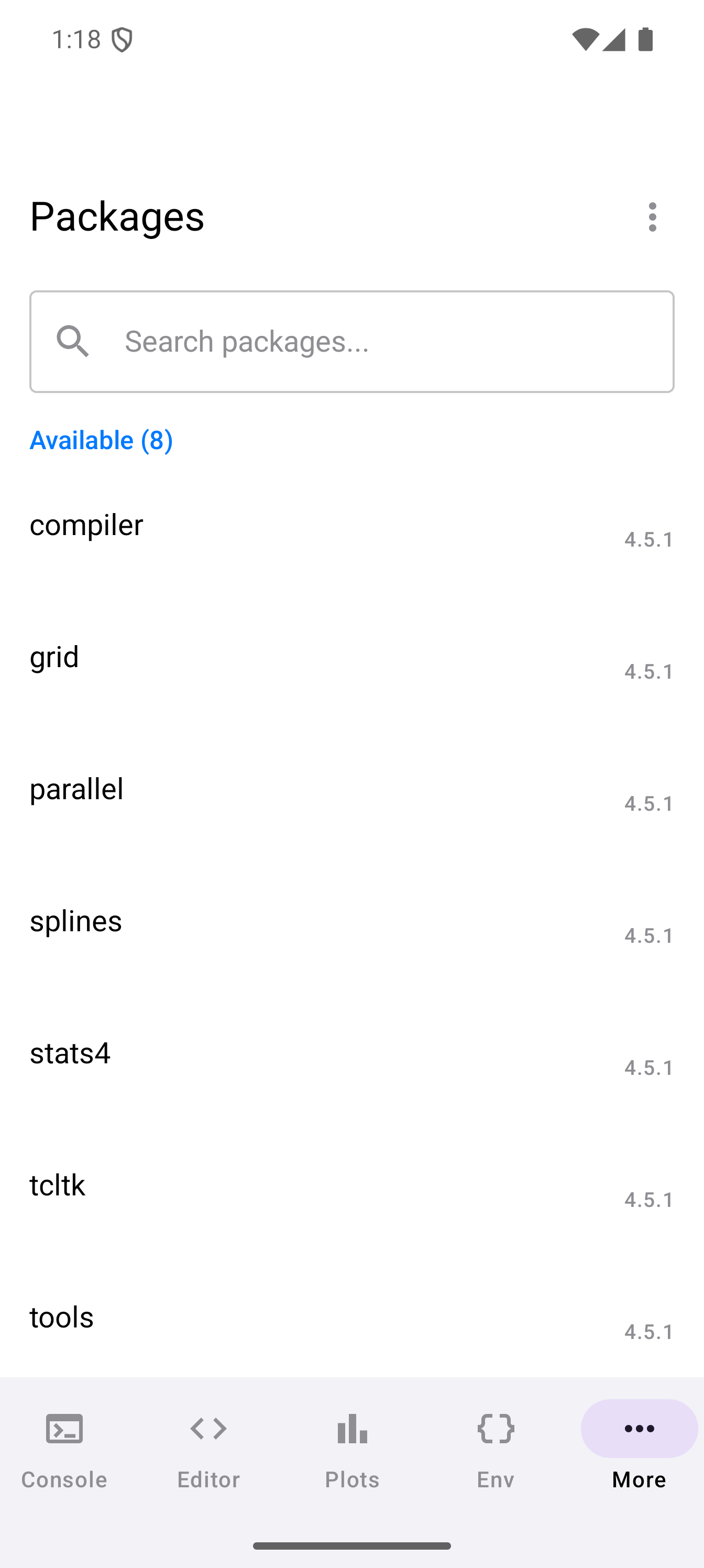
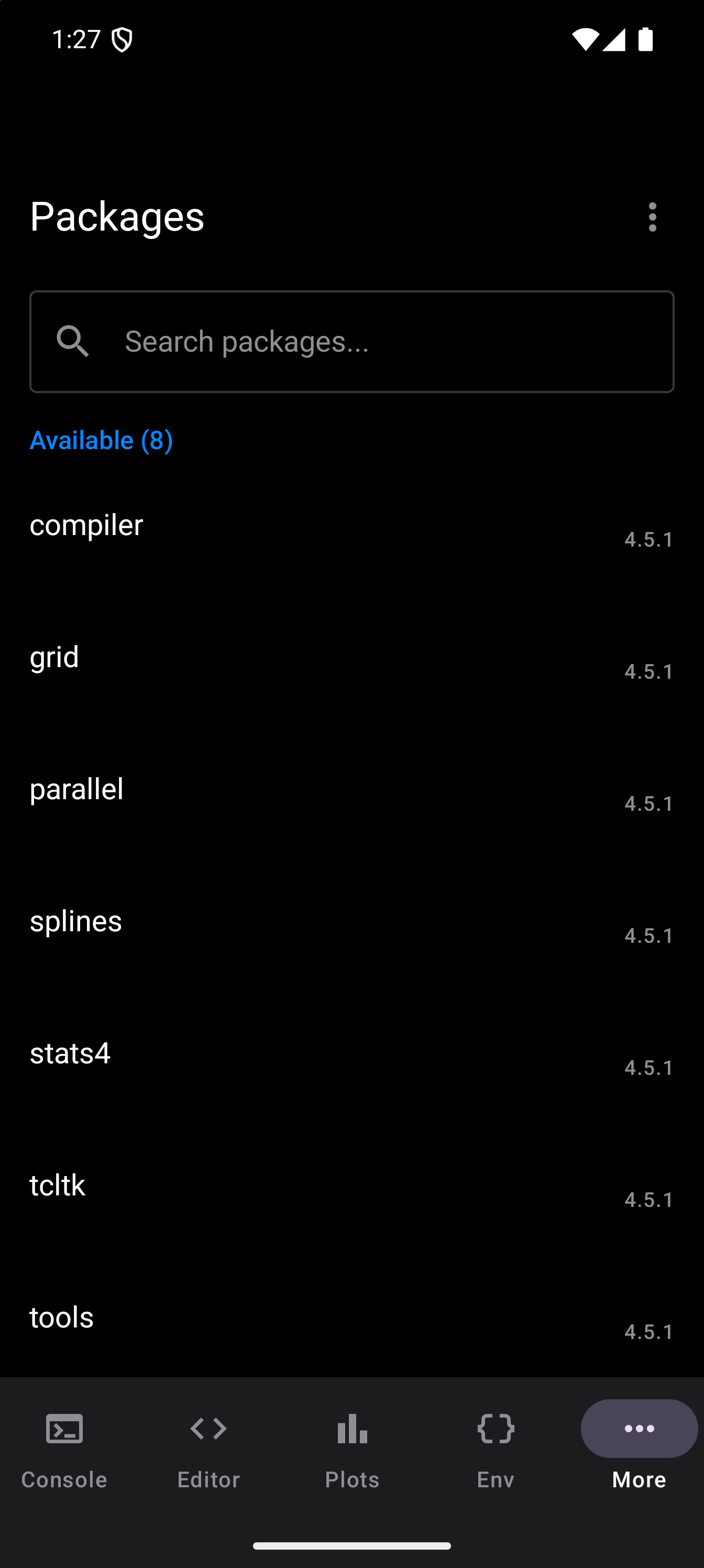
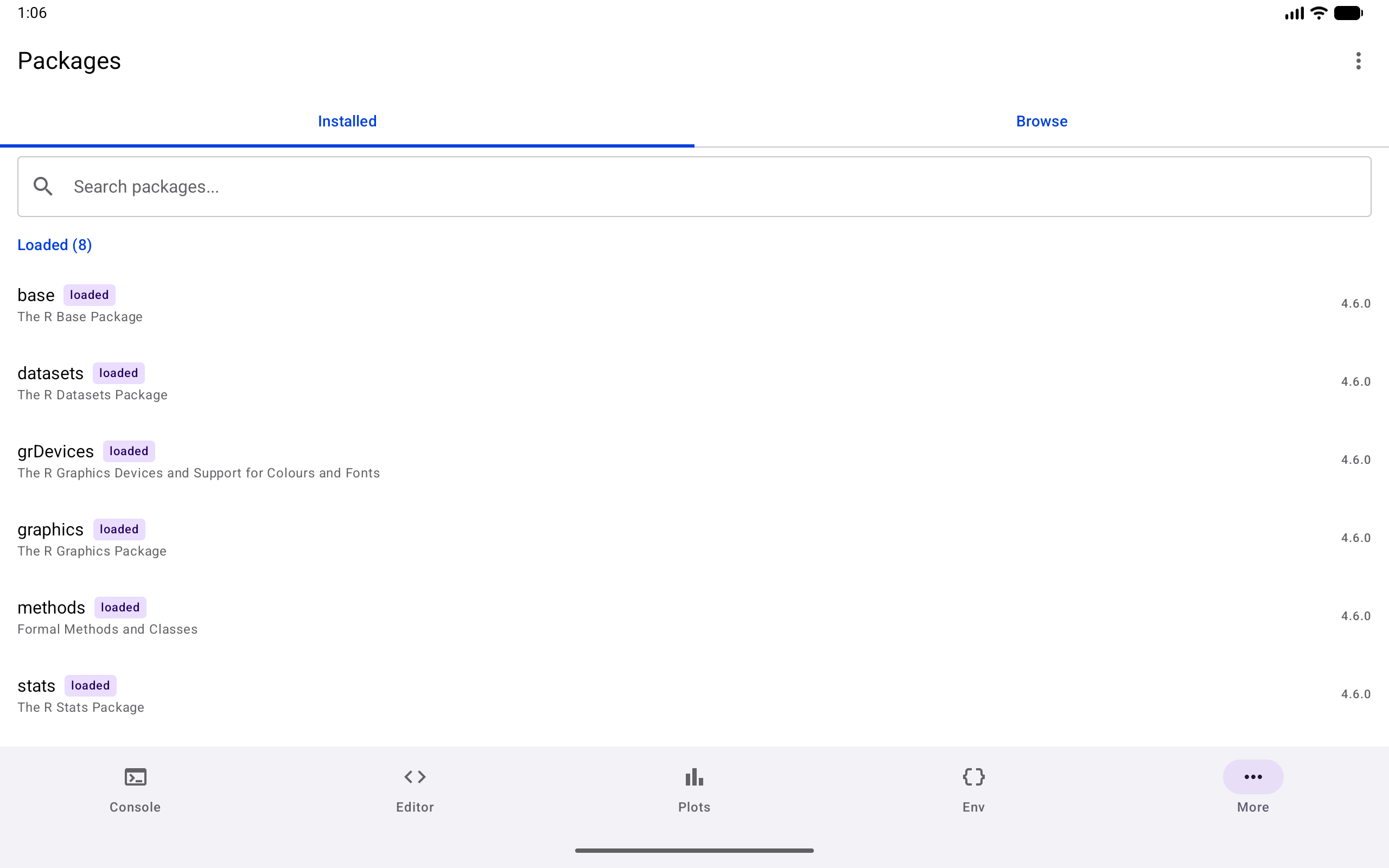
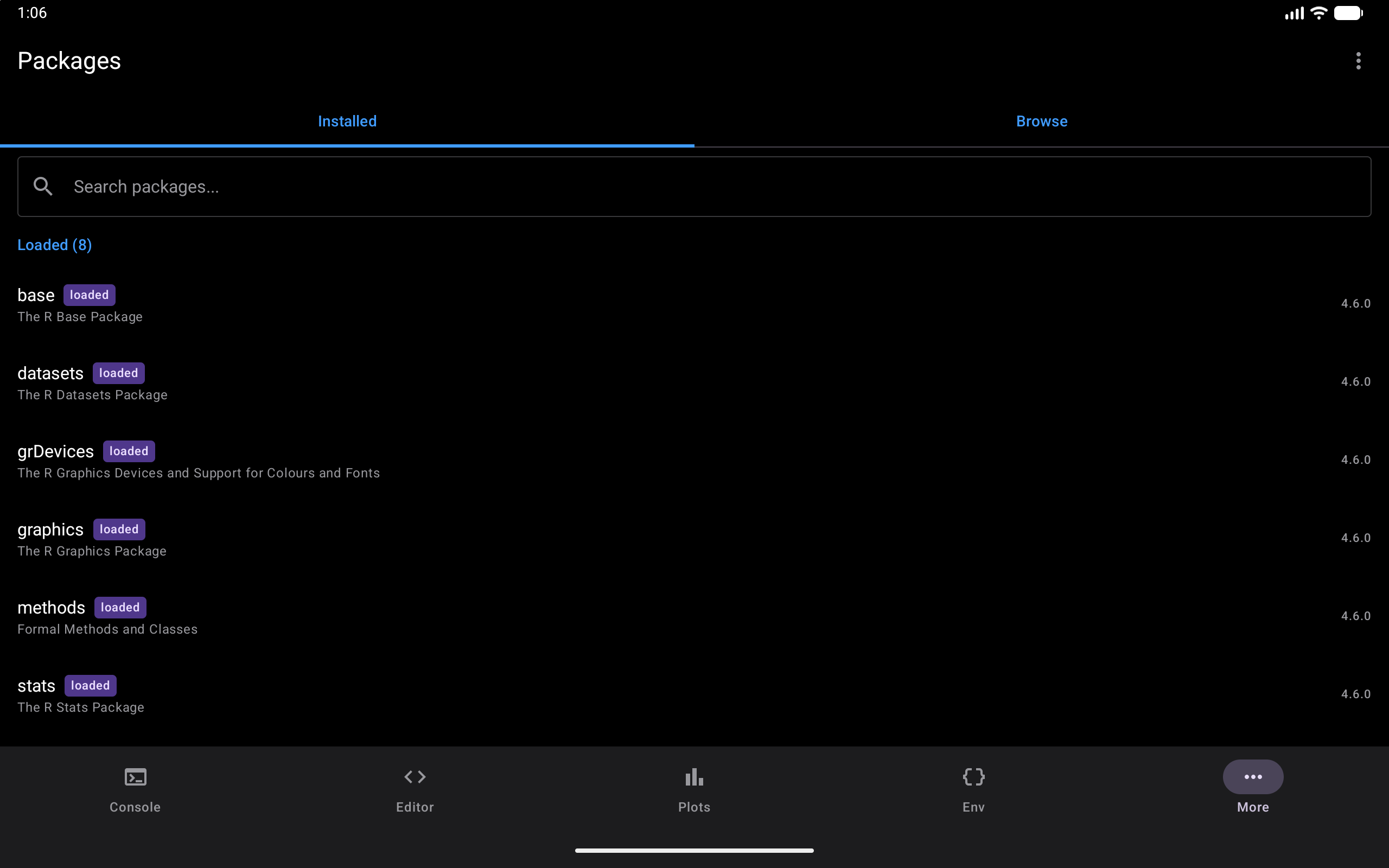
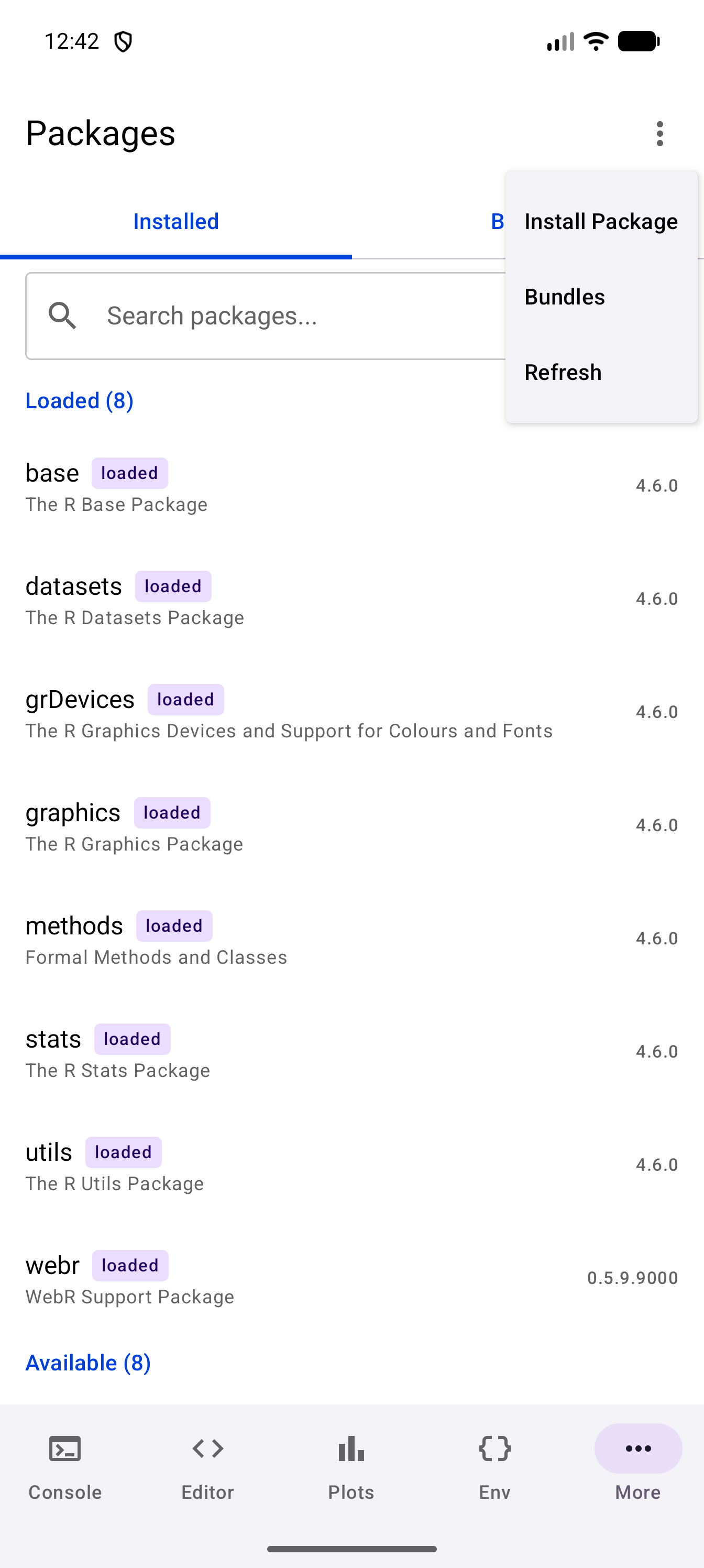
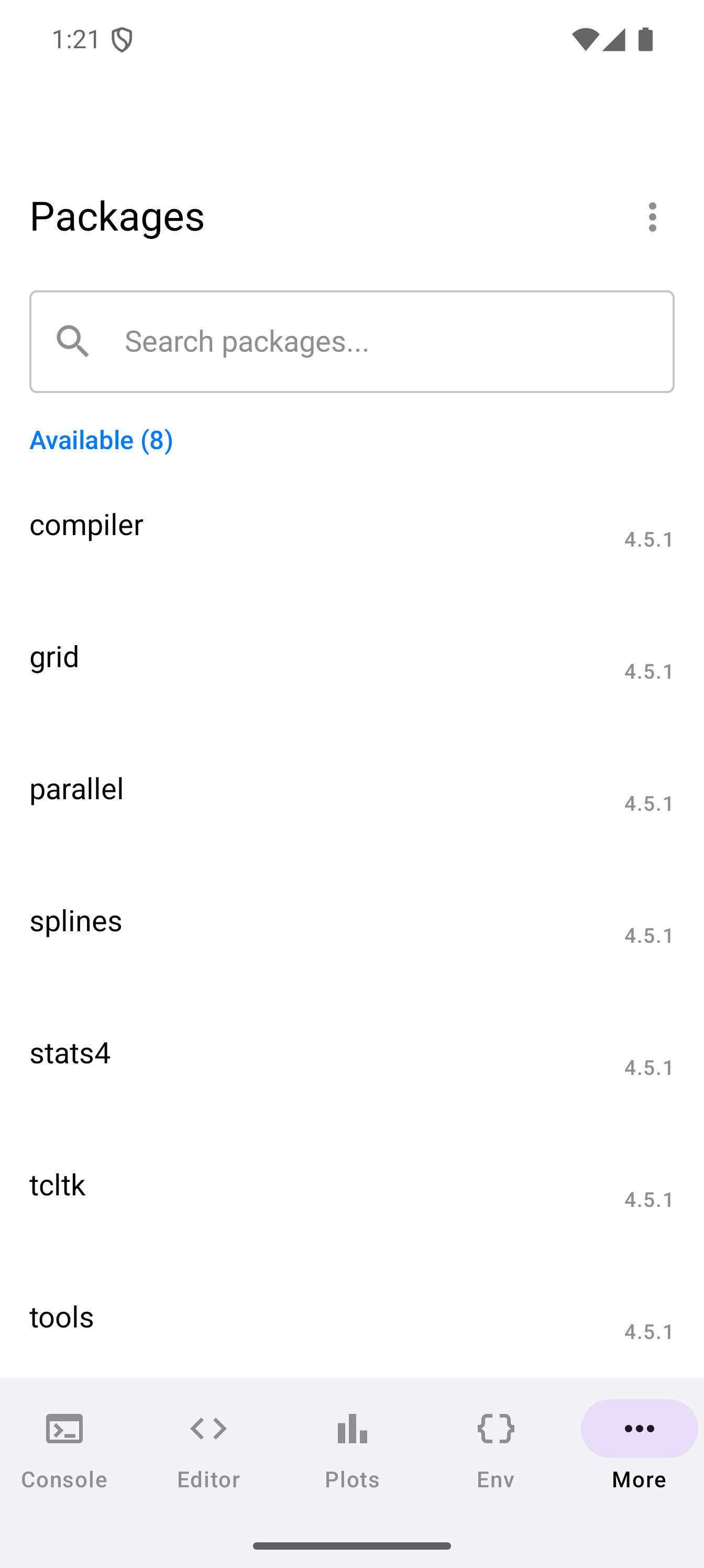
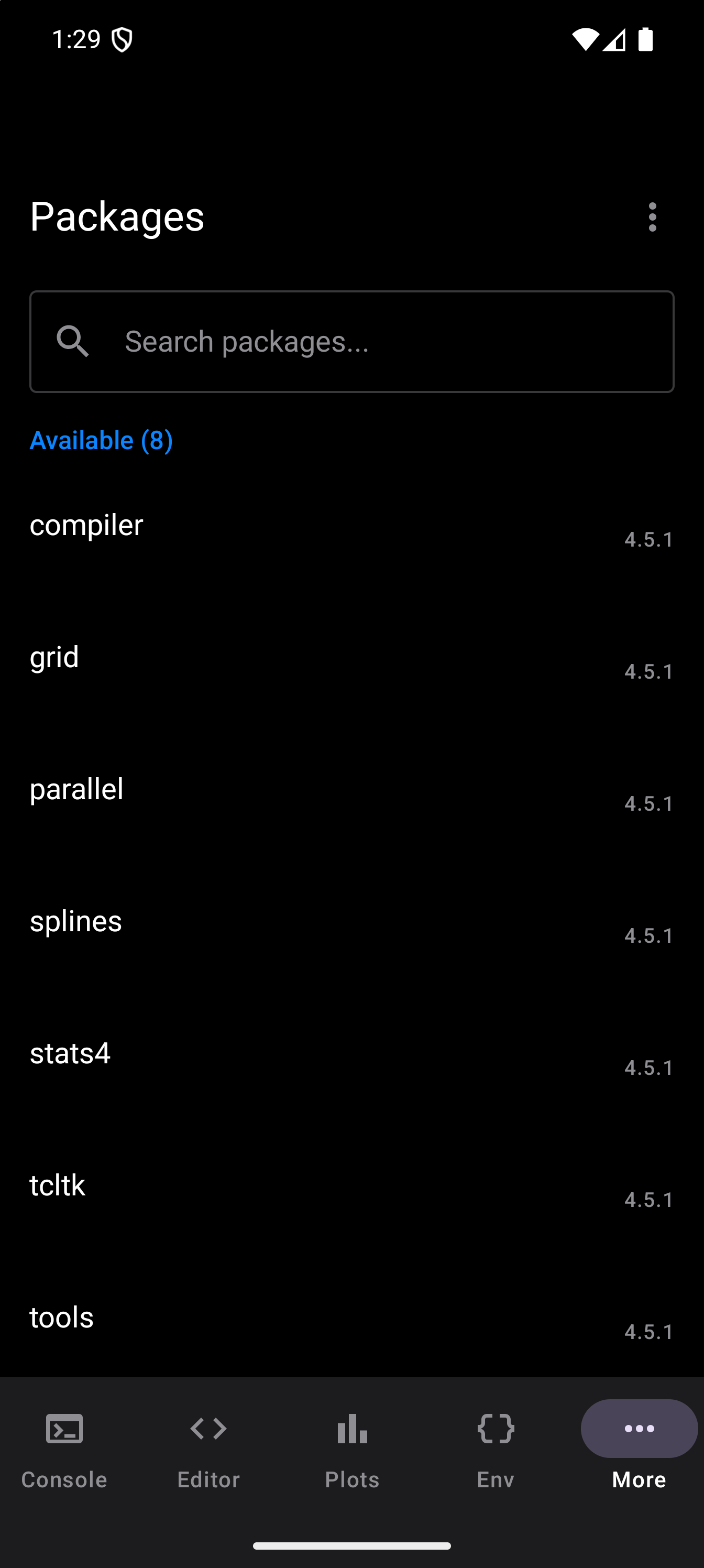
The Packages screen opens on the Installed tab, which shows all installed packages in a scrollable list, divided into two sections:
- Loaded: packages that are currently attached to the R session. Each of these has a “loaded” chip next to its name.
- Available: packages that are installed on the device but not currently loaded.
Each row shows the package name, the one-line title from the package’s DESCRIPTION file under it (or the version number, for a package that has no title), and the version in the trailing position.
A search bar at the top filters the list as you type. It matches against both the package name and its title, so you can search for “plot” to find visualization-related packages or “string” to find text-processing packages.
If R does not answer when the app asks for the list, the screen says it “Couldn’t read the installed packages”, with the reason and a Retry button, rather than showing an empty library.
Browsing the Repository
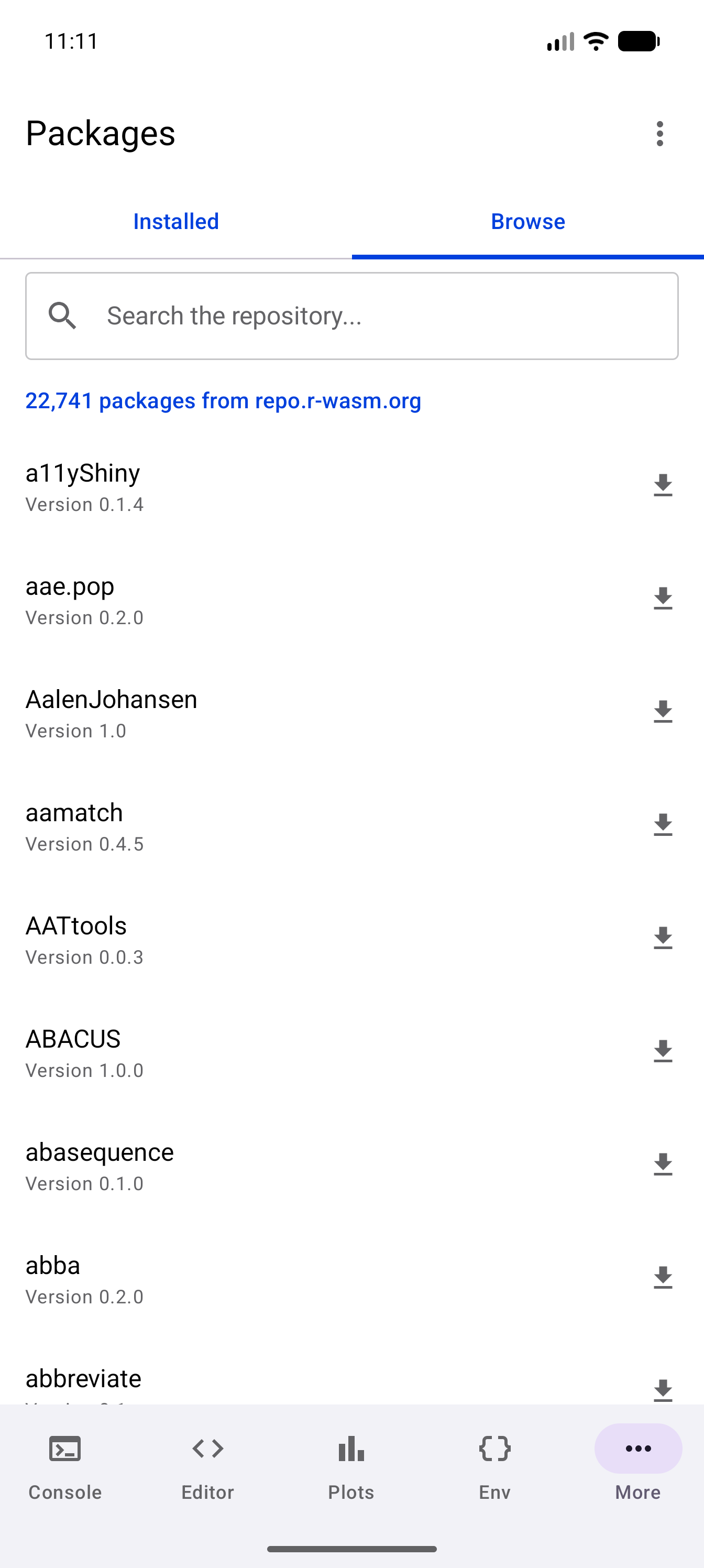
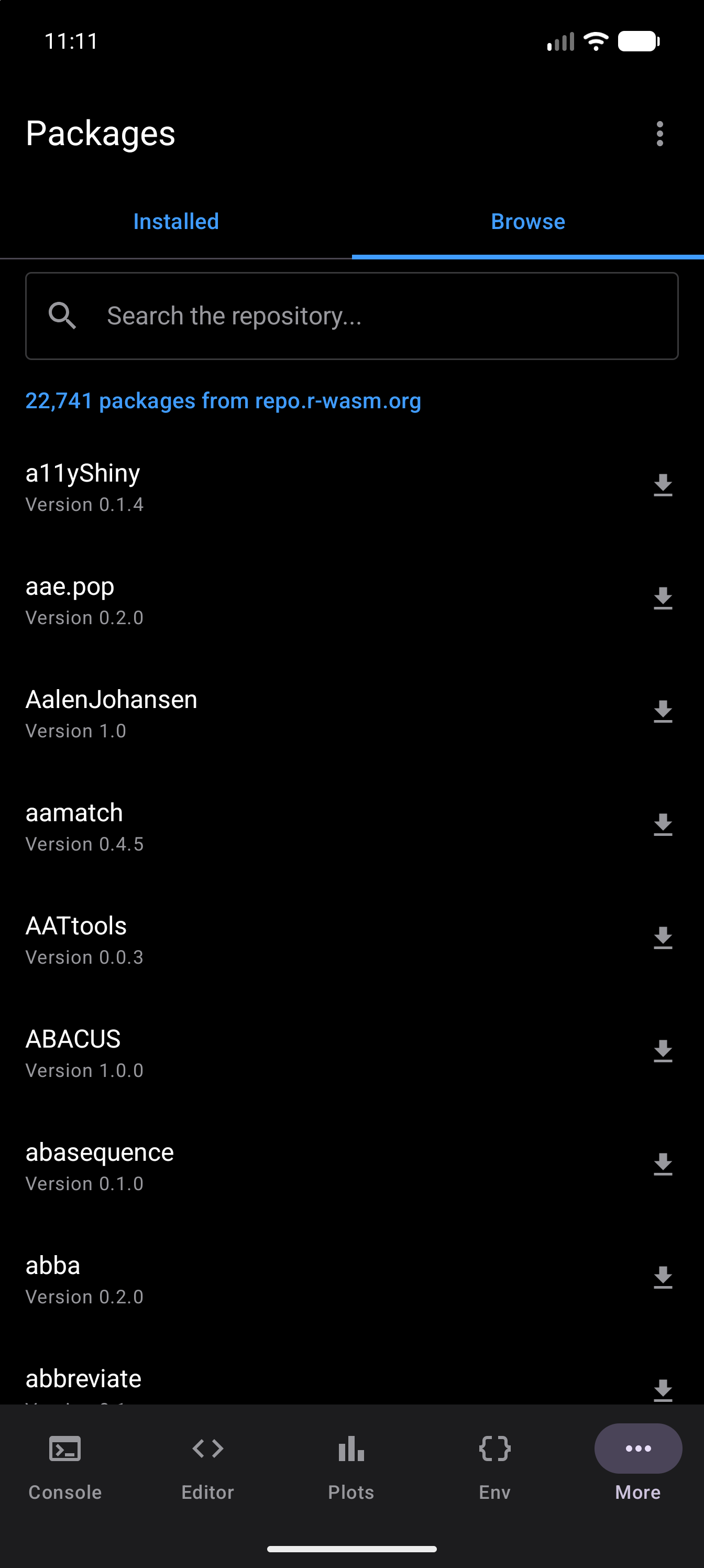
The Browse tab lists every package that repo.r-wasm.org offers for the app’s version of R, which is over 20,000 of them. It is the same list install.packages() looks a name up in, so a package you find here is one an install can fetch.
The first time you open Browse, R downloads the repository’s package list, and the tab shows “Loading the repository’s package list…” until it arrives. The list is kept until the app is closed, so opening Browse again is immediate. Because the list is read through R, it has to wait if R is busy running your code.
A heading above the list gives the number of packages and the repository they come from. Each row shows a package’s name and version, with a download icon at the end for a package you do not have yet. A package you already have carries an installed tag instead and shows its title above the version. Tapping it does nothing: installing it again would not update it. To move an installed package to a newer build, see Known Issues.
Searching the repository
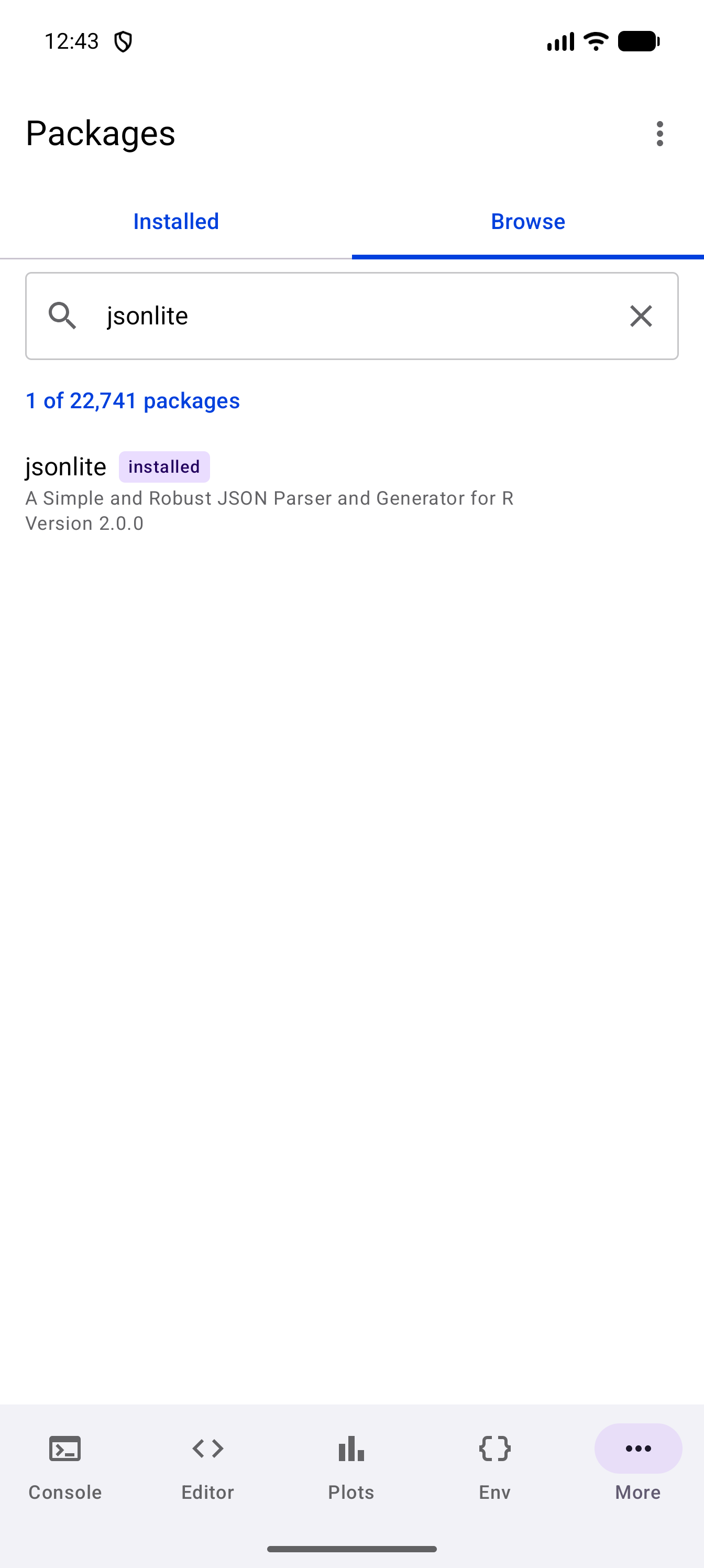
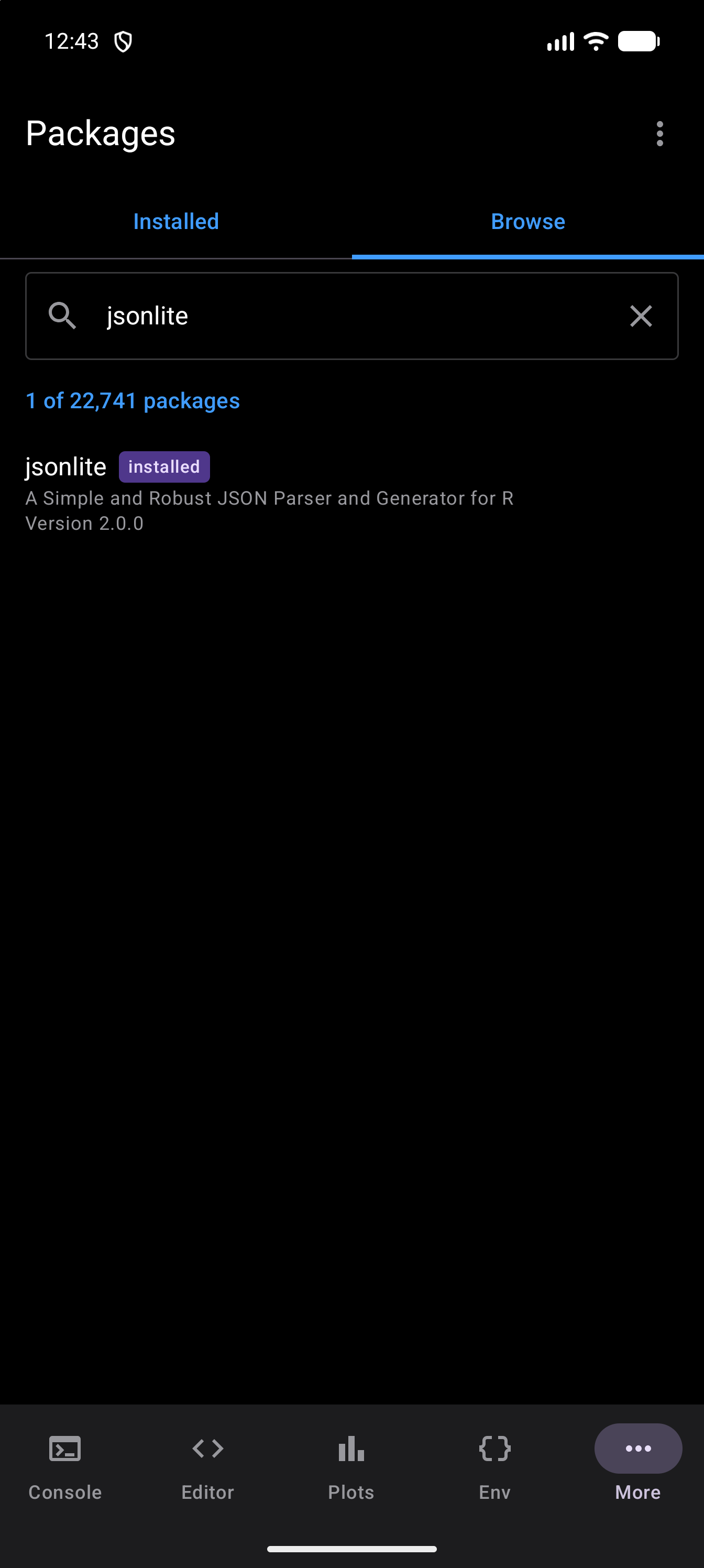
In Browse, the search bar reads “Search the repository…” and matches package names as you type, ignoring case. The package whose name is exactly what you typed comes first, then names that start with it, then names that merely contain it, so a search for gt puts the gt package at the top rather than partway down the eighty-odd names containing those two letters. While you search, the heading counts the matches out of the total.
The repository’s list carries only names and versions, so Browse shows a title only for a package you have installed, and searches names alone. The search bar is shared by both tabs: text you typed in Installed is still there when you switch to Browse.
When the list cannot be loaded
If the package list cannot be downloaded, most often because the device is offline, Browse says it “Couldn’t load the package list” with the reason, such as “Couldn’t read the package list from https://repo.r-wasm.org. Check your internet connection and try again.”, and a Retry button. The Installed tab, and every installed package, keep working offline.
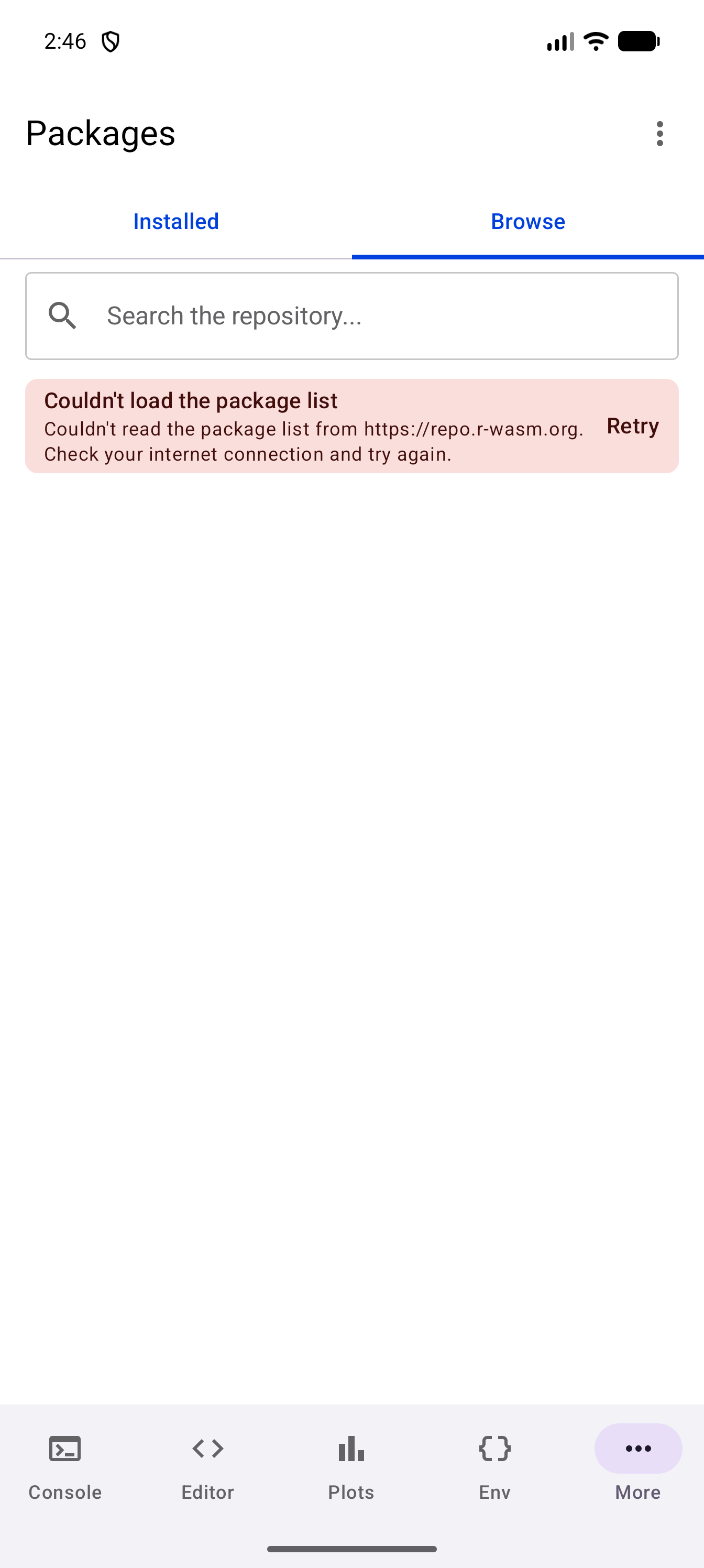
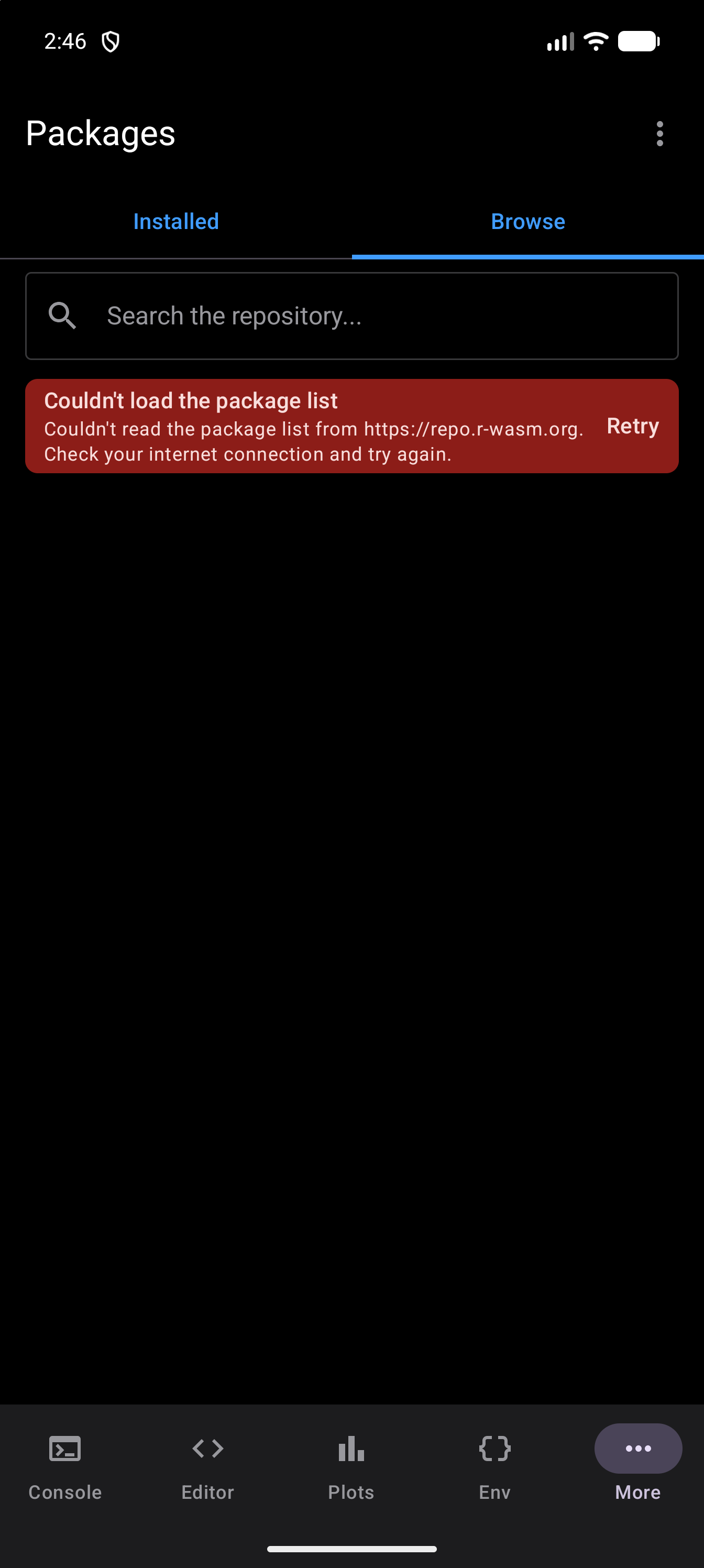
Two other messages come from R rather than the network. If you open Browse while R is still starting, it asks you to try again once R is ready. If R does not answer in time, because it is busy running code or the connection is slow, it says R did not send the package list in time. Retry asks again in either case; a failure is never remembered, so leaving the tab and coming back also tries afresh.
Browse lists the repository that R installs from, getOption("webr_pkg_repos"). If you point that option at a different repository before you first open Browse, the heading names that repository and the list is its packages.
Installing Packages
You can install a package in three ways: pick it from the Browse tab, type its name, or install a bundle of related packages (see Package Bundles).
From the Browse Tab
- Open the Browse tab and search for the package
- Tap its row
- Check the confirmation, which names the version and what else will be downloaded
- Tap Install
The confirmation asks, for example, “Install ggplot2?”. While you read it, R works out what else would be downloaded: the packages it depends on or imports, and theirs in turn, that you do not have yet. The dialog then says “Also installs 3 packages it needs: …” with their names, or “Everything it needs is already installed.” You do not have to wait for that check before tapping Install. If it cannot be made, the dialog says “Couldn’t check what else it needs”, and anything missing is still installed with the package.
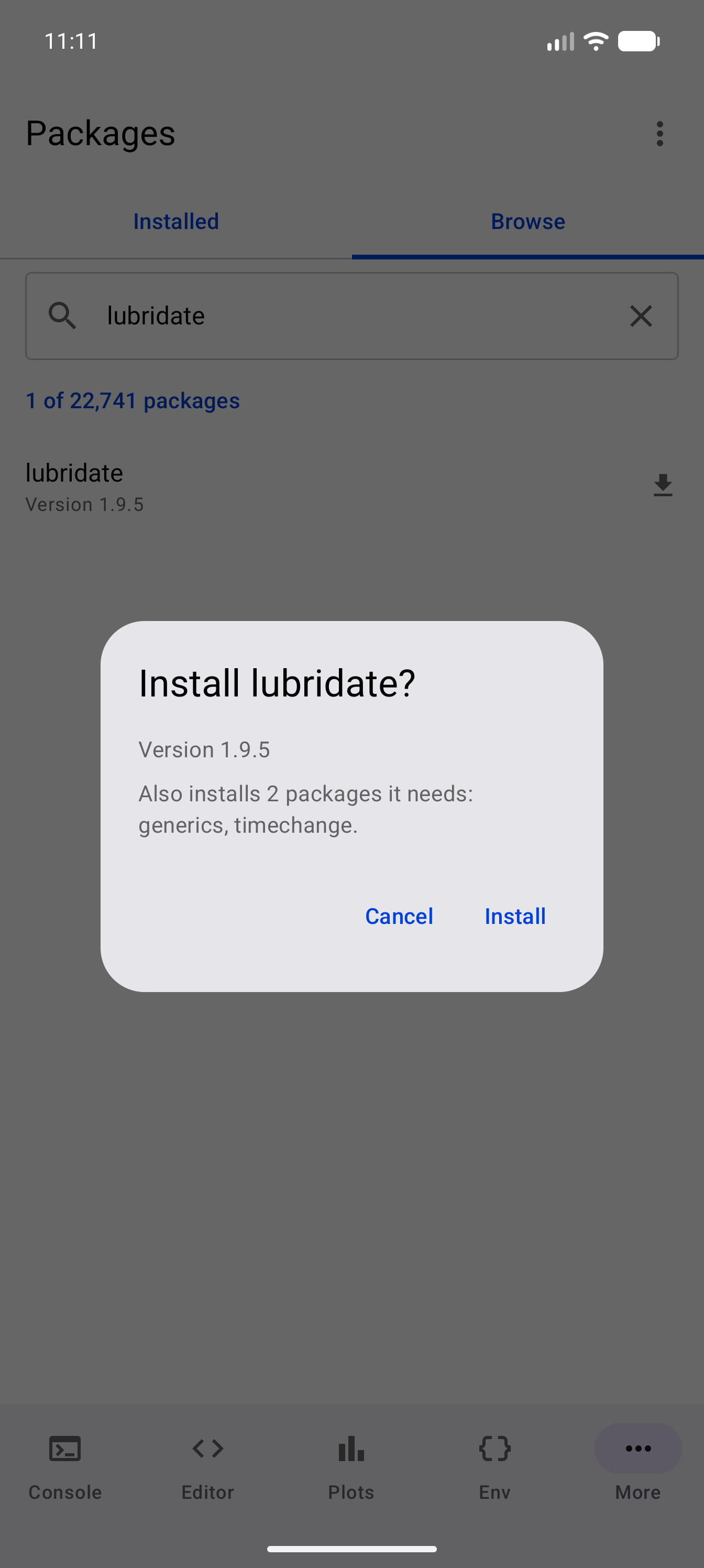
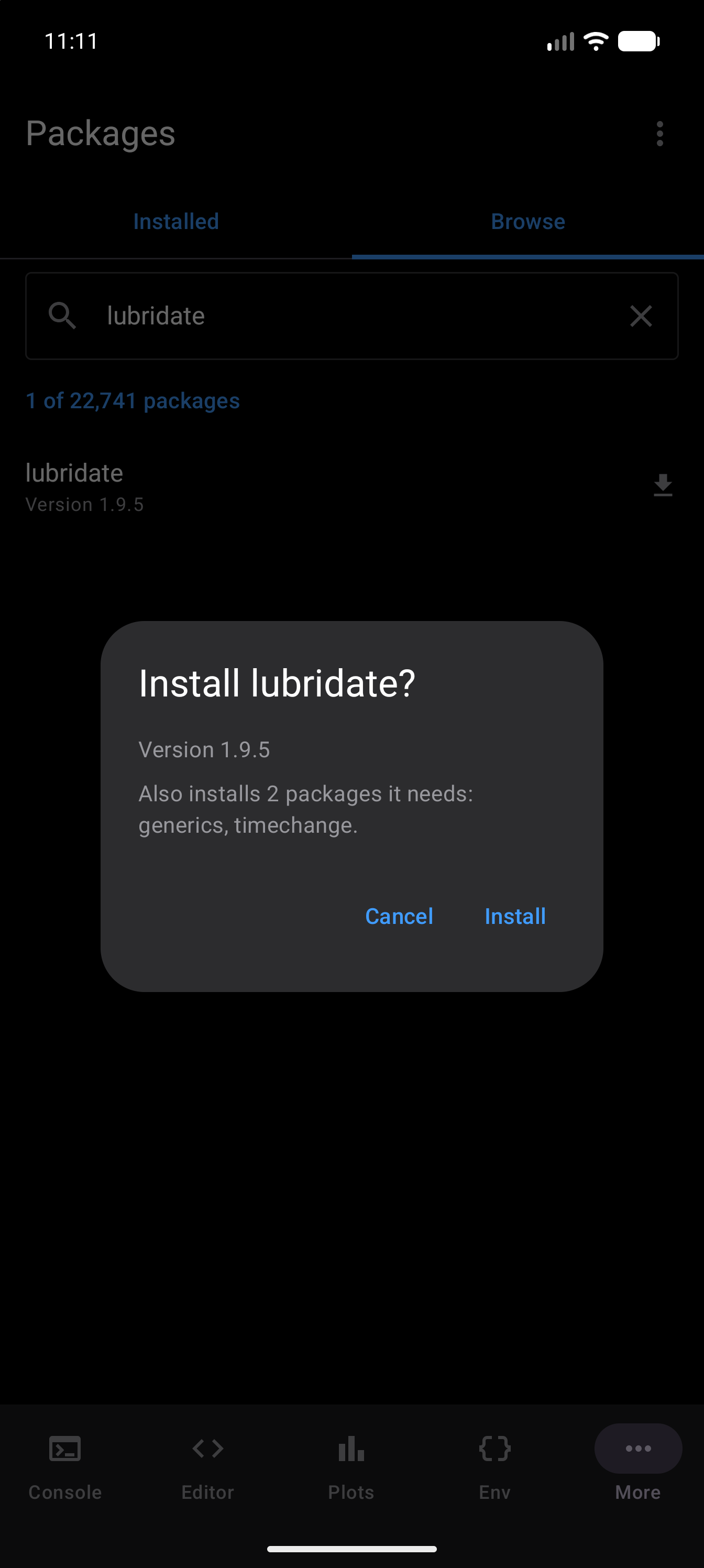
The install then runs exactly as one started by name, with the progress banner described below. While it runs, the rows in Browse cannot be tapped.
Install by Name
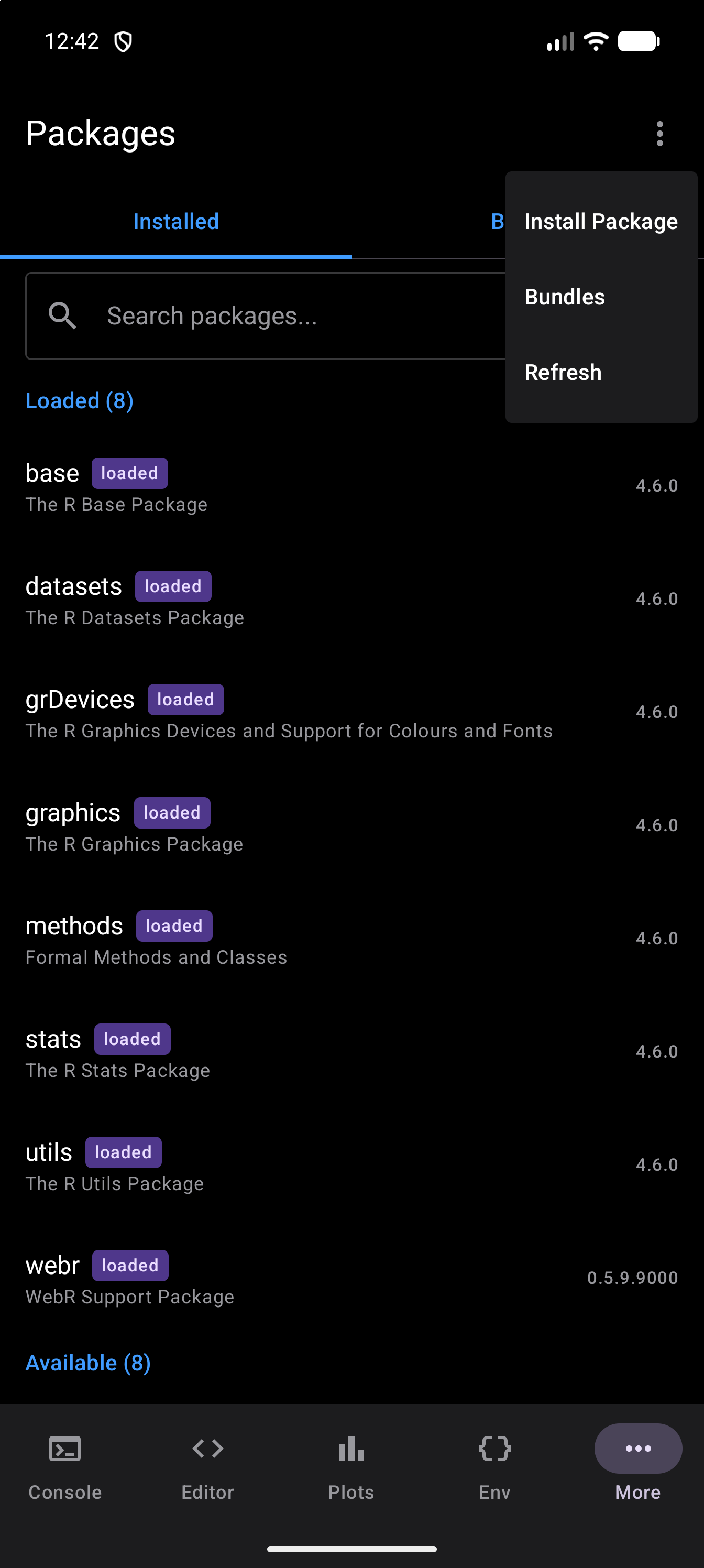
- Tap the three-dot menu in the toolbar
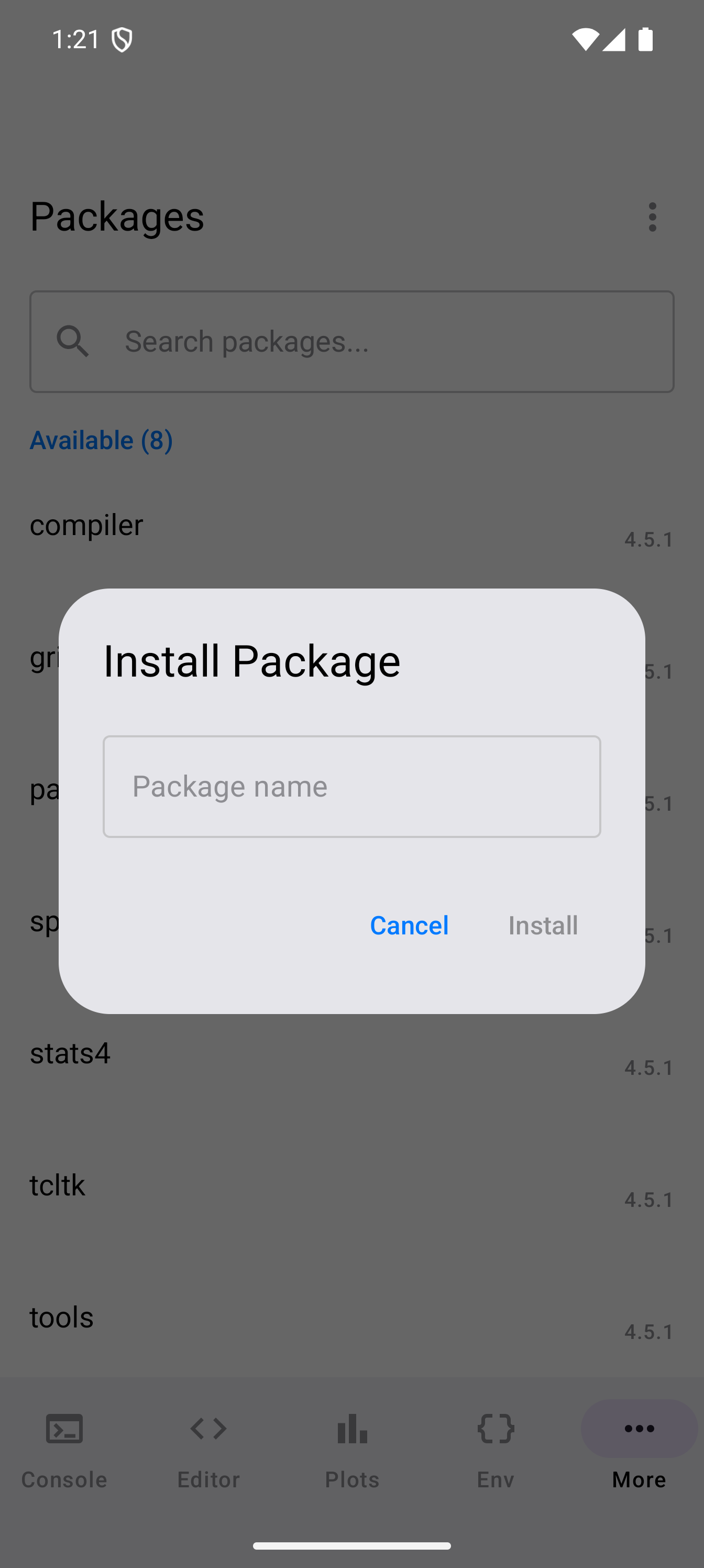
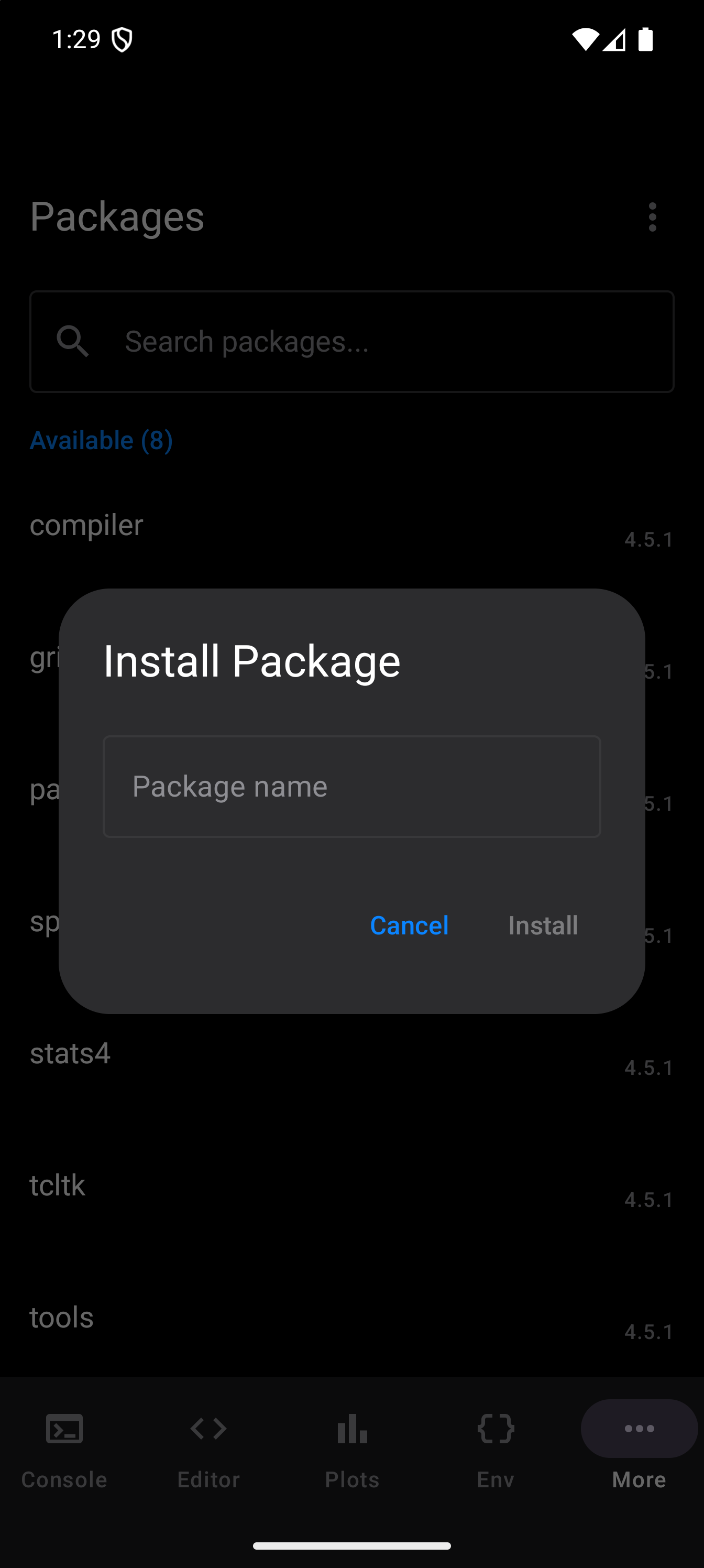
- Choose Install Package
- Type the exact package name (e.g.,
ggplot2,dplyr,jsonlite) - Tap Install
A progress banner appears below the search bar with a progress bar and a status message, such as “Installing jsonlite…”. When the install finishes, the message changes to say the package is installed and is being saved to storage, a Dismiss button appears for putting the banner away, and the package list refreshes automatically.
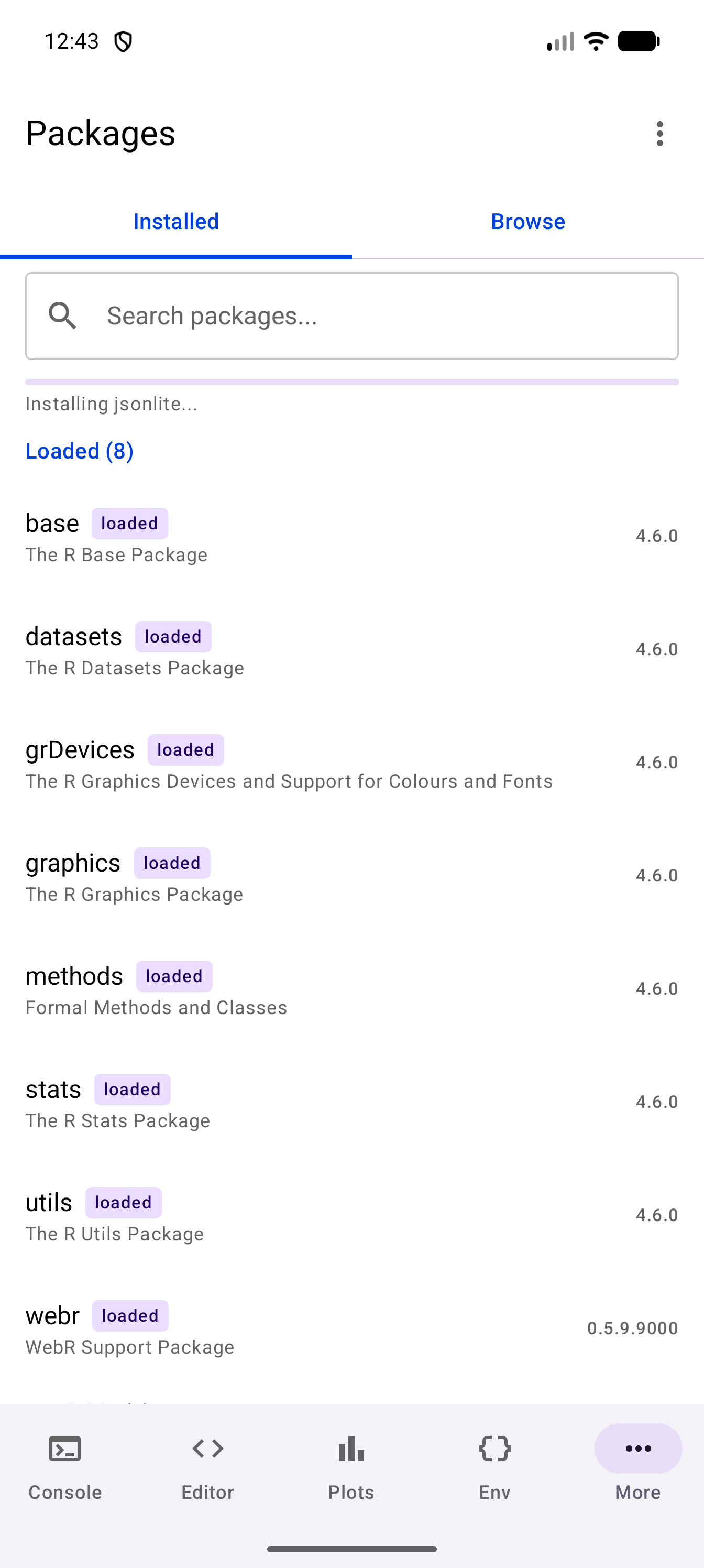
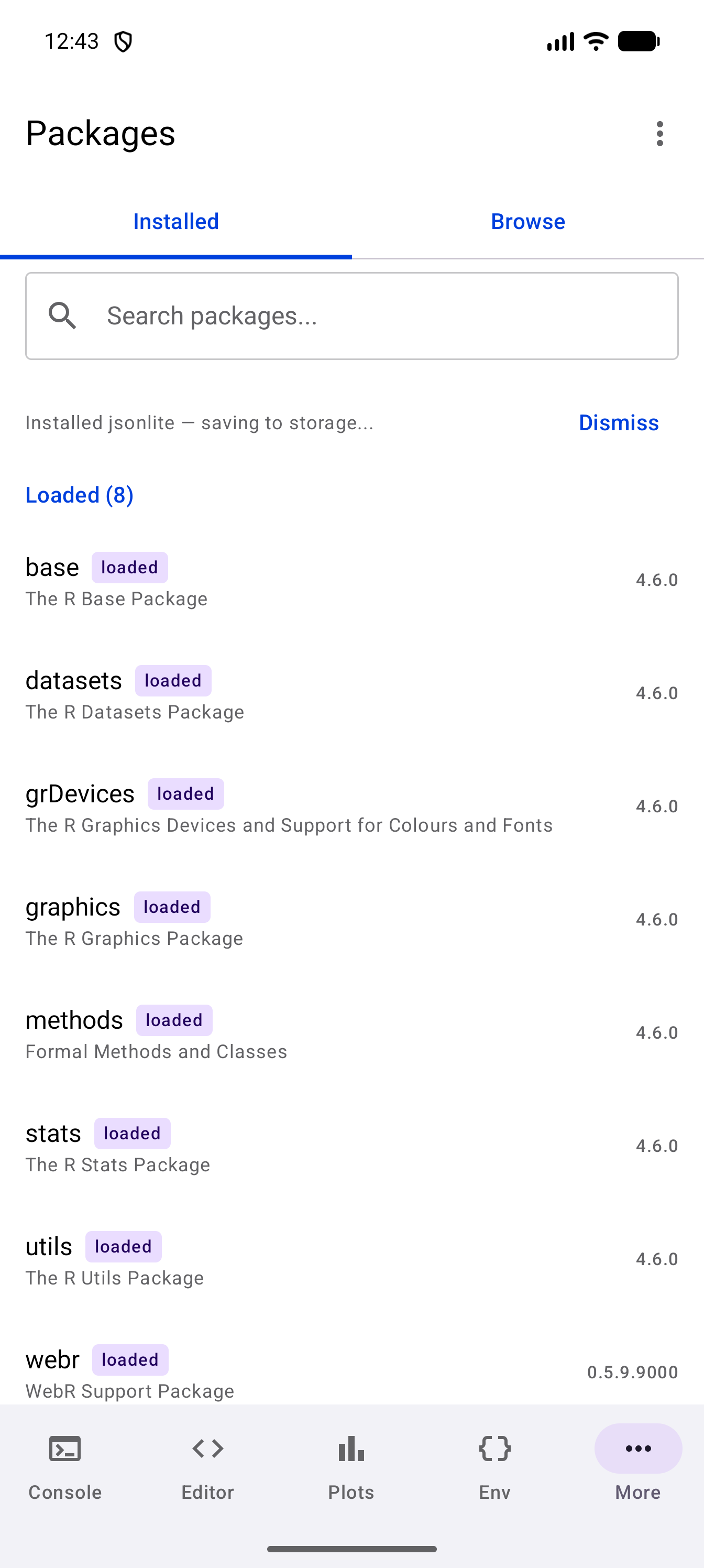
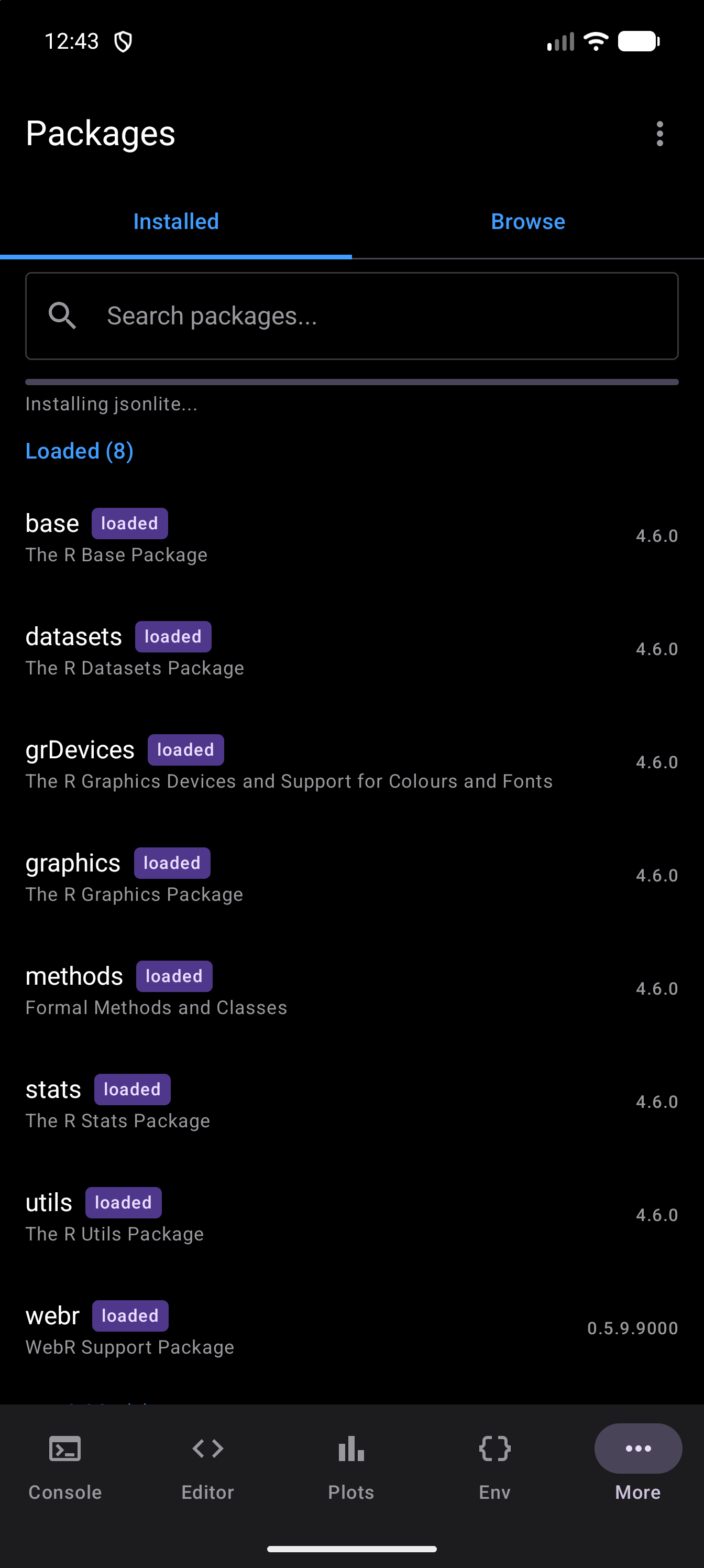
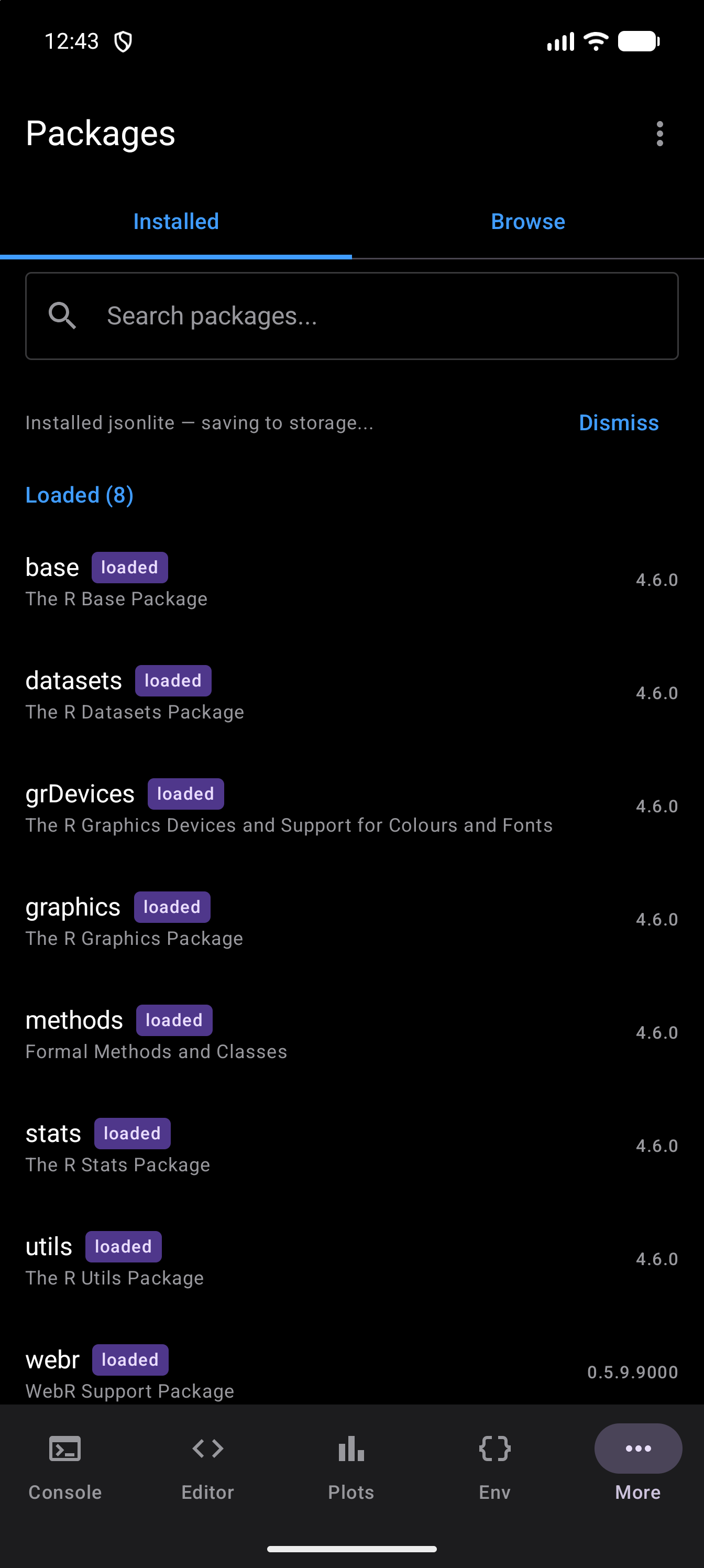
Dependencies are resolved and installed automatically. You do not need to install them manually.
Load and Unload
Installing a package puts it on the device, but you still need to load it before its functions are available. This is the same two-step process as desktop R.
To load or unload a package:
- Tap or long-press a package row to open its menu
- Choose Load (for unloaded packages) or Unload (for loaded packages)
You can also load packages from the Console with standard R code:
library(ggplot2)
library(dplyr)
Loading is a per-session action. If you restart R or relaunch the app, packages return to their unloaded state. Put your library() calls at the top of your scripts so they run automatically.
Remove a Package
To free up storage, open a package’s menu and choose Remove. This deletes the package from R’s library and its cached copies from the device and your storage folder, so it does not come back at the next launch. You can reinstall it later if needed.
During removal, the progress banner shows “Removing [package name]…” and confirms once the operation completes.
Package Bundles
If you are not sure which packages to start with, webRoid offers pre-built bundles that install a curated group of related packages in one action.
To access bundles:
- Tap the three-dot menu in the toolbar
- Choose Bundles
- A dialog appears listing the available bundles
Each bundle shows its name, a short description, and the list of included packages. Tap a bundle to install all of its packages sequentially. The progress banner updates with each package as it installs.
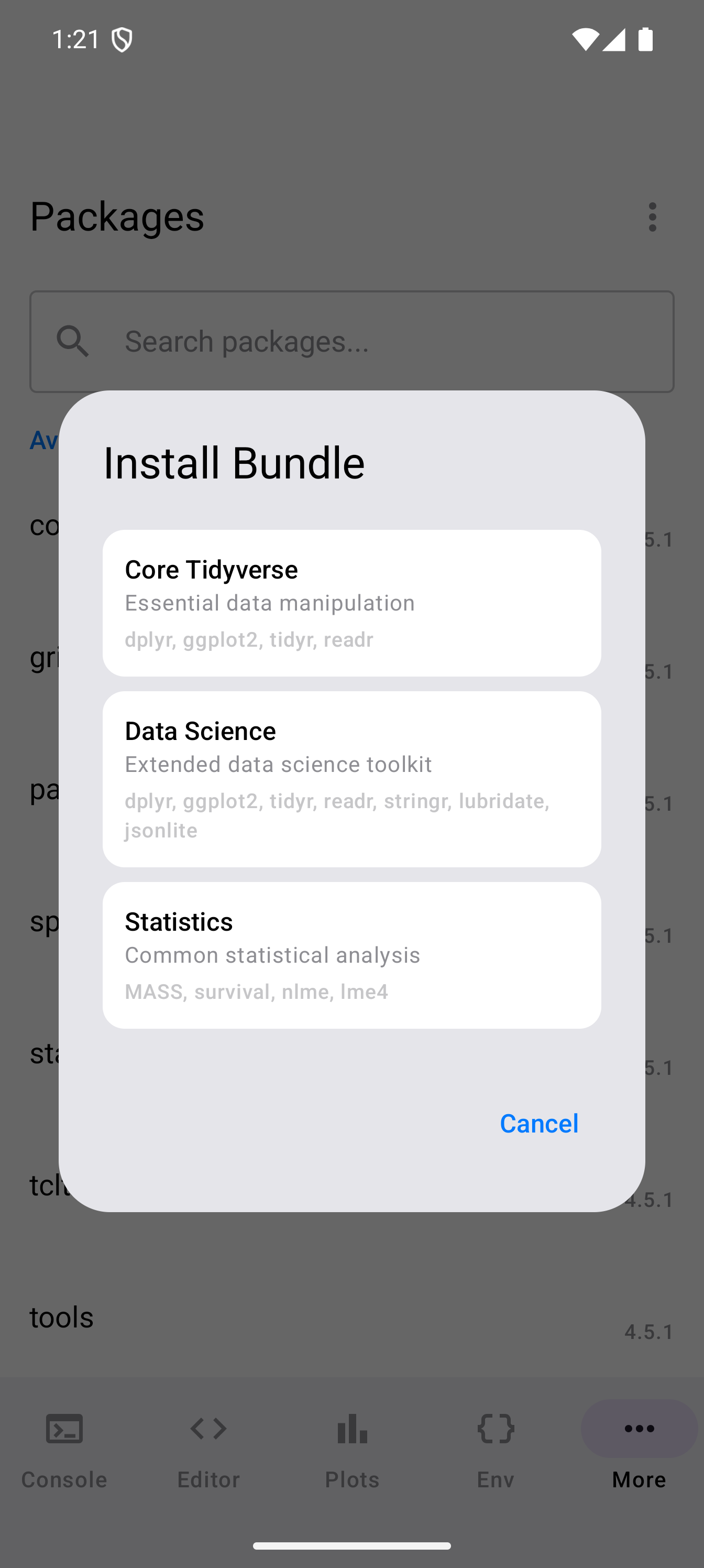
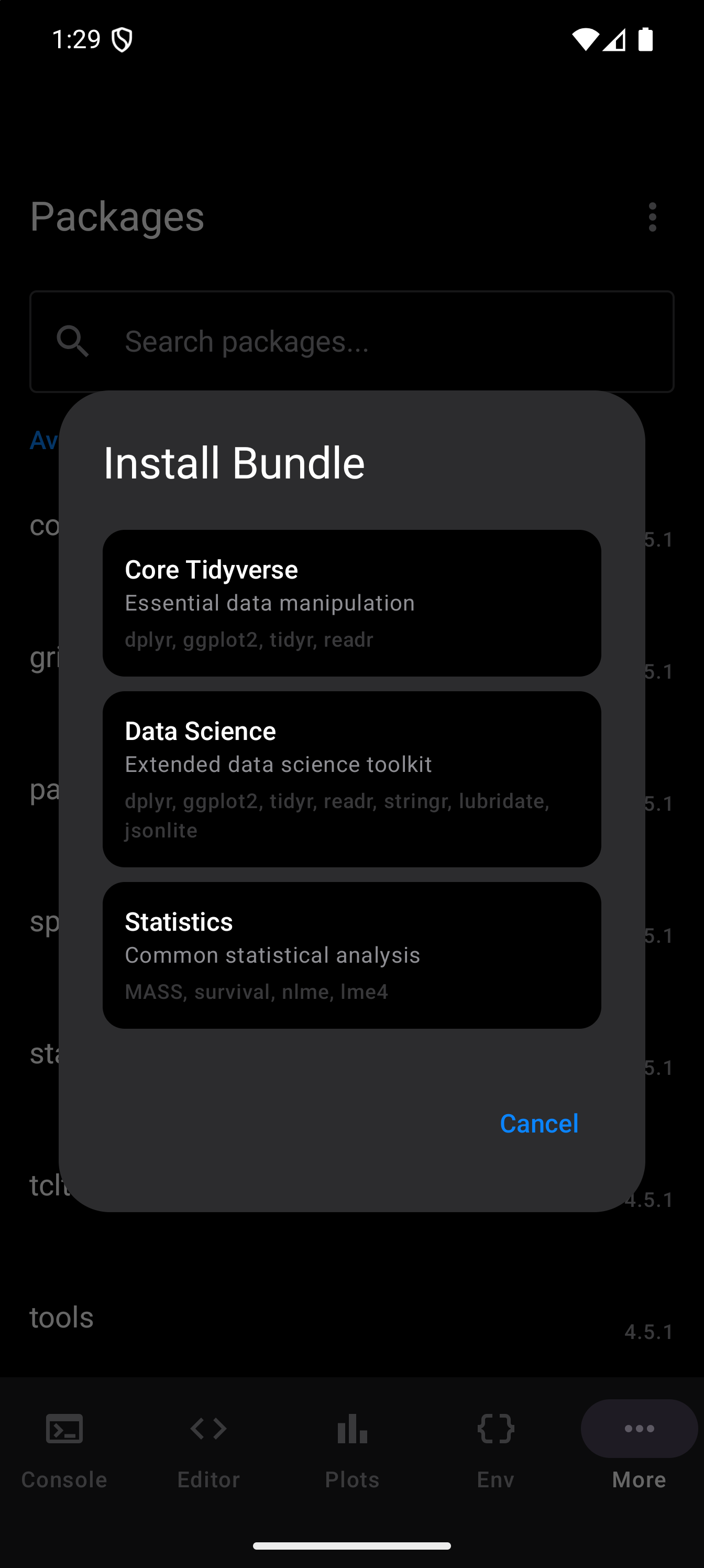
The built-in bundles are:
- Core Tidyverse
-
Essential data manipulation. Includes
dplyr,ggplot2,tidyr, andreadr. A great starting point for most R workflows. - Data Science
-
An extended toolkit that includes everything in Core Tidyverse plus
stringr(string operations),lubridate(dates and times), andjsonlite(reading and writing JSON). - Statistics
-
Focused on statistical modeling. Includes
MASS(classic statistical methods),survival(survival analysis),nlme(mixed-effects models), andlme4(advanced mixed models). - Interactive Plots
-
htmlwidgets for the Plots > Interactive tab. Includes
htmltoolsandhtmlwidgets, which are needed for any widget to render, plusplotly,leaflet, andDT. See Interactive Plots.
Bundles are a quick way to bootstrap a new session. If you mainly do data visualization, “Core Tidyverse” is a good starting point. For general-purpose data science work, the “Data Science” bundle covers most common needs.
Which Packages Are Available
The WebR repository at repo.r-wasm.org hosts thousands of packages, but not every CRAN package is available. The limitations are:
- Packages with compiled code (C, C++, Fortran) must be pre-compiled for the WebAssembly target. The webR project handles this, but some packages with complex system dependencies cannot be compiled.
- Packages that depend on external system libraries (e.g., database drivers like RMySQL, or Java-dependent packages like rJava) are generally unavailable.
- Pure R packages are the most likely to be available, since they do not require platform-specific compilation.
In practice, the most popular data science, statistics, and visualization packages work well. If you try to install a package that is not available, the installation will fail with an error message.
The webR package repository is updated regularly. A package that is unavailable today may be added in a future update. Search for it in the Browse tab to see whether it is there now. The app downloads the list afresh the first time you open Browse after each launch.
Packages Across Launches
Installing a package writes a copy of it into a pkg-cache folder inside your storage location, and every launch loads those copies back into the R session before handing the console to you. There is nothing to switch on, and you do not need to be online: what you installed once is there each time.
What does not carry over is attachment. A new session starts with nothing attached, so your scripts still need their library() calls at the top.
A package is kept for the next launch only once every one of its files has been saved. If some were not, the Console says so, for example “Could not save dplyr for the next launch: 40 of its 52 files were saved. It works in this session; install it again after restarting R.” If the package was saved on the device but its copy in your storage folder did not finish, the Console says that too, and the copy is made again at the next start.
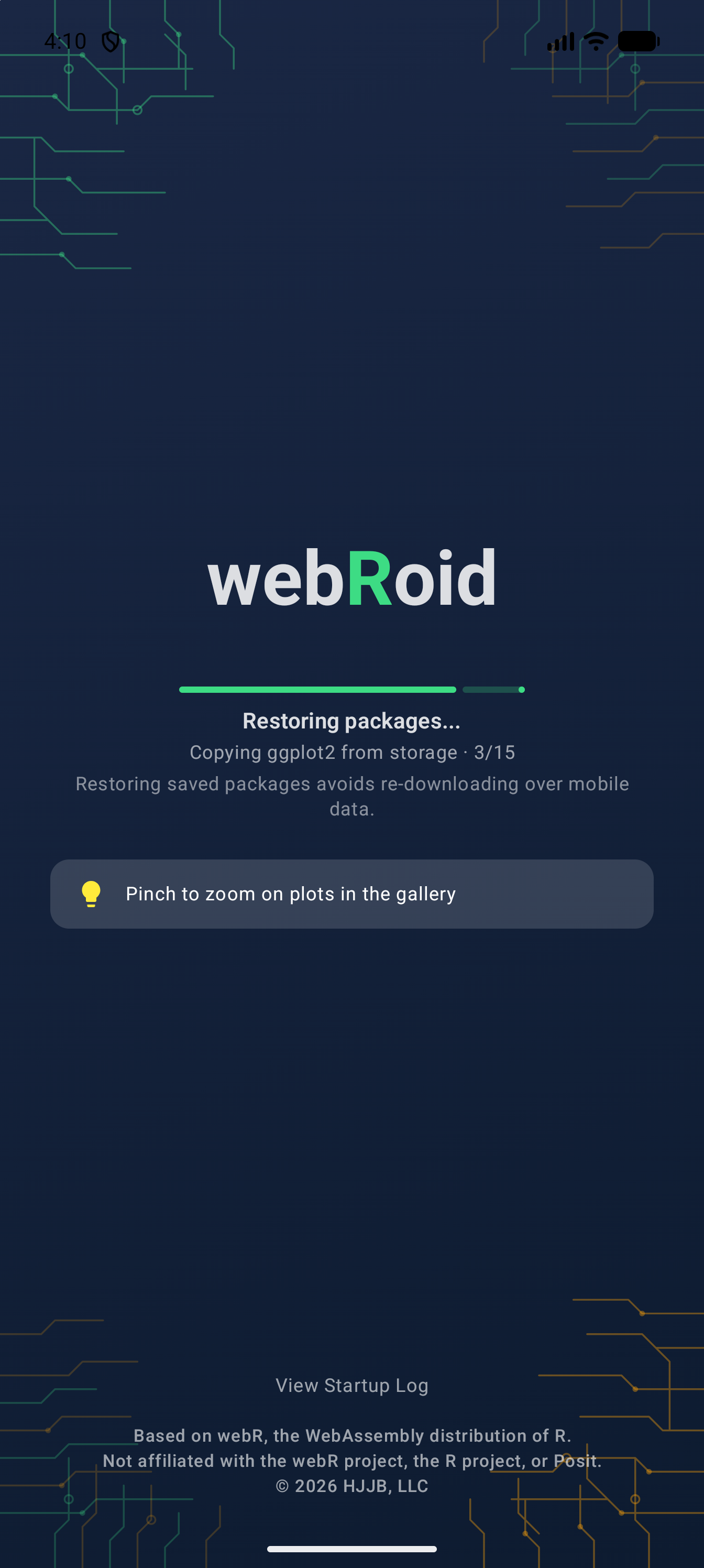
The app keeps its own copy of your packages as well as the one in your storage folder. If Android clears the app’s cache, or you do, the next start copies them back from the storage folder: the loading screen shows Restoring packages… with “Copying ggplot2 from storage · 3/15” and so on, then restores each package as usual. A copy that was only partly saved, because the app was closed mid-save for instance, is not loaded; it is removed, and brought back from the storage folder when a whole copy is there.
Inside pkg-cache/0.6.0 in your storage folder, each package’s folder holds a hidden .webroid-complete file, and the version folder holds a .webroid-markers file. They are how webRoid tells a whole copy from one that never finished, so leave them in place: a package folder without its .webroid-complete file is treated as unfinished.
Use the Refresh option in the three-dot menu to reload the list of installed packages at any time.
After an Update to webR
Packages do not carry over an app update that brings a new webR, as 1.1.0 did (webR 0.5.8 to 0.6.0). Packages prepared for one version of webR don’t work with the next, so the packages installed for the old version are deleted on first launch. webRoid writes down which ones they were first, and a Packages removed by the update notice appears above both tabs of the Packages screen and at the top of the Console. In the Workspace it shows in both the Console and Packages panes, and TalkBack announces it once.
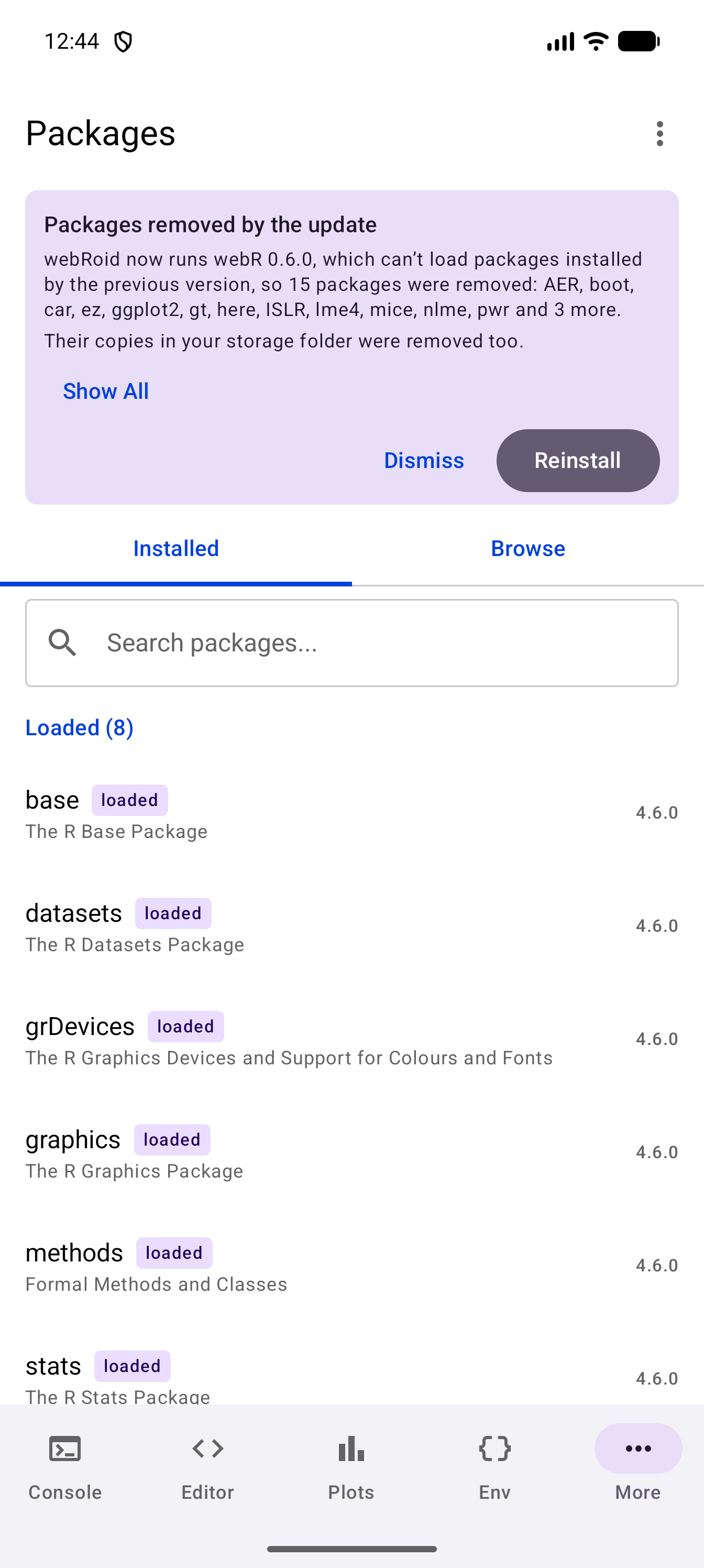
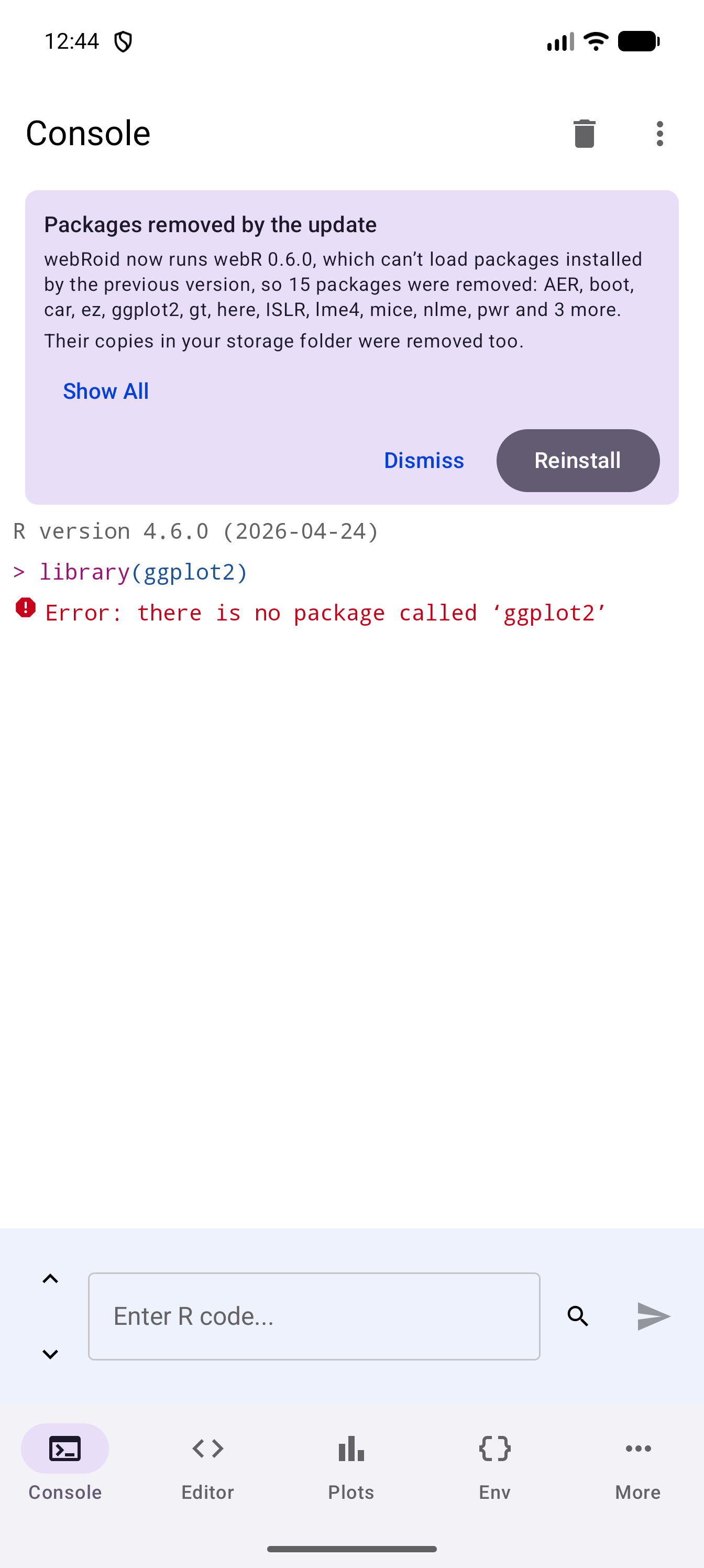
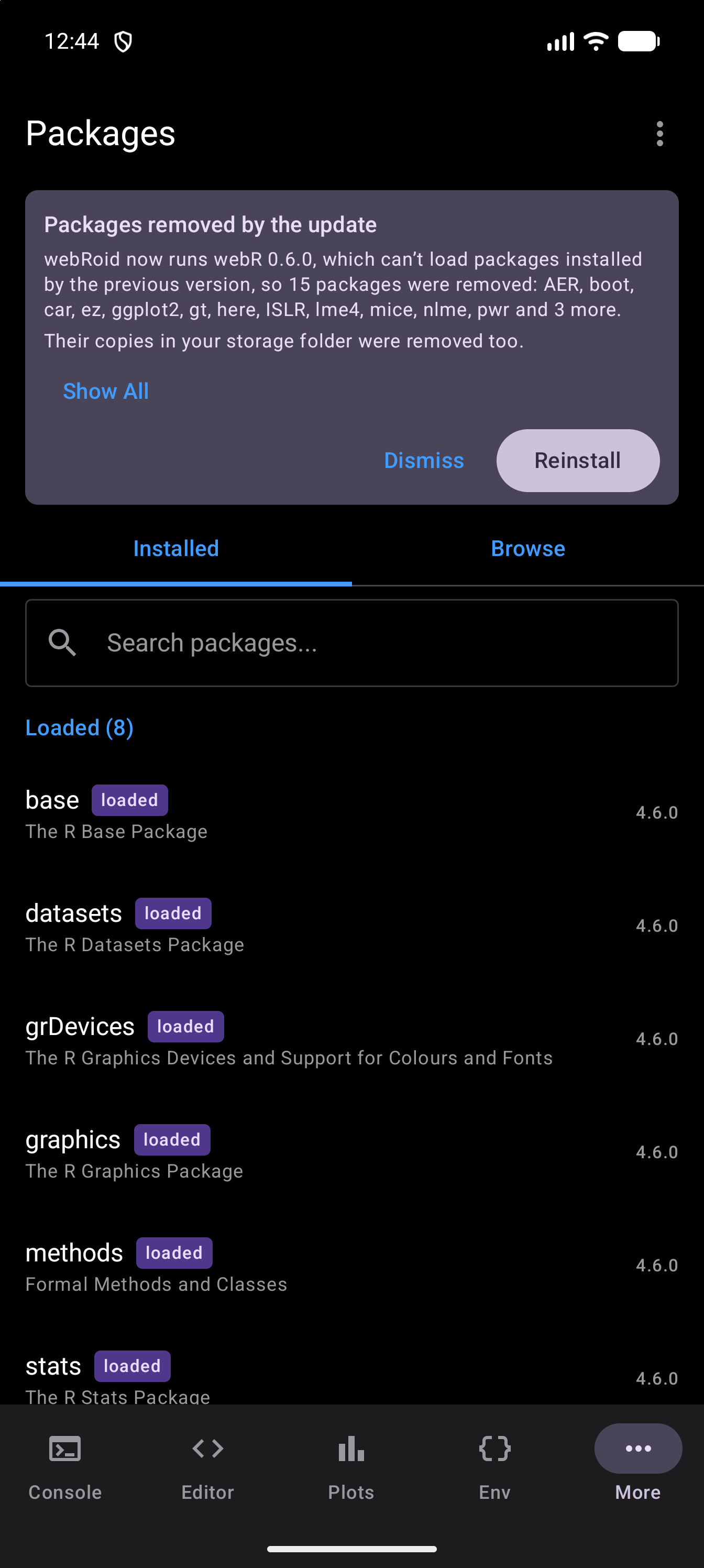
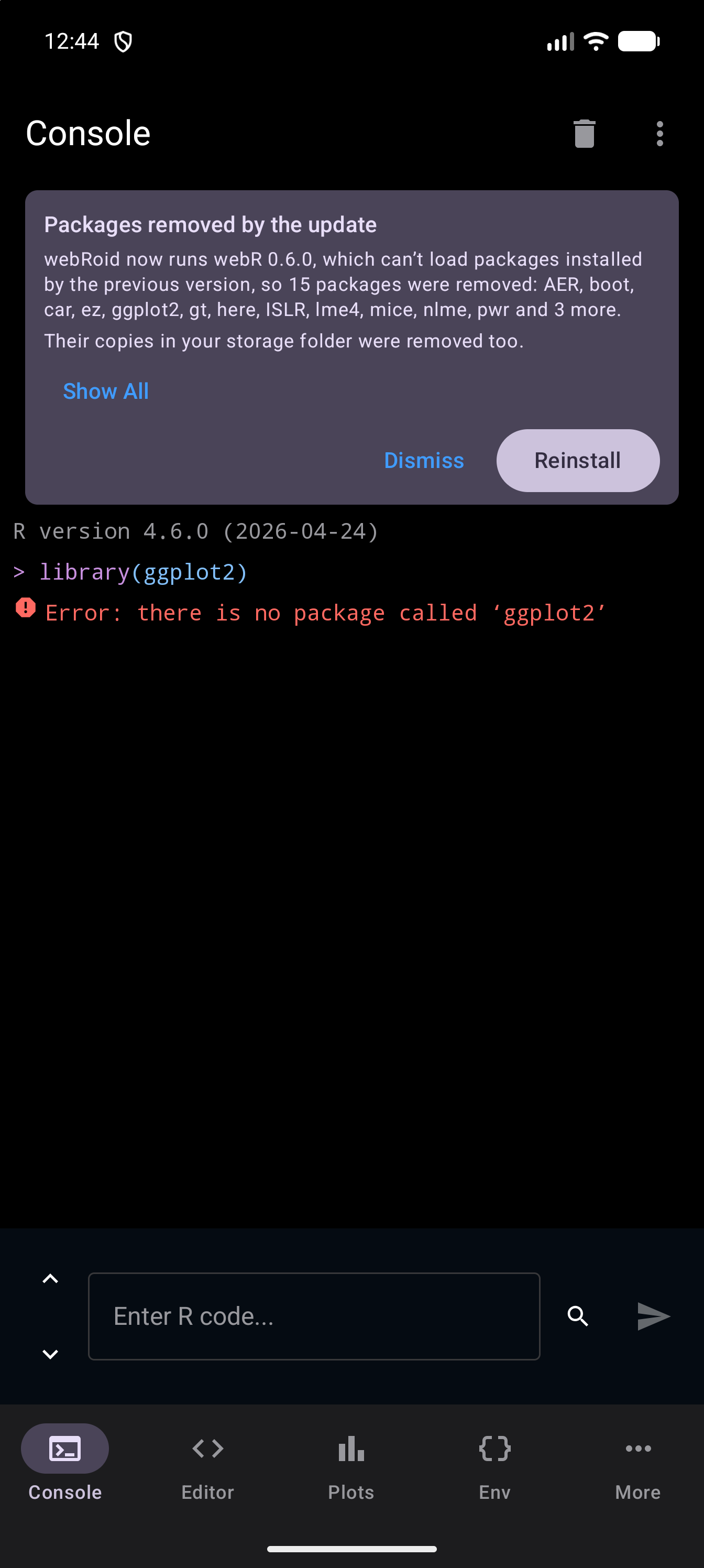
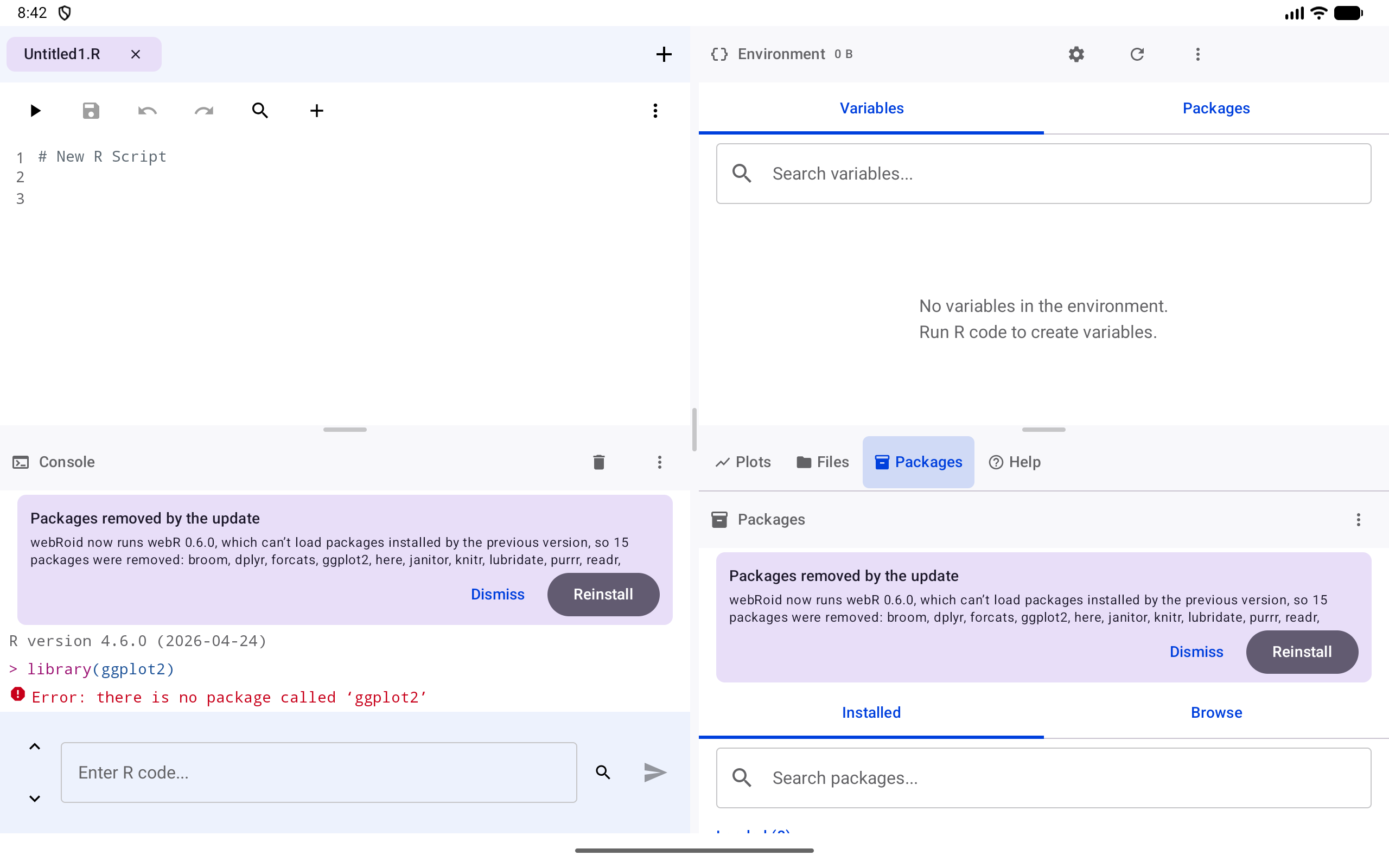
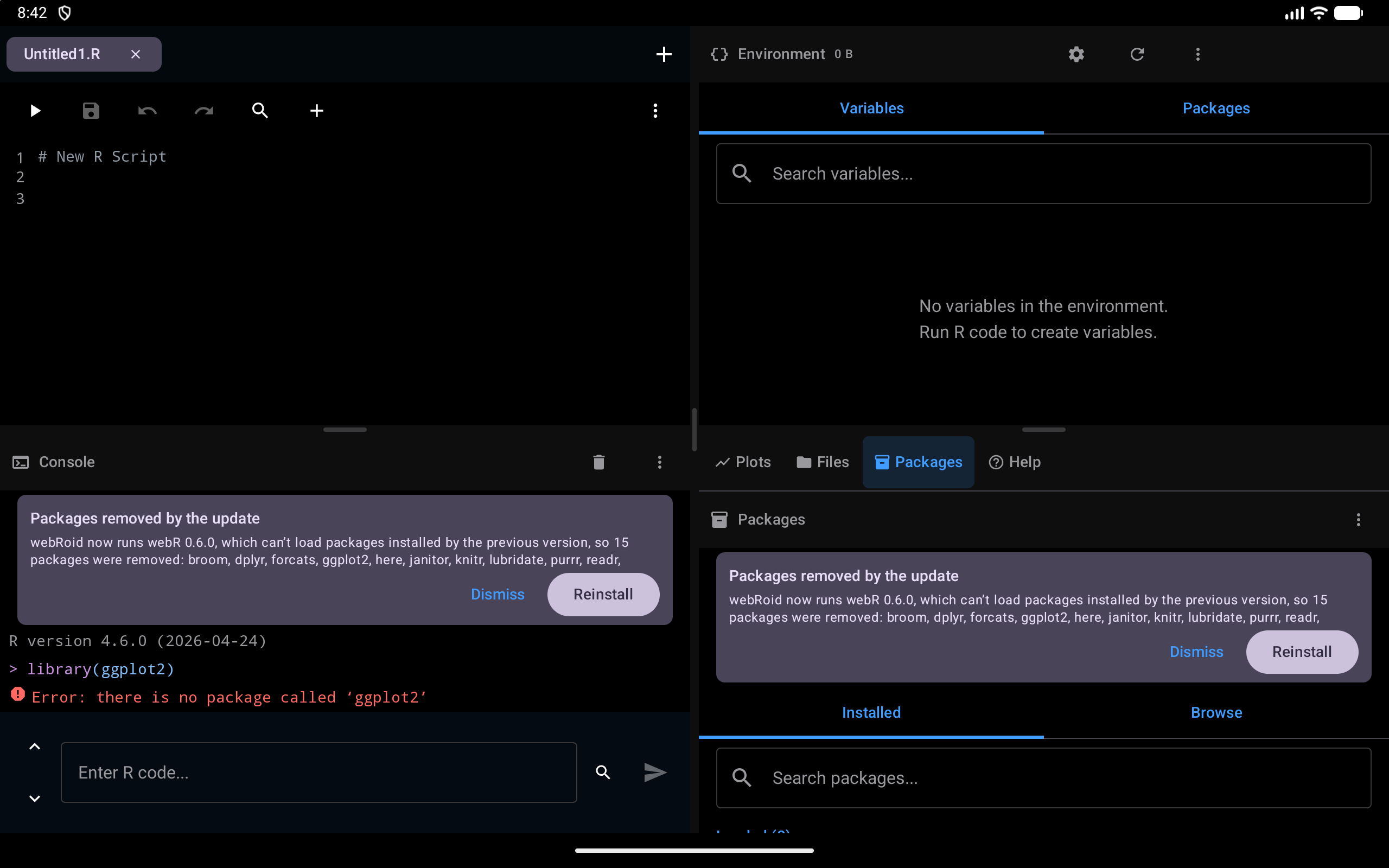
The notice says why the packages were removed and names them: the first twelve, then how many more, with Show All to list the rest. If their copies in your storage folder were removed too, it says so. It is never more than about 200dp tall, so a long list scrolls inside it. It stays, across restarts, until you tap one of its two buttons:
- Reinstall first checks which of the packages the webR repository still offers, then installs those in one
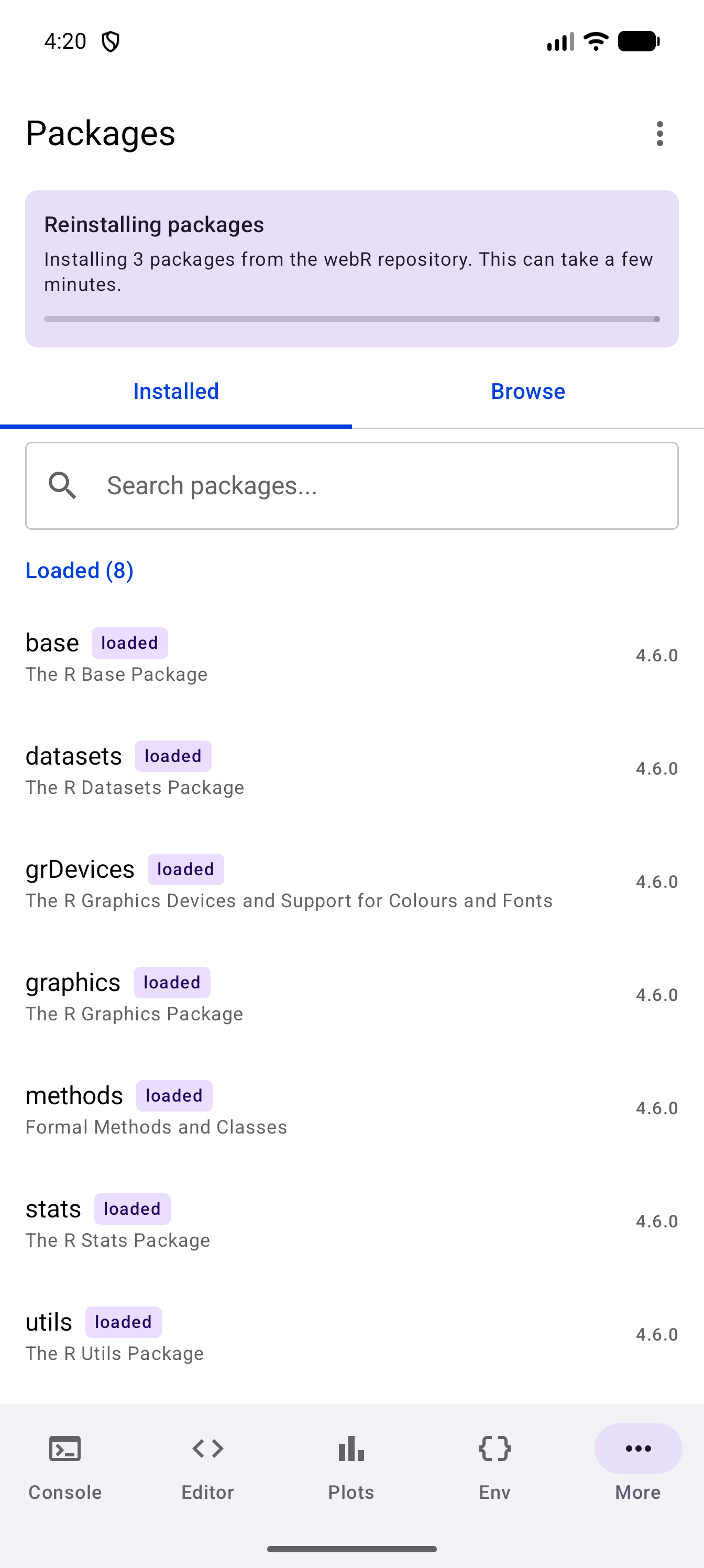
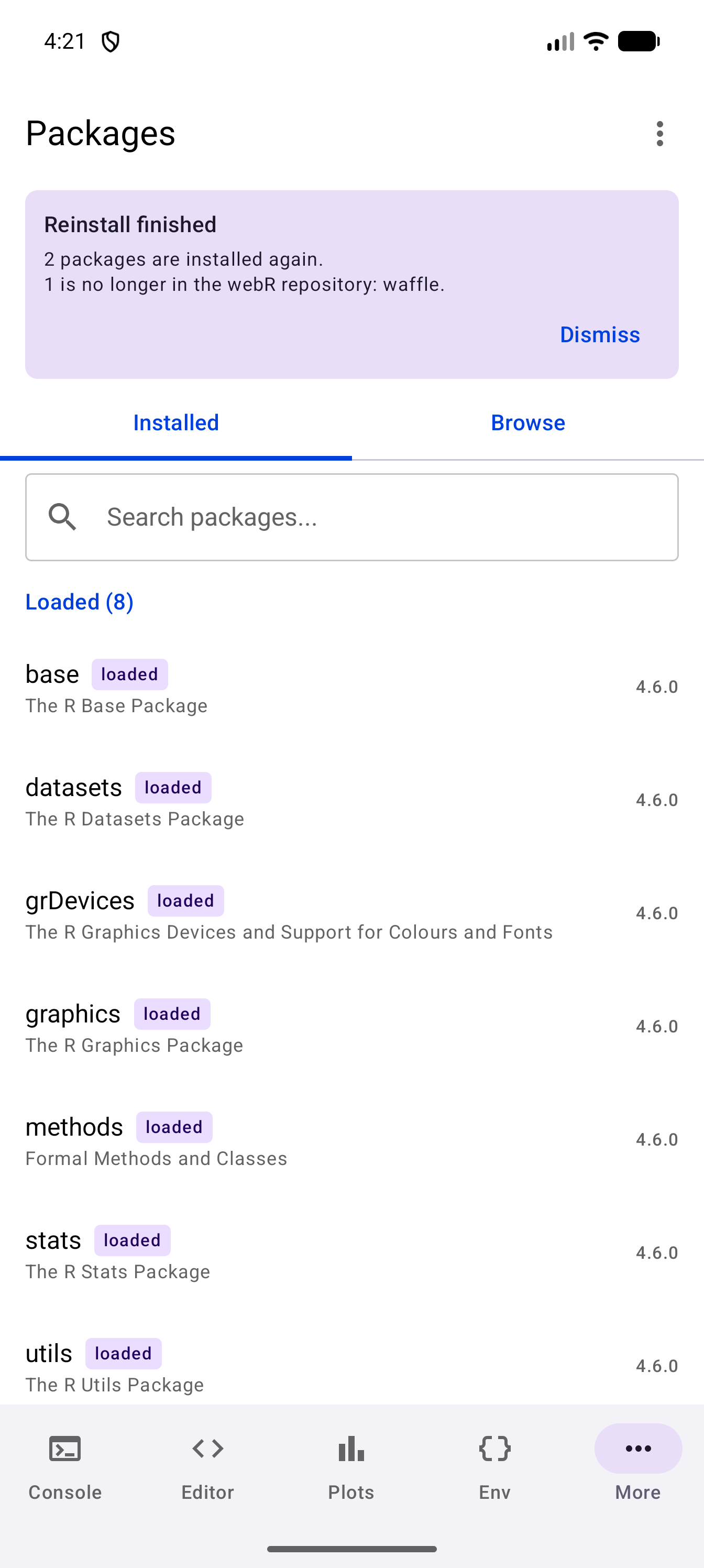
install.packages()call, with a progress bar while it runs. It then reports how many are installed again, which are no longer in the repository, and which could not be installed, to try again from the Packages screen. If nothing could be installed, because the device is offline or the repository cannot be reached, the notice says why and keeps the list so you can tap Reinstall again later. Pressed while R is still starting, it asks you to try again once R is ready. - Dismiss clears the notice for good.
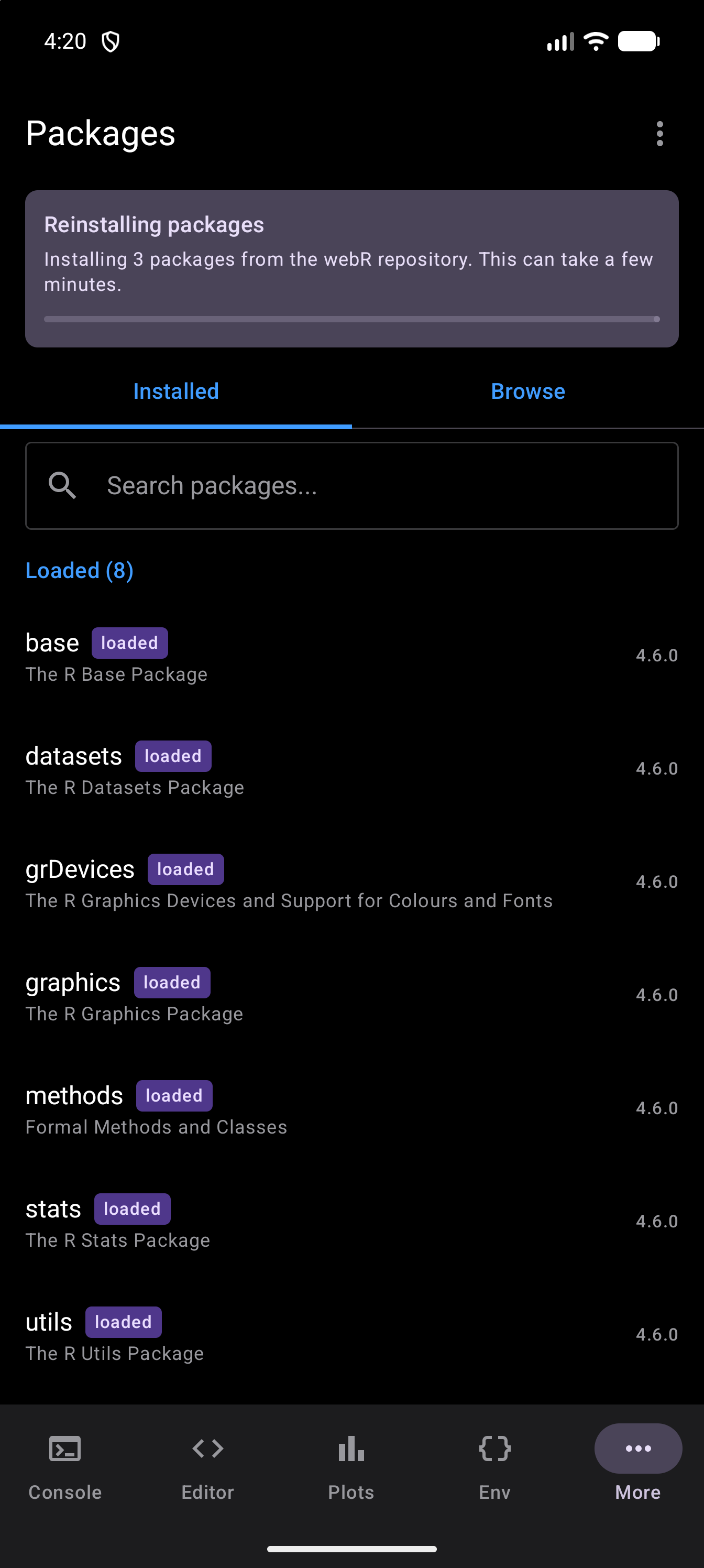
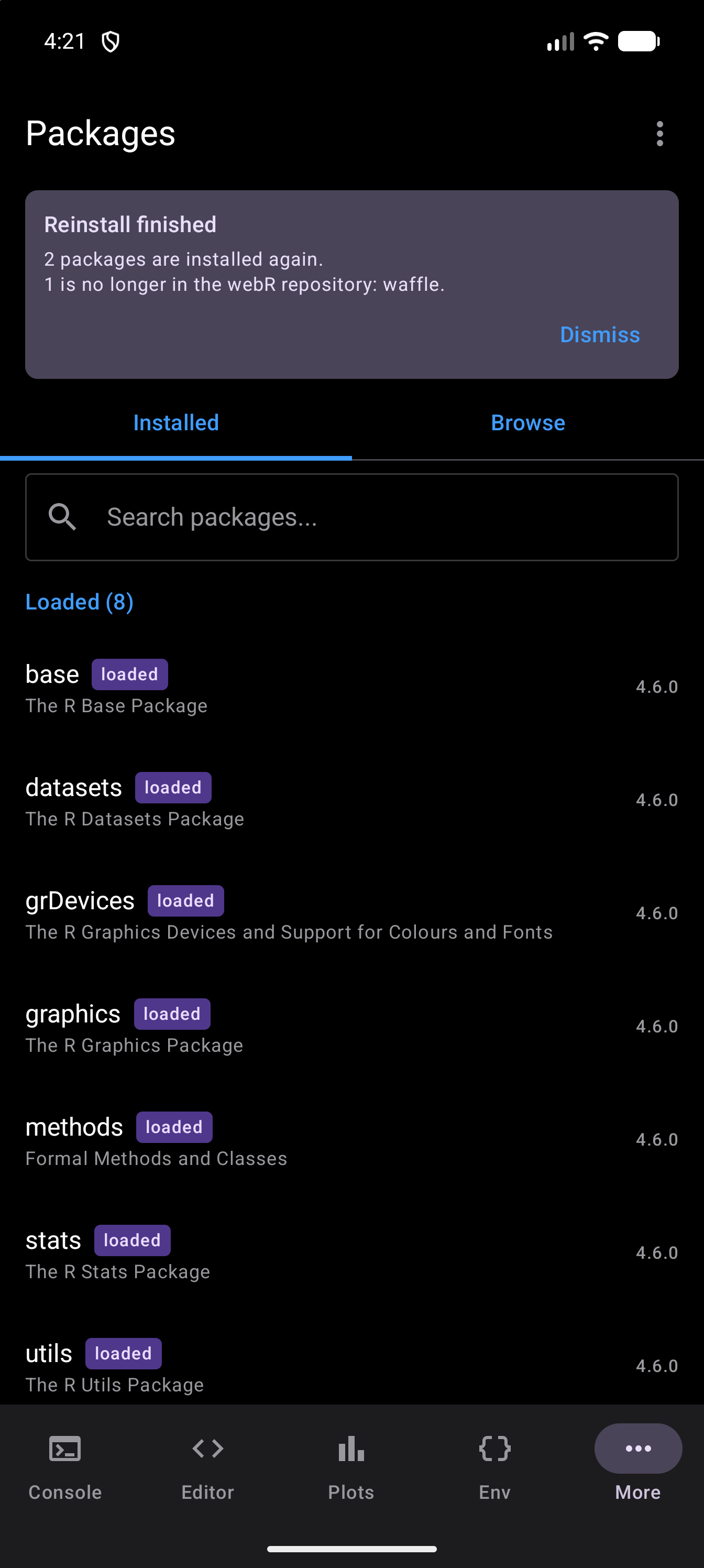
The first picture below shows a reinstall under way. The second shows the report at the end: two packages are installed again, and one is no longer in the repository.