Help
The Help tab gives you direct access to R’s built-in documentation system. You can search for functions, read full help pages with formatted arguments and examples, and look up package documentation, all without leaving webRoid or needing an internet connection.
Overview
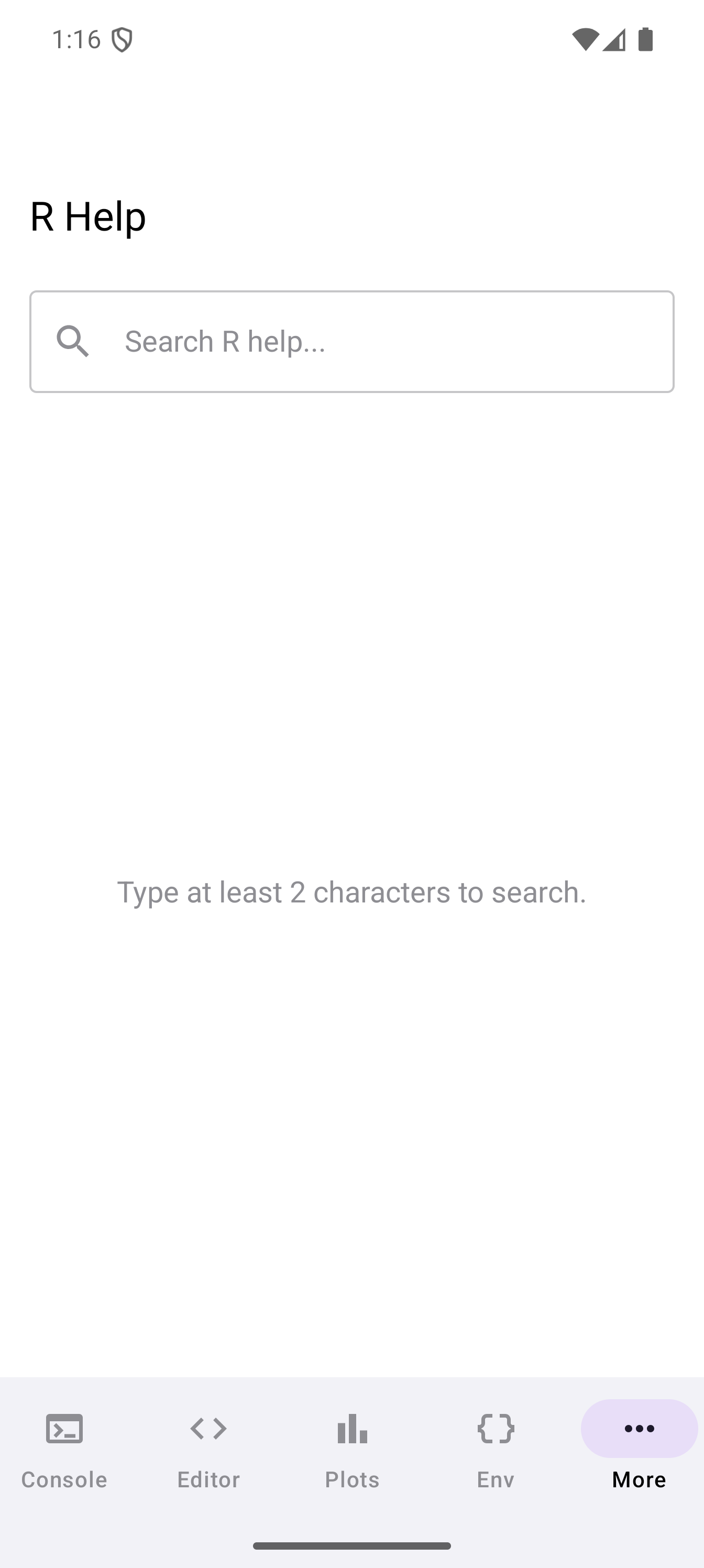
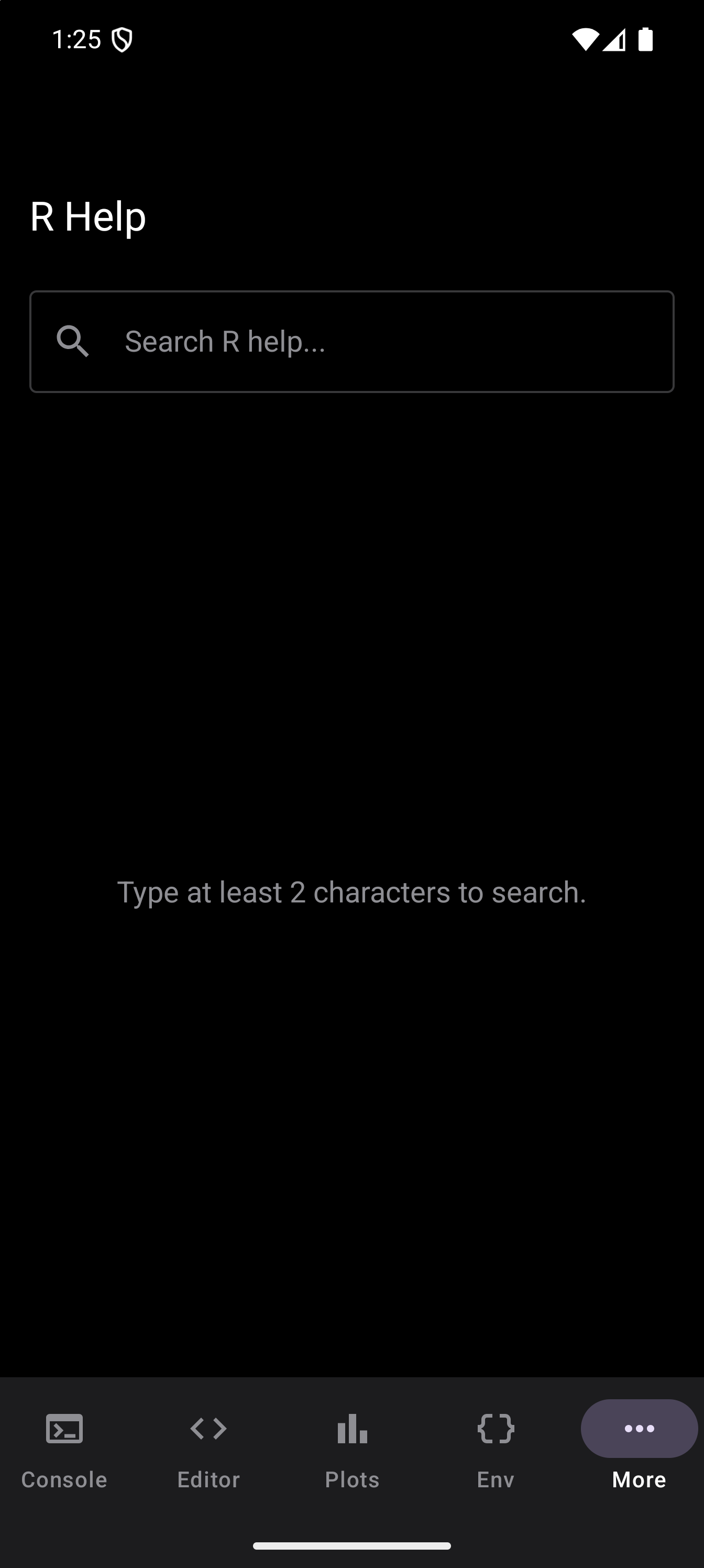
R ships with extensive documentation for every function in base R and for every function in installed packages. The Help screen in webRoid provides a native interface to this documentation. Help pages are parsed from R’s internal RdXML format and rendered natively as styled text, so they look clean and are easy to read on a mobile screen.
The Help tab has two views:
- Search view: the default when you open the tab. A search bar with the results underneath it. Until you have typed two characters it says so, and shows the landing list instead of results.
- Detail view: opens when you select a search result. Displays the full help page for a function or topic. The toolbar title changes to show the current topic (e.g., “base::mean”), and a back arrow lets you return to the search view. Android’s Back gesture or button does the same, one step at a time: from a topic back to the package index it came from, or to search.
Recent Topics and Resources
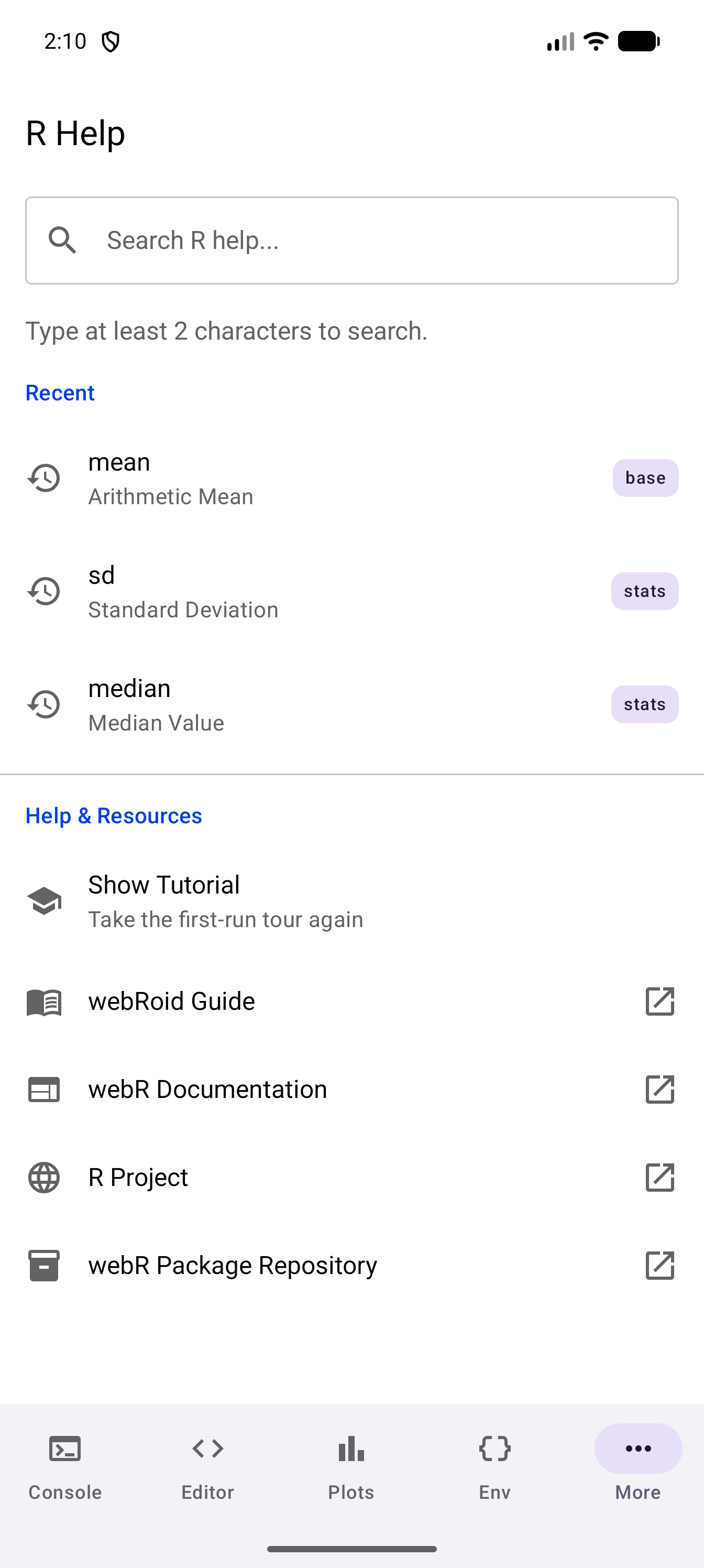
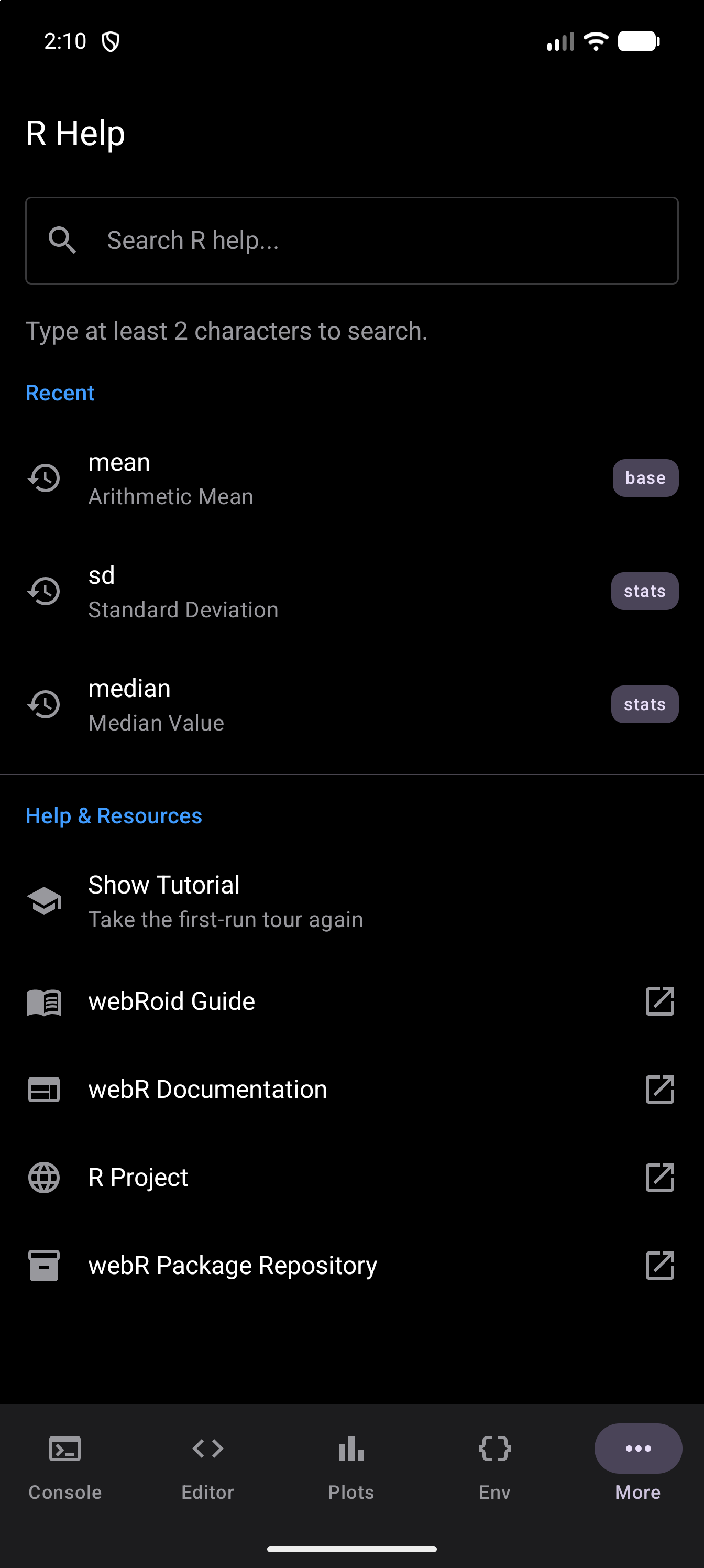
Before you type a search, Help shows two short lists.
Recent appears once you have opened a page in the Help tab. It shows the last five pages you opened there during this session, newest first, each with its name, title and package. Tap one to open it again. Only pages opened in the Help tab itself are listed. A page you read in the Help Entry sheet, the one that opens when you run ?mean in the Console or the Editor, is not added to Recent.
Help & Resources has Show Tutorial, which plays the welcome tour again, and links that open in your browser: the webRoid Guide (this site), the webR documentation, the R Project, and the webR package repository.
Here, median, sd and mean were opened in that order, so mean is at the top of Recent.
Searching for Help
The search bar at the top of the Help tab accepts function names, topic names, or partial matches. Type at least two characters to start searching. Results update as you type, with a brief delay to avoid excessive queries.
Each search result shows three pieces of information:
- Topic name: the function or help topic (e.g.,
mean,read.csv,lm) - Title: a short description of what the function does
- Package badge: a small label at the end of the row naming the package the topic comes from (e.g.,
base,stats,utils)
Tap any result to open its full help page.
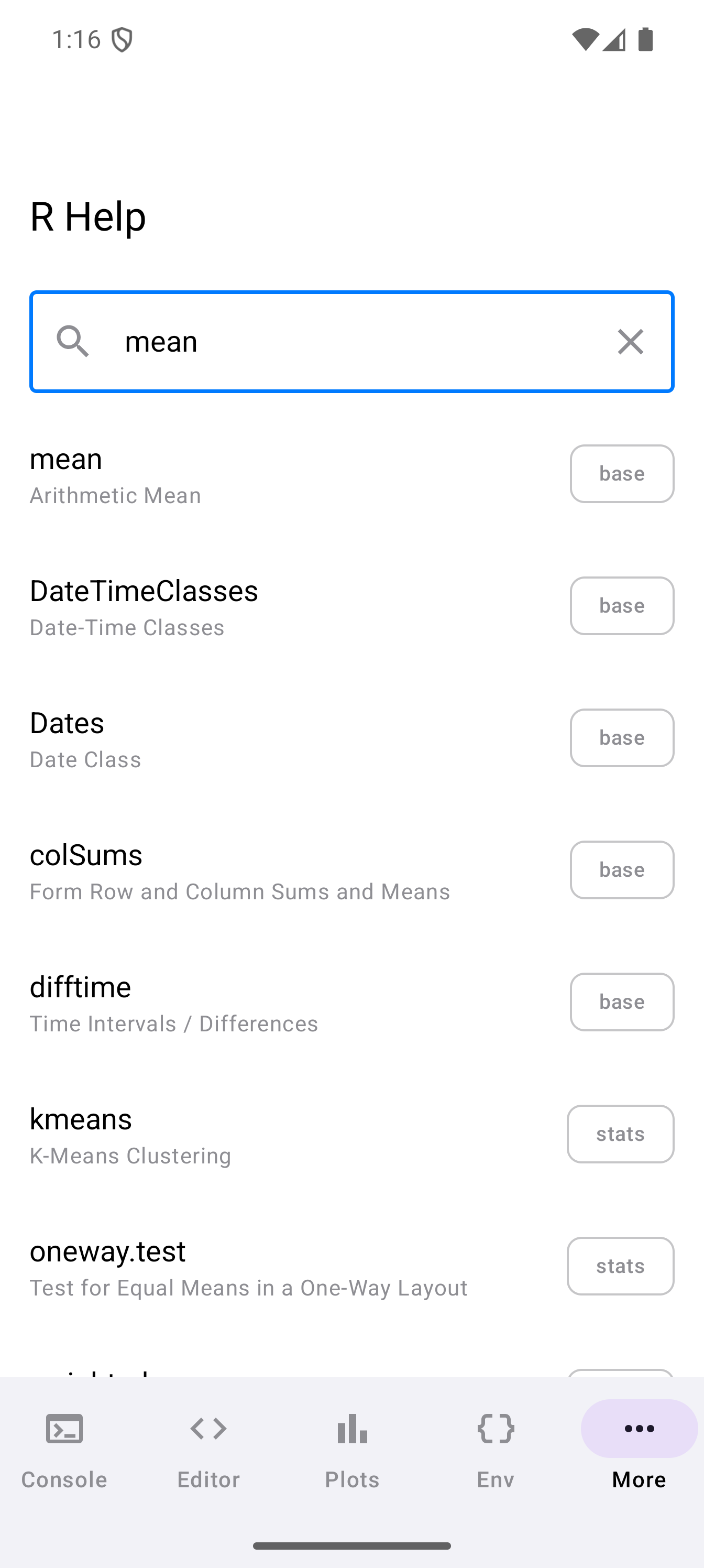
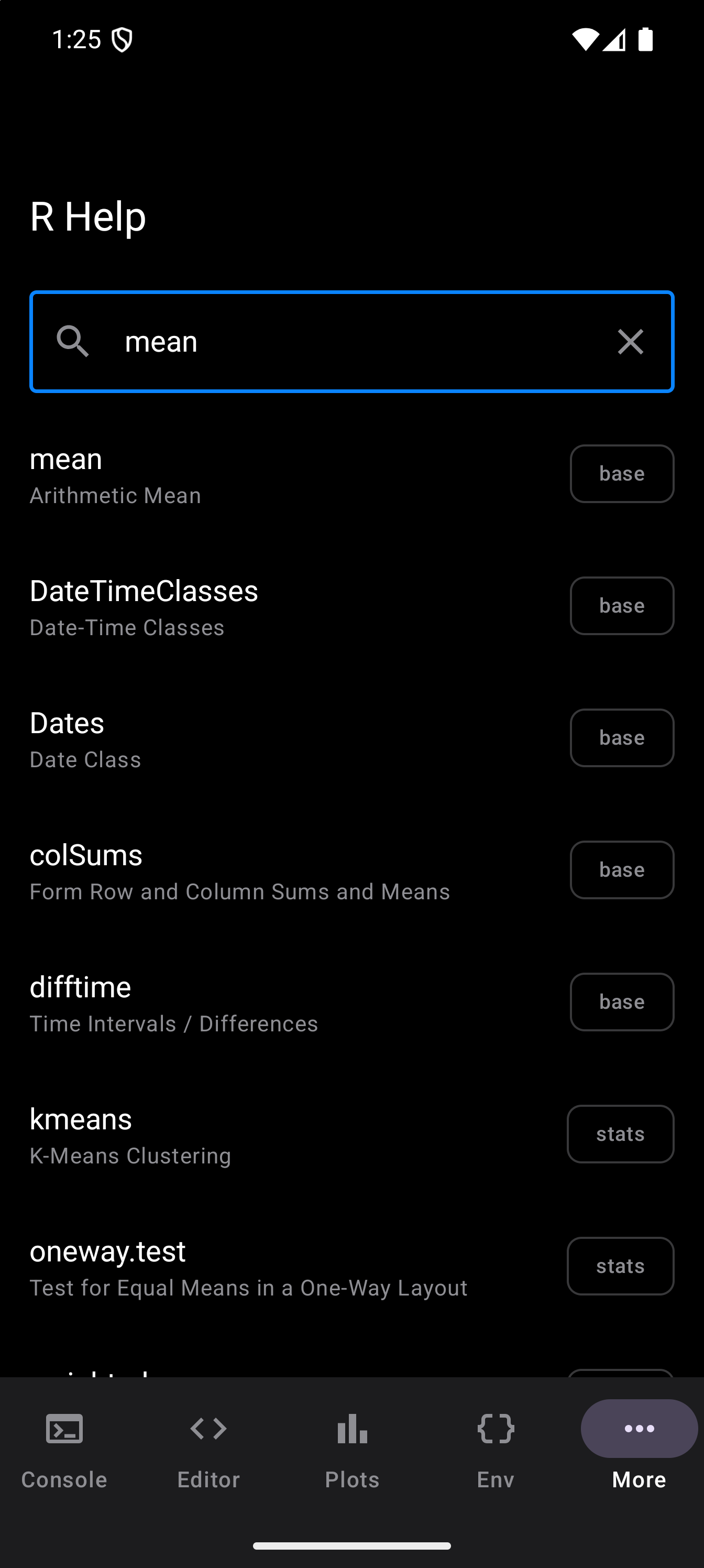
Search results come from R’s built-in help search system and cover all installed packages. If you install a new package, its documentation becomes searchable immediately.
Reading Help Pages
When you tap a search result, the detail view opens with the full help page. The page is rendered with clear formatting and includes all standard R documentation sections:
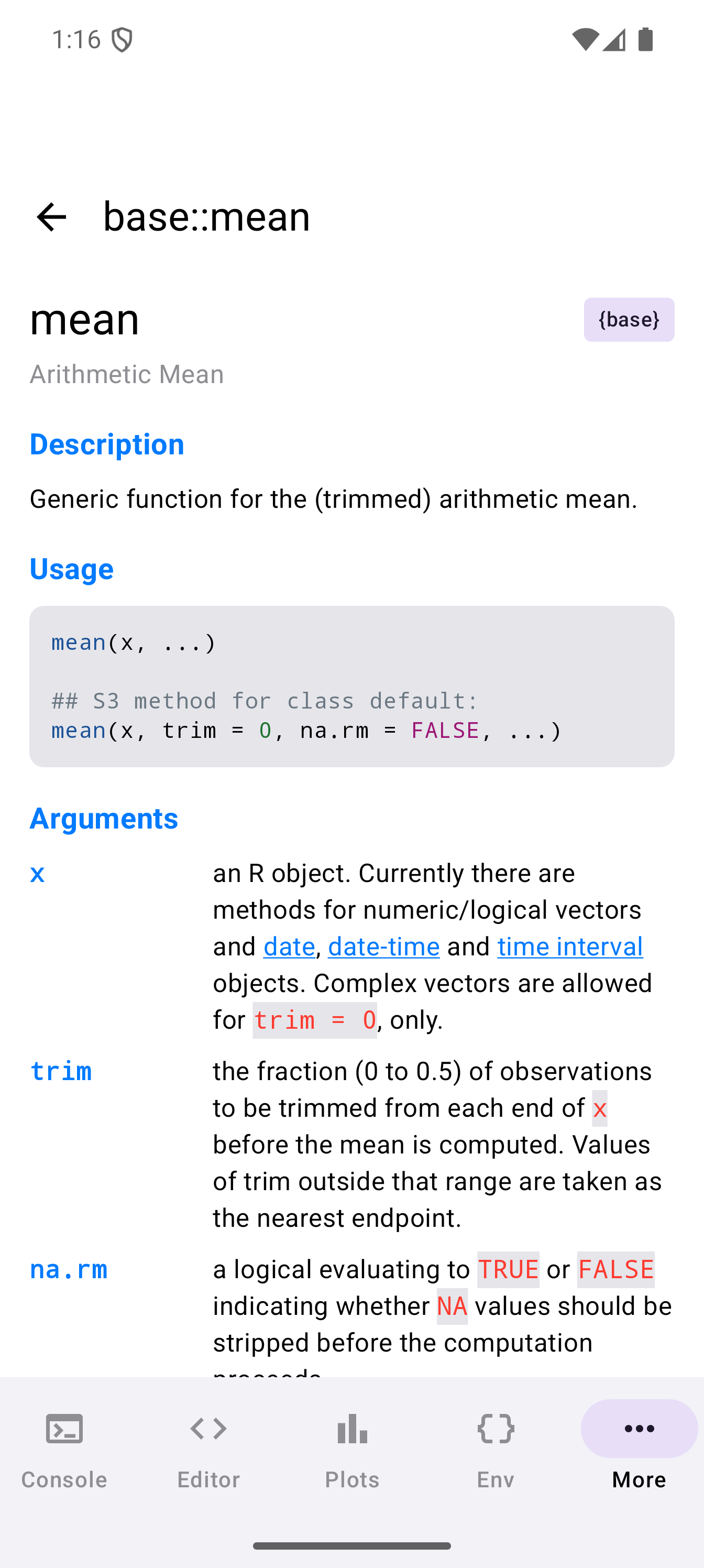
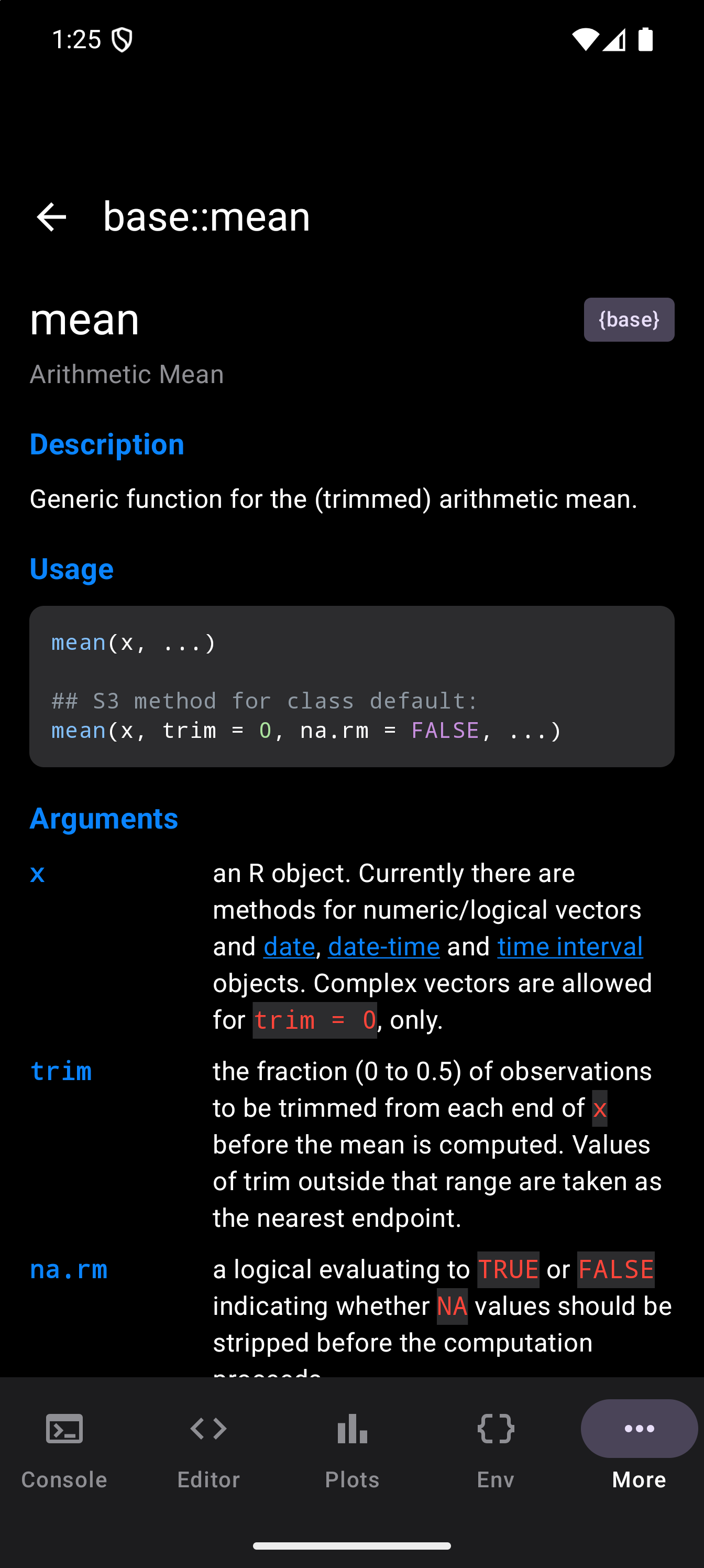
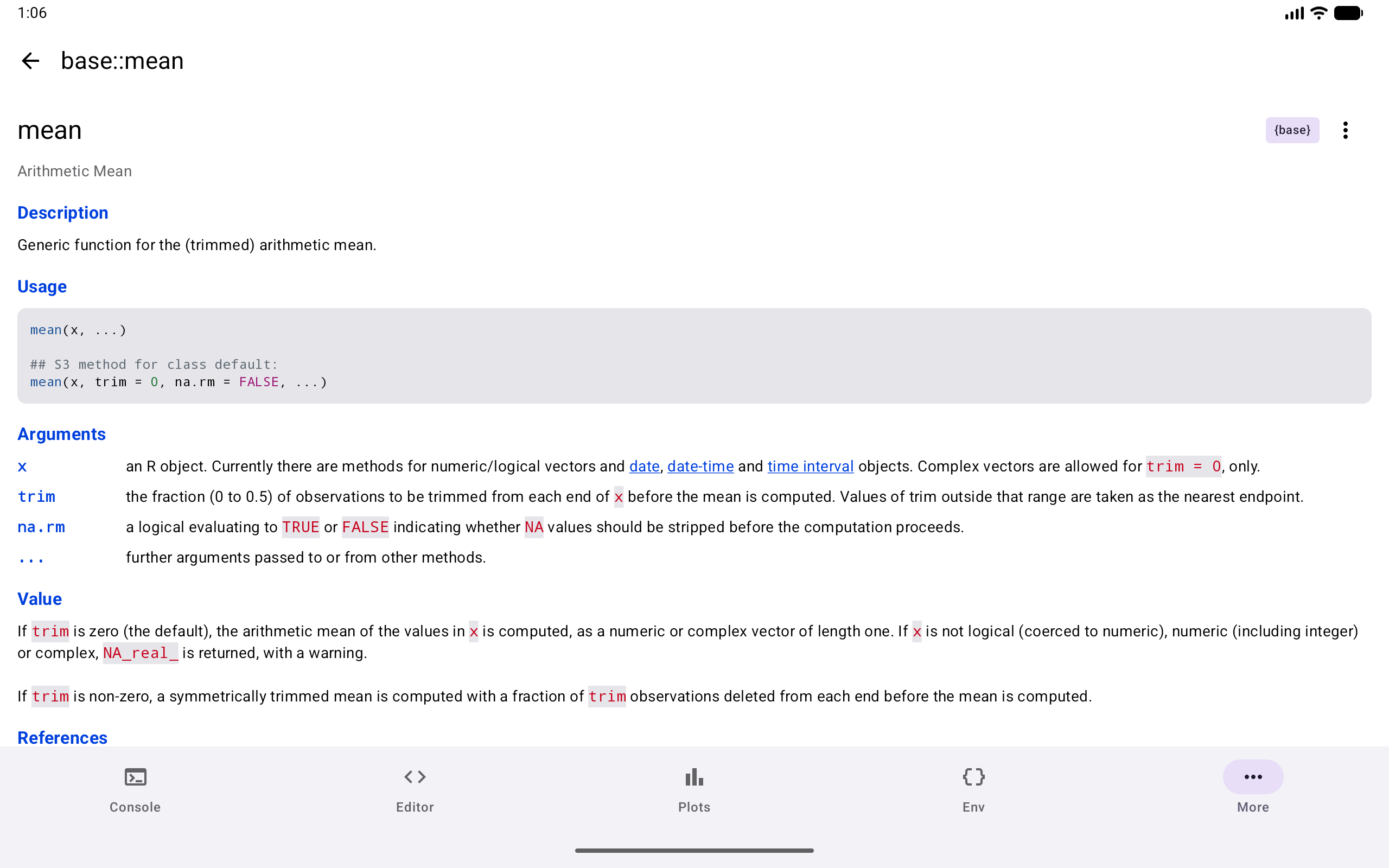
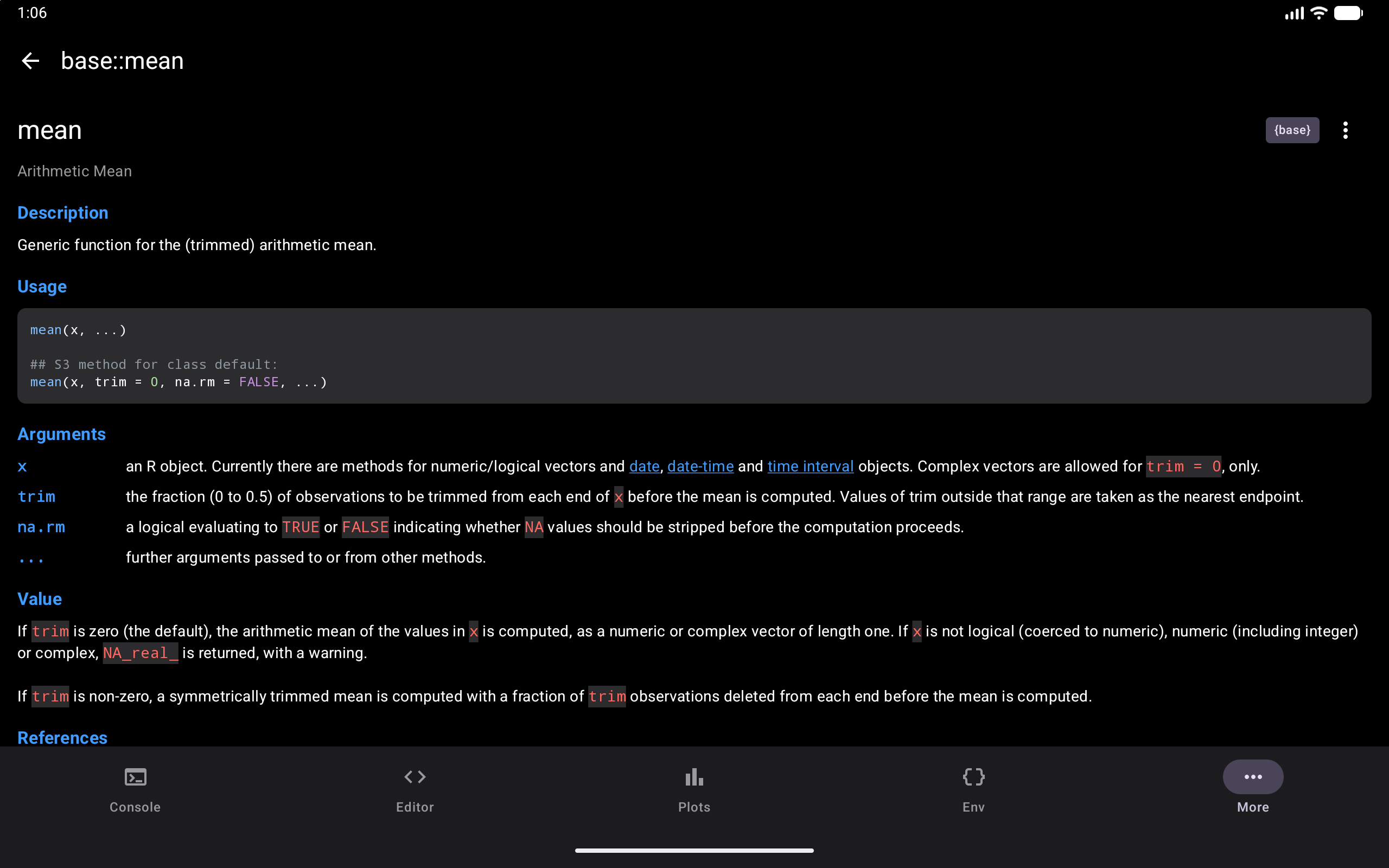
- Title and description: what the function does
- Usage: the function signature with all parameters, displayed in a monospace code block
- Arguments: a formatted list of each parameter with its description
- Details: extended explanation of the function’s behavior
- Value: what the function returns
- Examples: runnable code examples with syntax highlighting
- See Also: links to related functions (these are tappable and navigate to the referenced help page)
A Run Examples button beside the Examples heading sends the example code to the Console for execution, so you can see the function in action immediately.
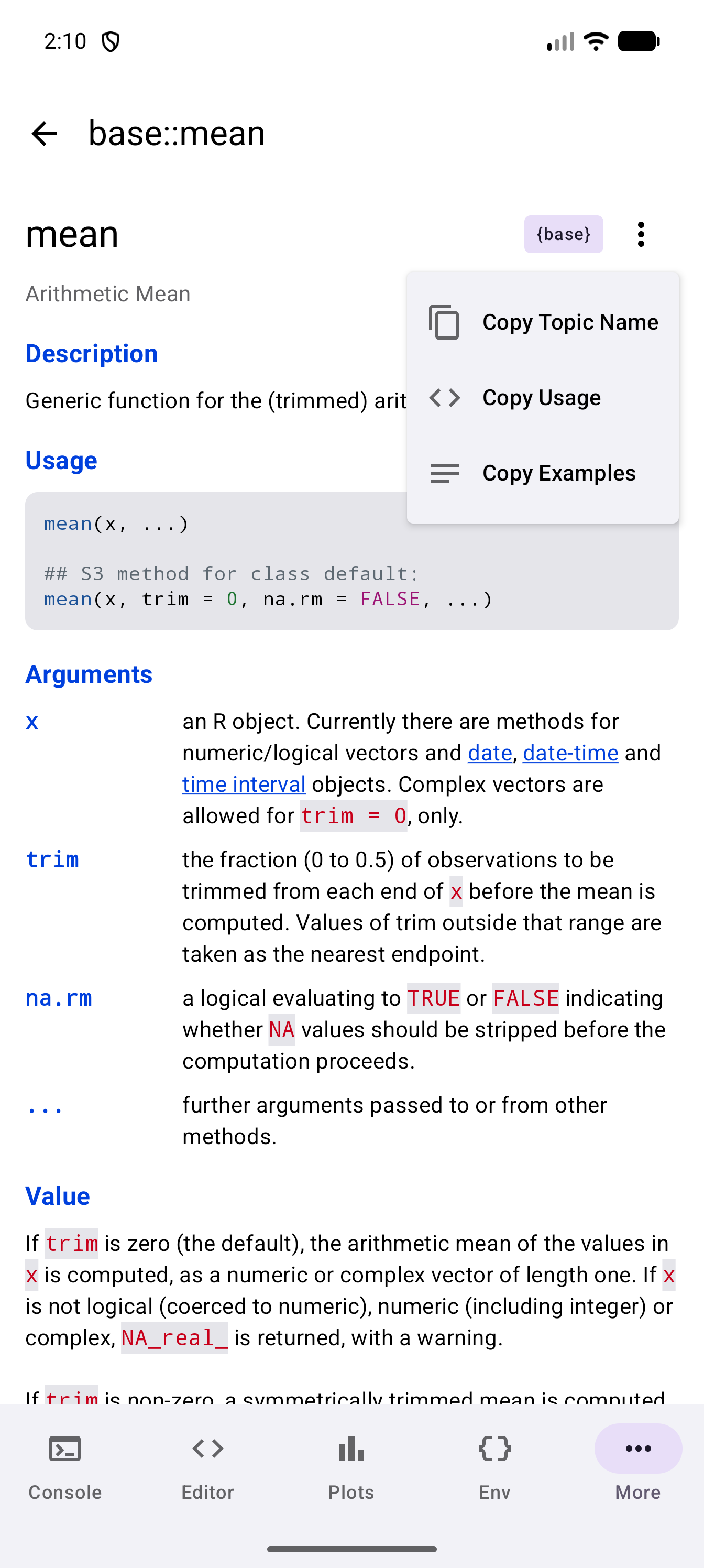
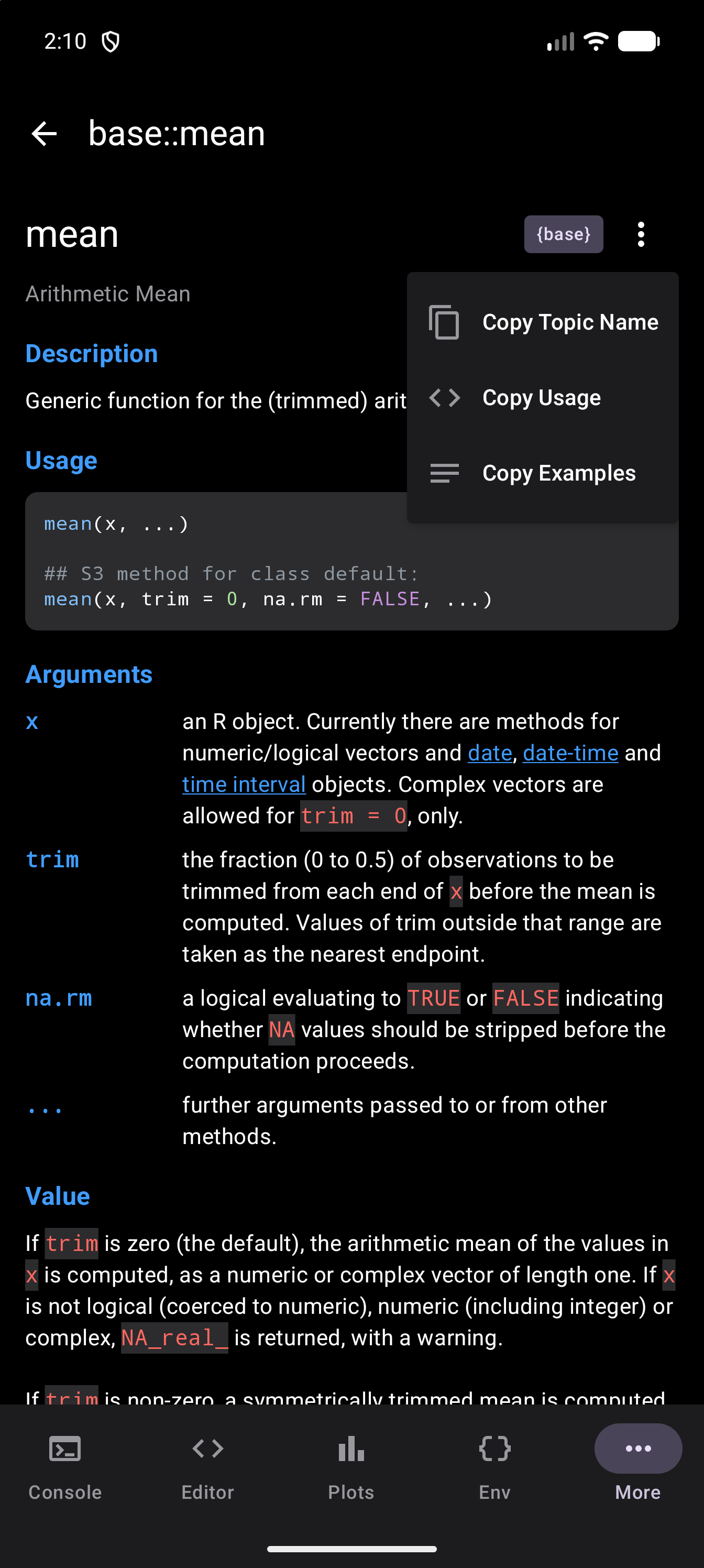
The text of every section is selectable: long-press to select a phrase or an argument name and copy it. For the things people most often want whole, the Help actions menu (three dots at the top of the page, on the same row as the topic’s name, just after its package badge) has Copy Topic Name, Copy Usage and Copy Examples; the last two appear only when the page has that section.
Function names mentioned in the “See Also” section and elsewhere in the help text are tappable. Tapping one navigates directly to that function’s help page, letting you browse related documentation without returning to the search view. A web or email link in a help page opens in your browser or mail app. If no app on the device can open it, webRoid copies the link or address to the clipboard instead and says so; the links under Help & Resources do the same.
The “See Also” links are one of the best ways to discover related functions. If you know one function but need something slightly different, the cross-references often lead you to exactly what you need.
Package Badges
Every search result carries the name of the package it comes from at the end of the row. It is a label, not a button: it tells dplyr::filter apart from stats::filter at a glance. Tap anywhere on the row, badge included, to open the help page.
Ways to Open Help
You can open R’s help from three places: the Console, the Editor and the Help tab. The Console and the Editor understand the same help commands you would type in R on a computer, so you can look something up without leaving your work.
From the Console
Type a help query in the Console and run it, just as you would in R:
?mean
help(mean)
help("read.csv")
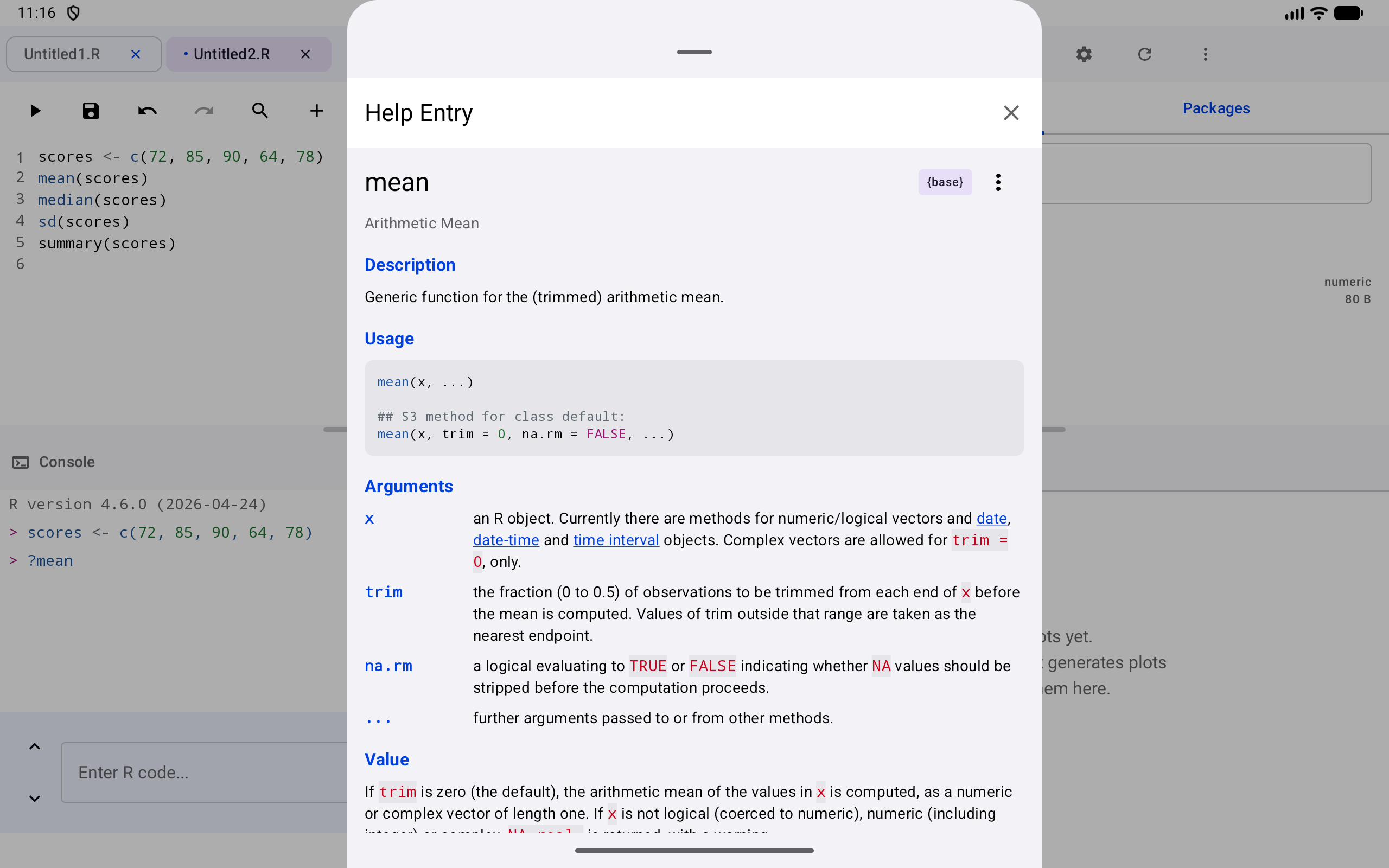
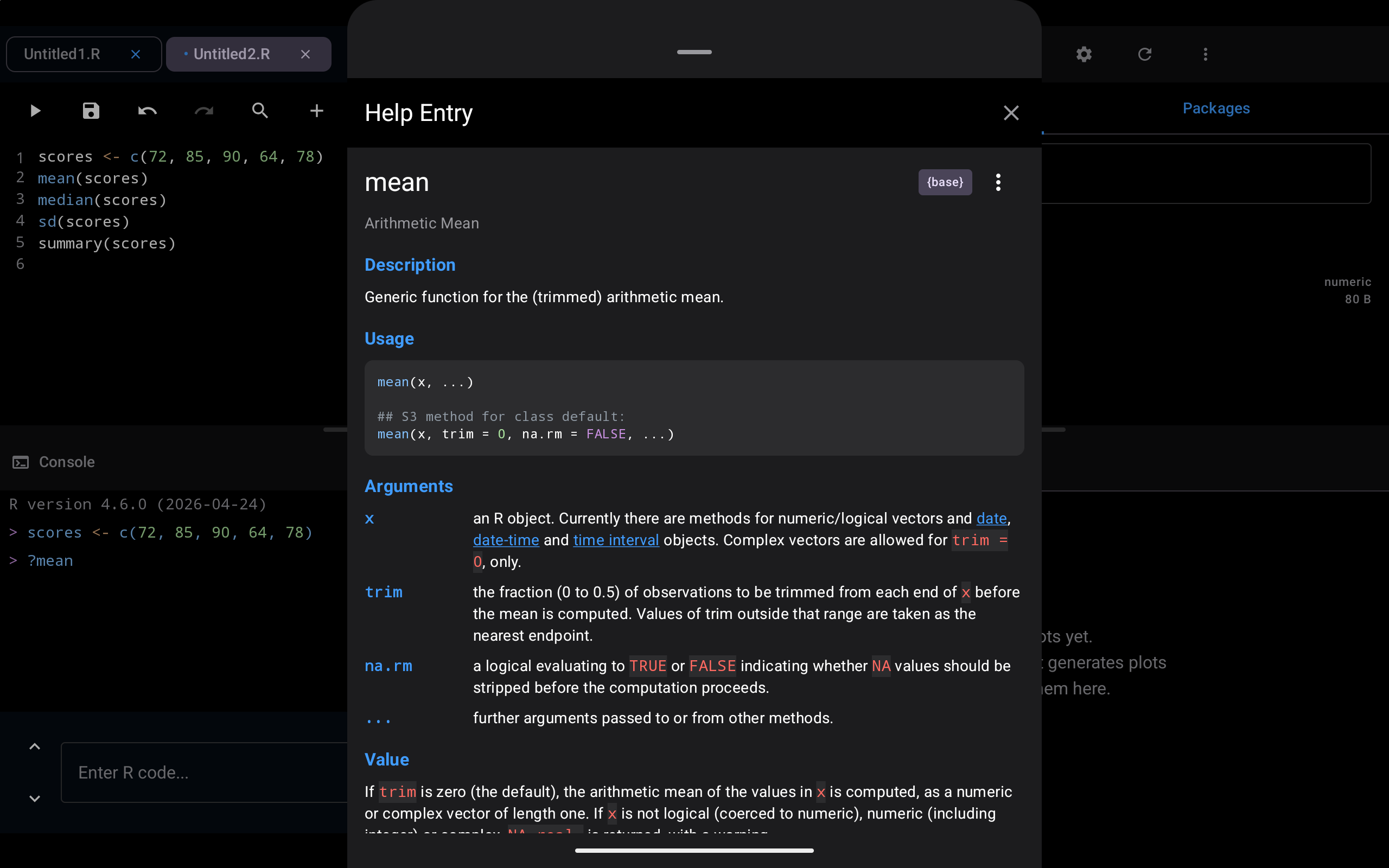
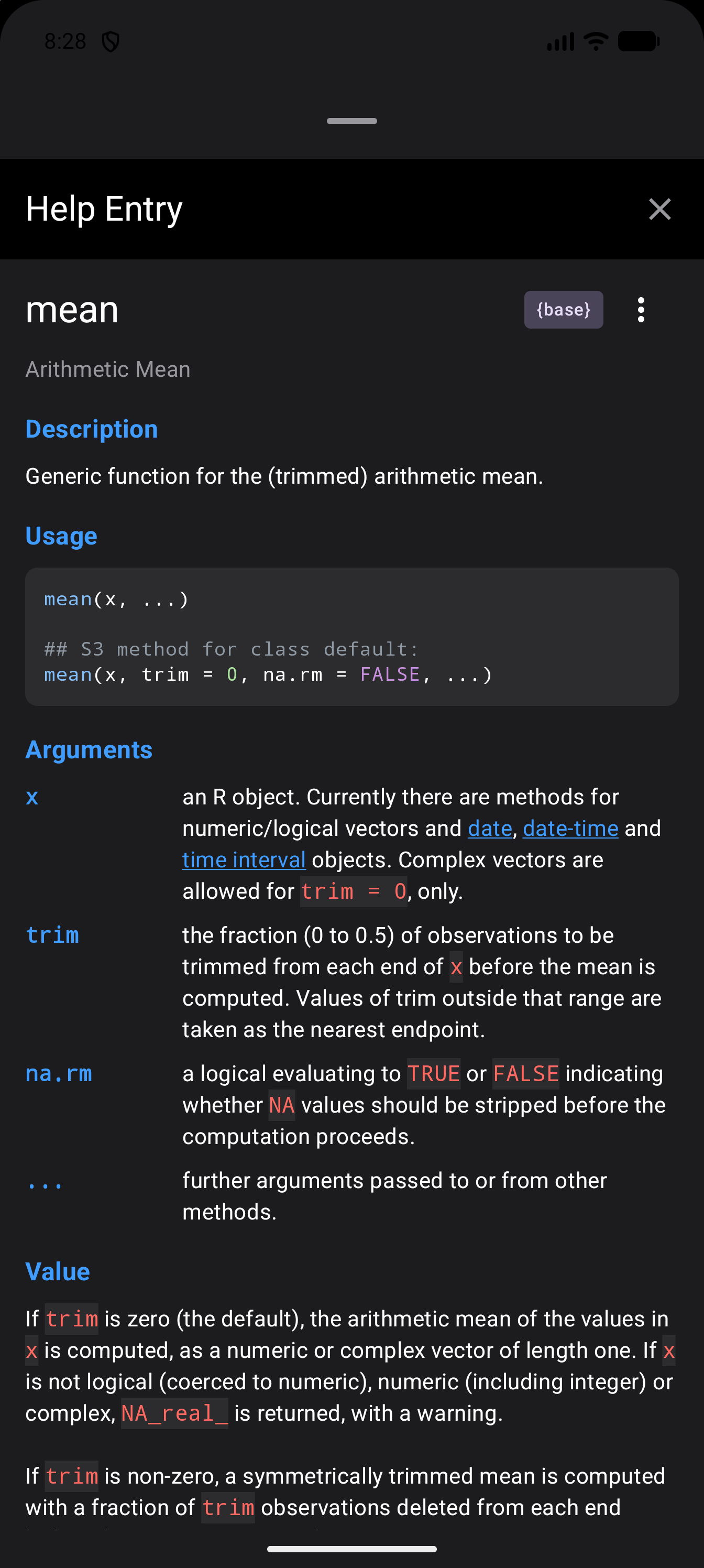
The Console shows your line, and webRoid opens the page in a sheet called Help Entry instead of sending the line to R. The sheet slides up from the bottom and fills the screen, so the Console is hidden while you read. On a tablet the sheet is narrower than the screen, centered with space on either side.
The page in the sheet looks just like one in the Help tab (see Reading Help Pages). Only the top is different: the sheet says Help Entry and has an X, where the Help tab shows the topic’s name and a back arrow. A See Also link opens the new page in the same sheet. Run Examples closes the sheet and runs the examples in the Console. If R has no help page by that name, the sheet says it found none.
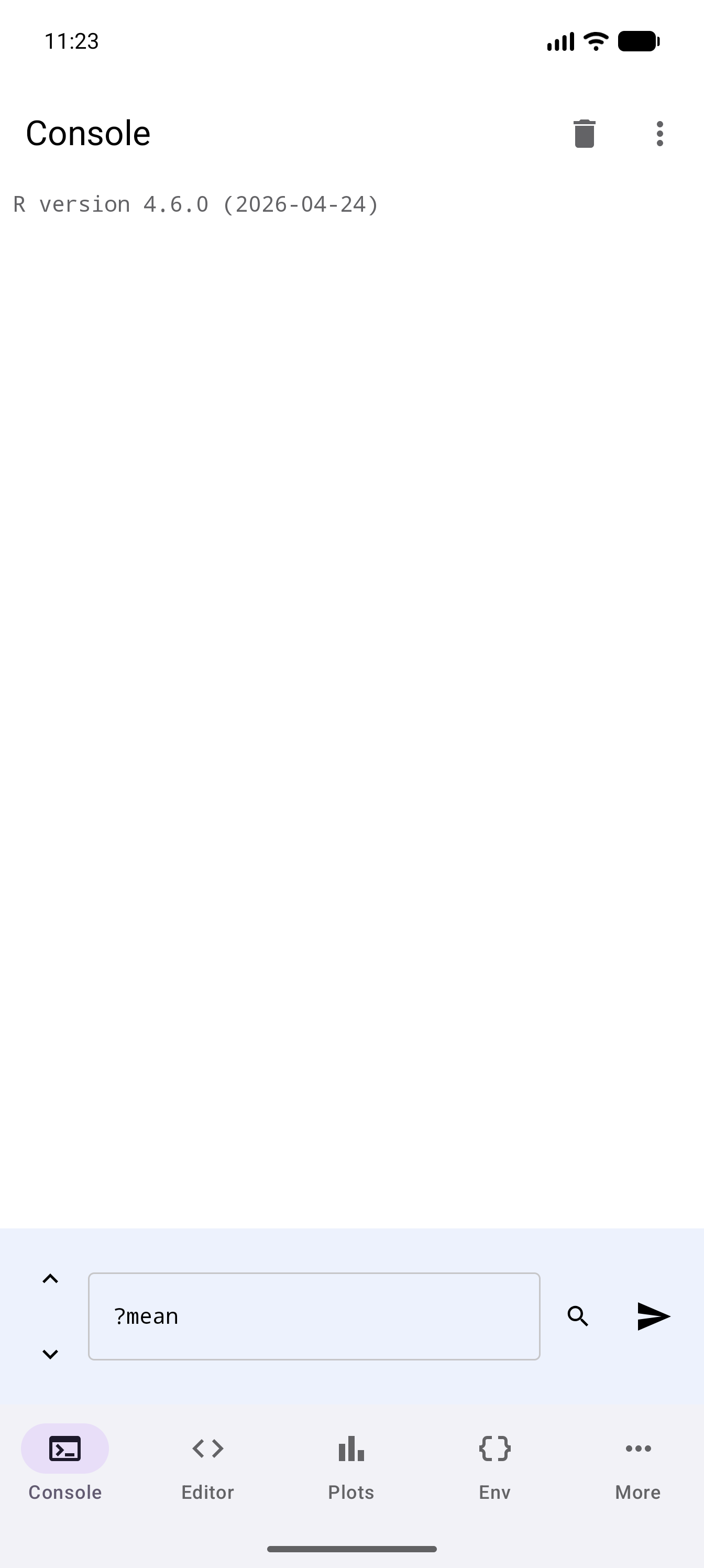
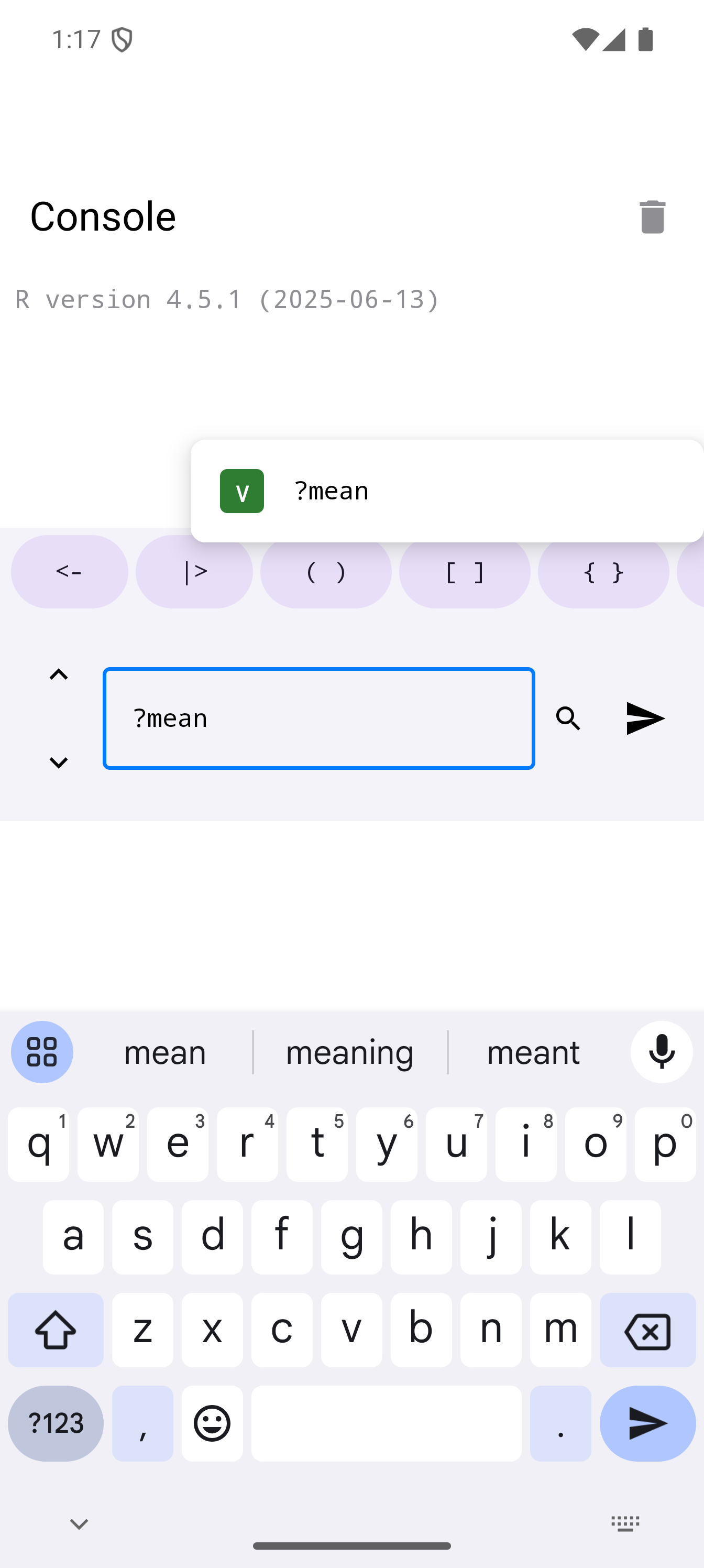
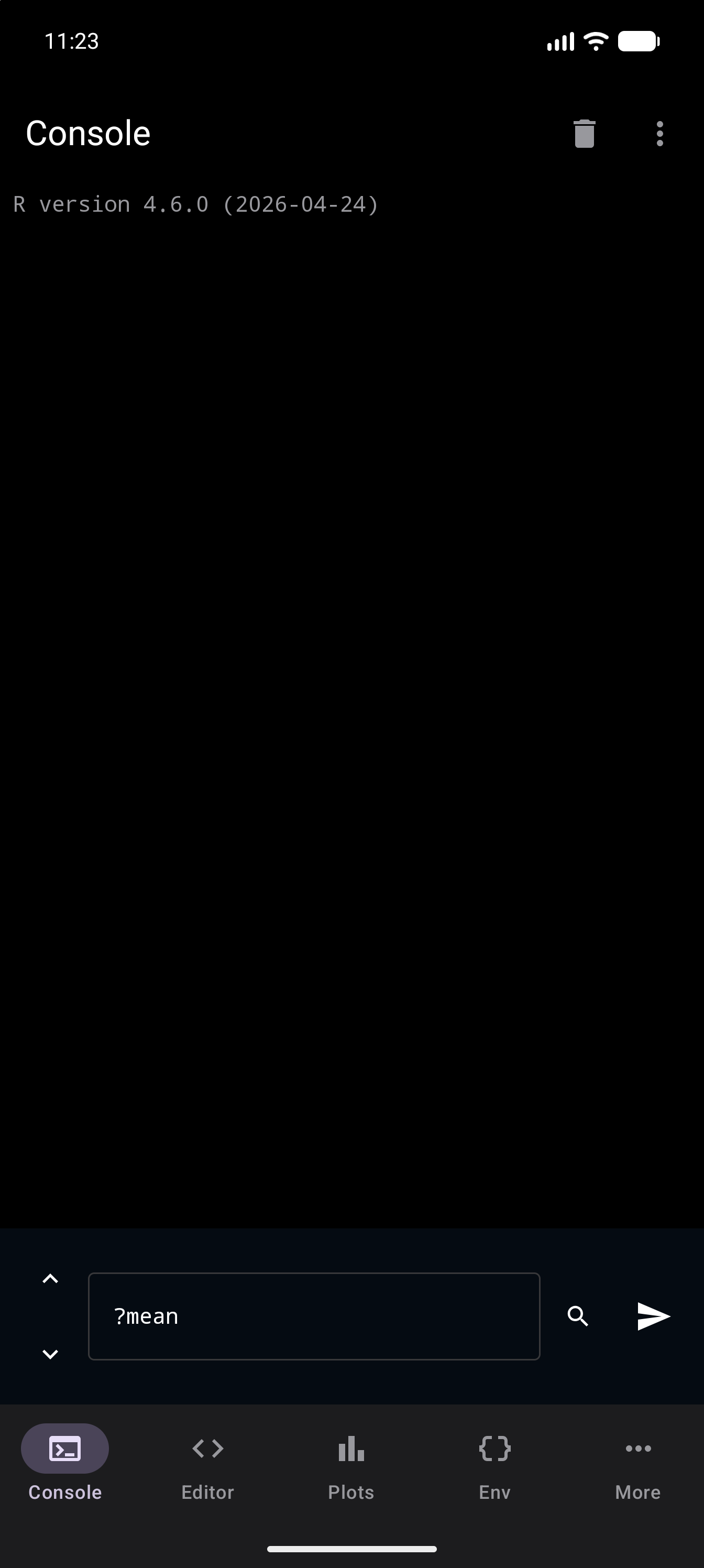
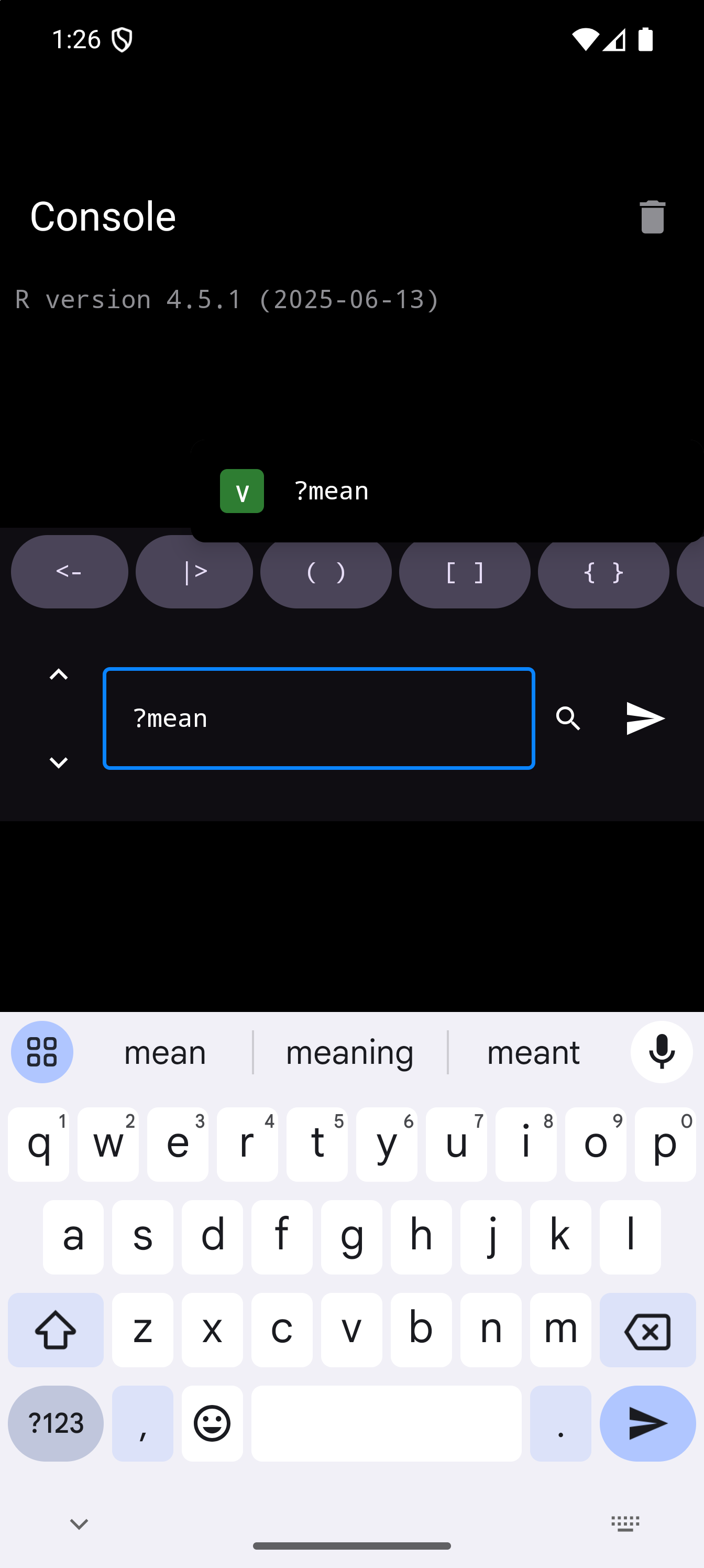
The pictures below show ?mean typed in the Console, ready to run, and the Help Entry sheet that opens when you tap Run. The Tablet tab shows the sheet over the Workspace.
To close the sheet, tap the X, swipe it down, or use Android’s Back gesture or button. You are back in the Console as you left it: your earlier output is still there, with your ?mean line at the end, and the input is ready for your next command.
To see everything in a package, ask for the package’s help instead:
help(package = "stats")
library(help = "stats")
This opens the package’s index, a list of all its help pages, rather than a sheet. In the Tab Bar and Sidebar layouts, the app switches to the Help screen and shows the index there. With the Tab Bar, Help lives under More, so the More tab is the one highlighted. In the Workspace layout, the bottom-right pane switches to its Help tab and shows the index in it. See Package Documentation.
Only these forms open help, and only when the line has nothing else on it. Any other line, such as ??mean or x <- 5; ?mean, goes to R like any other code. To search all of help for a word, the way ??mean does in R on a computer, use the search in the Help tab.
From the Editor
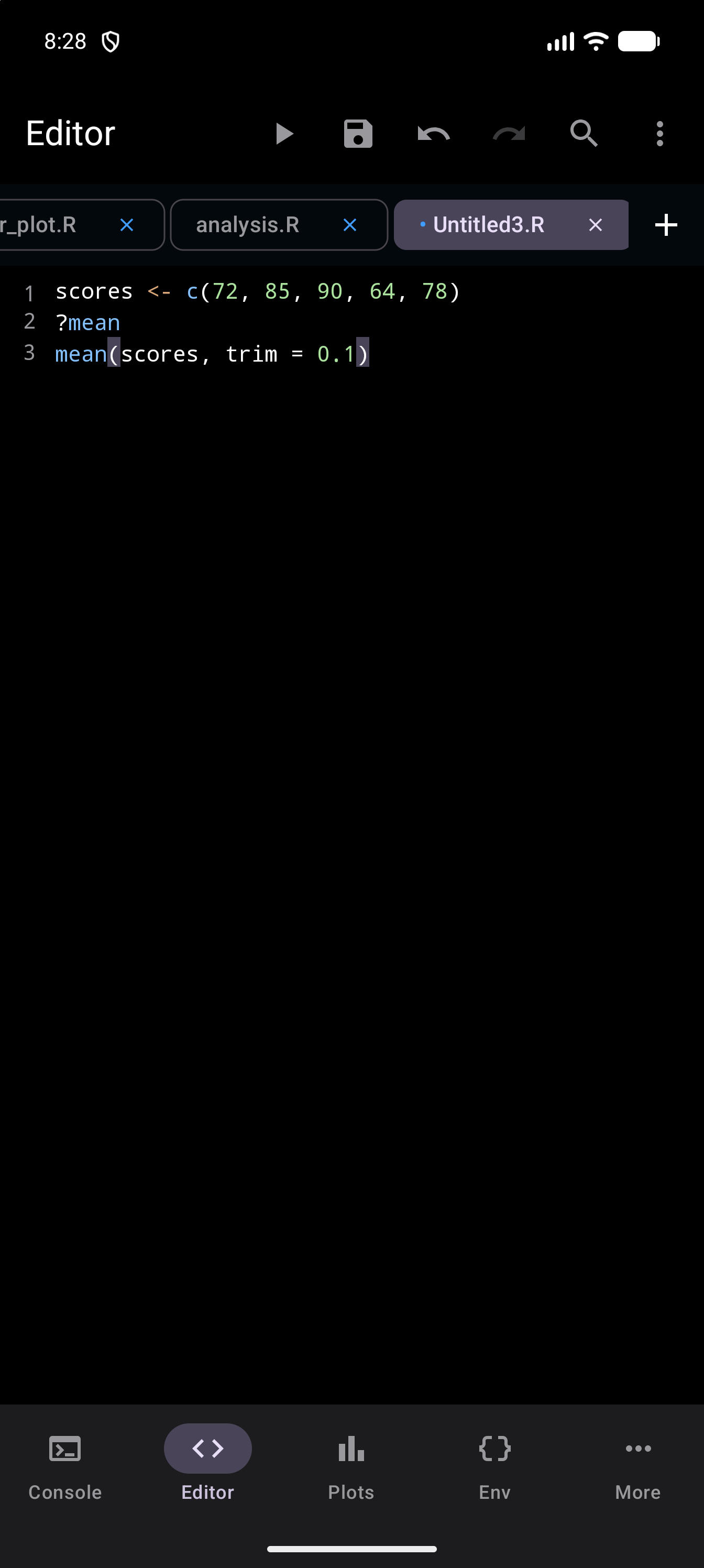
The Editor opens help the same way, as long as what you run is one help query and nothing else. Any of these will do it:
- Put the cursor on a line such as
?meanand pressCtrl+Enteron a keyboard. - Select the help query and tap Run, or choose Run Selection in the Editor’s menu.
- Run a script whose only line is the help query, with Run or
Ctrl+Shift+Enter.
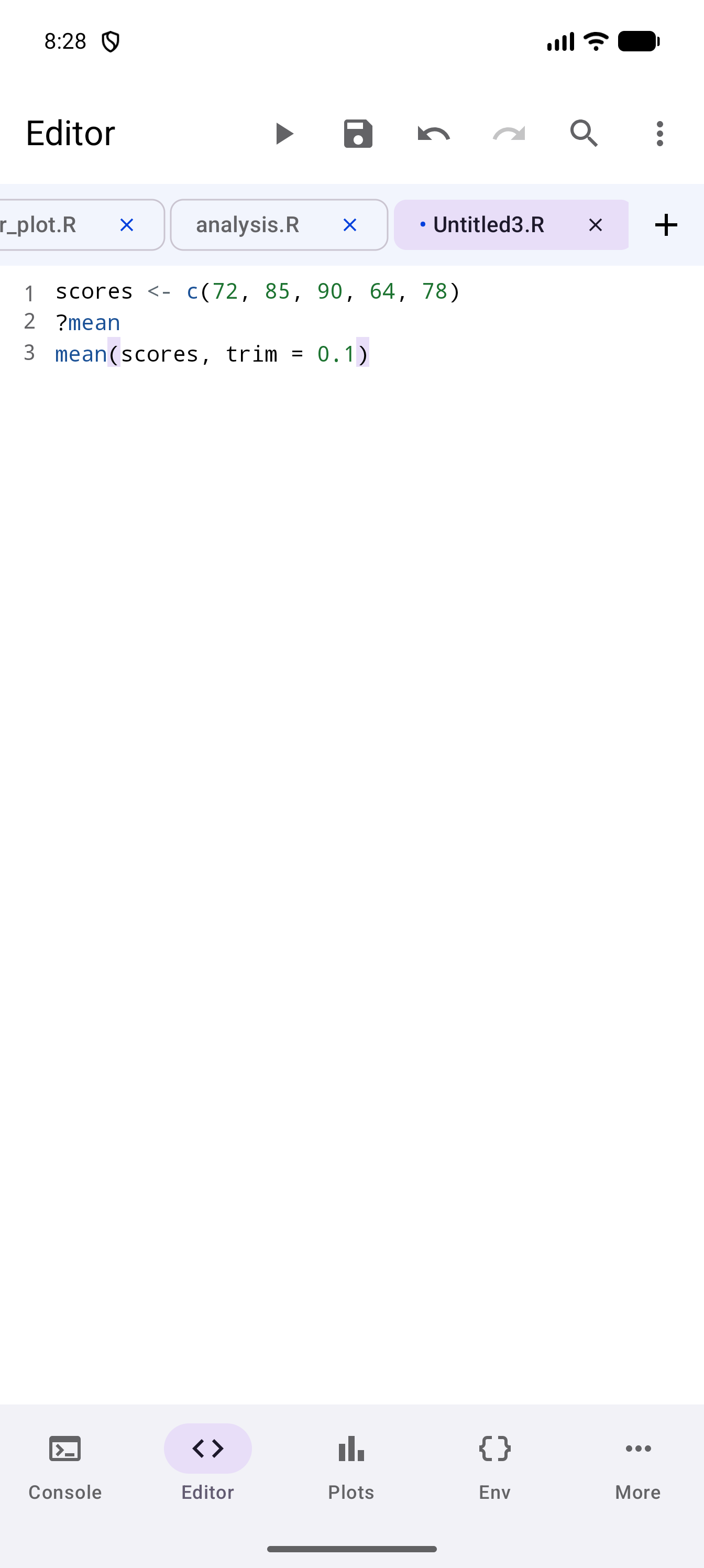
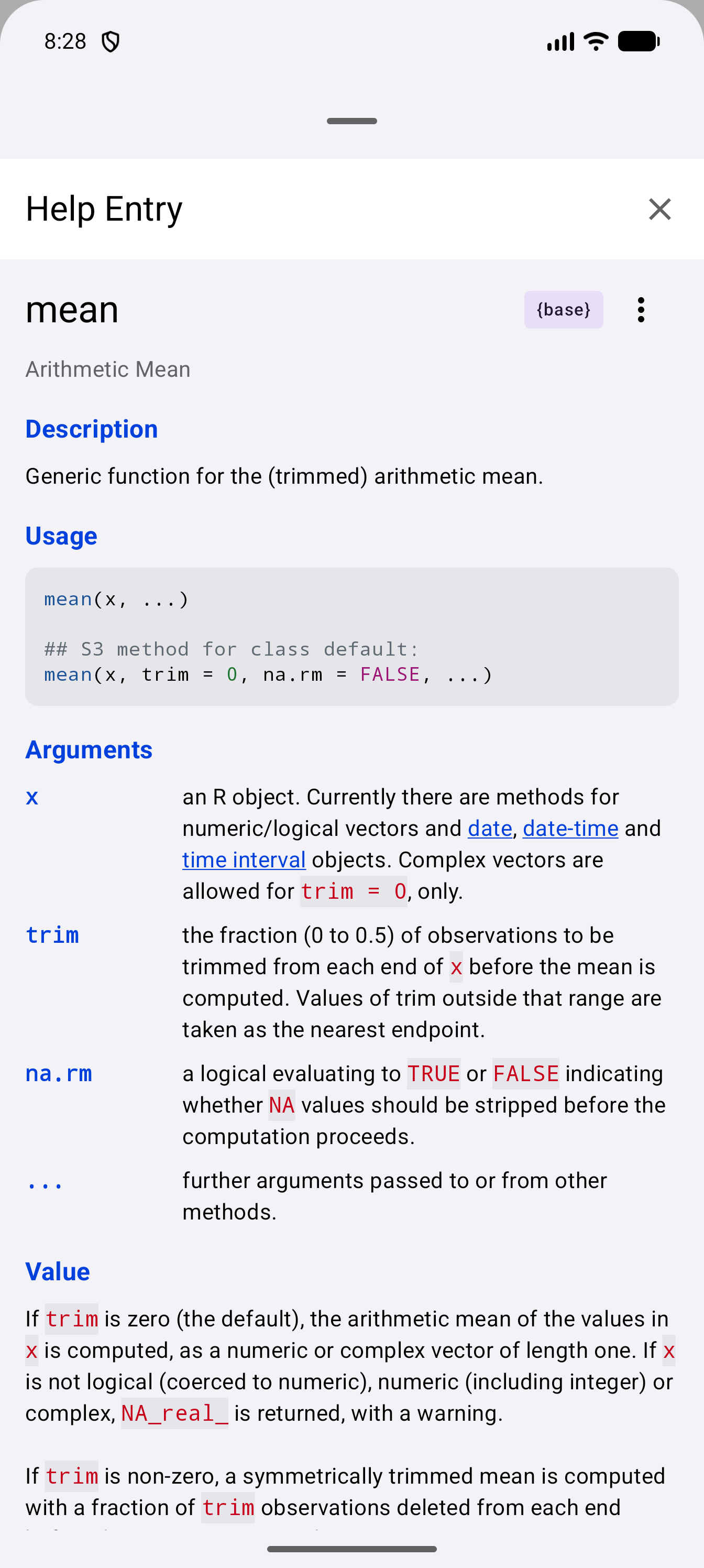
?mean, help(mean) and help("mean") open the Help Entry sheet over the Editor. Close it and you are back in your script. help(package = "stats") and library(help = "stats") open the package index, as they do from the Console.
In the script below, the middle line is ?mean. With the cursor on that line, Ctrl+Enter opens the Help Entry sheet for mean, and the lines around it are not run.
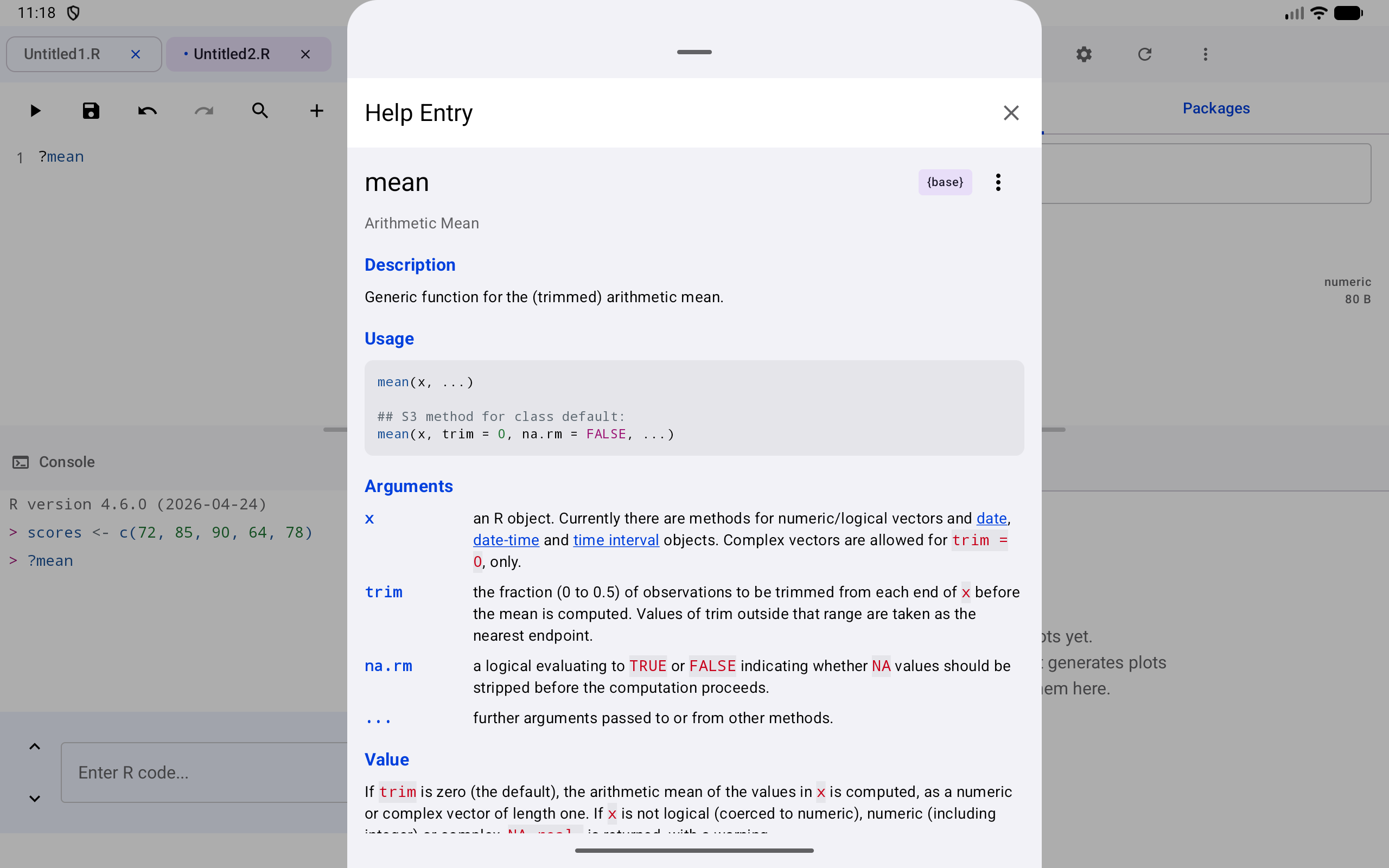
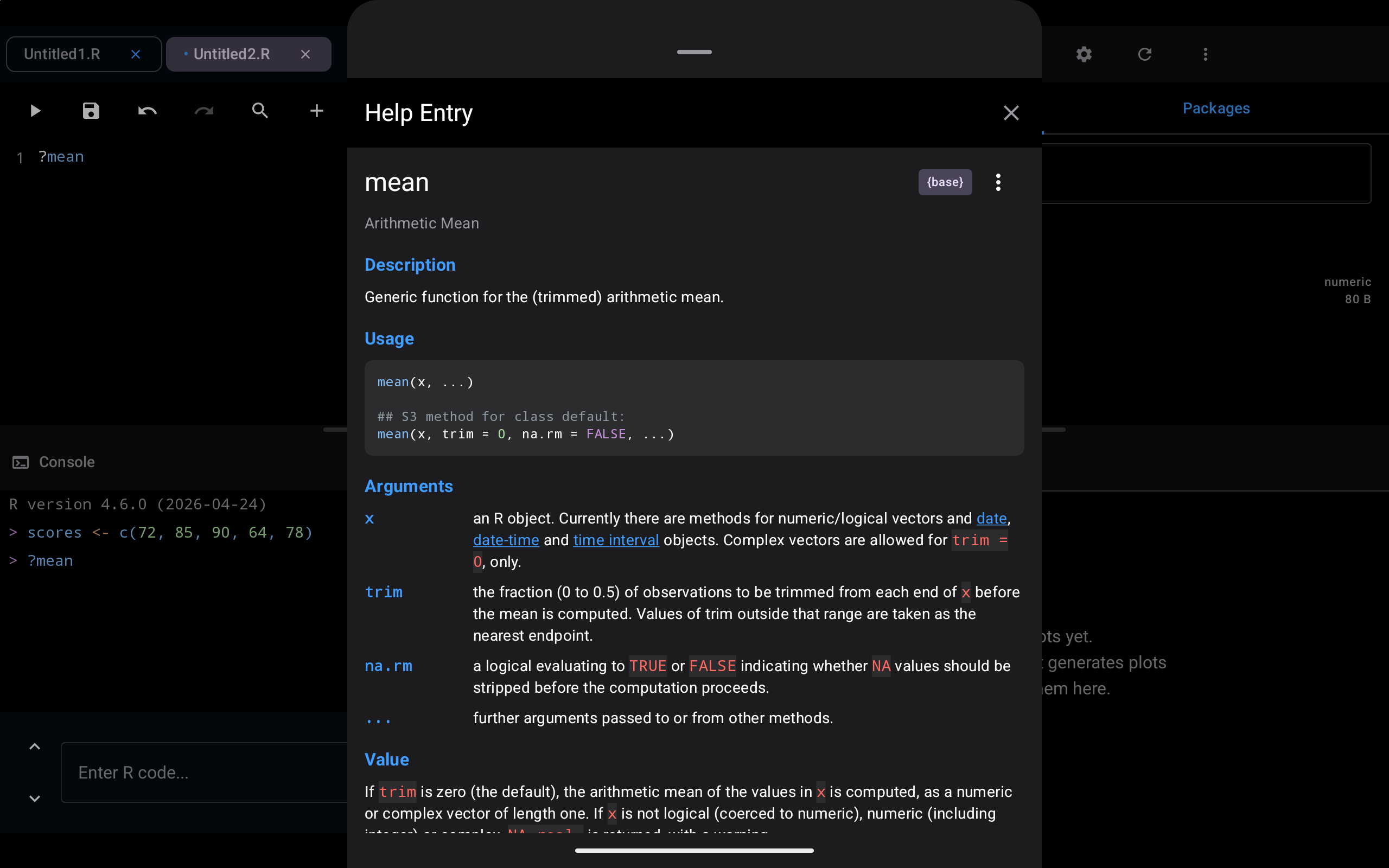
In the Workspace, the help line you ran from the Editor pane also shows in the Console pane, after a > prompt, just as if you had typed it there.
If what you run has any other code in it, even one more line, it all runs in R as usual, and the Help Entry sheet does not open. To look something up while you work on a longer script, select just the help query and run that, or type it in the Console.
Run Examples in a sheet opened from the Editor still runs the examples in the Console. In the Tab Bar and Sidebar layouts, the app switches to the Console so you can watch them run.
From the Help Tab
The Help tab is where you can search all of R’s help. How you reach it depends on your layout (see Layout Modes):
- With the Tab Bar, the usual layout on a phone, tap More at the bottom of the screen, then Help in the list that opens.
- In the Sidebar layout, tap Help on the rail down the left side of the screen.
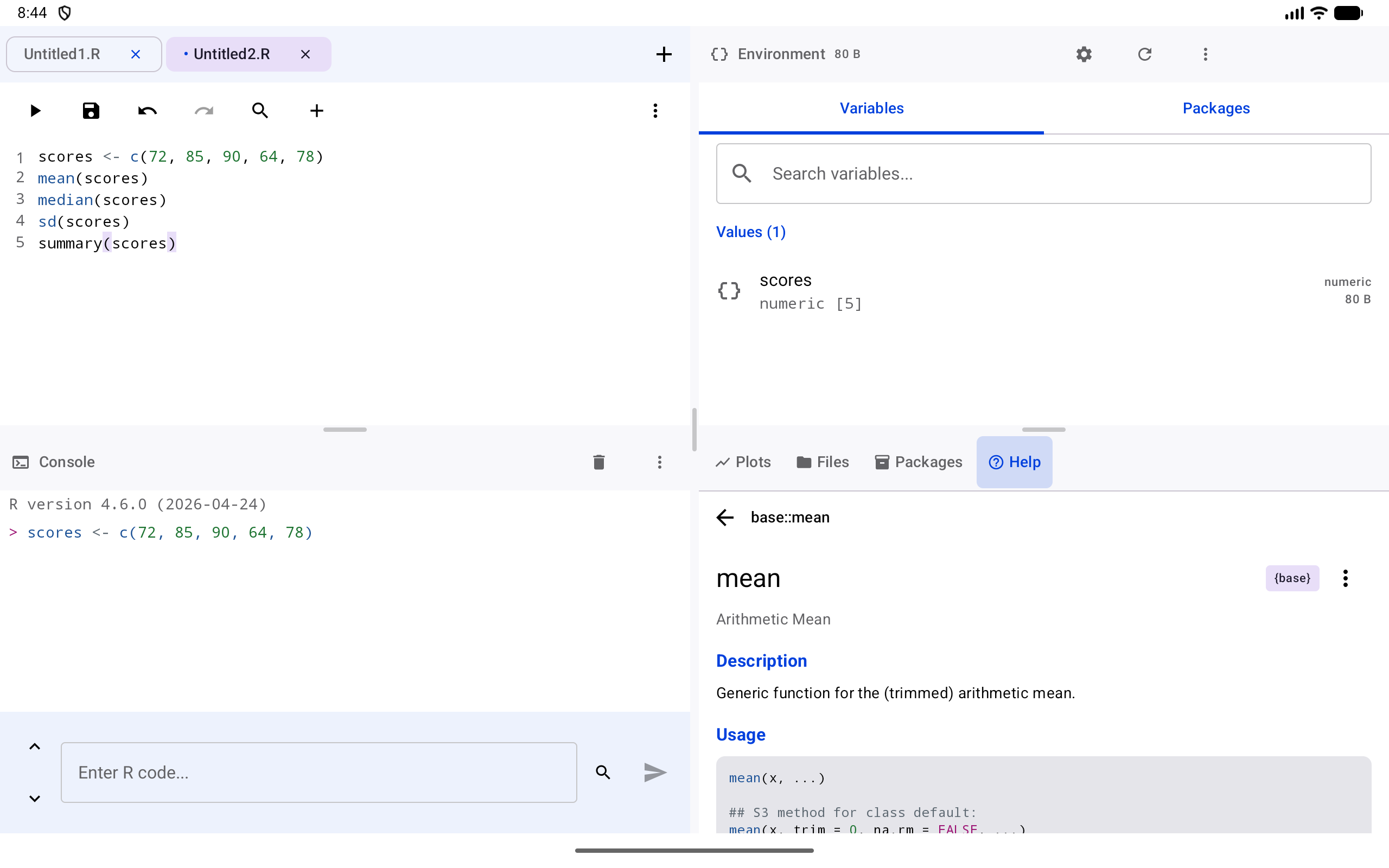
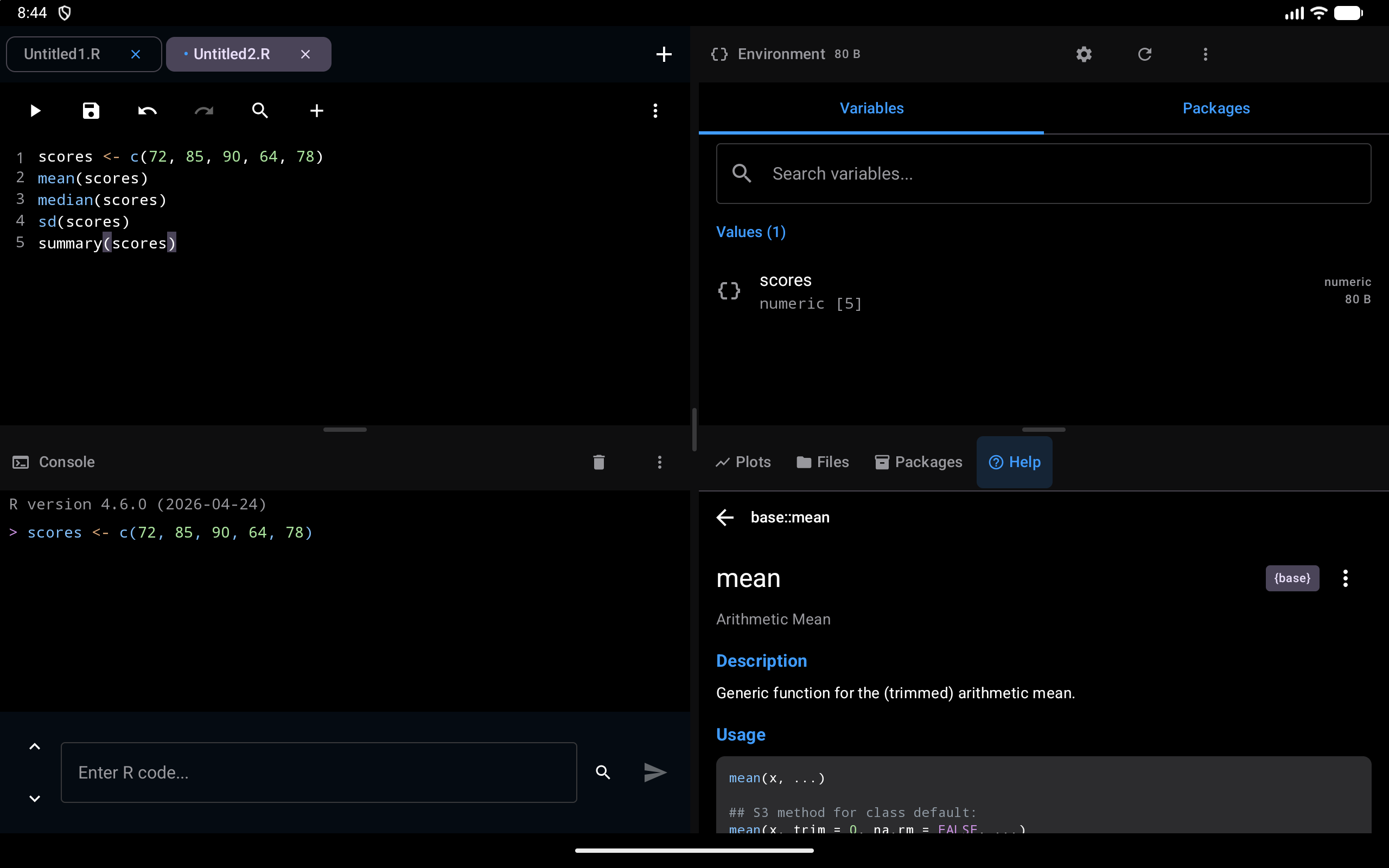
- In the Workspace, tap the Help tab at the top of the bottom-right pane.
Then type at least two letters of a function or topic in the search field, and tap a result to open its page. Searching for Help and Reading Help Pages above say more about both. The pages you open here are the ones listed under Recent.
The Workspace pane has no title bar of its own. Once a page or a package index is open, a small row at the top of the pane shows its name, with a back arrow to step back.
Running Examples
From any help page, tap Run Examples to execute the function’s built-in examples. The code is sent to the Console via example("function_name", package = "pkg", give.lines = FALSE, echo = TRUE) and the results (including any plots) appear in the Console and Plots tabs respectively.
The examples run without going through the Console’s input field, so anything you had typed there stays as it was. If R is busy with another command, they wait and run once it has finished. Tap Run Examples on several pages and each set runs in turn, in the order you asked for them.
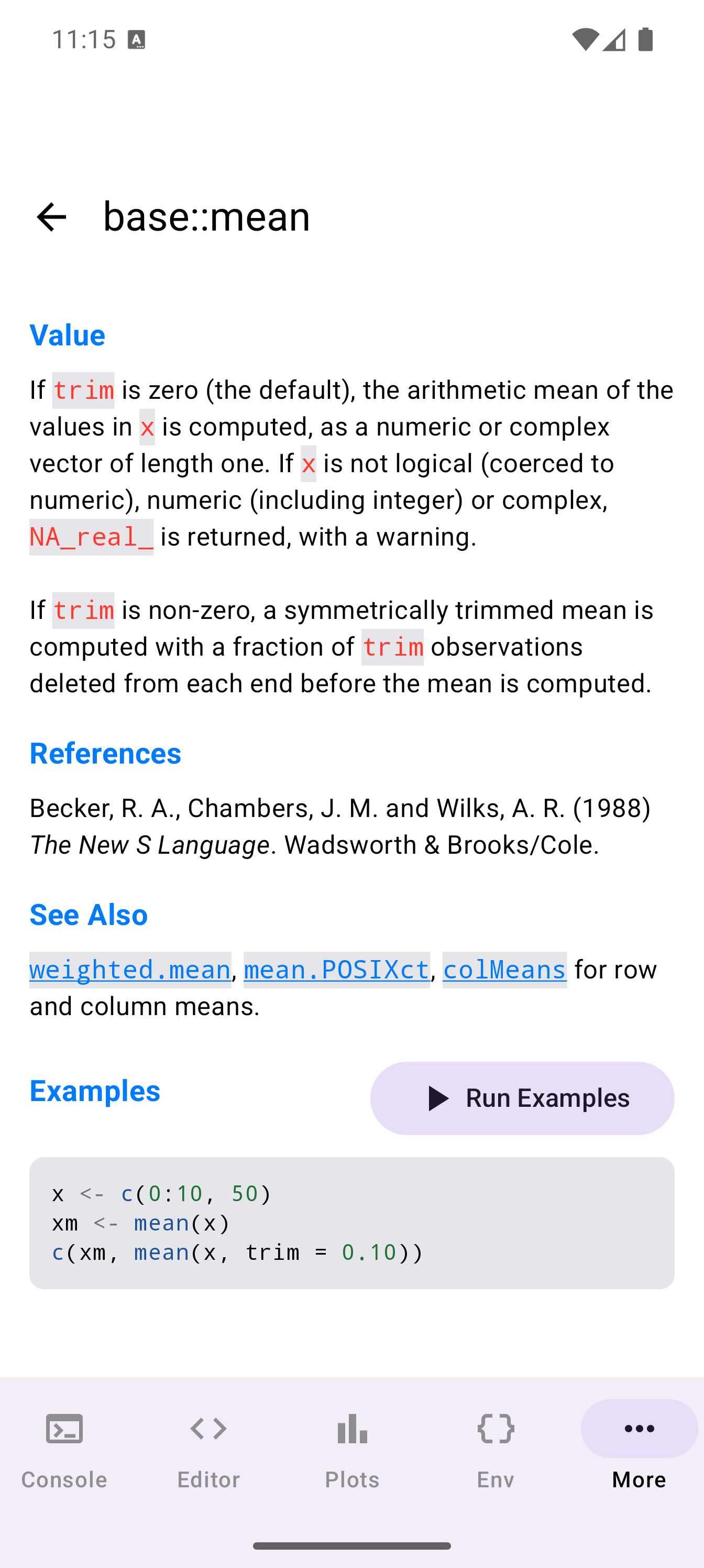
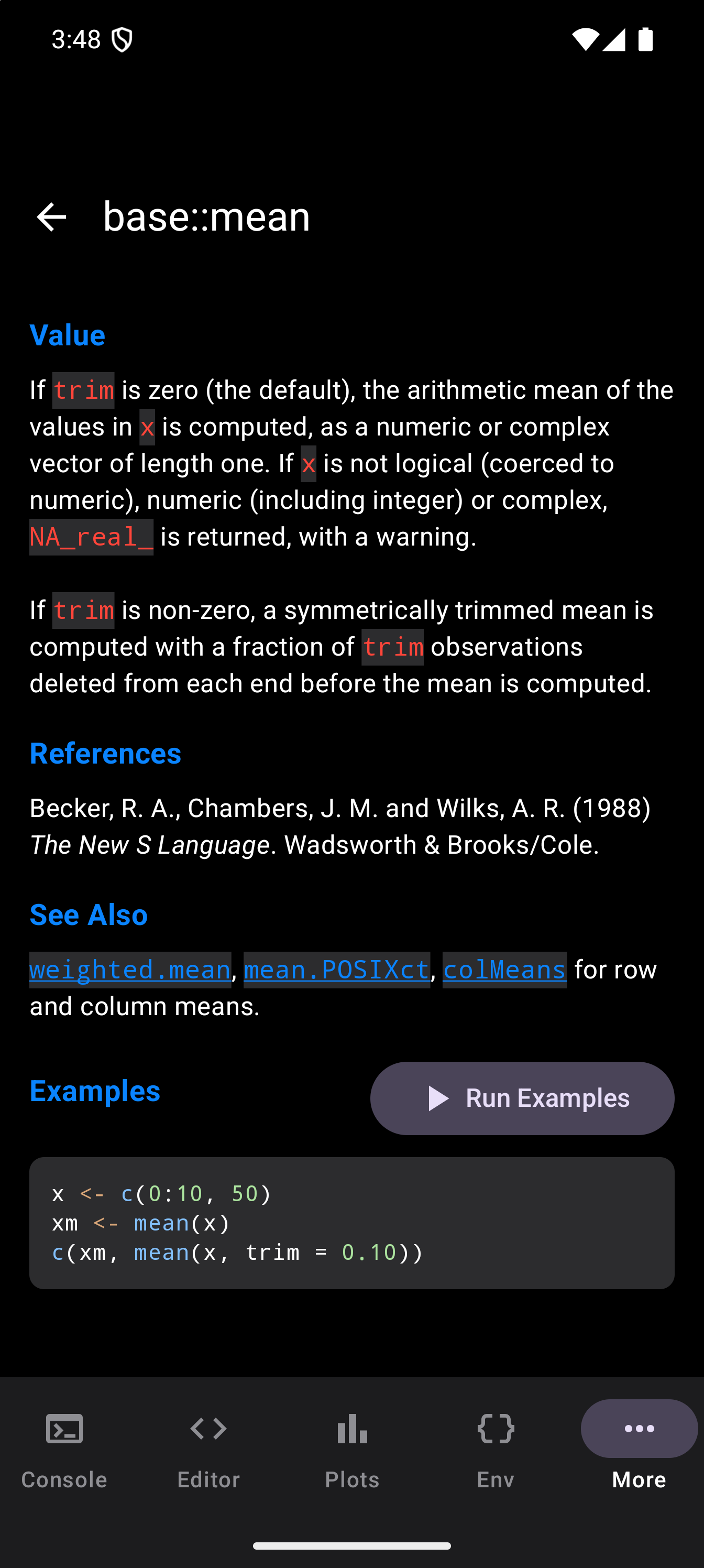
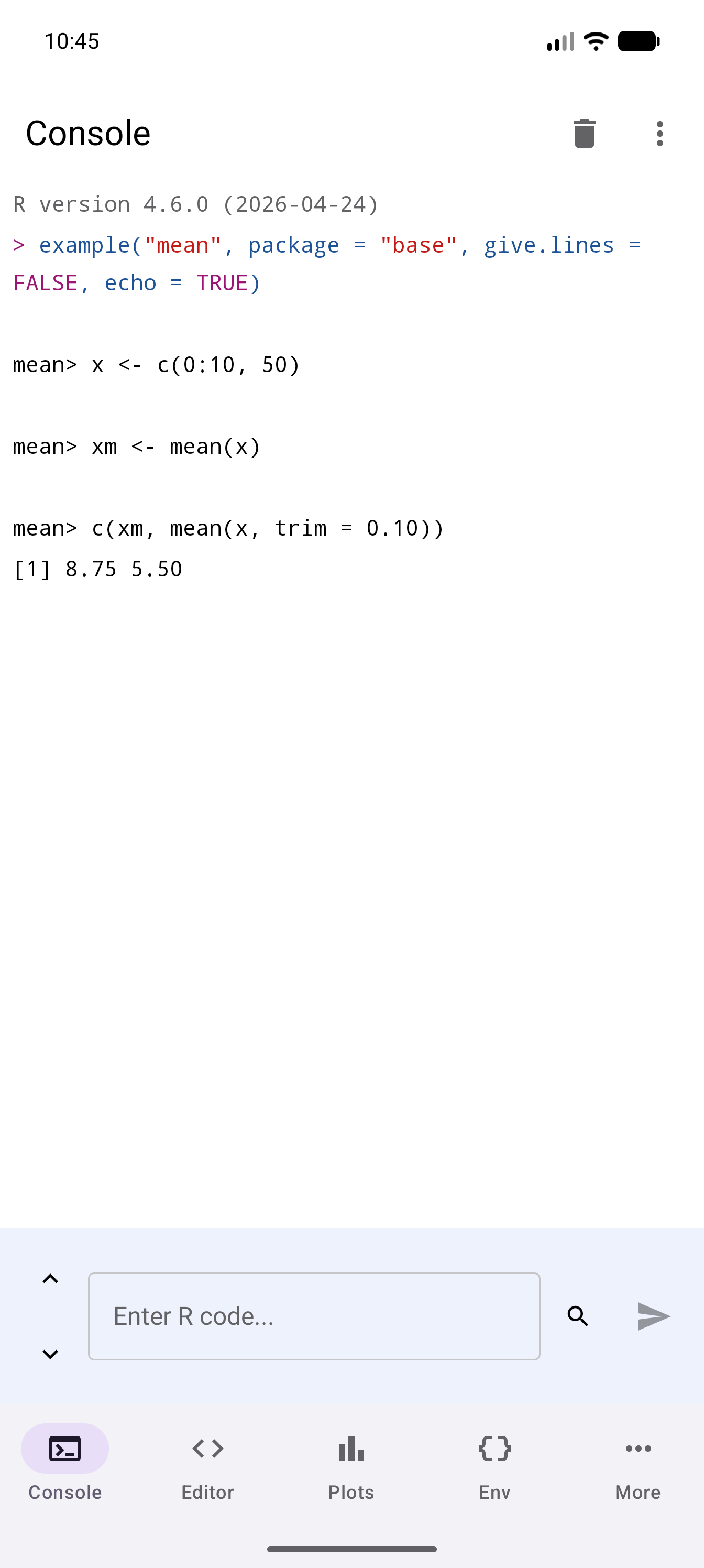
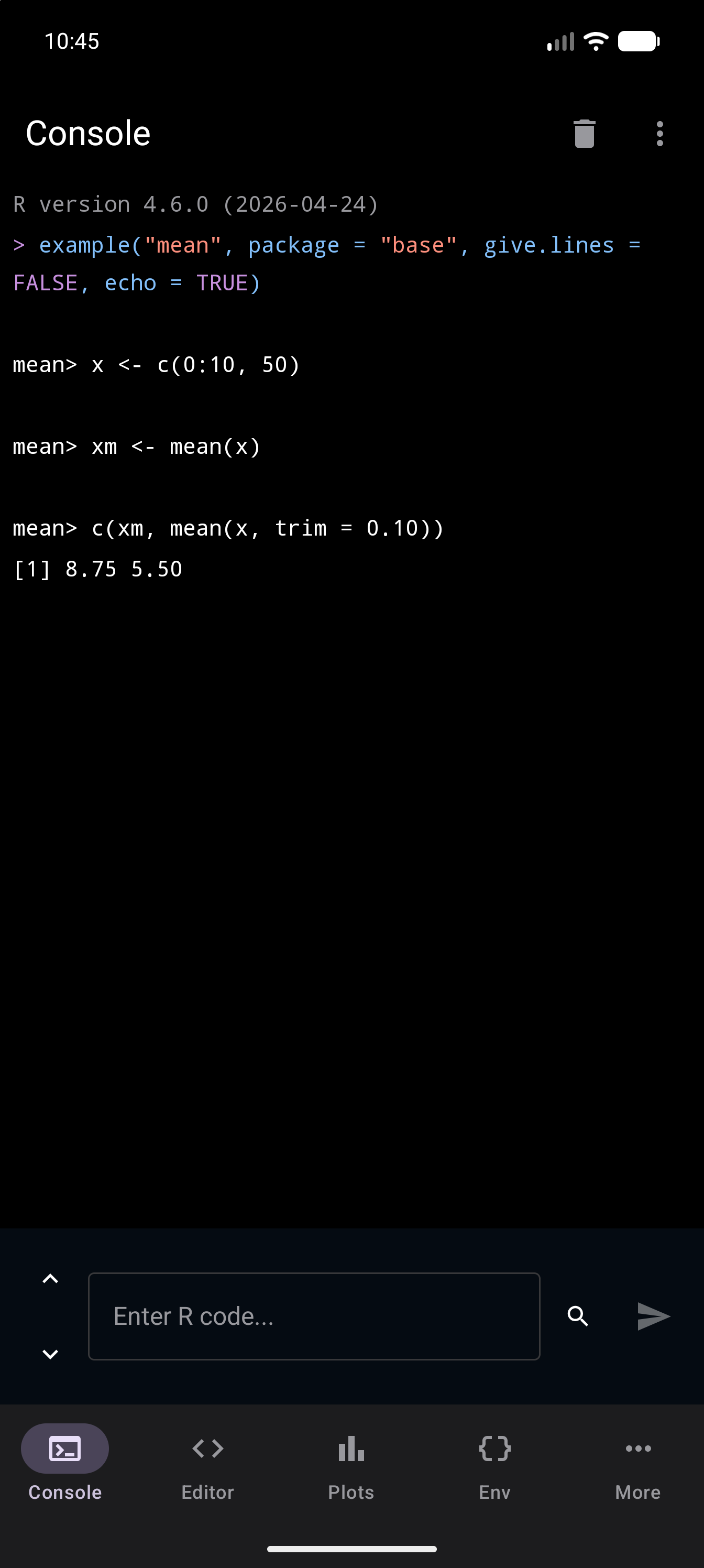
Running examples is a quick way to understand how a function works. Most R functions ship with practical examples that demonstrate common usage patterns.
Package Documentation
A package’s index lists every help page in that package, each with a one-line description. It is a good way to discover functions you did not know about in a package you already have.
Searching for the package name in the Help tab lists matching topics, not the index. To open the index, run help(package = ...) or library(help = ...) in the Console or the Editor:
help(package = "stats")A big package’s index can take a while to appear, sometimes tens of seconds. A spinner shows until it is ready.
Here is the index for stats, a package of functions. At the top is a card with the package’s name, its title and its version. Below it, the topics are grouped by subject, under headings such as NA (for missing values), Add to Plots and Arithmetic. Tap any entry to read its full help page.
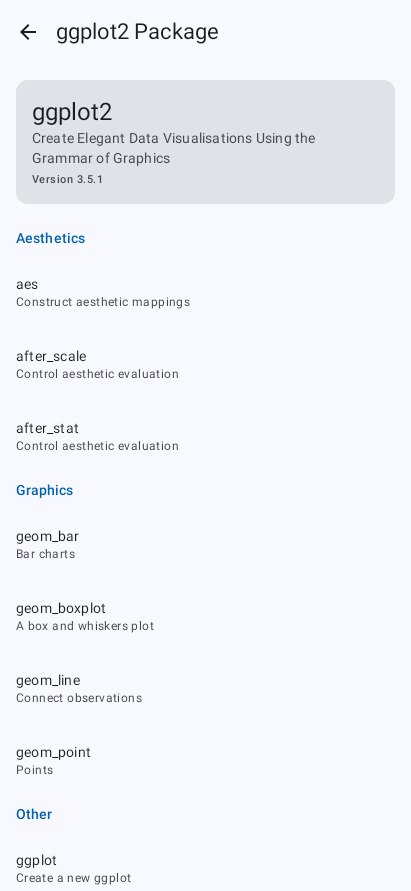
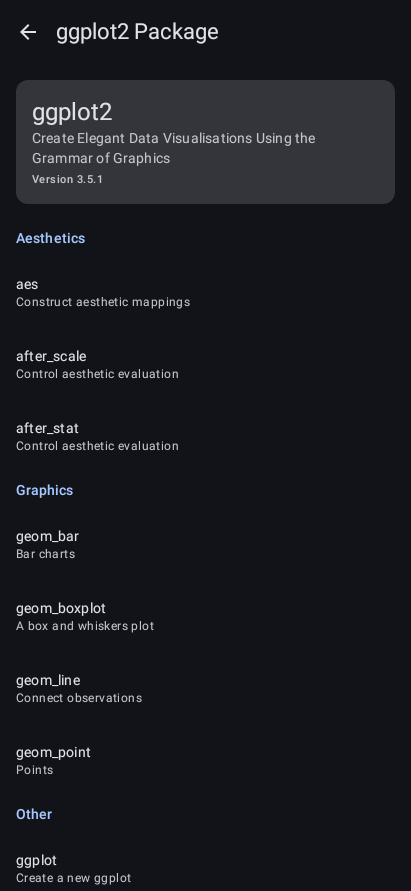
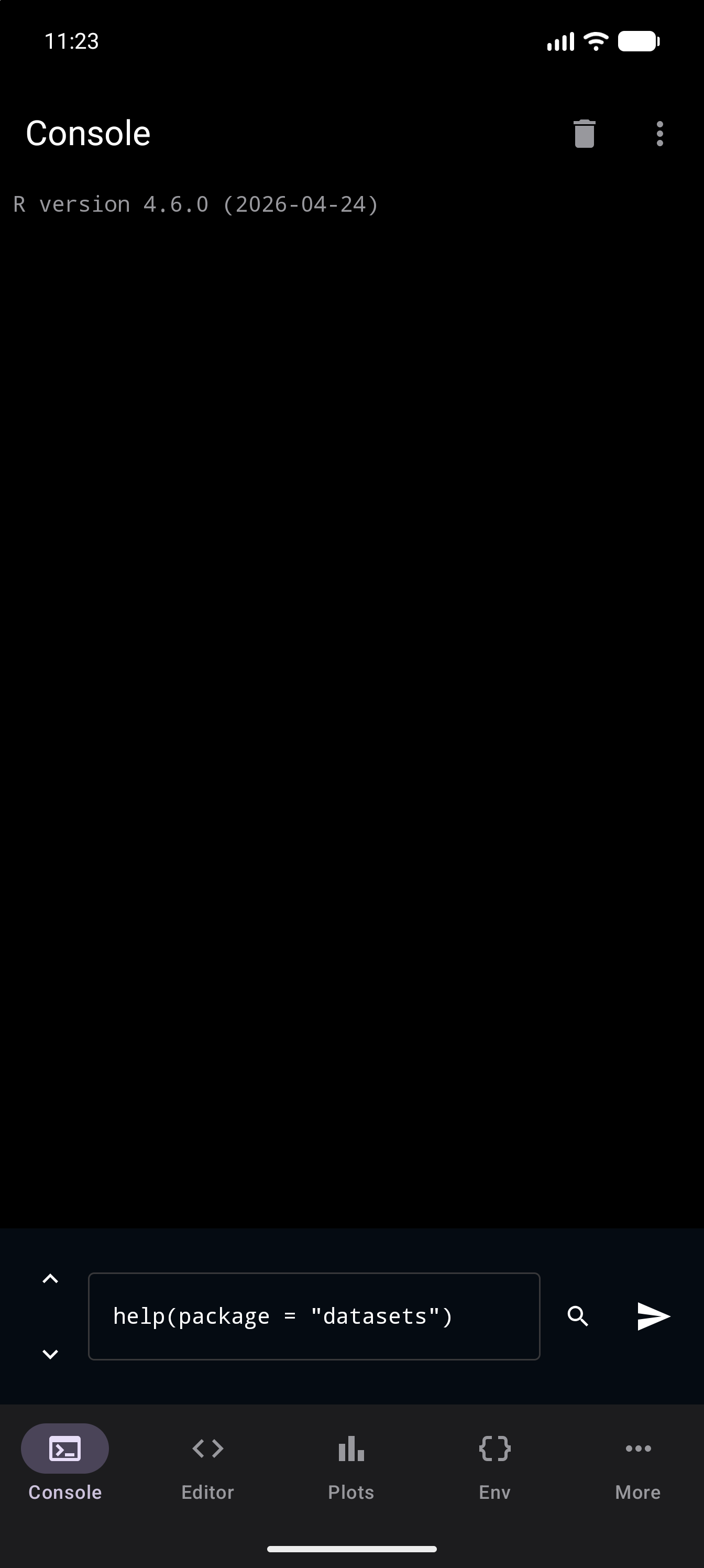
A package of data looks the same. The pictures below show help(package = "datasets") typed in the Console, ready to run, and the index it opens for datasets. Its data sets are listed together under one heading, Datasets, starting with AirPassengers.
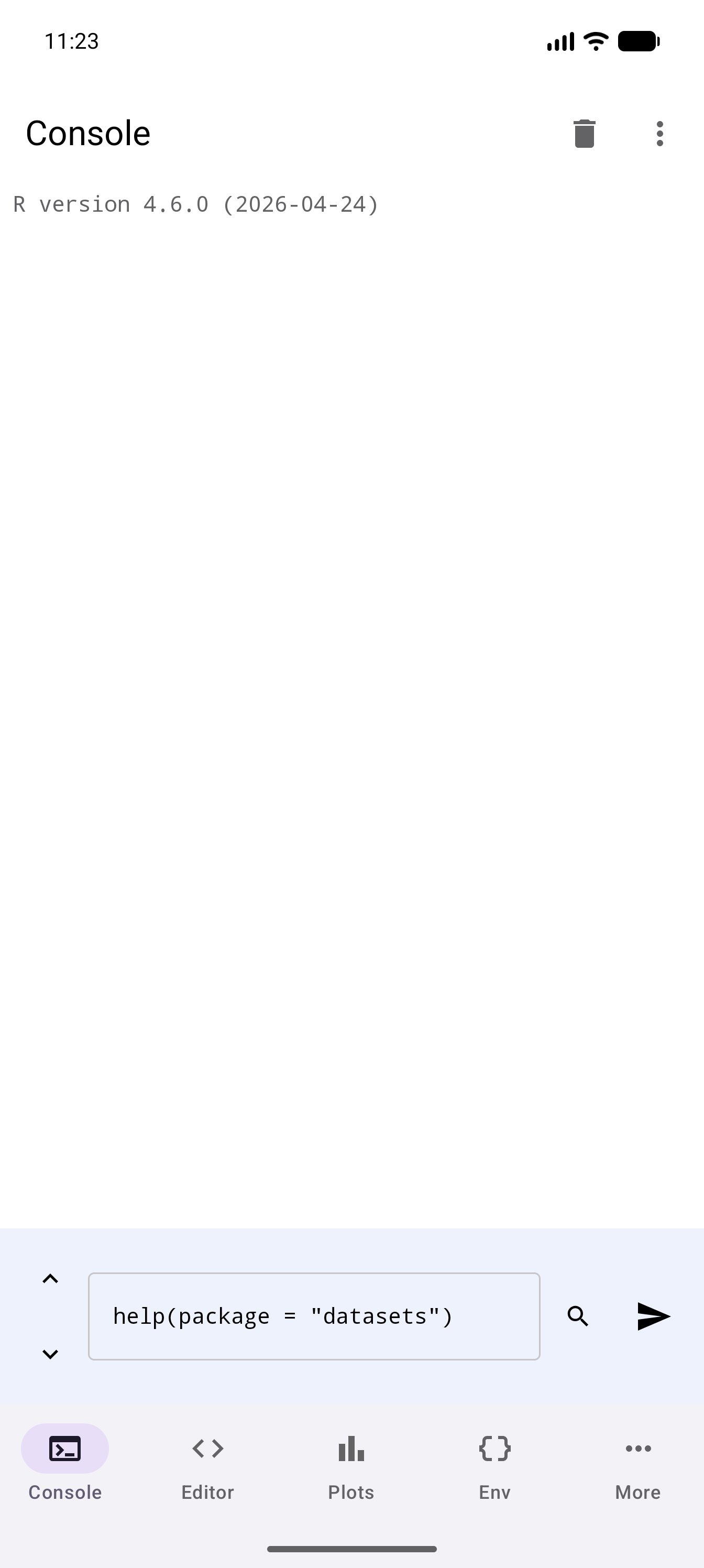
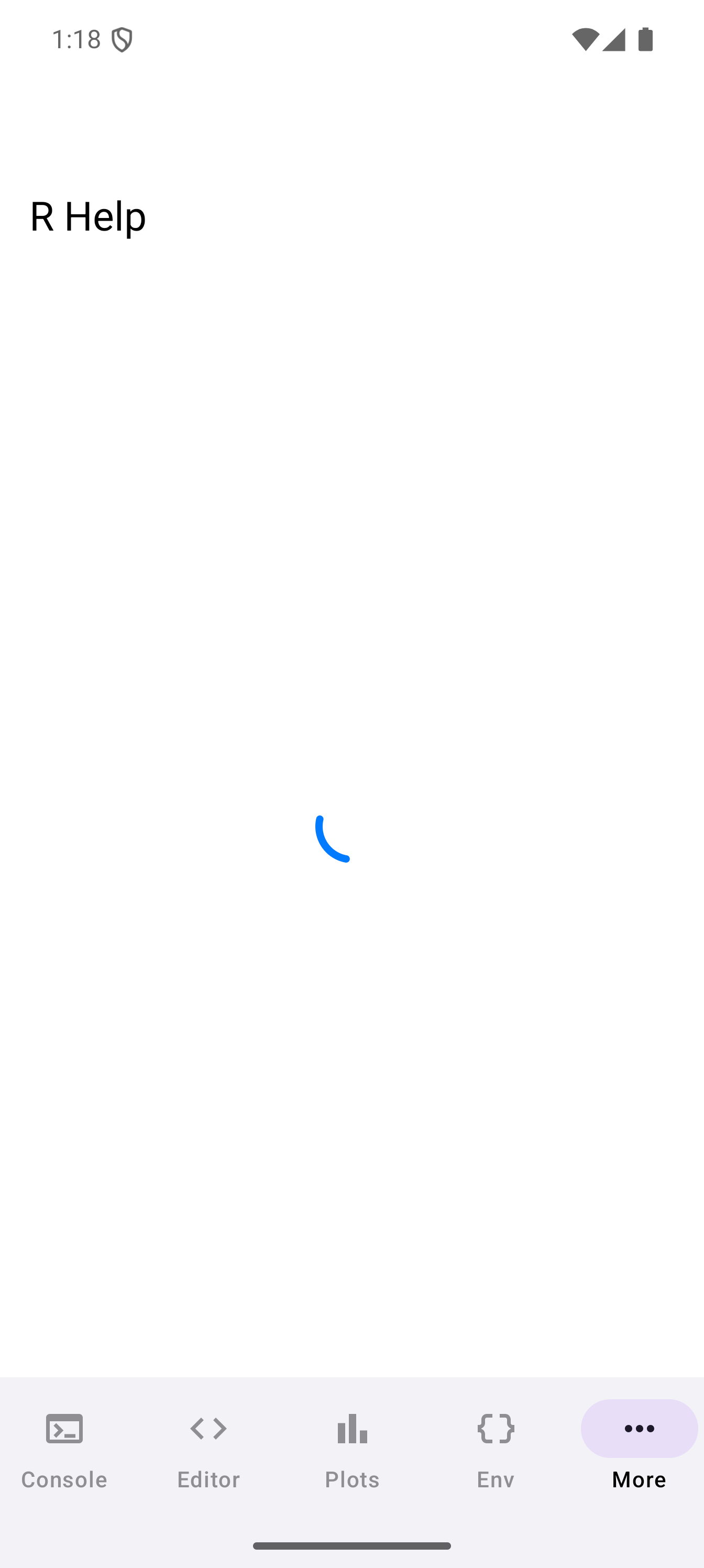
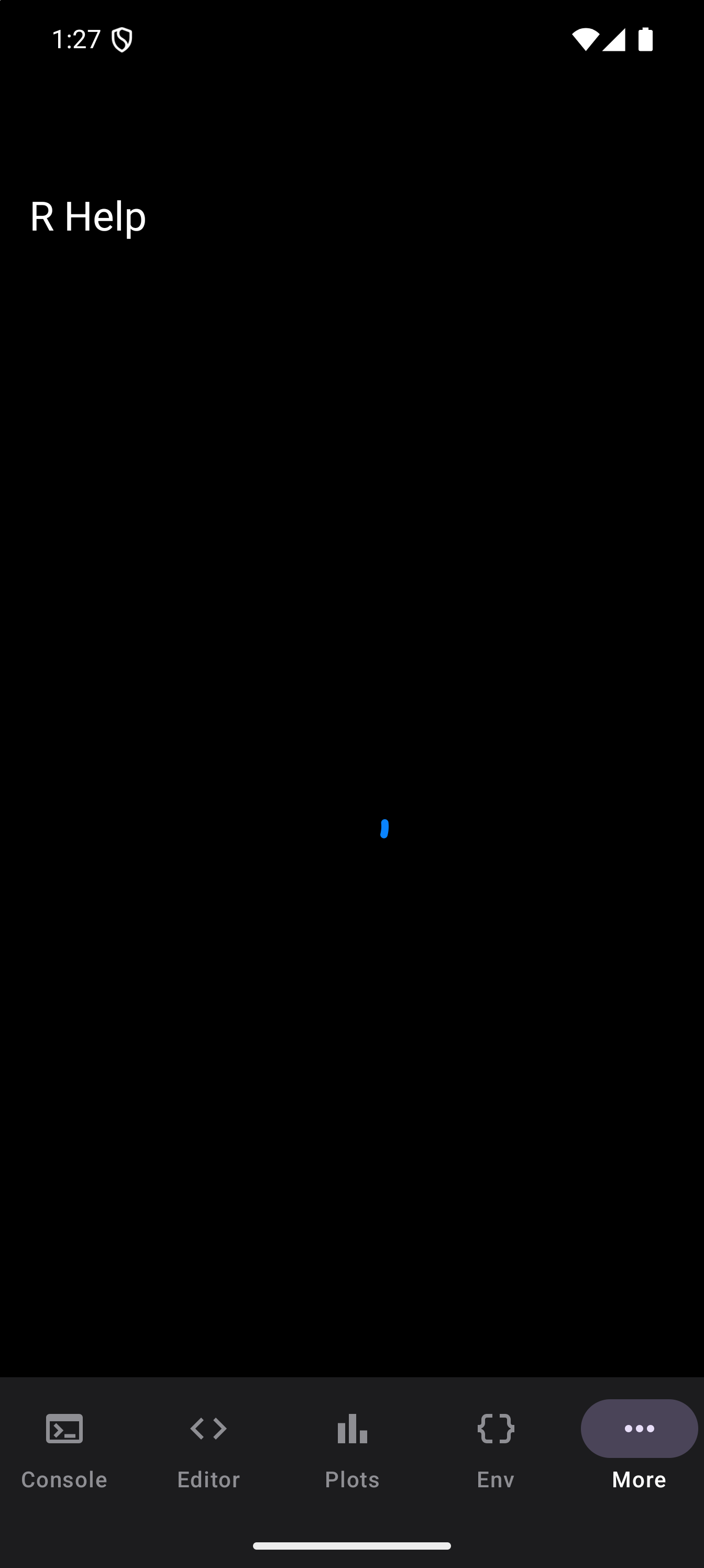
The back arrow at the top, or Android’s Back, takes you from a page to the index you opened it from, and from the index back to the Help search.
Help documentation is rendered locally from R’s built-in help system. No internet connection is required to browse help pages for installed packages.