Files
The Files tab is a built-in file manager for your R scripts, data files, and project folders. You can browse directories, create and edit files, search by name or content, import data, and organize your work into projects, all without leaving webRoid.
Browsing Files
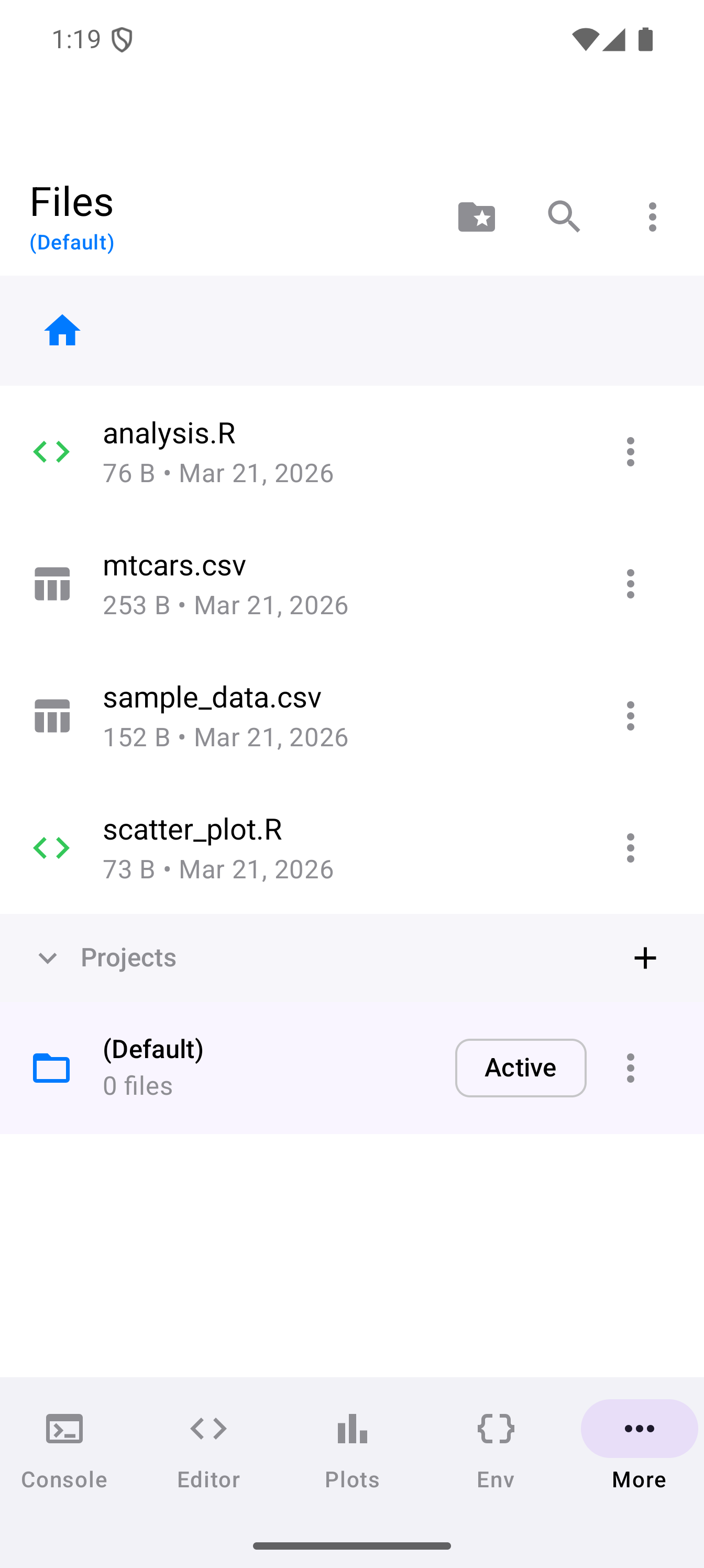
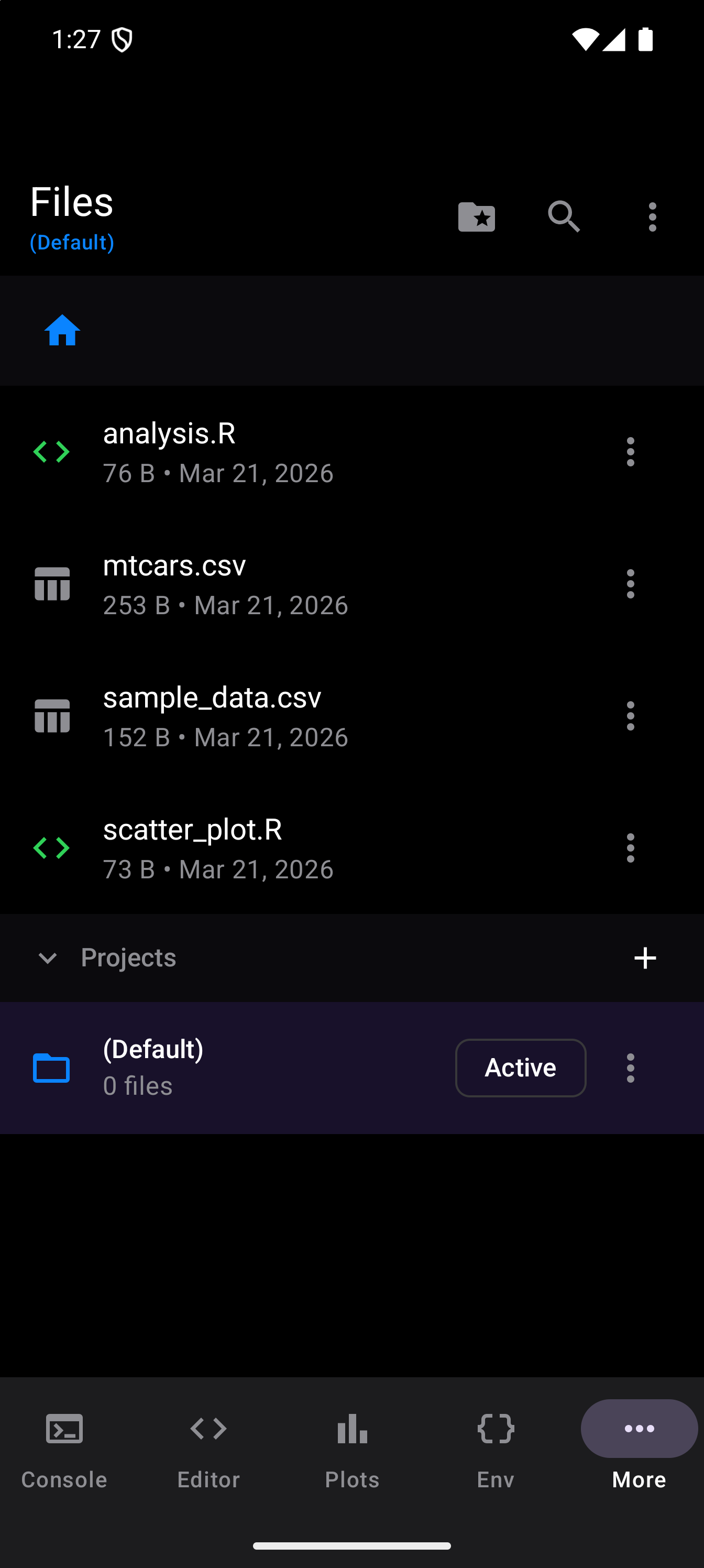
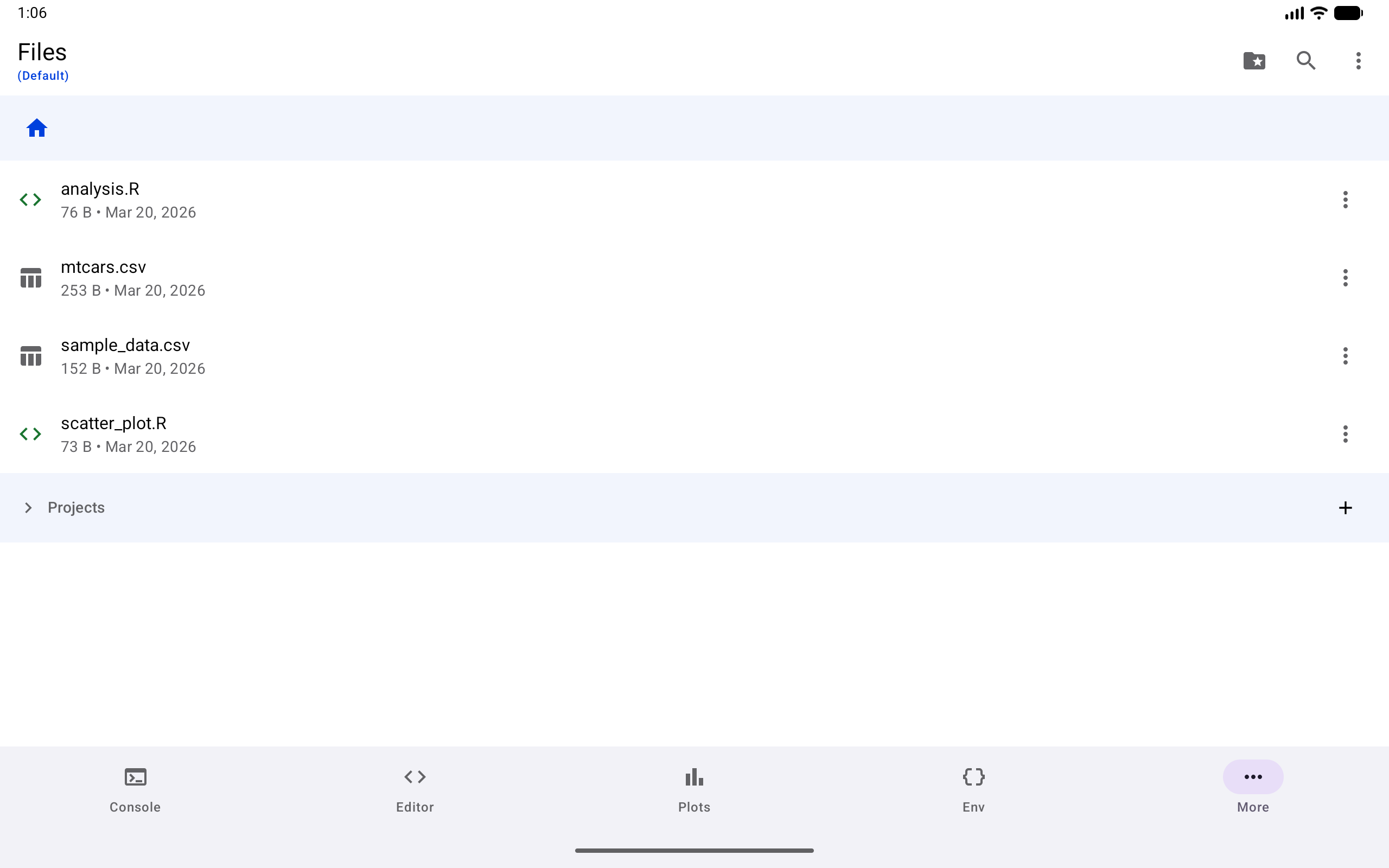
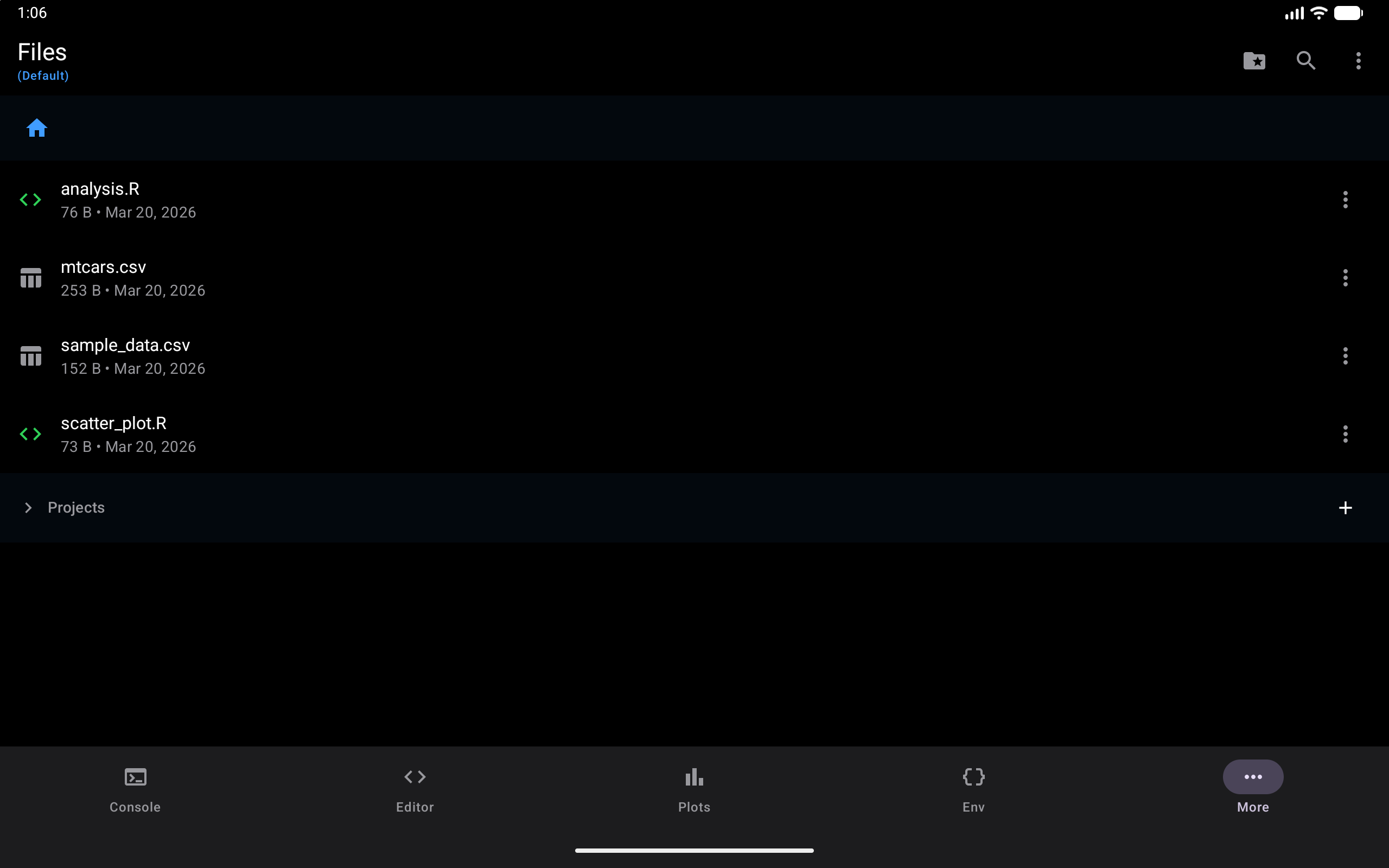
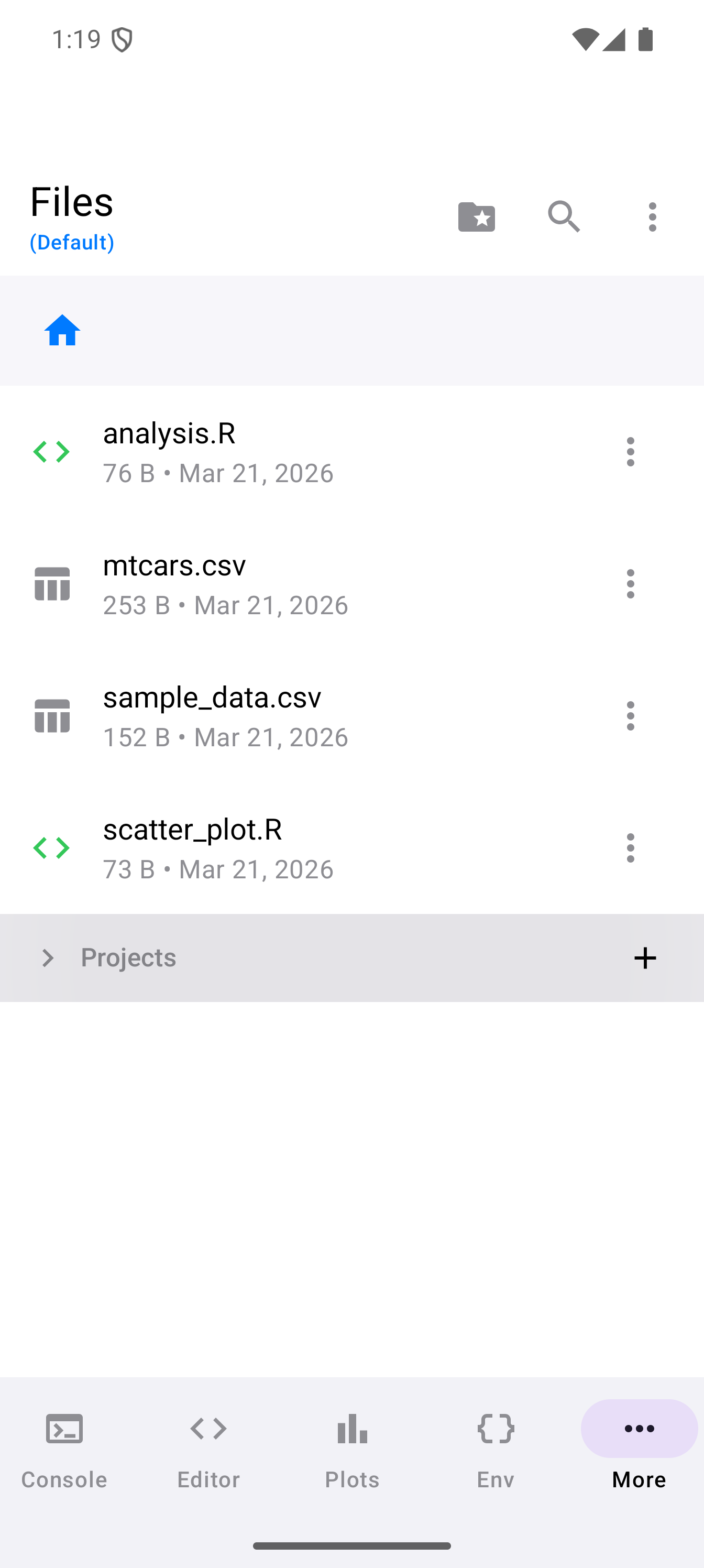
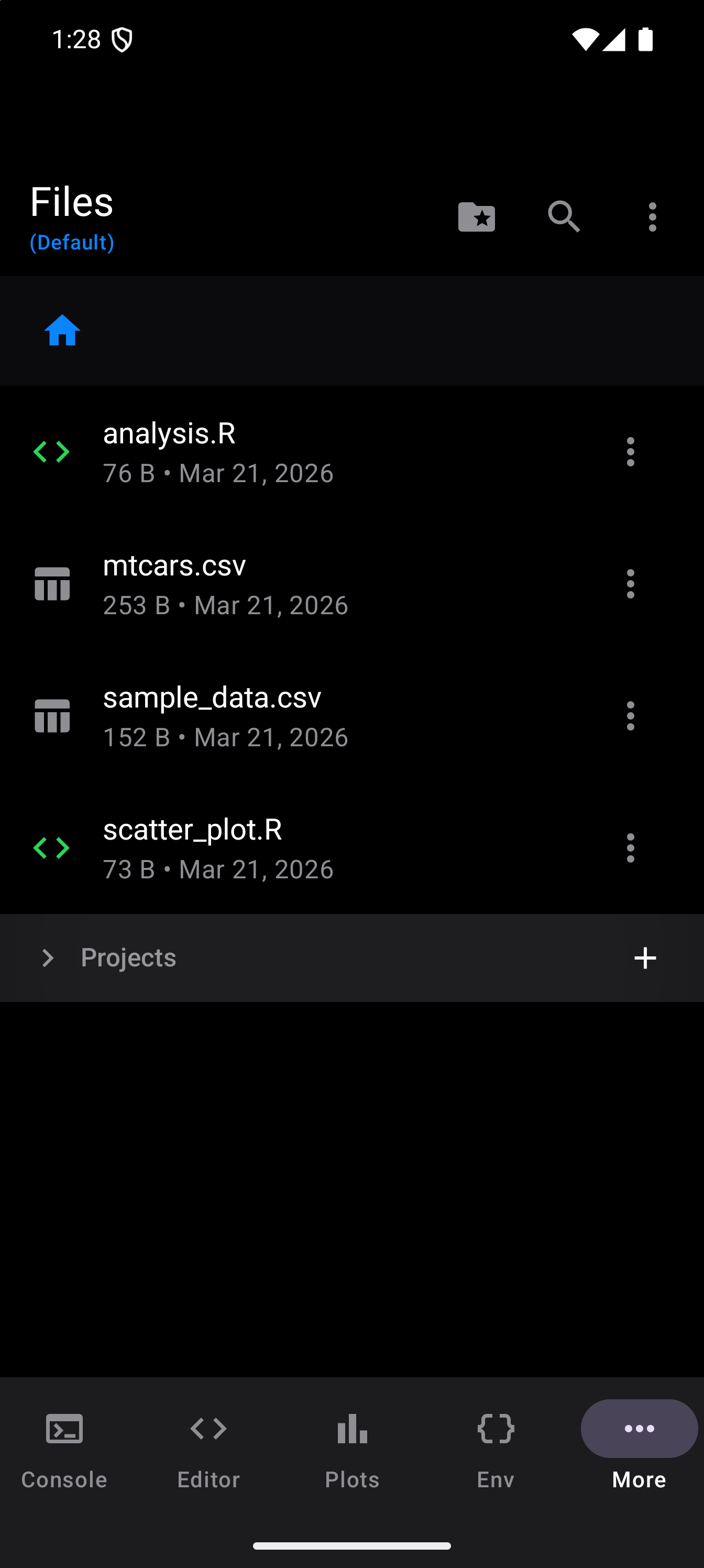
When you open the Files tab, you see the contents of your current project directory. Each row shows the file or folder name, with the size and last-modified date for a file, and a three-dot button at the end that holds the row’s actions. Tap a folder to enter it.
At the top of the file list, a breadcrumb bar shows your current location in the folder hierarchy. Tap any breadcrumb to jump directly to that level. When you are deeper than the root, a back arrow appears in the toolbar to navigate up one level. The system Back gesture also goes up one level, until you reach the root.
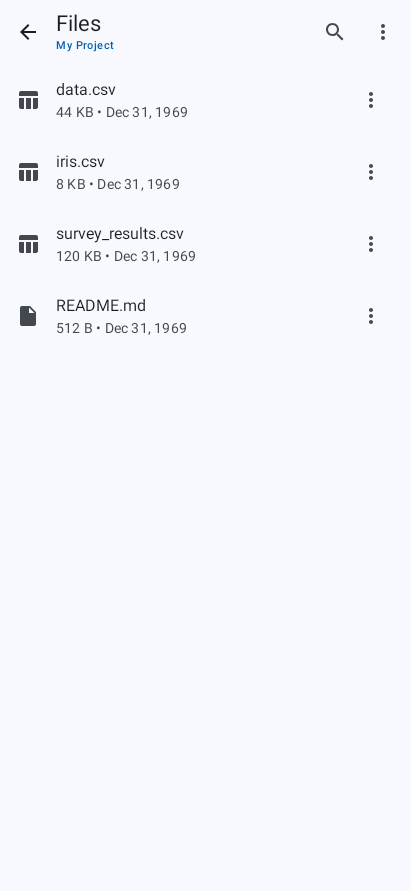
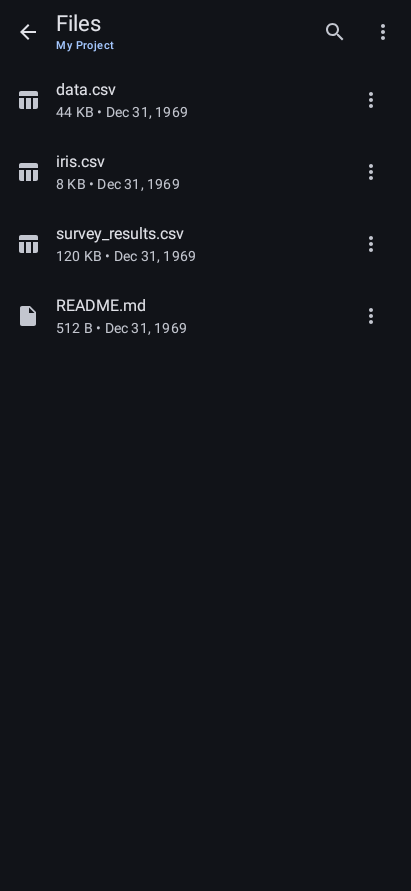
The toolbar title shows “Files” along with the current project name (if you have one selected) in a smaller label underneath.
Project Selector
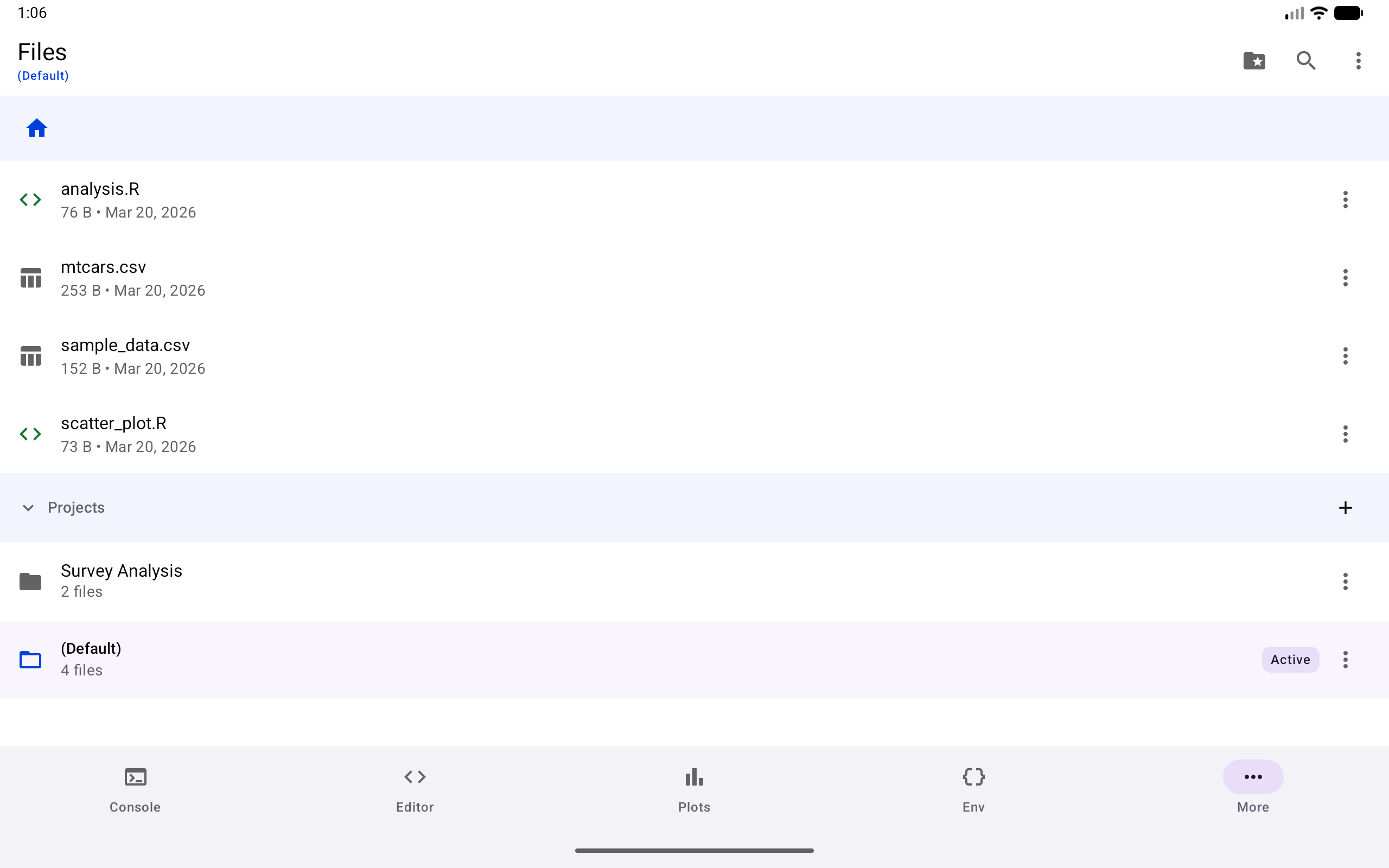
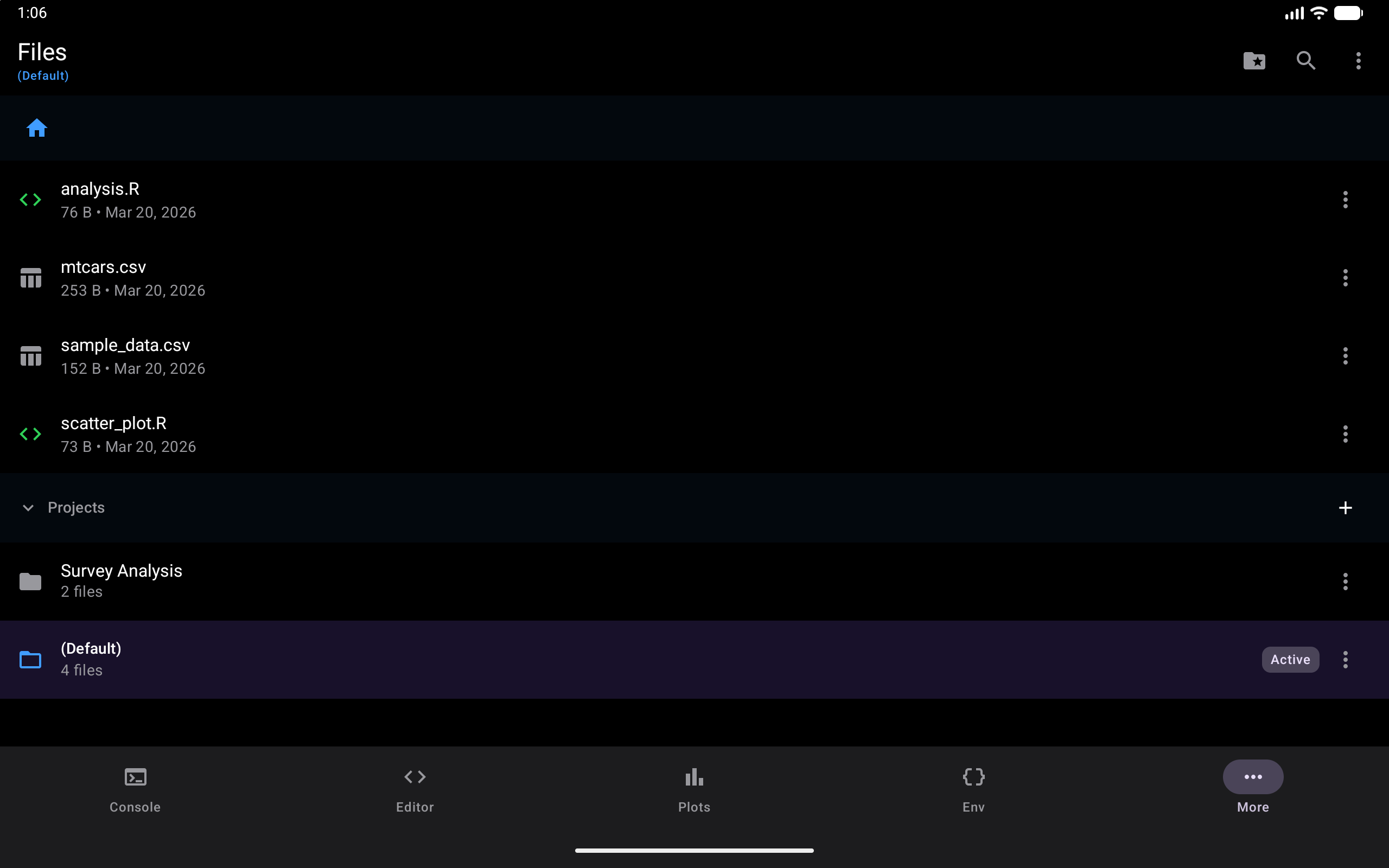
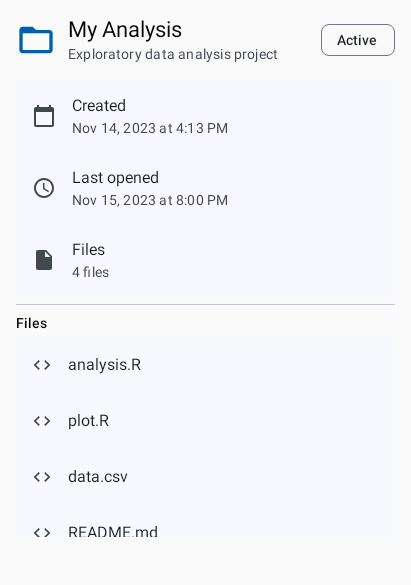
At the root level of the file list, a collapsible Projects section appears below your files. This section lists all your projects and lets you switch between them. The active project is highlighted with a tinted background and an “Active” chip. To switch to another project, choose Open from its three-dot menu, or tap it and then Enter Project; the file browser’s root changes to that project’s folder. The section is pictured under Projects below.
You can toggle the projects section open or closed using the folder icon in the toolbar.
Creating and Managing Files
Tap the three-dot menu in the toolbar to create files and folders. The same menu holds Search in Files, Recent Files, Import Data…, Copy Files Back from R and Refresh, each described below.
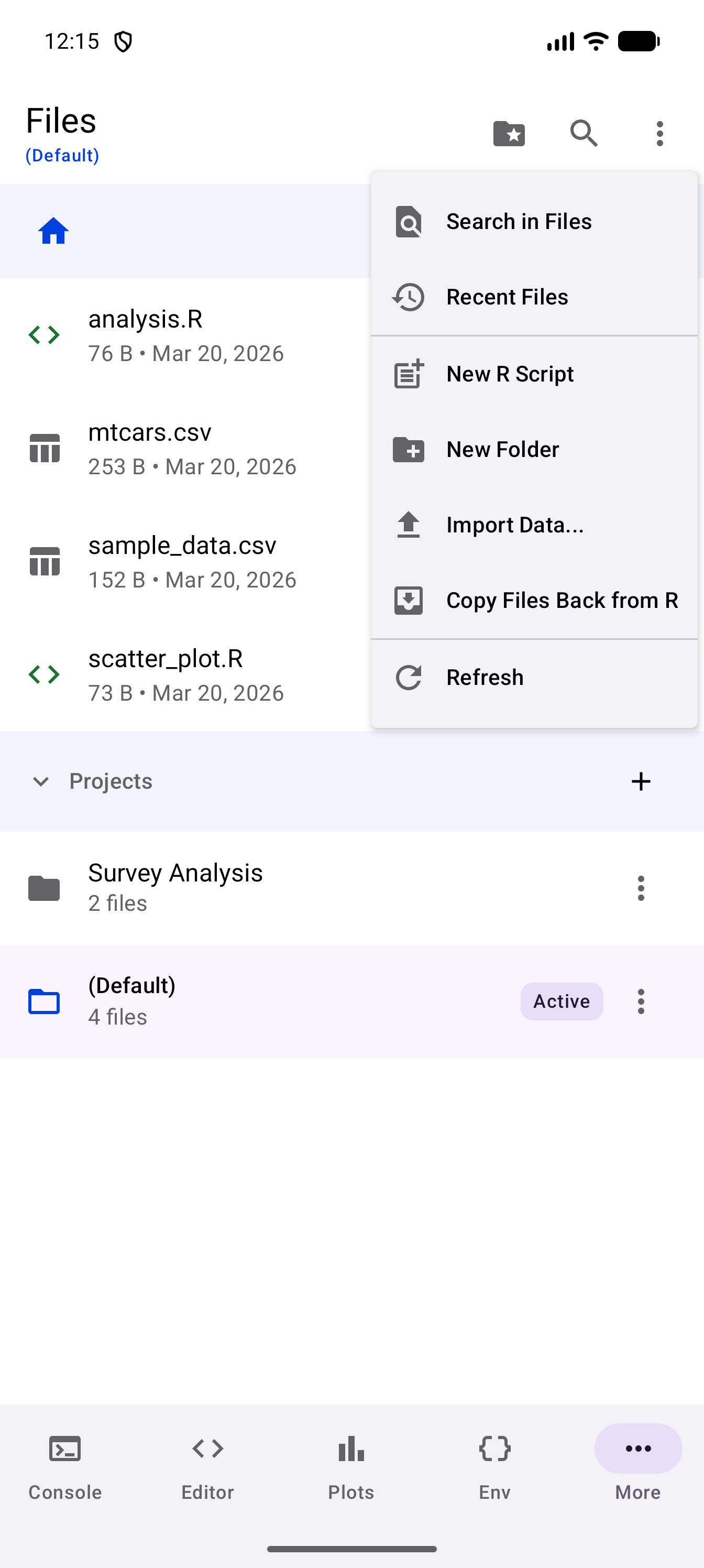
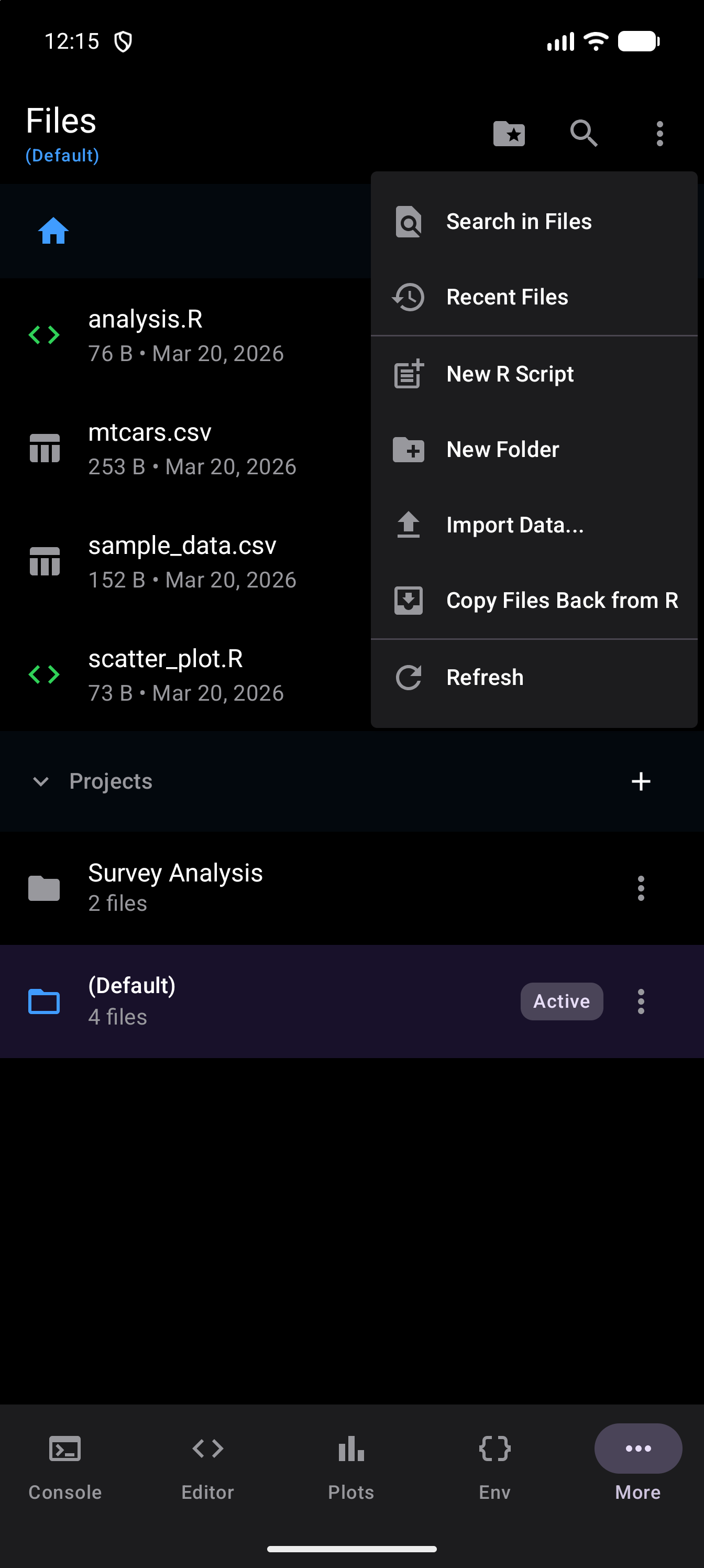
To make something new, choose:
- New R Script: creates a
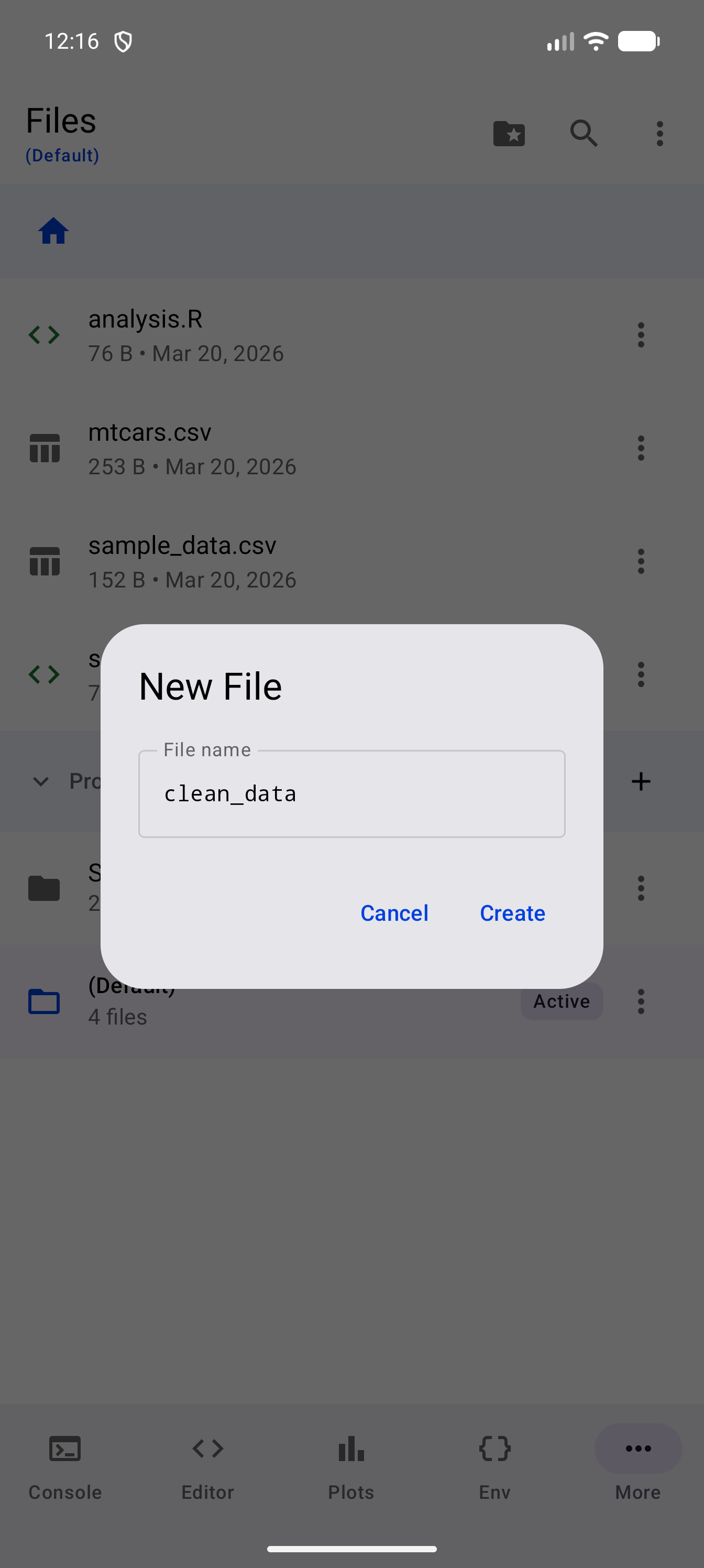
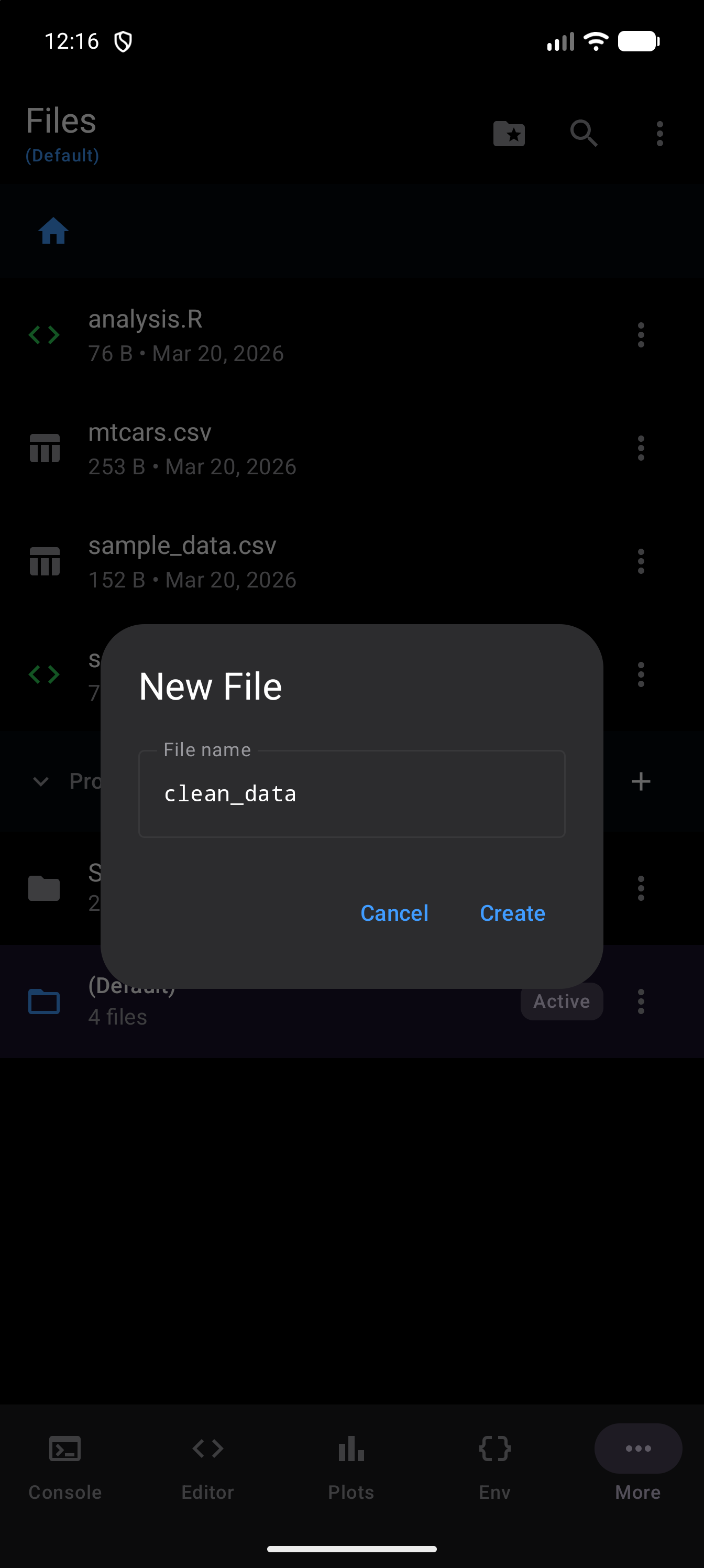
.Rfile in the current directory. You name it in a dialog titled “New File”; the.Rextension is added automatically if you omit it, soclean_databecomesclean_data.R. The new file appears in the list, starting with a comment line that holds its name. Tap it to open it in the Editor. - New Folder: creates a subdirectory at the current location.
To rename or delete a file or folder, tap the three-dot button on its row:
- Rename: opens a dialog pre-filled with the current name. Change it and tap “Rename.”
- Delete: shows a confirmation dialog. For folders, the dialog warns that all contents will be permanently deleted.
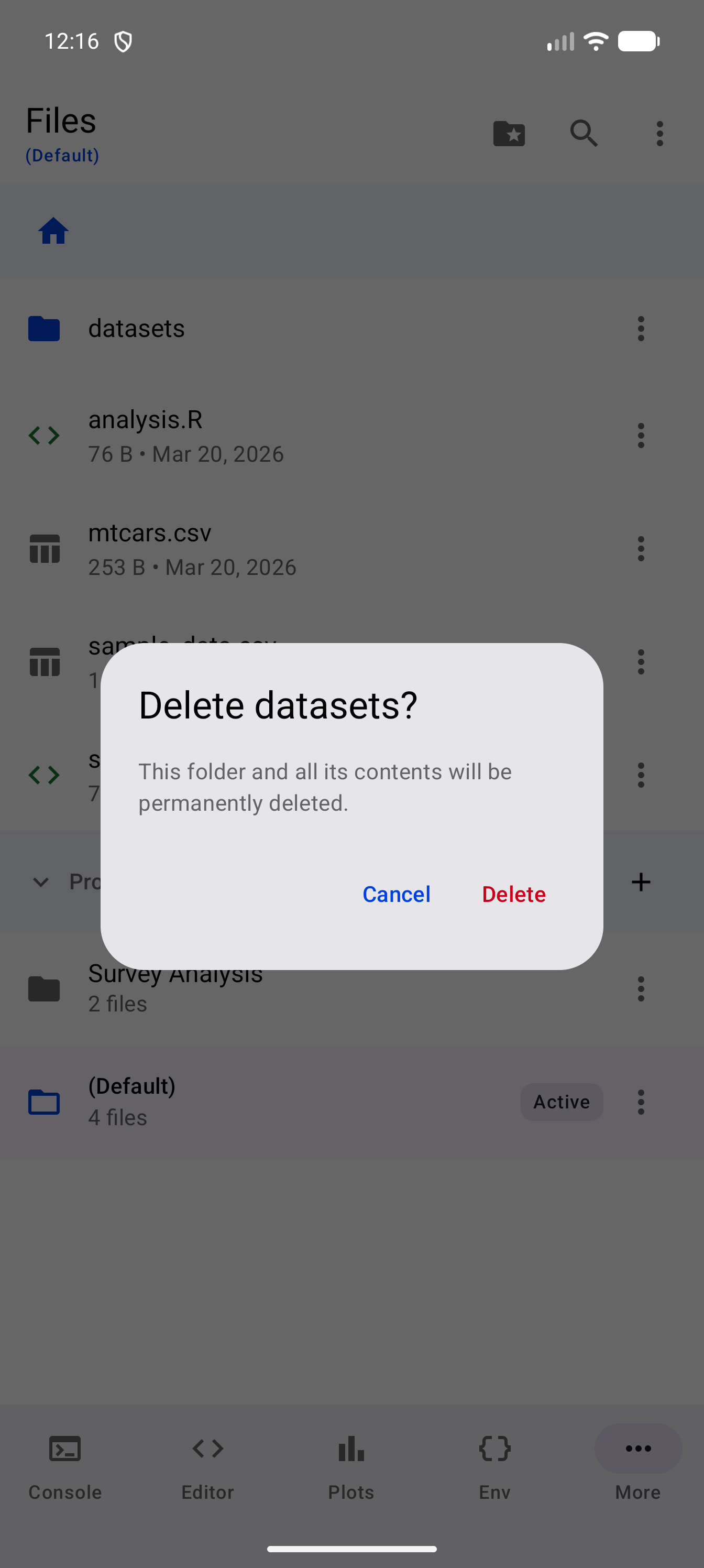
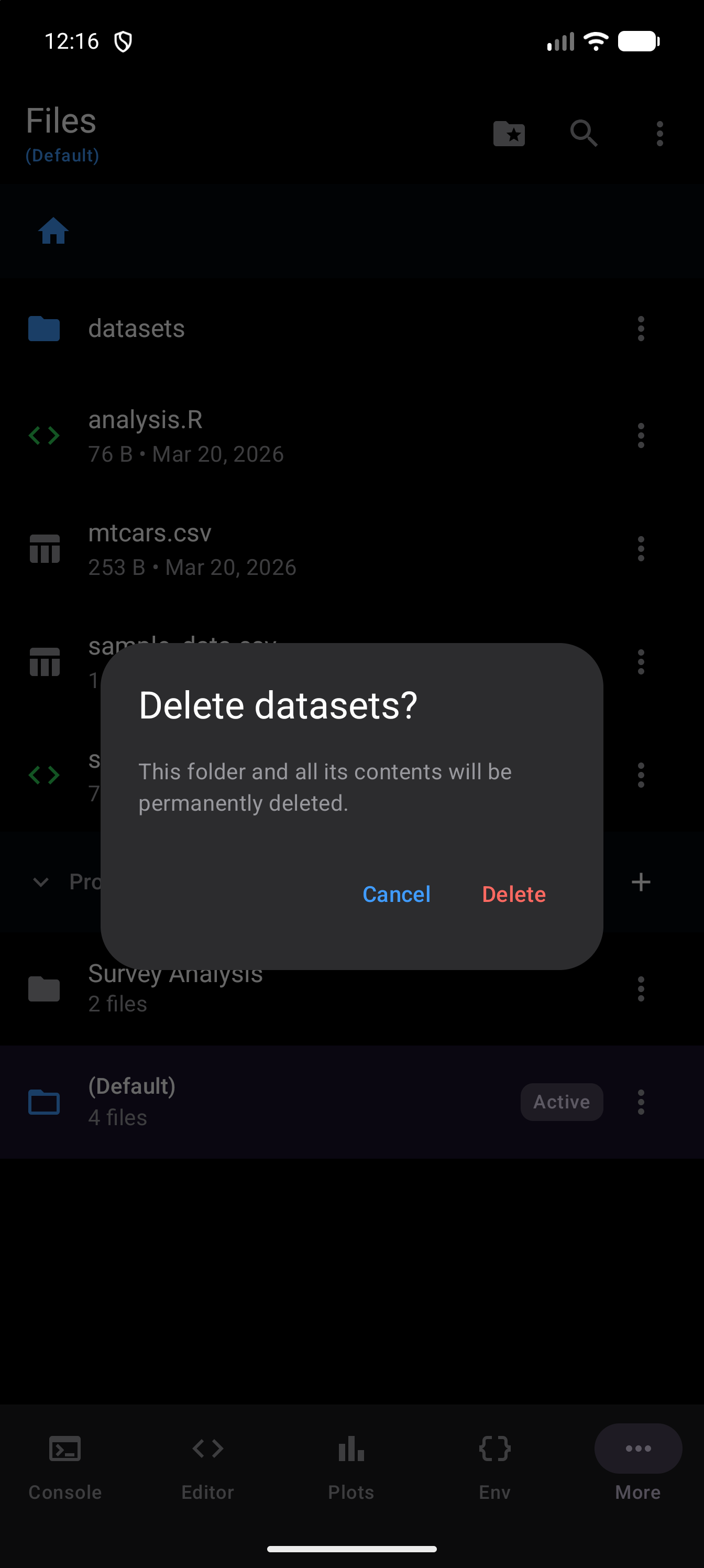
Deletion is permanent. There is no trash or undo. Always export or back up important files before deleting.
Some files have more in the same menu:
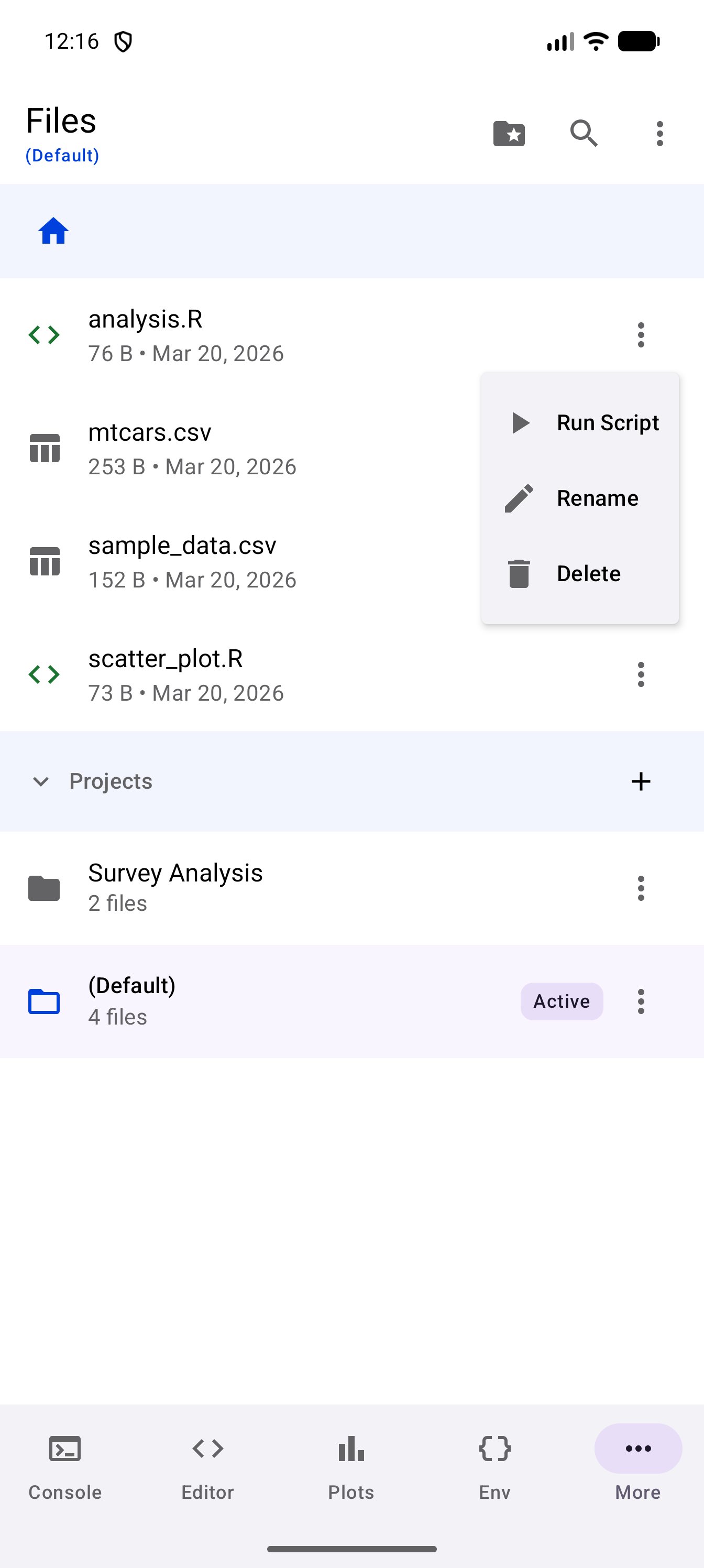
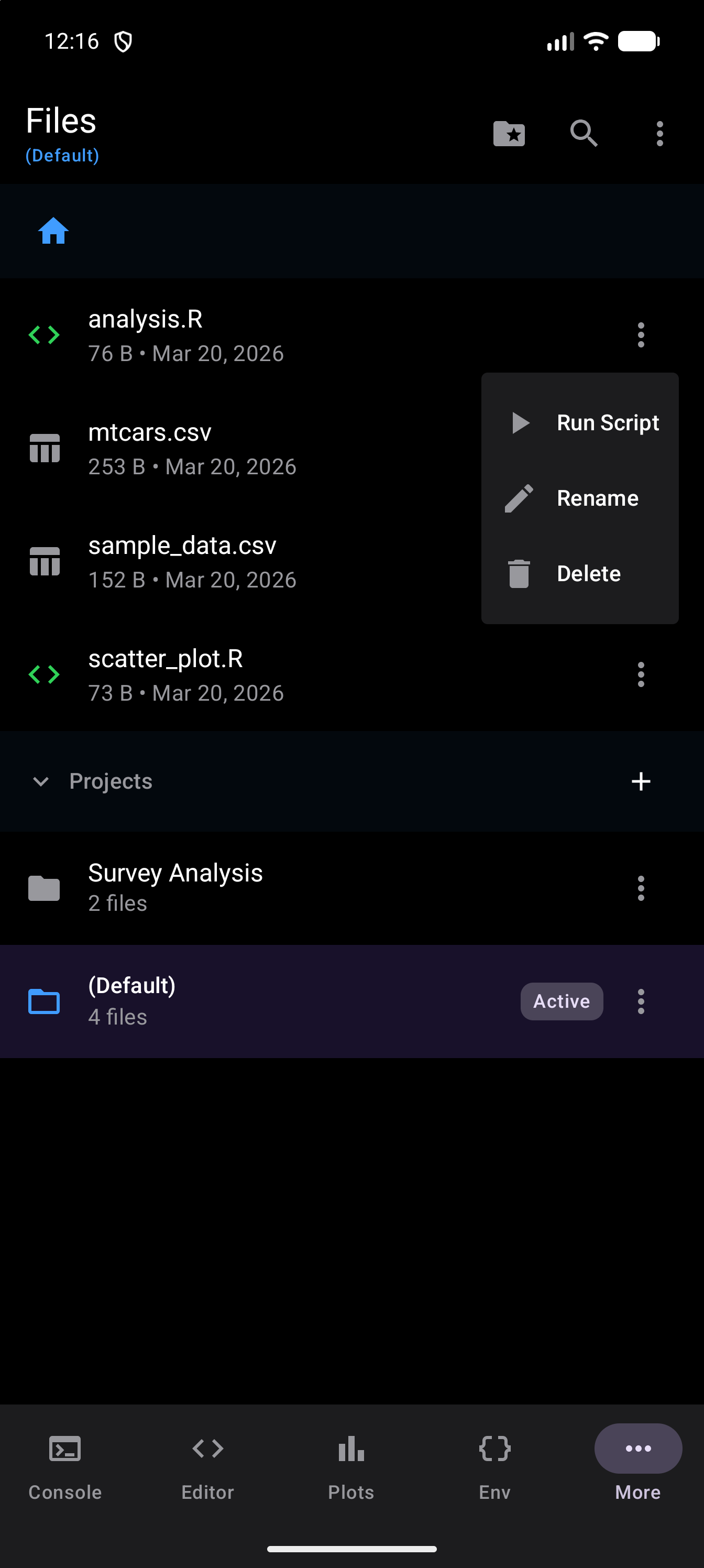
- Run Script, on an
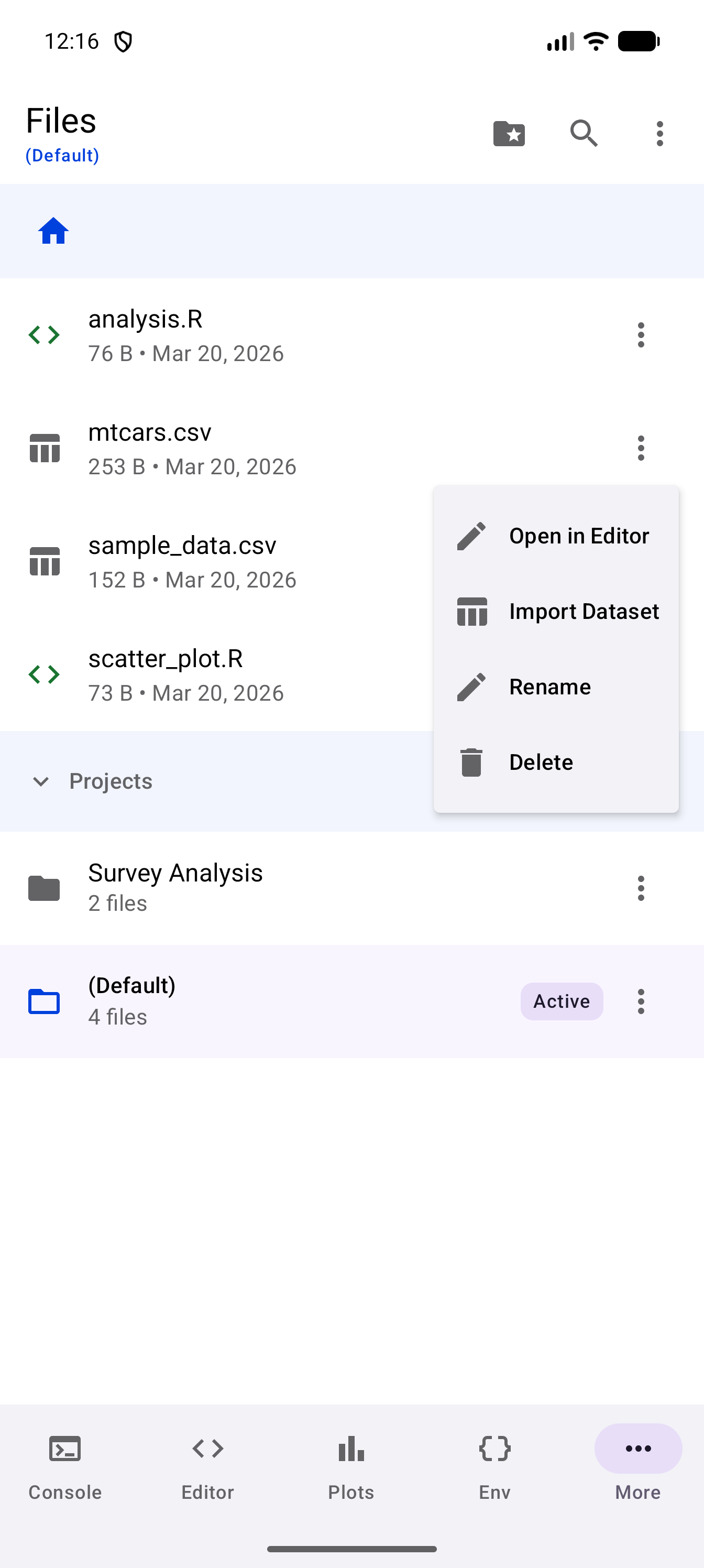
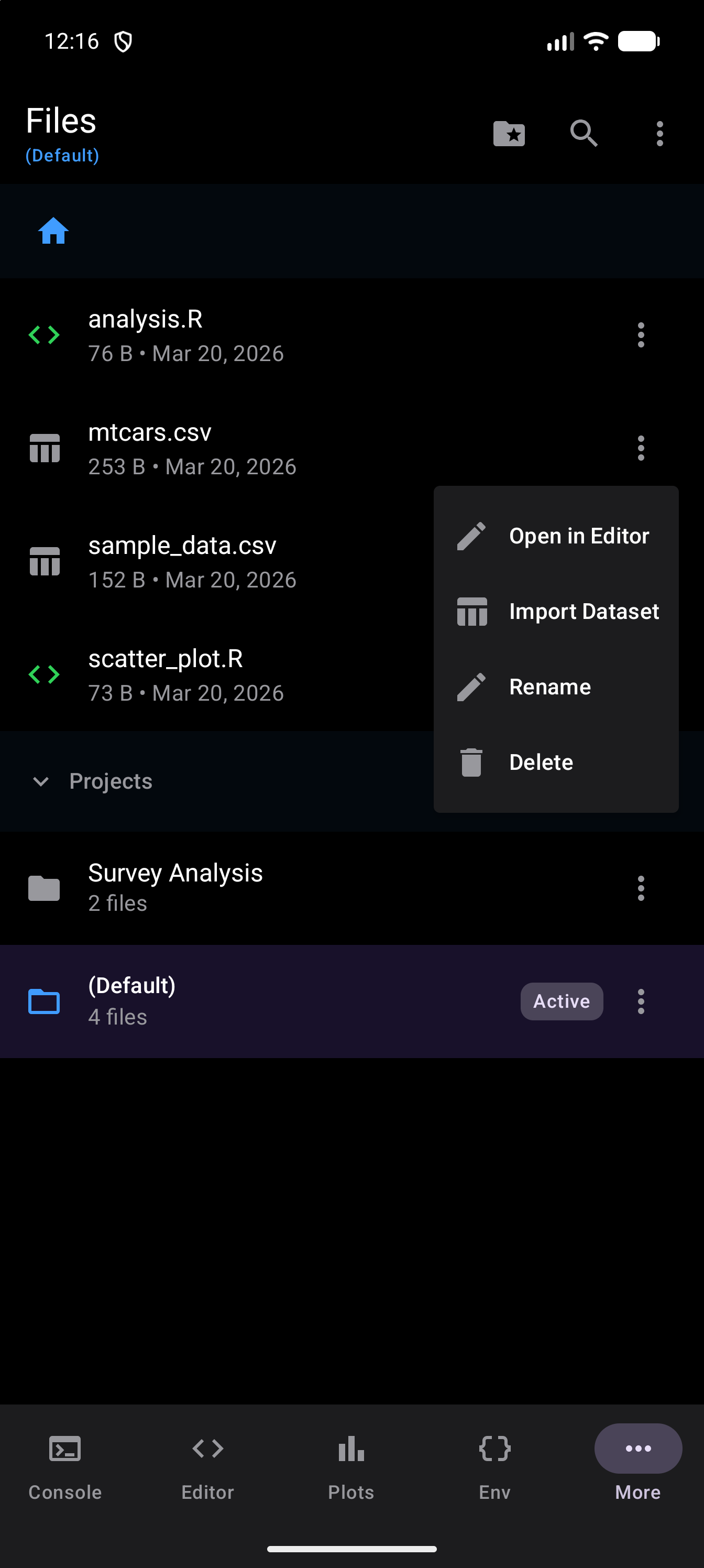
.Rfile: runs the script as it is saved on the device, in the Console, and records it in History like anything else run there. In the Tab Bar and Sidebar layouts the app switches to the Console to show it. - Open in Editor, on a CSV or TSV file, since tapping one opens the import wizard instead.
- Import Dataset, on a CSV, TSV or Excel file (see Data Import Wizard).
Opening Files
Tapping a row does what suits the file:
- Folders open, showing their contents.
- Scripts and other text files (
.R,.Rmd,.qmd,.txt,.md,.json,.yml,.html,.logand the like) open in the Editor. The Editor opens files up to 1 MB; a larger one is refused with a message saying so. - Data files (
.csv,.tsv,.xlsx,.xls) open the import wizard. To edit a CSV or TSV as text, choose Open in Editor from its menu. - Images (PNG, JPEG, GIF, WebP and BMP) and SVG files open in a full-screen preview that you can pinch to zoom.
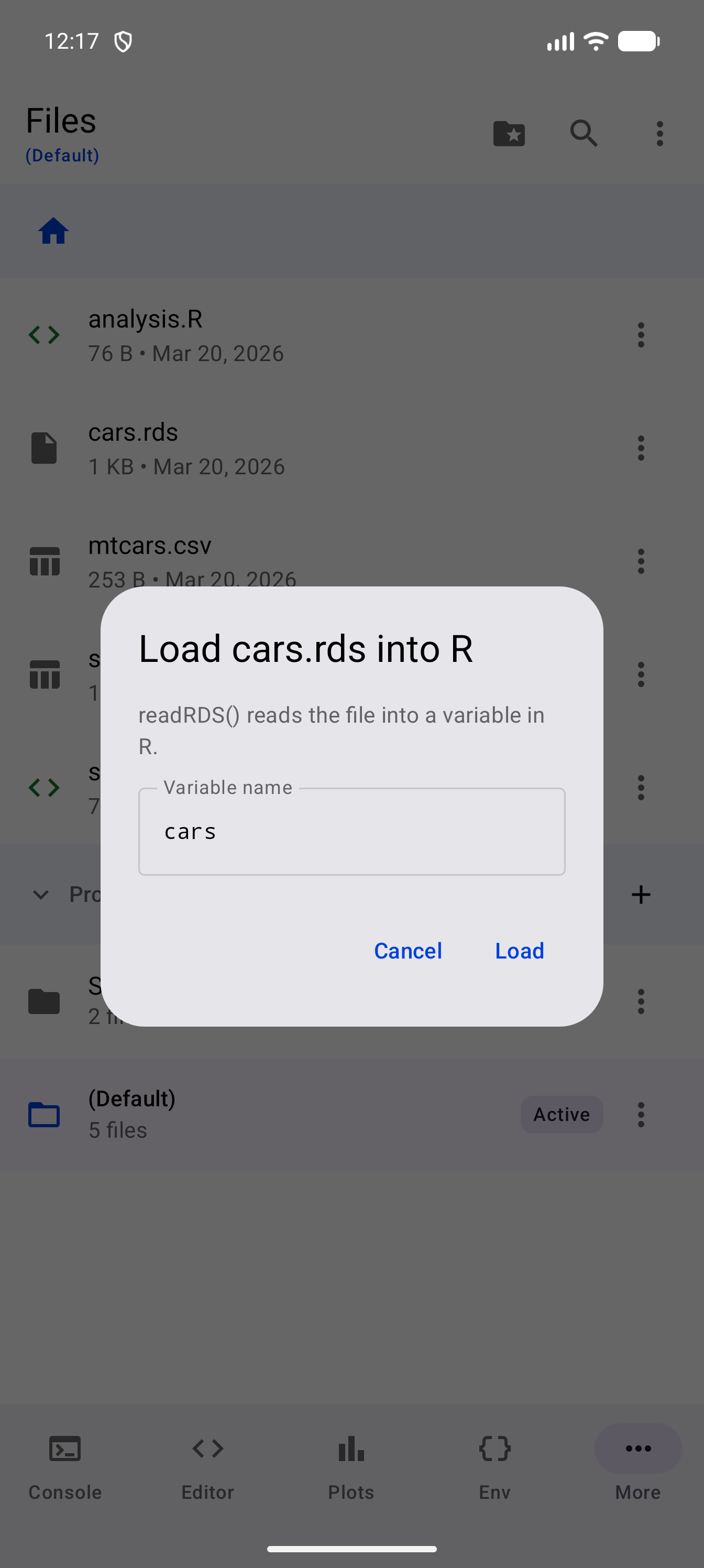
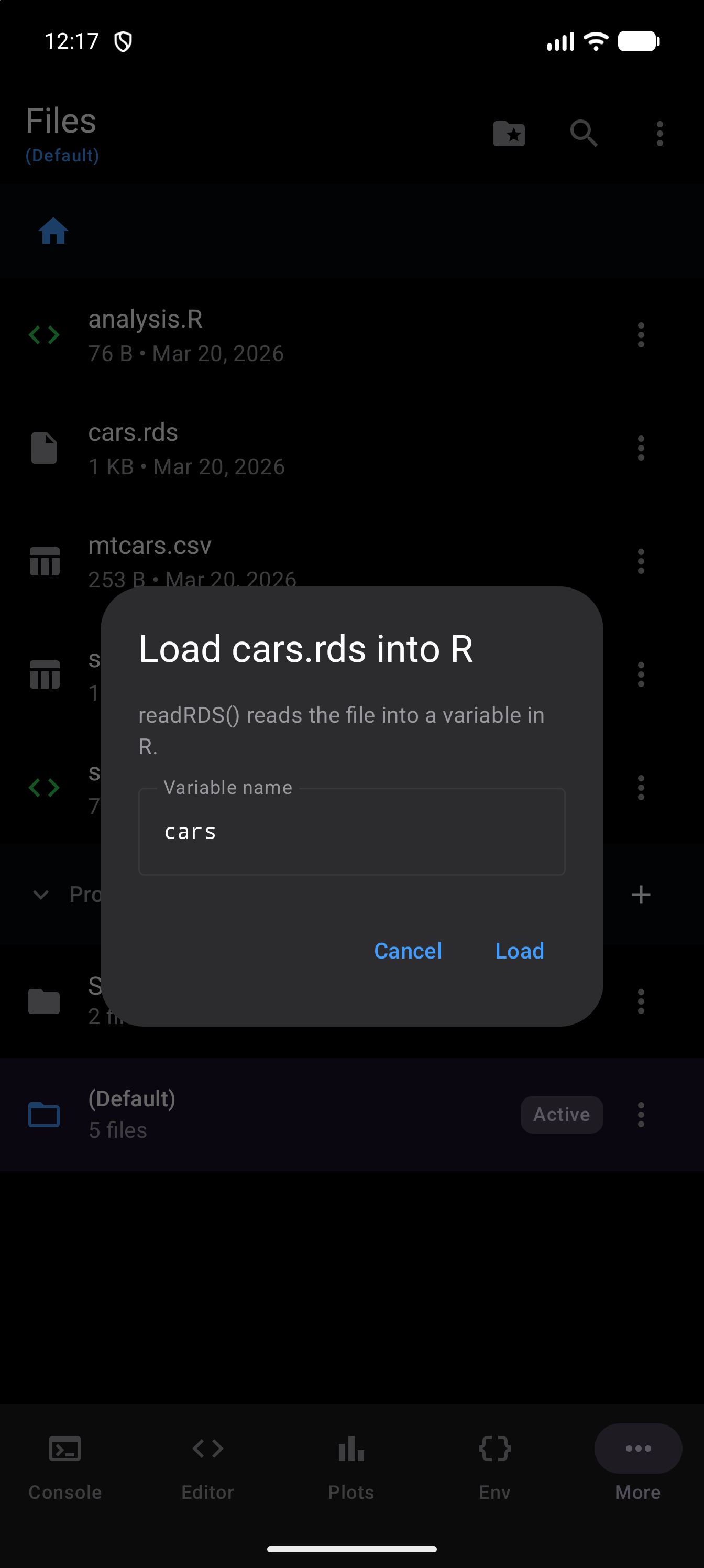
.rdsfiles offer to Load into R. The dialog suggests a variable name from the file’s name; change it if you like, tap Load, and the Console runsreadRDS()into that variable.- Anything else, such as a PDF, is handed to an app on your device that opens that type of file. If there is none, a message says “No app on this device can open” the file.
Here is the Load into R dialog for cars.rds, which suggests the name cars:
Search
webRoid provides two kinds of search in the Files tab.
Search by Filename
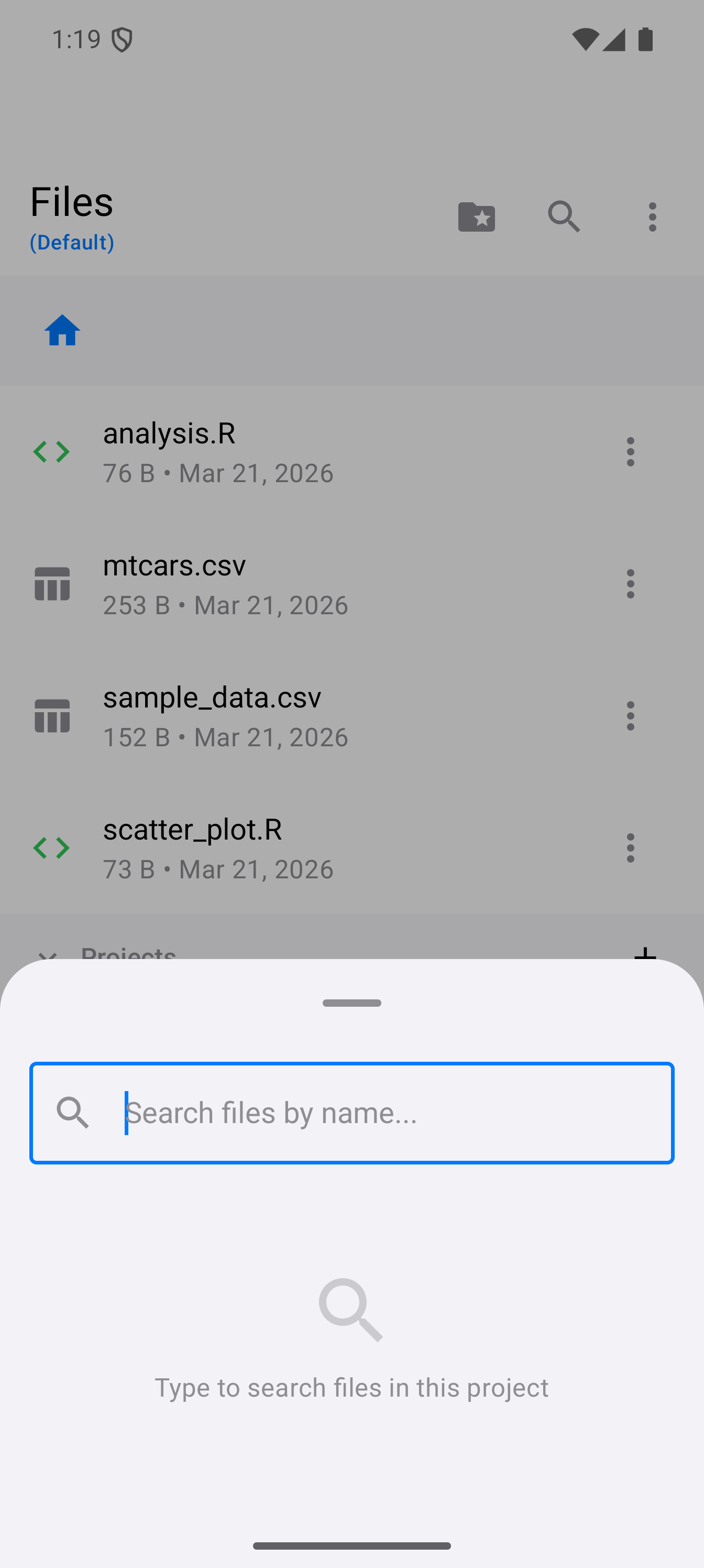
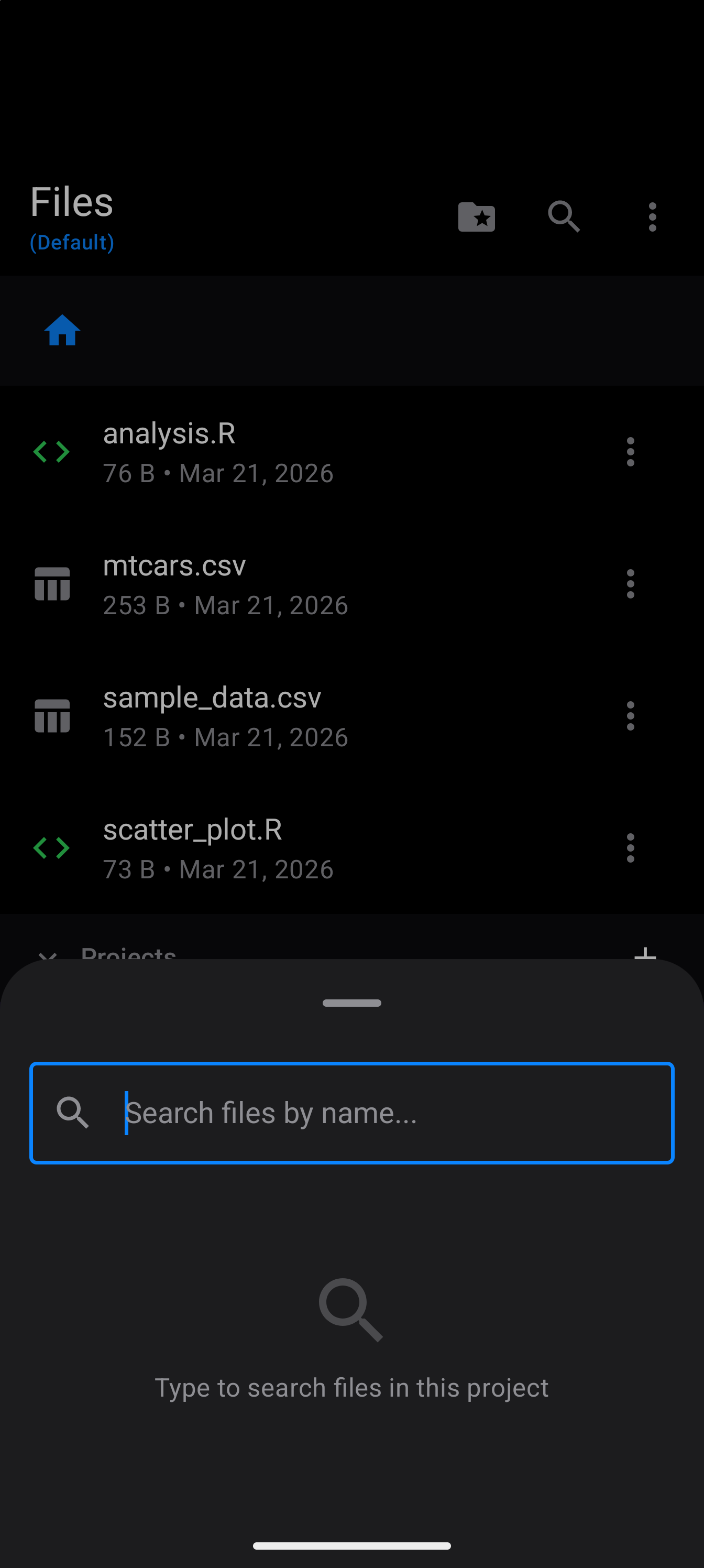
Tap the search (magnifying glass) icon in the toolbar to open the filename search sheet. As you type, results filter across all files in the current project. A file inside a folder shows that folder under its name, so you can tell two files with the same name apart; a file at the top of the project has just its name. Tap a result to open it directly in the Editor.
Search by Content
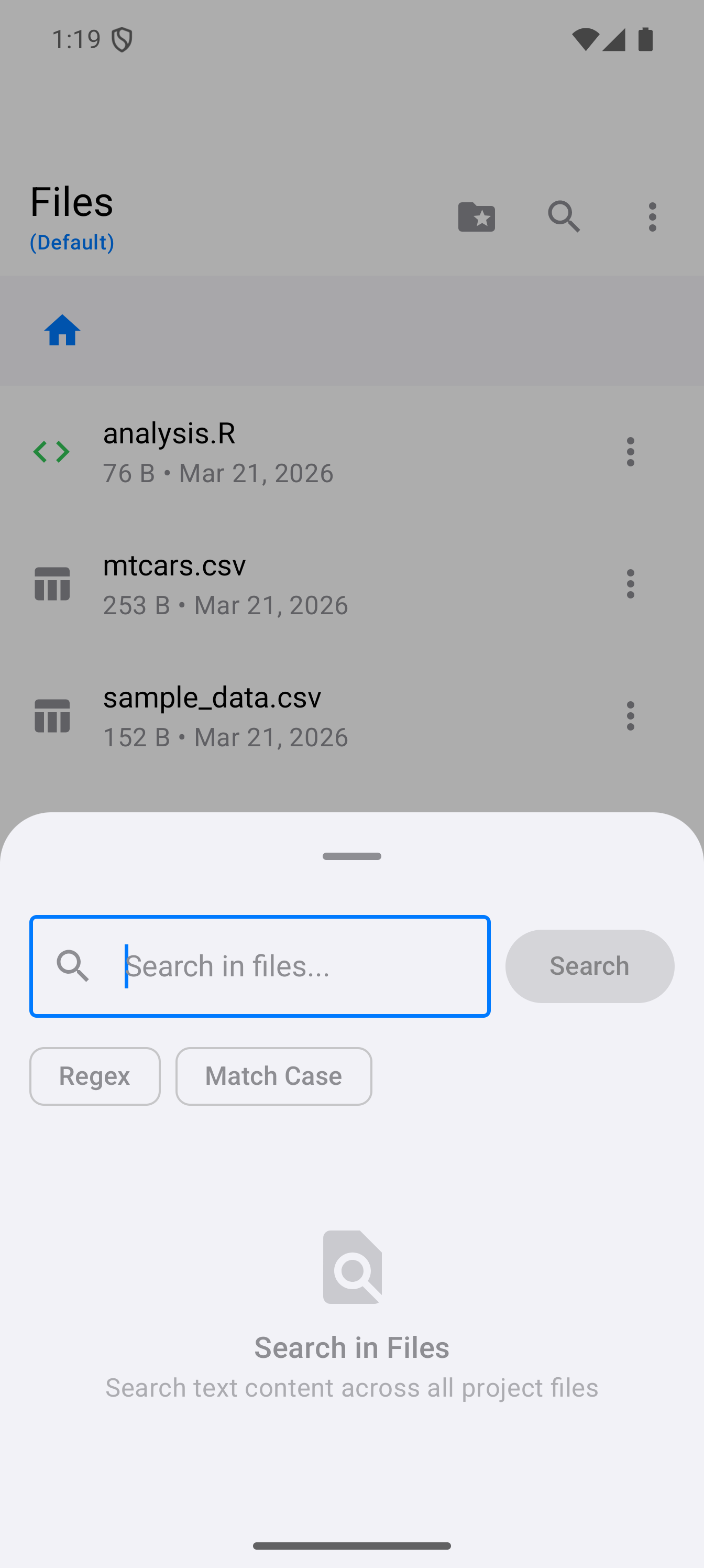
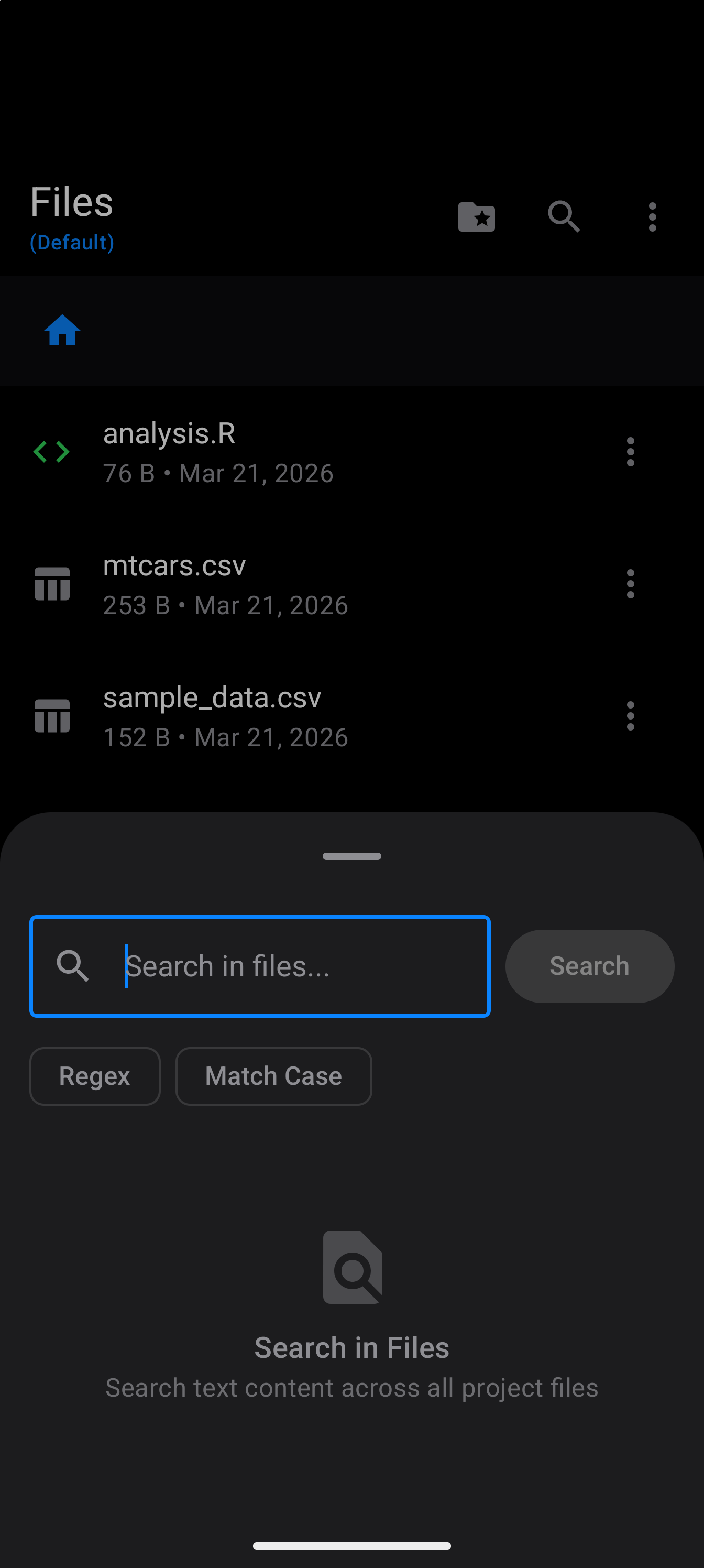
For searching inside files, tap the three-dot menu and choose Search in Files. This opens a content search screen where you can type what you are looking for and tap Search. The search runs across all text files in the project. The results are grouped by file: each file’s name, with how many matches it has, and then each match, shown as the line it is on with the matching part highlighted and the line number underneath. Tap one to open that file in the Editor. It opens the file, not that exact line, so the line number helps you find your place.
This is useful when you cannot remember which script contains a specific function or variable name.
Recent Files
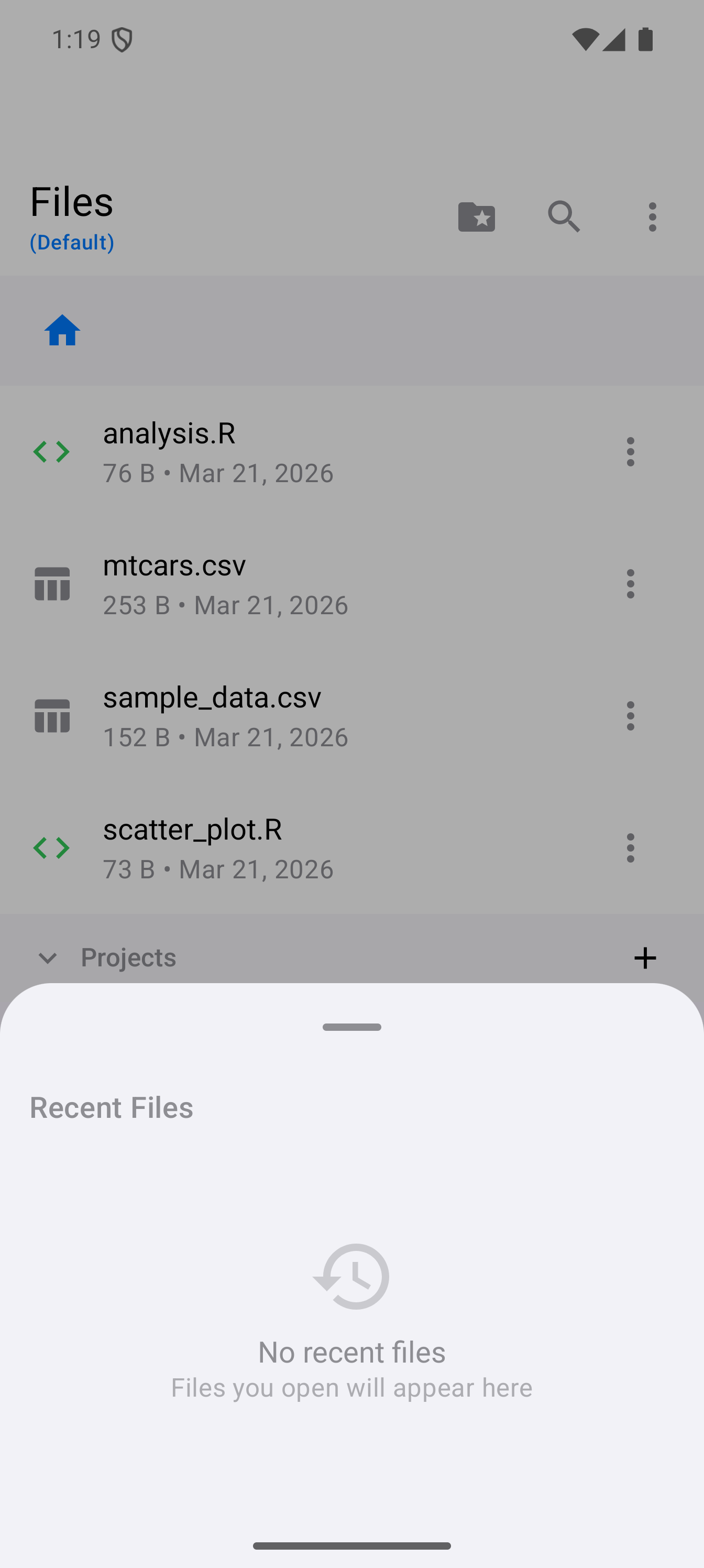
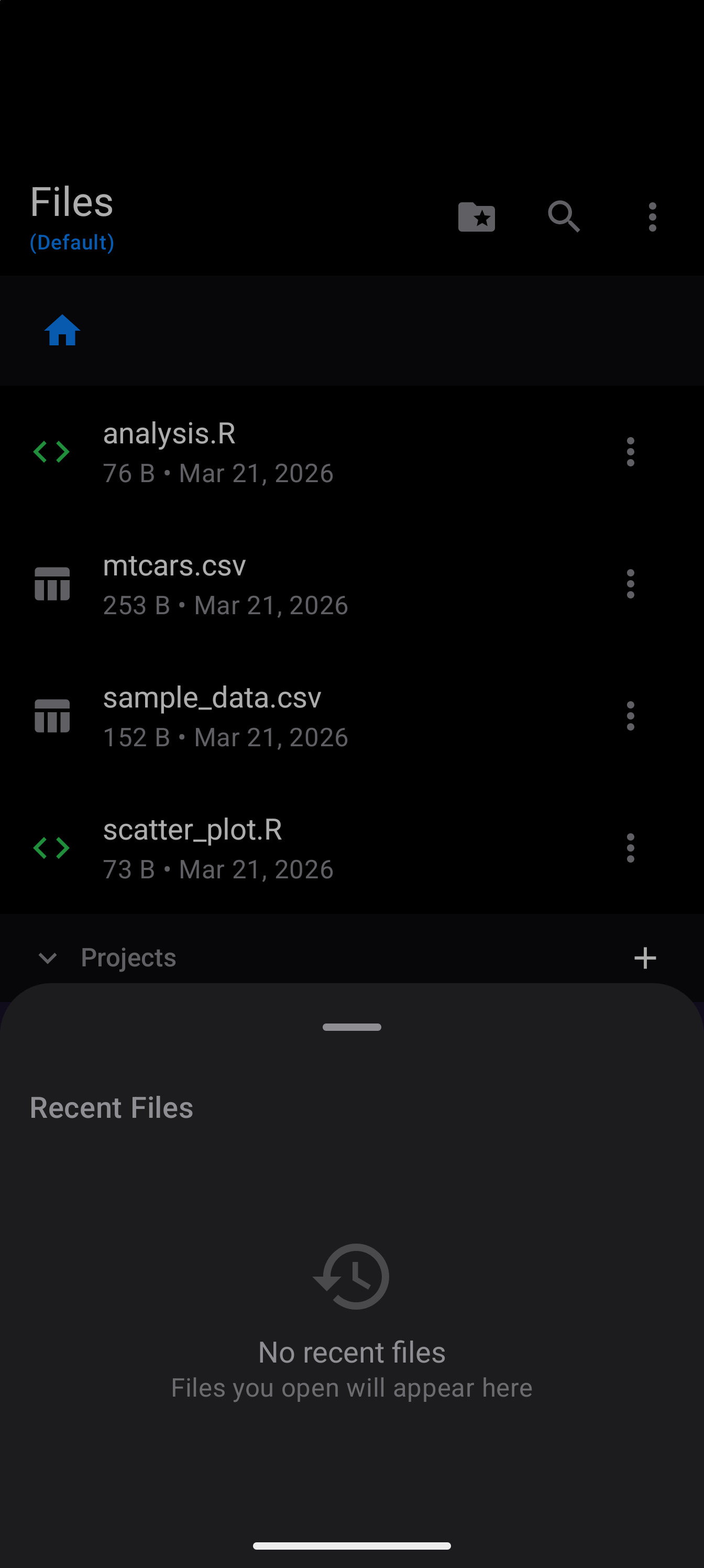
Tap the three-dot menu and choose Recent Files to open a sheet listing files you have recently opened. This gives you quick access to the files you are actively working on without navigating through the folder tree.
Files and R
R does not work in your storage folder. It runs with a filesystem of its own, held in memory, and its working directory, /home/web_user, holds a copy of the active project. webRoid puts your project’s files into that copy, but nothing R writes reaches the project folder until it is copied back.
- Into R. The project is copied in when R starts and whenever you switch projects. Creating a file or folder in Files, or importing a dataset, refreshes the copy. Files larger than 5 MB are left out, and so is anything past the first 50 MB of the project, which is filled smallest file first. The Console names the files left out that way (the first ten, then how many more) and suggests moving large files out of the project folder.
- Saving in the Editor. Save, Save As, and saving a tab as you close it each put that one file into R’s copy, at its path in the project, so
source("helpers.R")straight after a save runs what you saved. Nothing else in R’s copy changes. If R is busy, the file goes in once it is free. A file saved outside the project folder, or opened from another app’s storage such as Downloads or Drive, is not copied in. - Out of R. Anything your code writes (
write.csv(),ggsave(),saveRDS(),download.file()) exists only in R’s memory. It is lost when R restarts or the app closes, unless you copy it out.
To keep it, open the three-dot menu and choose Copy Files Back from R. It copies the files R has written since the project was copied in, new ones and ones R changed, into the project folder, subfolders included, and R’s version replaces the project’s. A file R holds only as the project copy left it is not touched, so a script you have saved in the Editor since is never put back to R’s older copy, and a file you deleted from the project folder does not come back. Output already copied into one project is not copied into the next after you switch projects. Files larger than 10 MB stay in R, and the message names them (“Not copied, as larger than 10 MB: …”). It never deletes anything, and a message says how many files it copied. The item is unavailable until R has started.
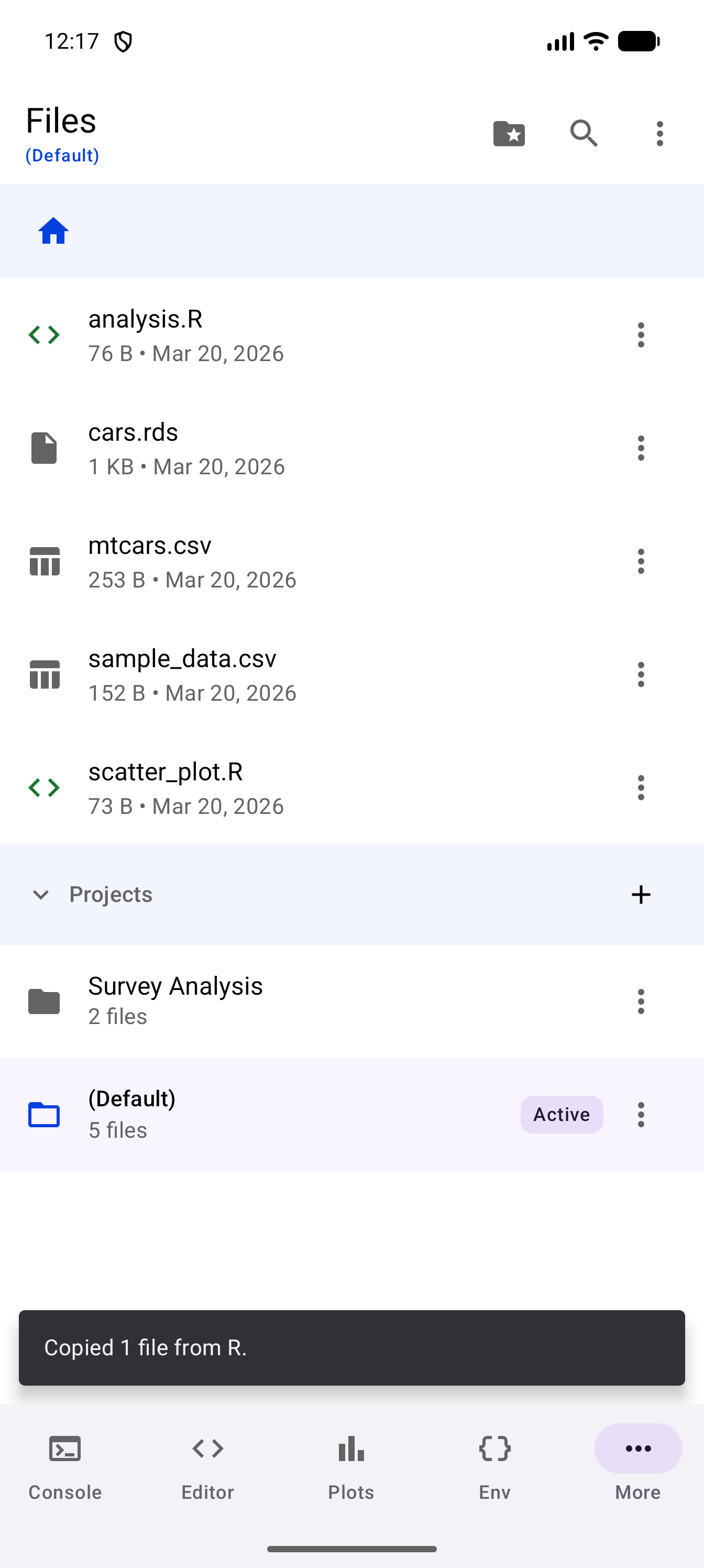
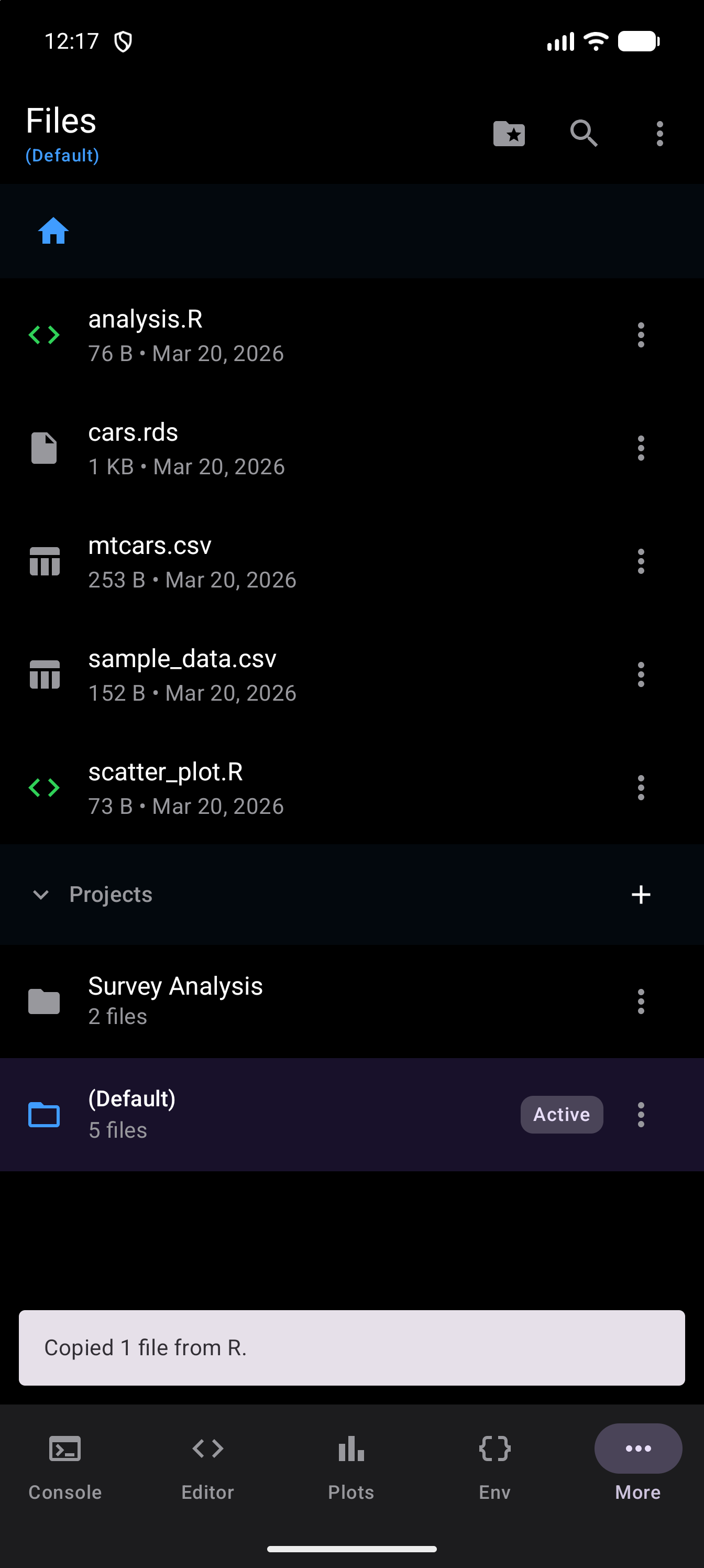
To have this happen by itself, turn on Copy Files Back Automatically in Settings > R Session. After each command run in the Console, the files R wrote or changed are copied into the project folder, and the Console says how many. That includes a run from the Workspace’s Editor pane, which runs in the Console pane. A file over 10 MB is named once, and again only after R writes it again. Nothing is copied after a command that ran past the time limit; the next command’s copy picks up what it wrote. In the Workspace, the Files pane’s listing updates on its own after a copy.
When R’s copy is refreshed, a file that is also in the project is replaced by the project’s version. If R has changed such a file (rewritten data.csv, say), copy it back before you switch projects, create a file, or import.
Data Import Wizard
webRoid includes a guided import wizard for bringing tabular data into your R environment. It reads CSV, TSV, and other delimited text files, and Excel workbooks (.xlsx, .xls) once the readxl package is installed.
To start an import:
- Tap the three-dot menu and choose Import Data… (the Environment screen’s menu has the same thing as Import Dataset…)
- The Android file picker opens, filtered to common data file types (CSV, TSV, Excel, plain text)
- Select a file, and the import wizard sheet appears
R cannot open a file on your device directly; it reads the copy of your project in its own working directory, /home/web_user (see Files and R). So a file you pick from outside the project is first copied into it, and the import reads it from there. From the Files screen it goes into the folder you are viewing; from anywhere else, into the project’s top level. Files larger than 5 MB are not copied into R’s working directory, so they cannot be imported this way; the wizard says so instead of offering the steps.
The wizard has three tabs:
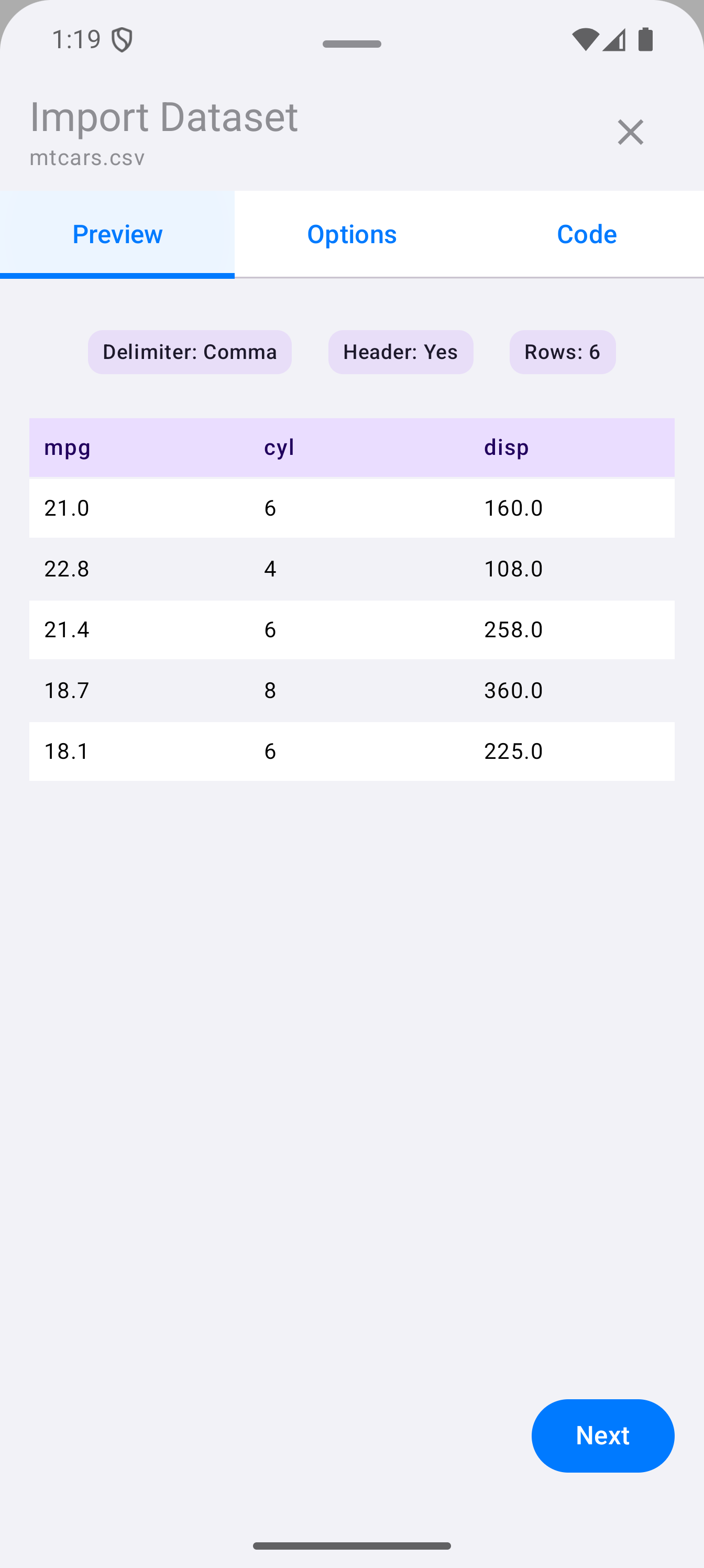
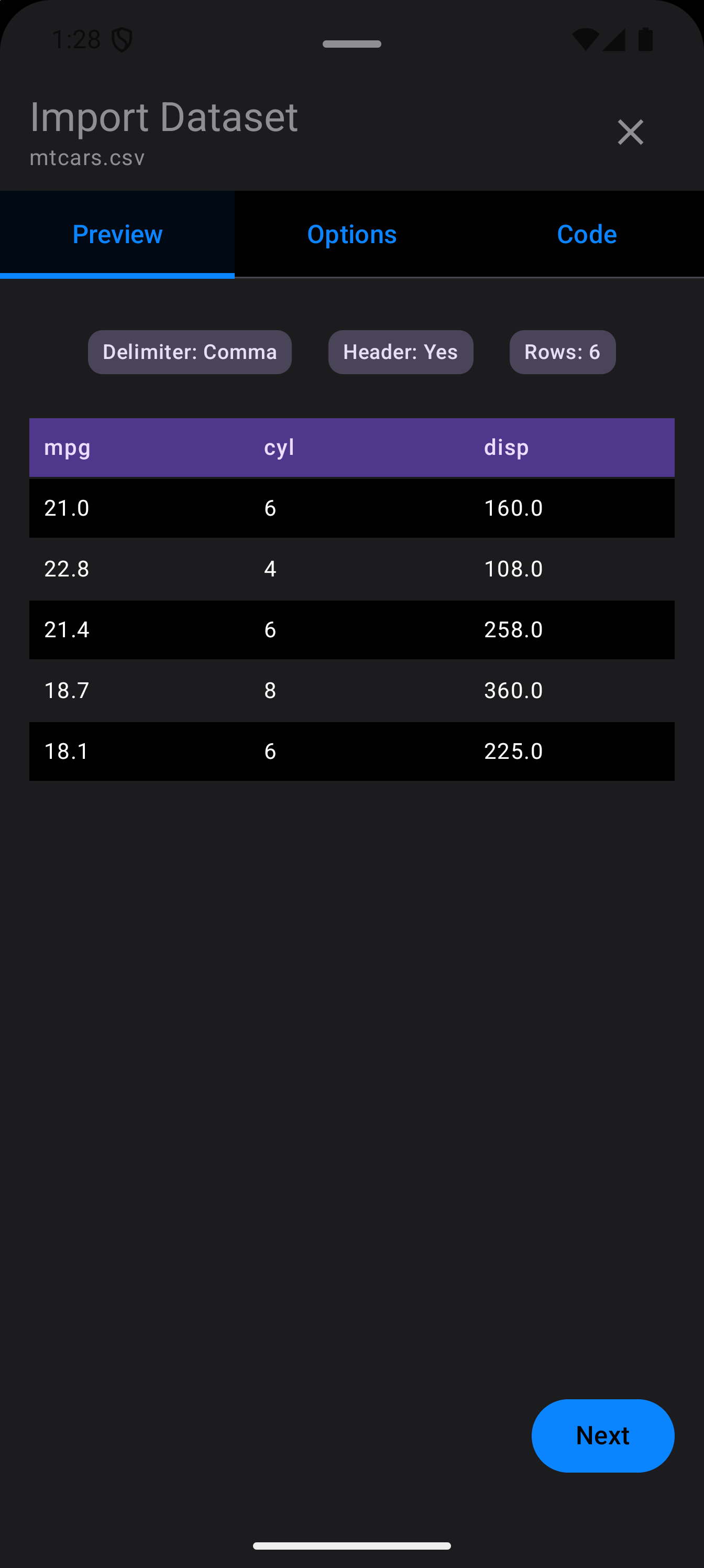
- Preview
- Shows a scrollable table preview of the detected data. A summary card at the top displays the auto-detected delimiter (comma, tab, semicolon, or pipe), whether a header row was found, and the total row count. An Excel workbook has no preview; readxl reads it when you import.
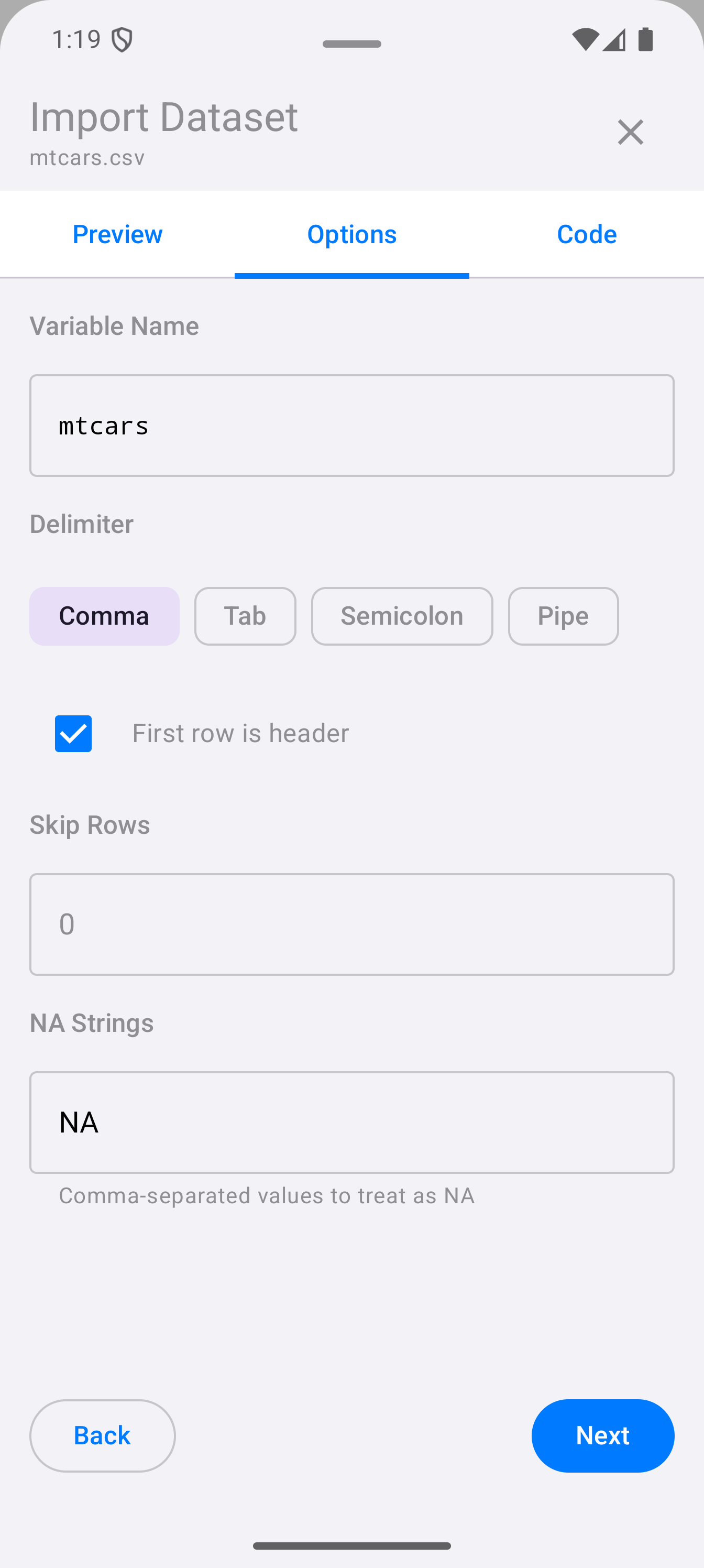
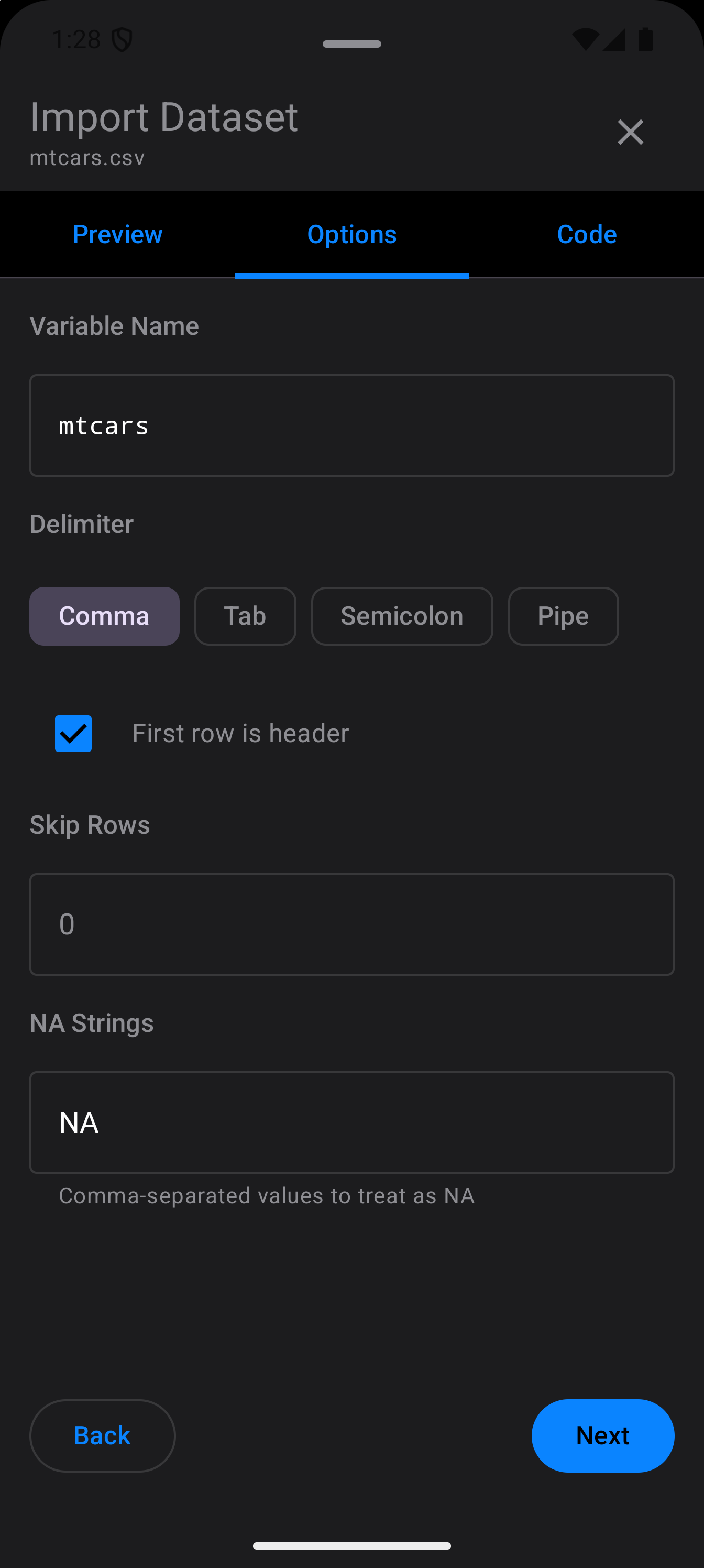
- Options
-
Lets you override the auto-detected settings. You can change the delimiter, toggle the header row on or off, set the variable name for the data frame, and adjust other import parameters. For an Excel workbook there is a Sheet field instead of a delimiter: a sheet name or number, or blank for the first sheet. A variable name that R would not take as it stands, such as
my data, is written in backticks in the code, and a note under the field says so. The name cannot be left blank: the field asks for one, and Import stays off until you give it.
- Code
-
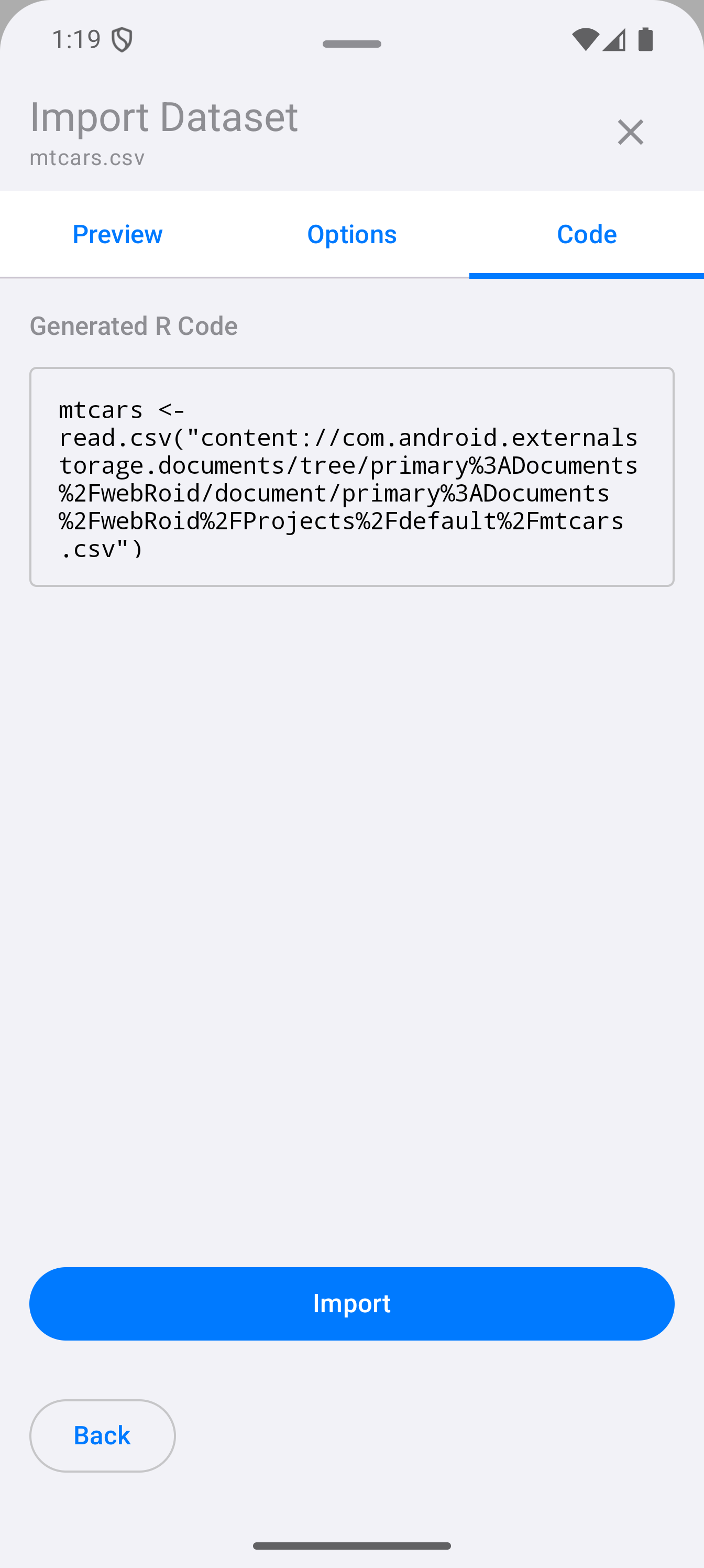
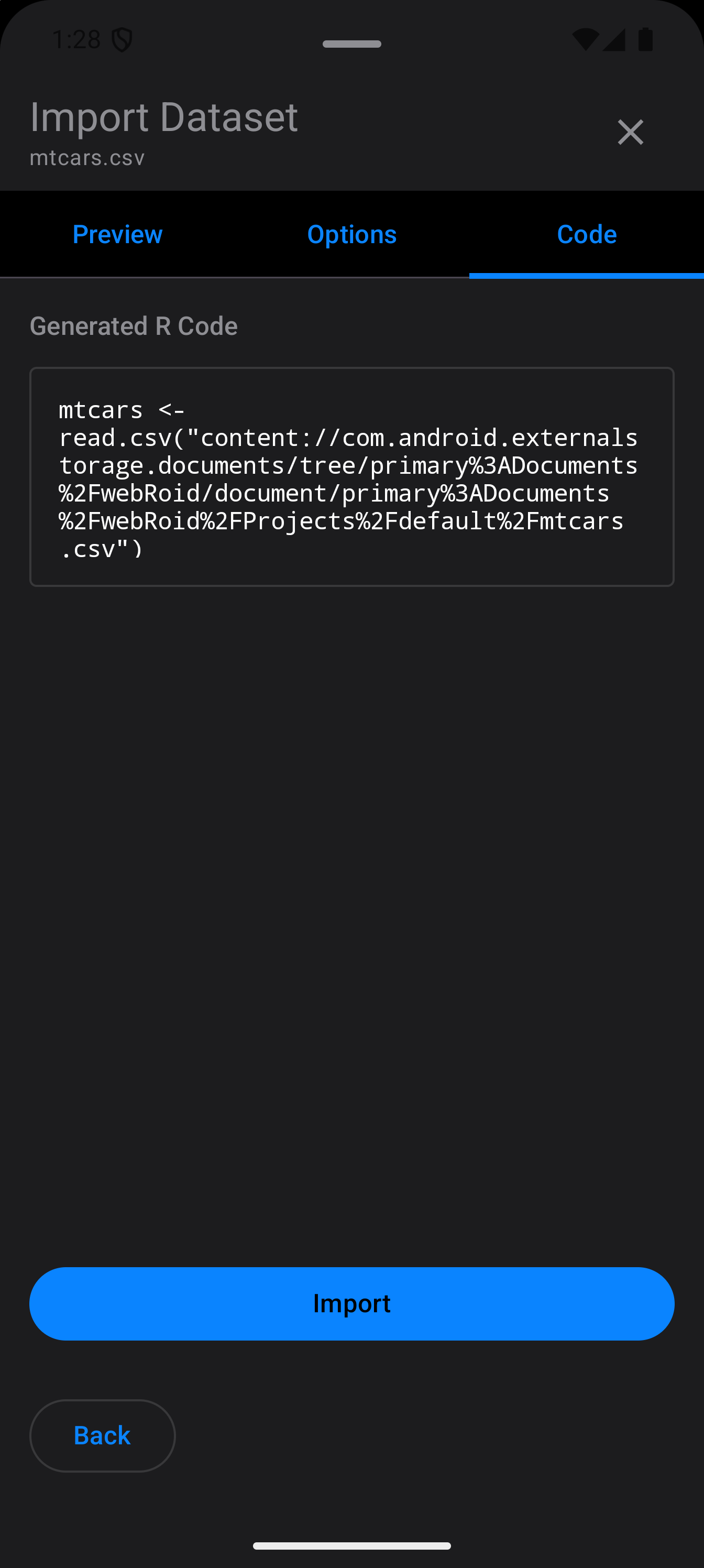
Displays the generated R code that will perform the import: a
read.csv()call, orreadxl::read_excel()for a workbook. You can edit the code directly before running it. Tap Import to execute the code and load the data into your R session.
Navigation buttons at the bottom let you move between steps, and you can also tap the tab labels directly to jump to any step.
Once the import succeeds, the wizard shows an Imported screen that names the variable the data is in, with two buttons:
- View Data opens it in the Data Frame Viewer. If you edited the code to fill a different variable from the one named in Options, the screen says only that the import code ran, and View Data is left out.
- Done closes the wizard. In the Tab Bar and Sidebar layouts it also switches to the Console. Swiping the sheet away closes it without switching.
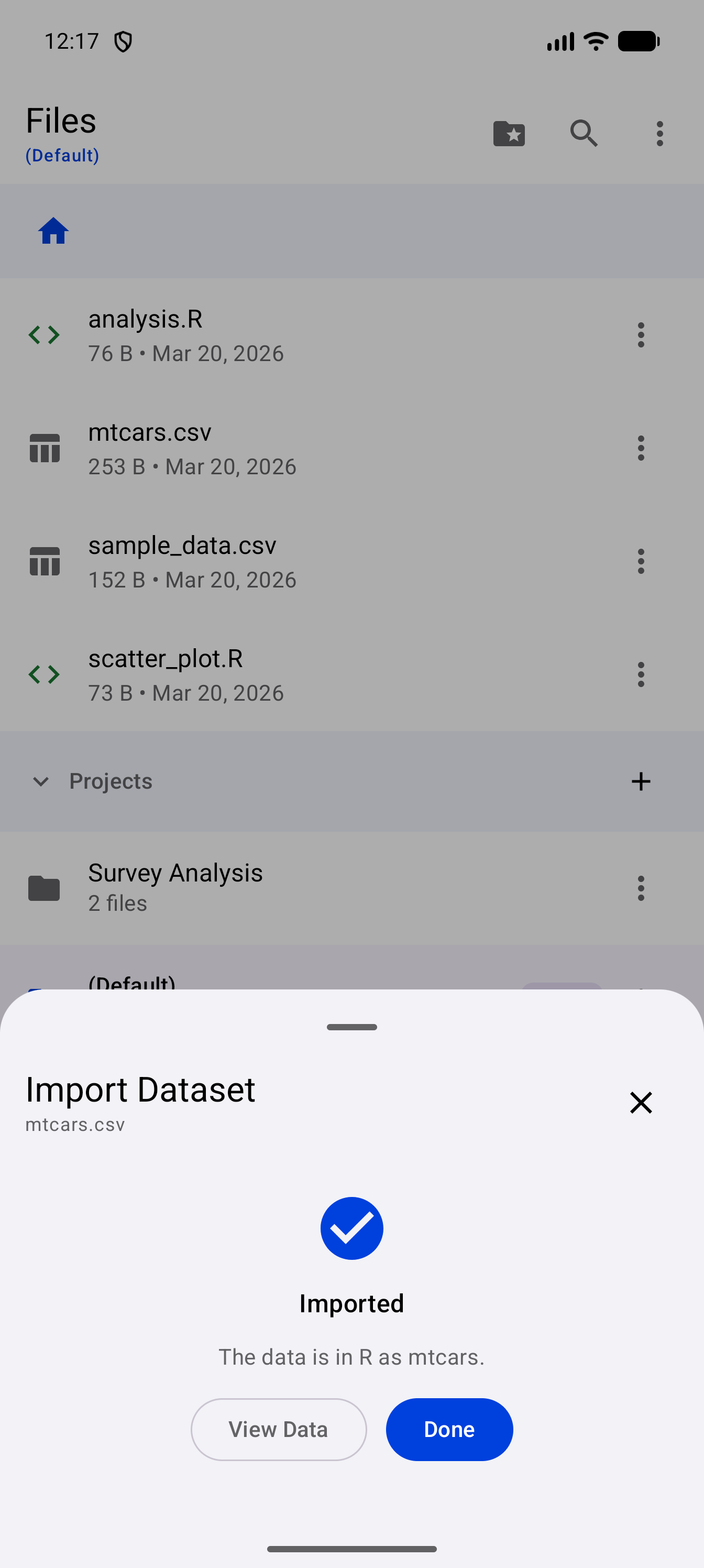
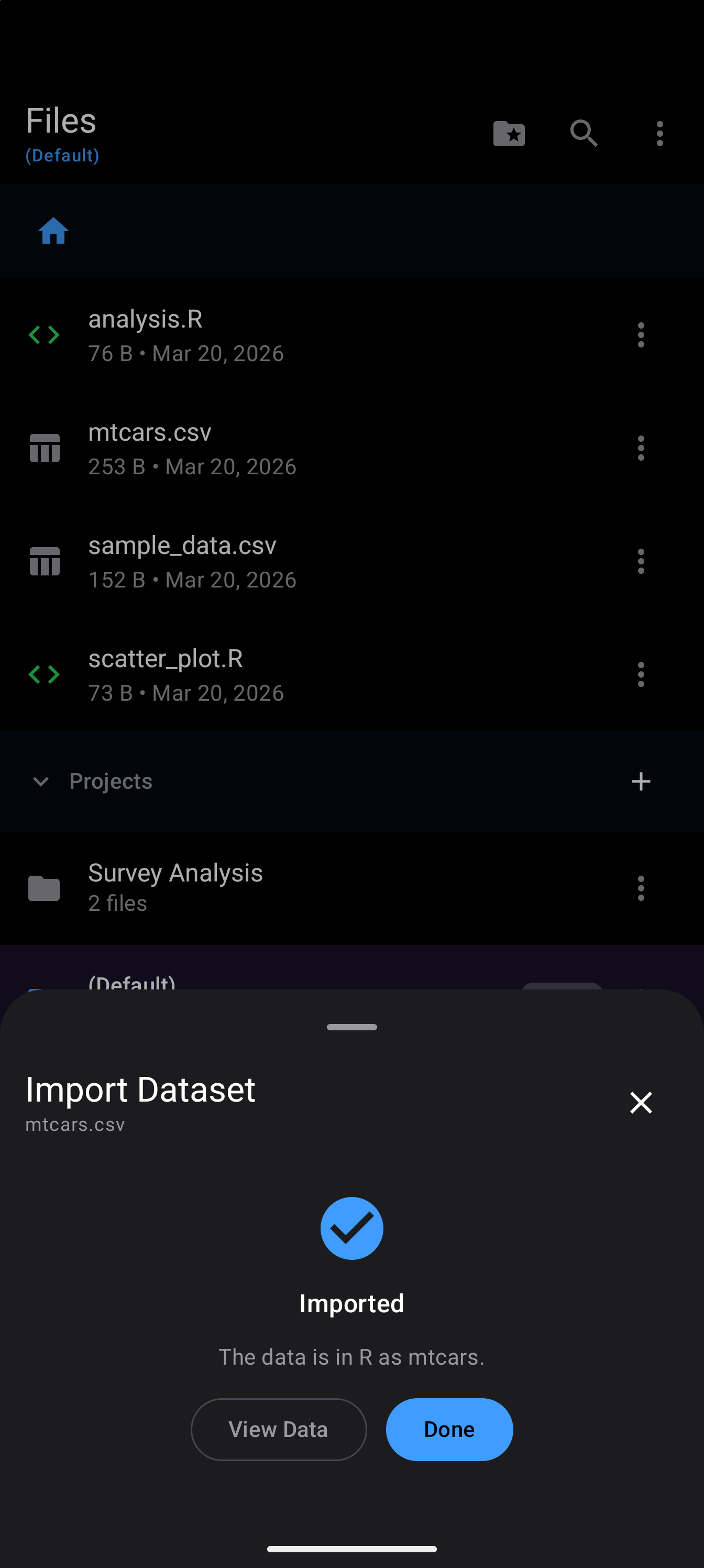
You can also trigger the import wizard from within the file list. Tapping a .csv, .tsv, .xlsx or .xls file opens it in the wizard, and so does Import Dataset in its three-dot menu.
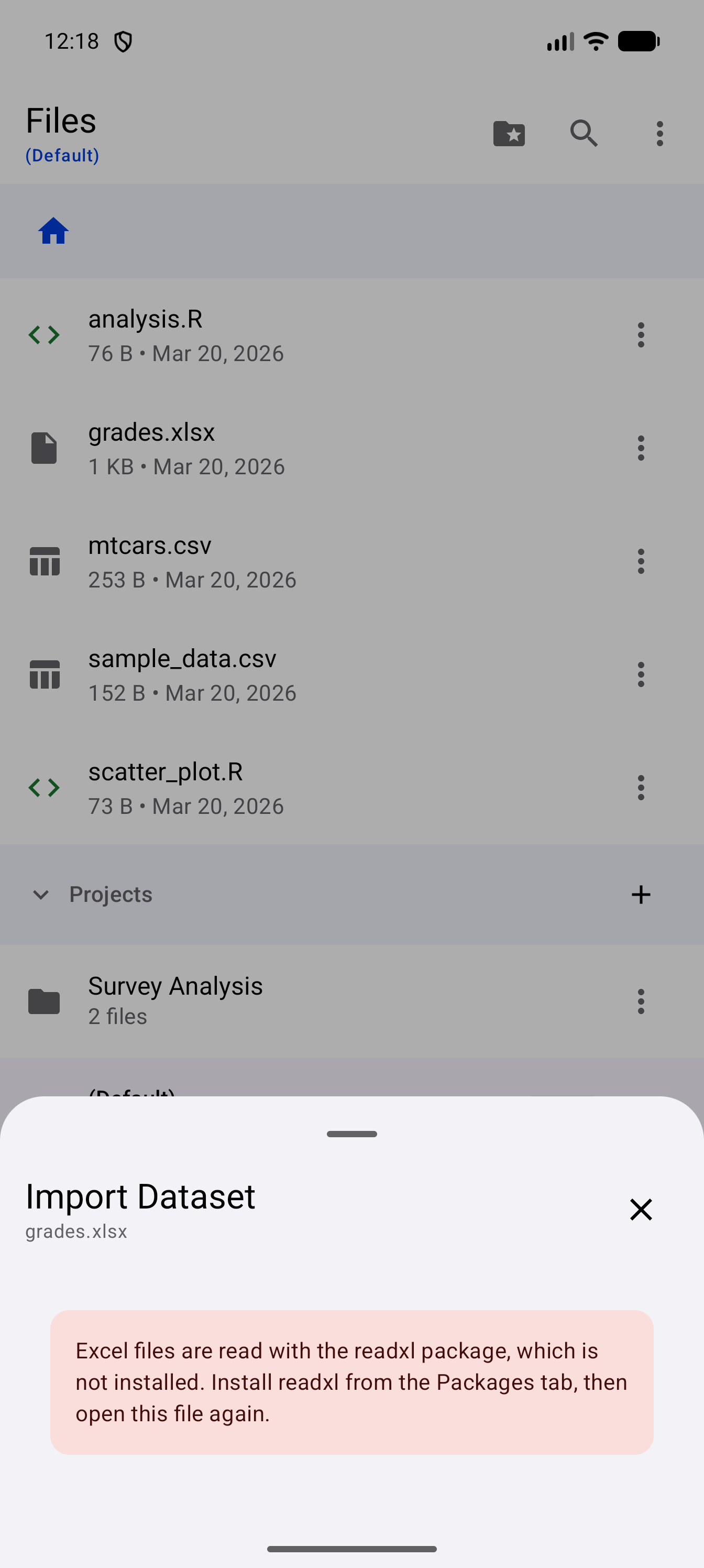
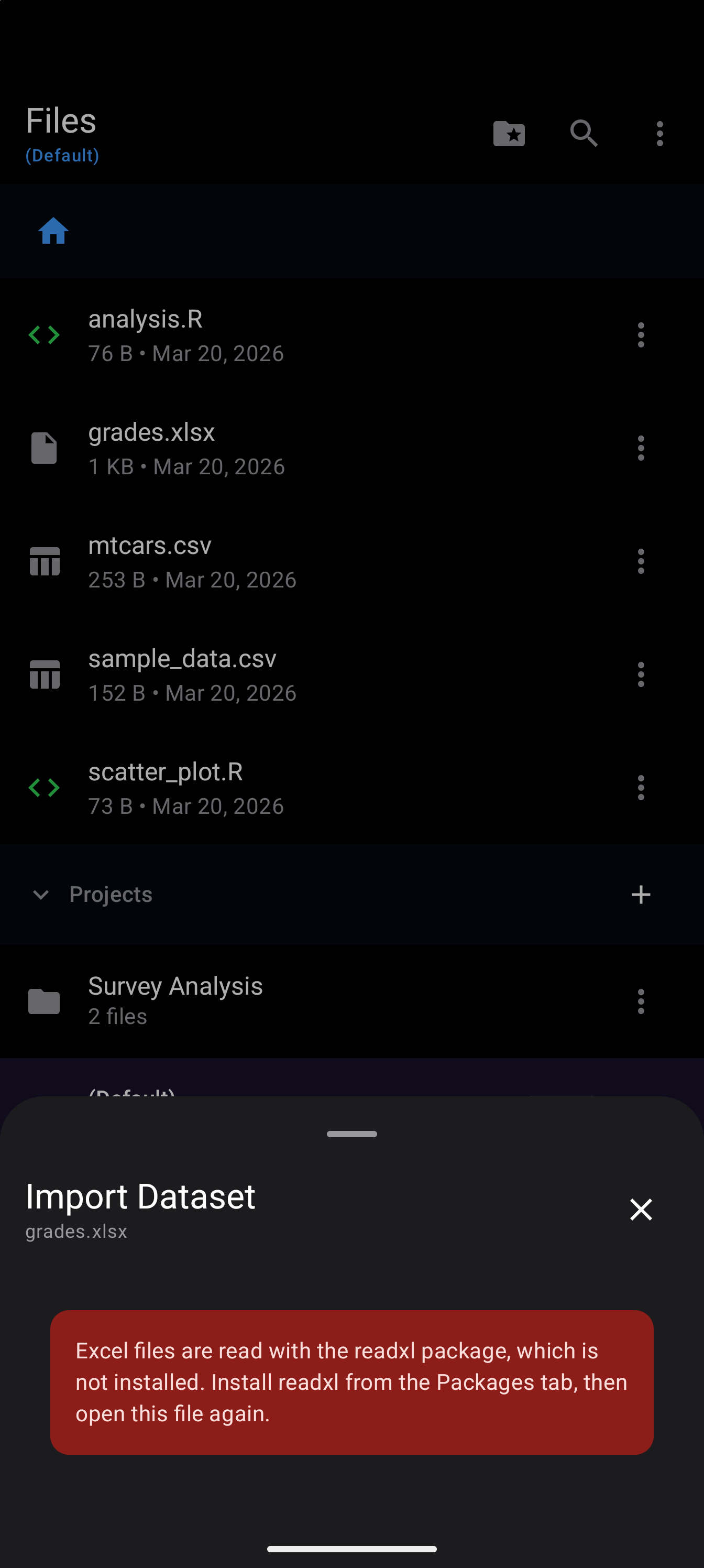
Excel files (.xlsx, .xls) require the readxl package. If it is not installed, the wizard says so in place of its steps: install readxl from the Packages tab, then open the file again.
Projects
Projects in webRoid are directories that serve as self-contained workspaces. Each project has its own set of files and folders. The active project is the root of the file browser, and it is the project R’s working directory holds a copy of (see Files and R).
To create a new project:
- Scroll to the Projects section at the root of the file list (or tap the folder icon in the toolbar to show it)
- Tap the + button next to the “Projects” header
- Enter a name and an optional description, then tap “Create”
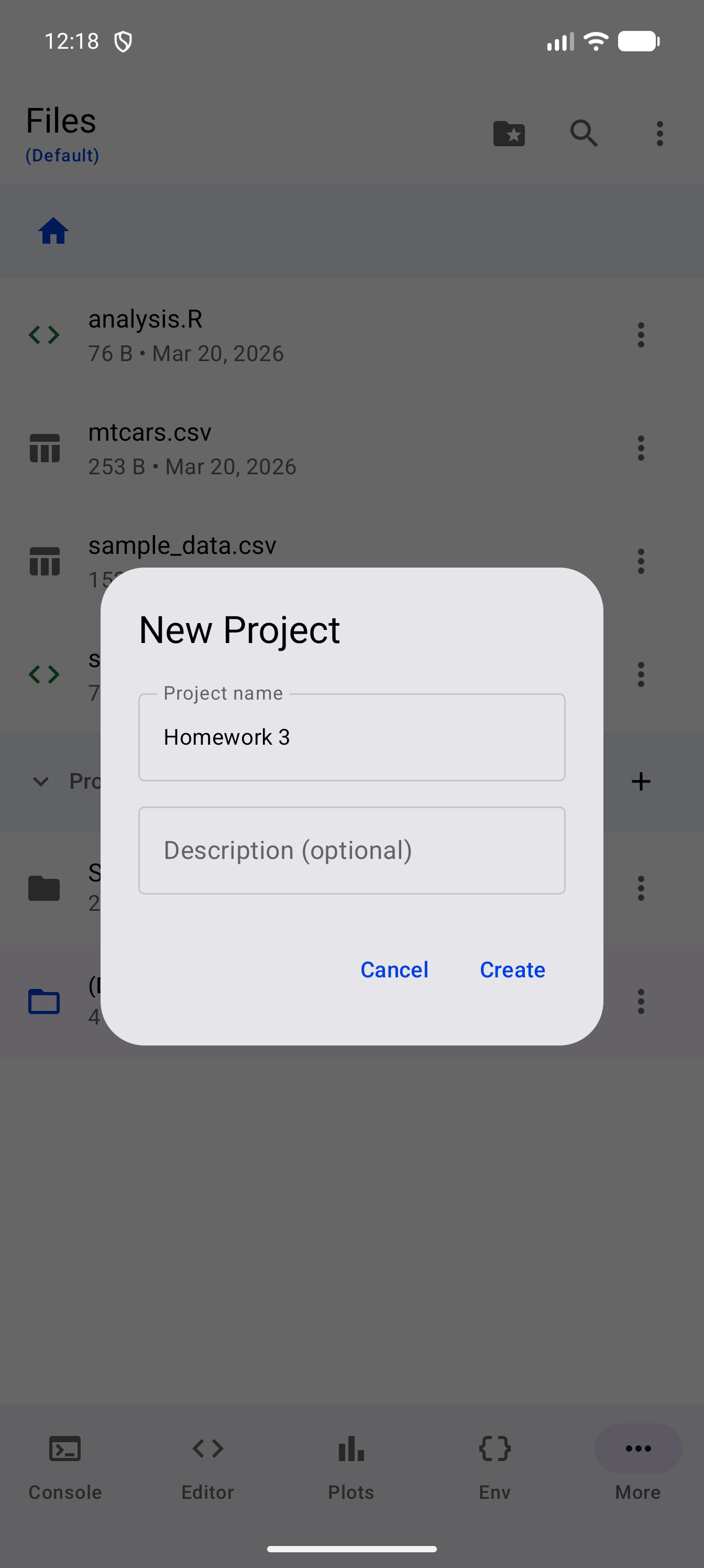
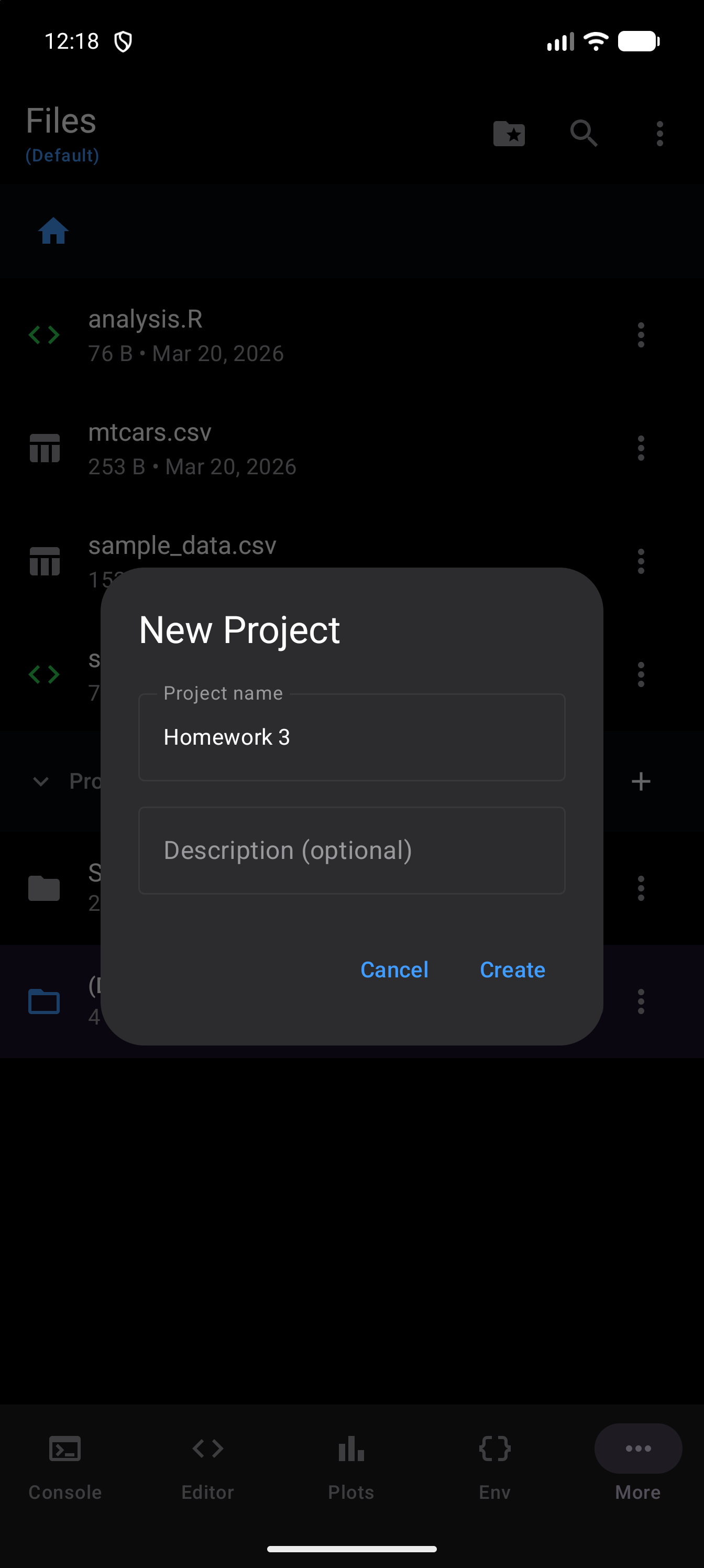
To switch projects, choose Open from a project’s three-dot menu. To delete a project, tap its three-dot menu and choose “Delete.” A confirmation dialog appears warning that all files in the project will be permanently removed. The default project cannot be deleted.
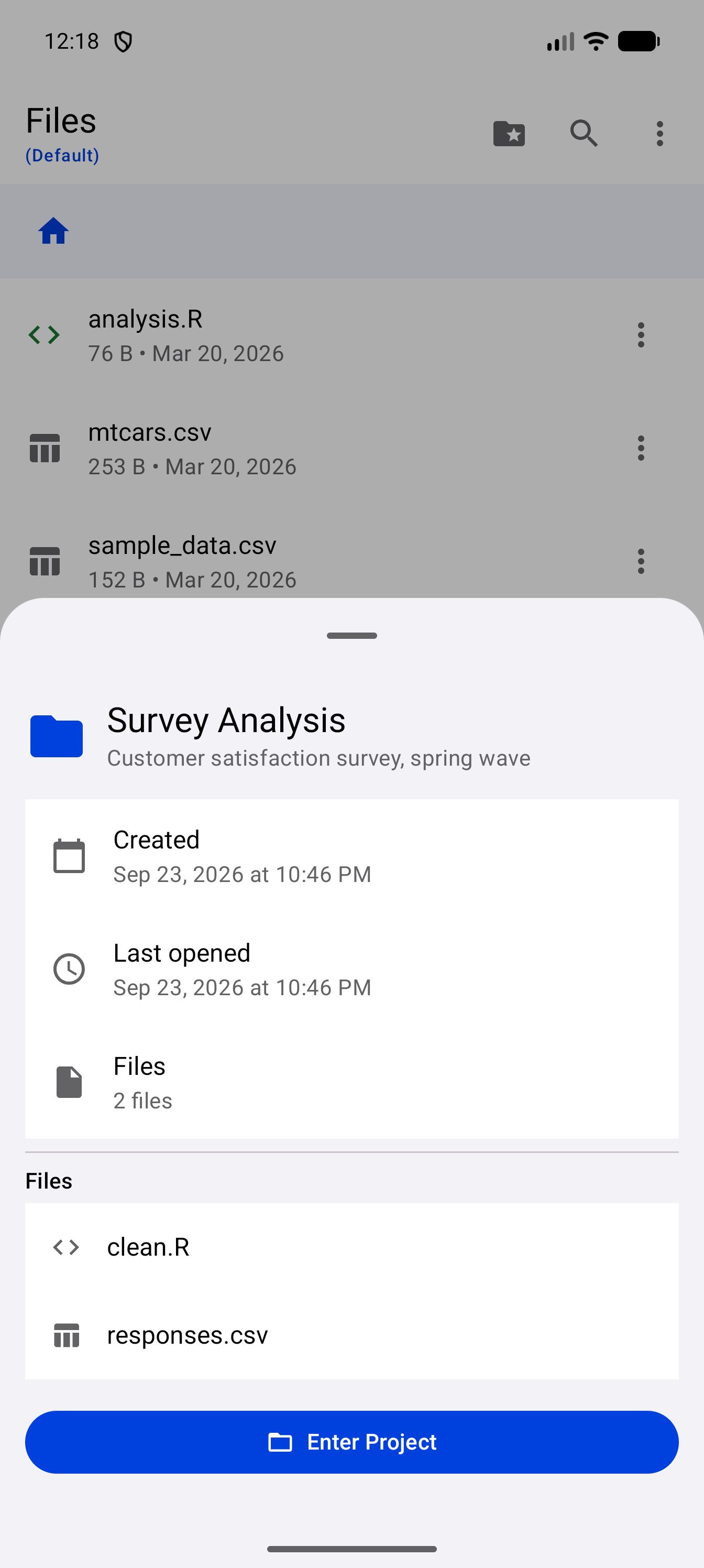
Tap any project to see its details: its description (if it has one), when it was created and last opened, how many files it holds, and every file in its folder, subfolders included, listed by its path within the project. The active project is marked Active. For a project other than the active one, Enter Project at the bottom switches to it.
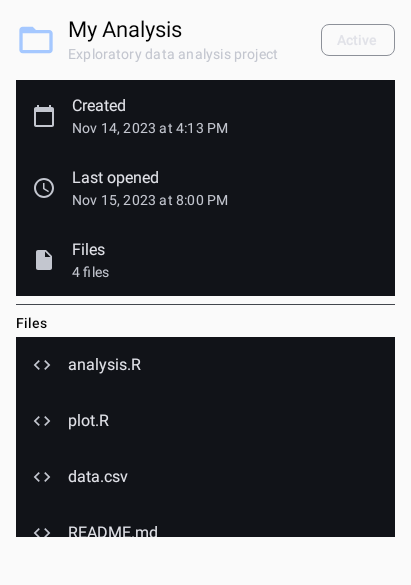
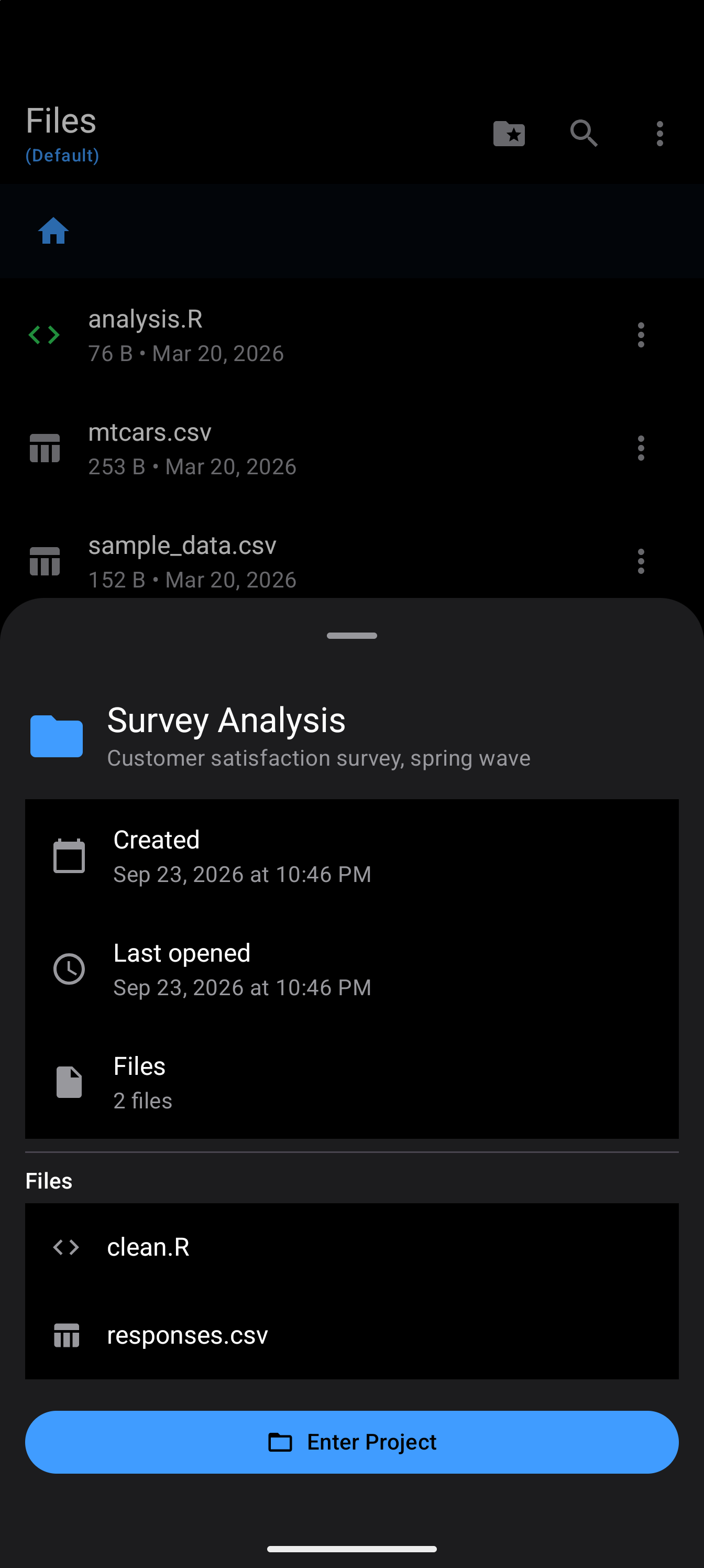
Projects are a good way to keep unrelated analyses separate. Each project gets its own folder, so file names do not conflict across projects.
Storage Location
webRoid stores files using Android’s Storage Access Framework (SAF). During first launch, you are prompted to choose a storage folder where webRoid will keep your R scripts, plots, and project files. This folder is visible in your device’s file manager and other apps.
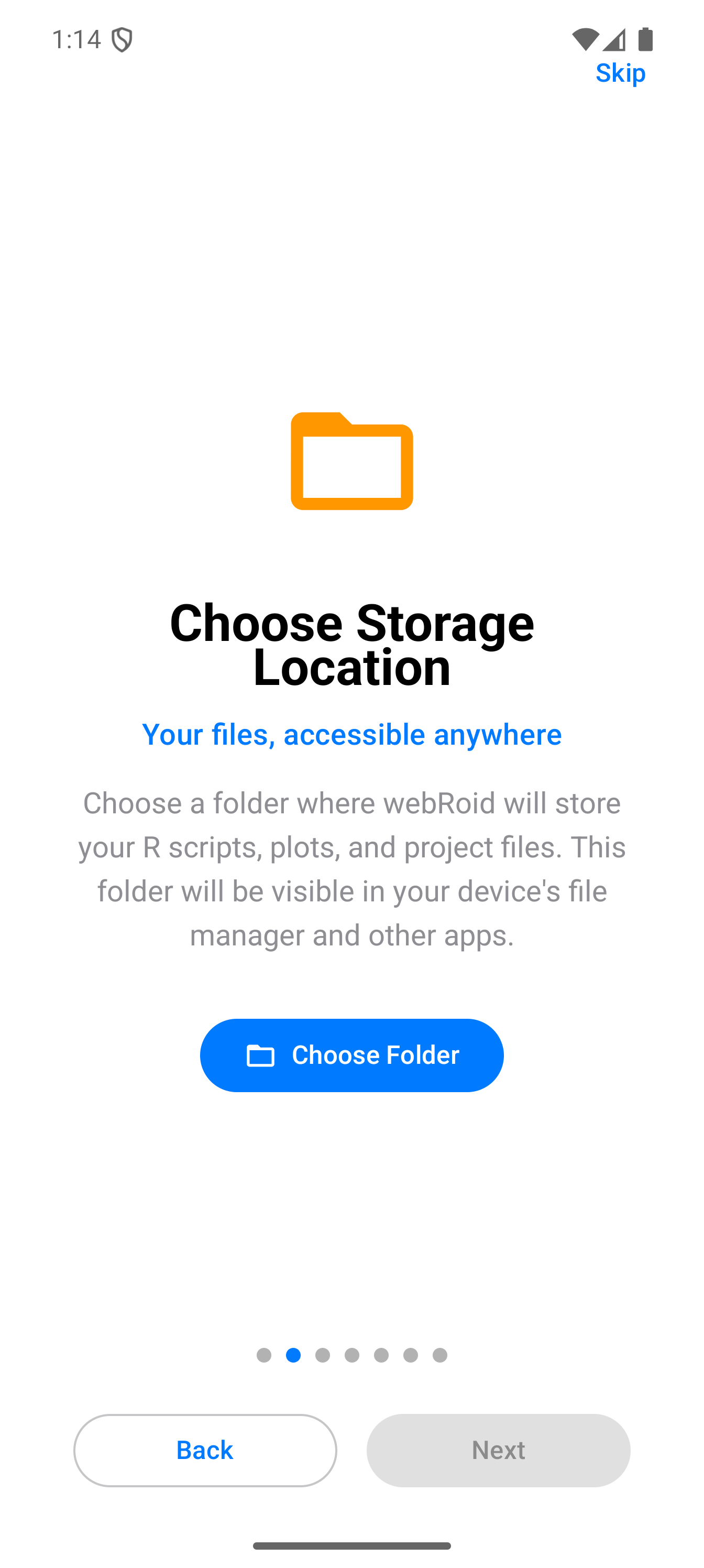
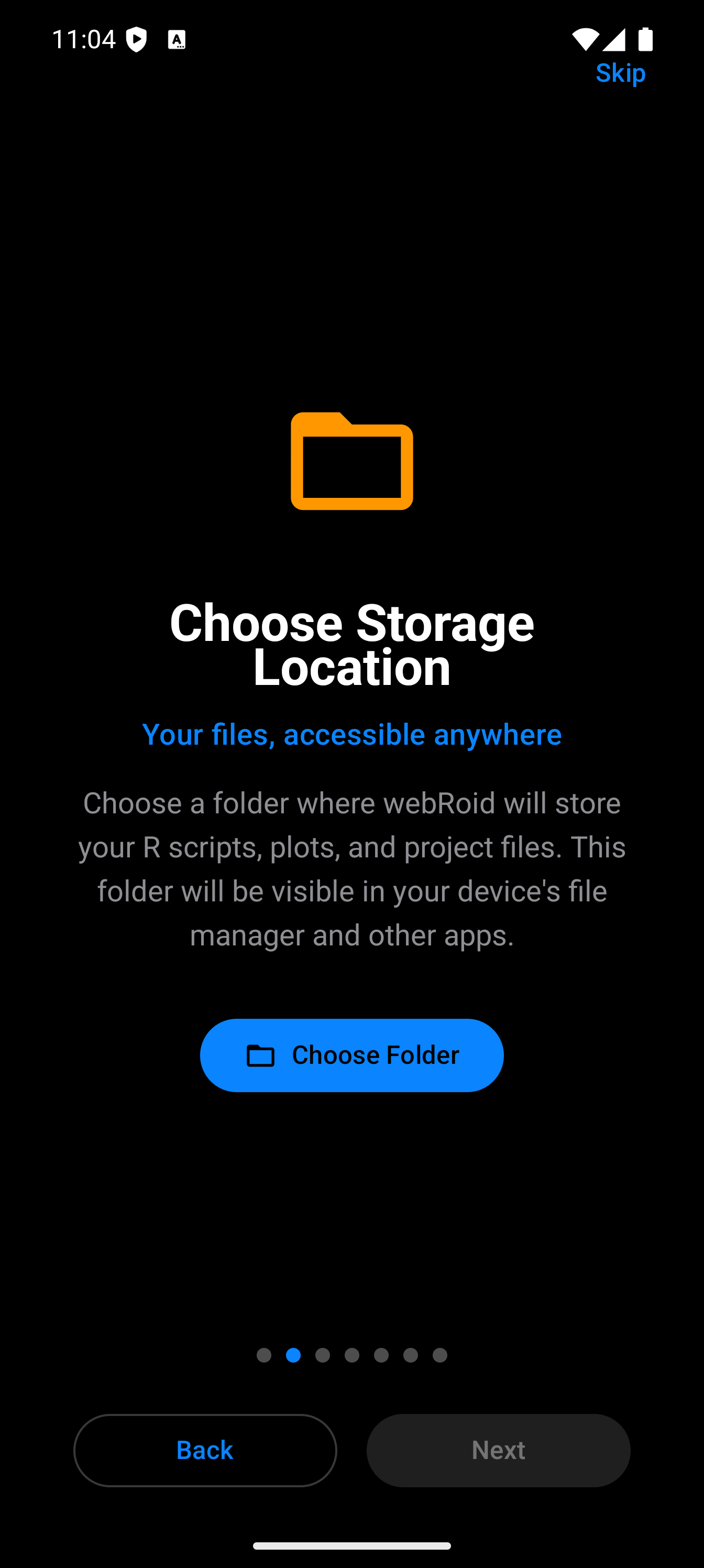
Once a folder is selected, a confirmation appears showing the chosen path.
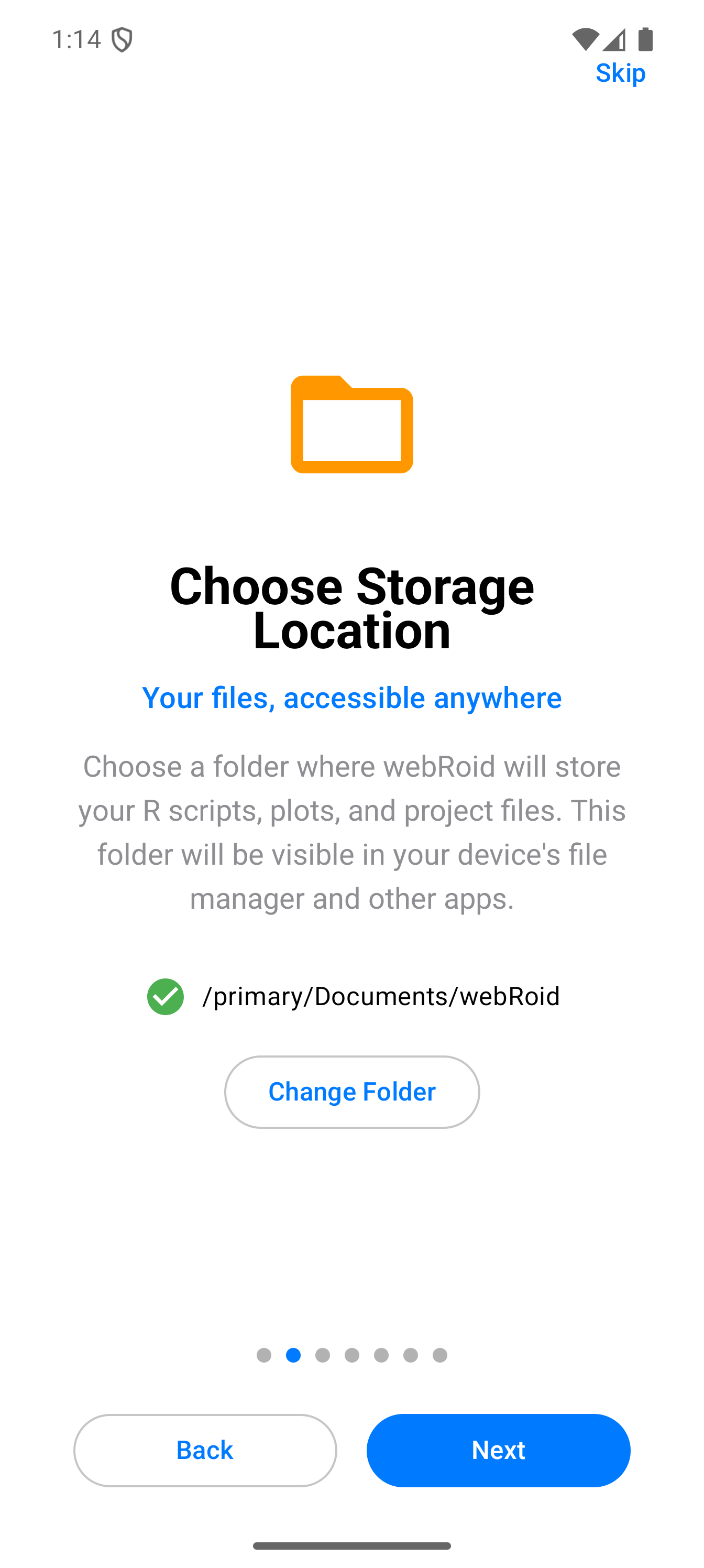
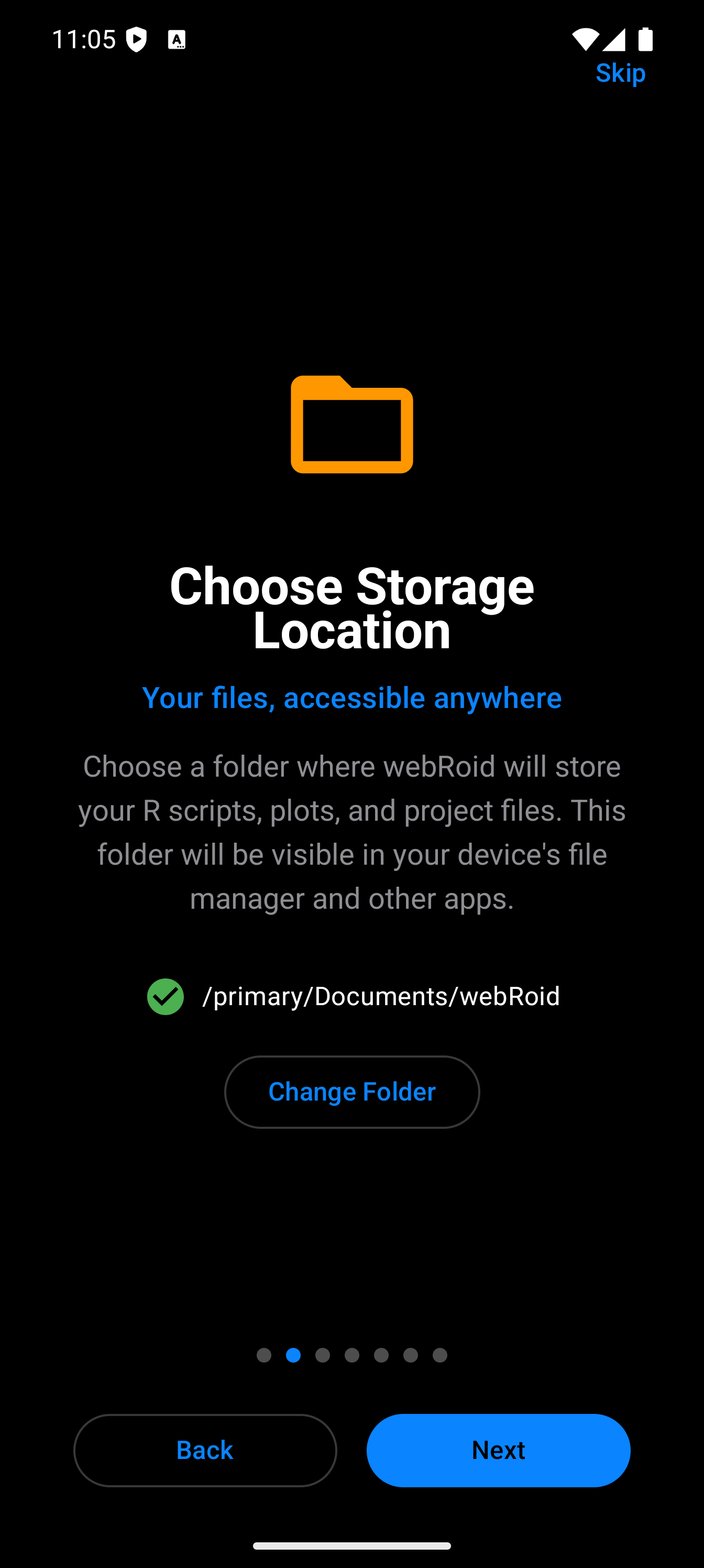
If you would rather not pick a folder, Use App Storage, below Choose Folder, keeps your files in webRoid’s own folder instead. It needs no folder picker, but it is deleted if you uninstall webRoid. It shows up as webRoid in the system Files app and in other apps’ file pickers, which is how you copy files out of it before uninstalling. See Settings > Storage Location.
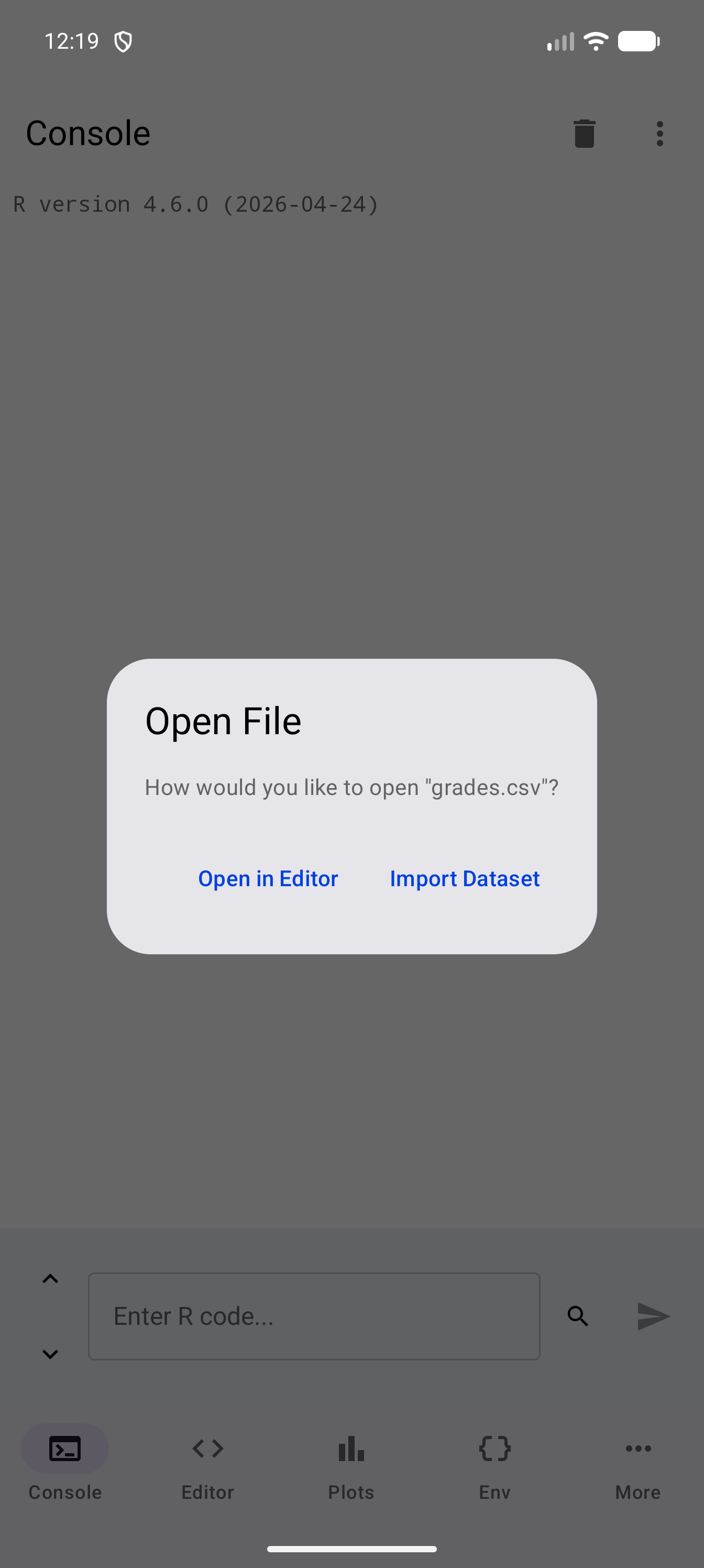
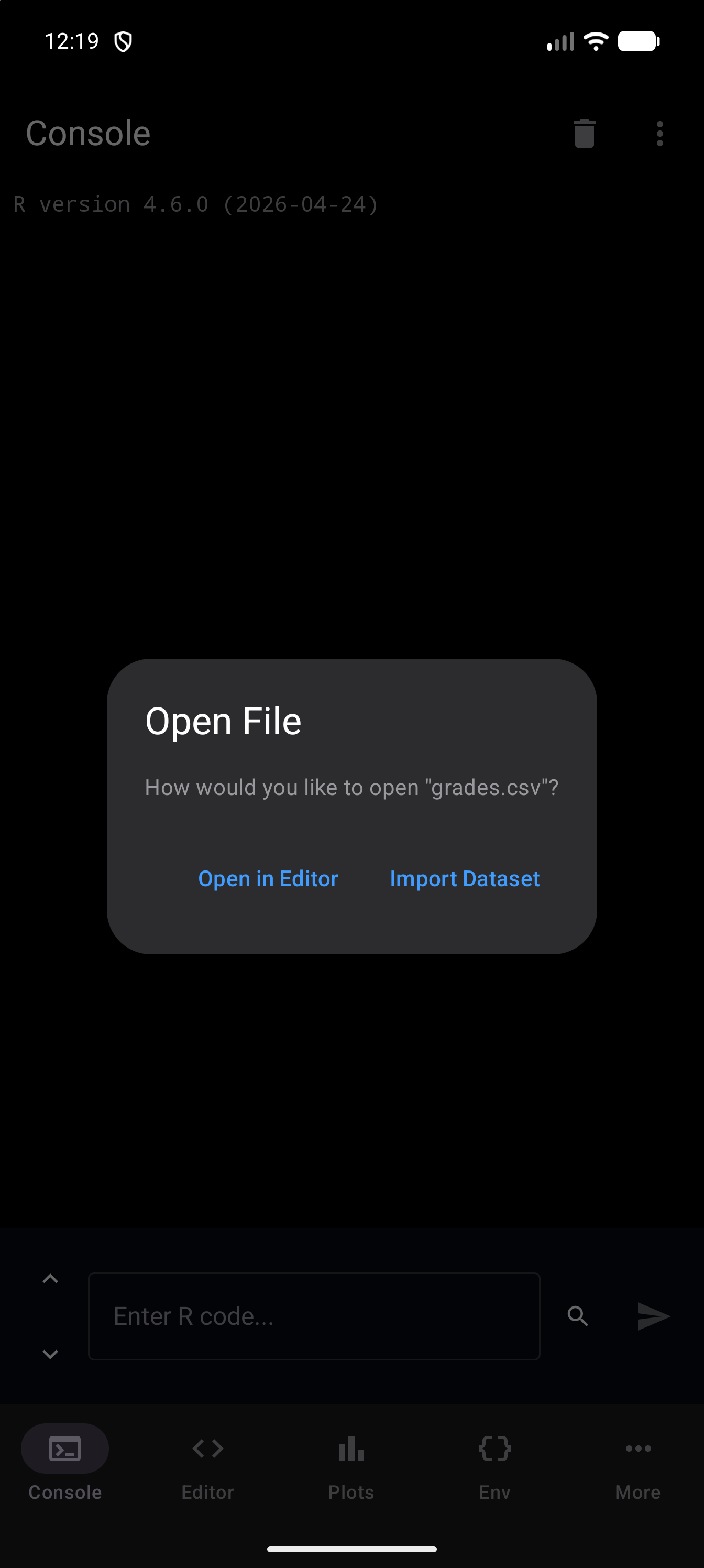
You can also import files from other locations. When you share a file to webRoid from another app (via Android’s share sheet), the file is copied into your current project directory. For a CSV, TSV or Excel file, an Open File dialog asks how you would like to open it, with Open in Editor and Import Dataset; any other file opens in the Editor, and the app switches to the Editor to show it. If you choose Import Dataset while R is still starting, the import wizard opens as soon as the app is ready.
Sharing text rather than a file, such as code selected in a browser, opens it in a new, unsaved Editor tab and switches to the Editor. The tab is named after the share’s subject when that is a file name such as analysis.R, and UntitledN.R otherwise. Save puts it in the project folder.
Use the Refresh option in the three-dot menu to reload the file list if you have modified files outside the app (for example, through a file manager or by connecting the device to a computer).